核心免费v1.160

Creator Studio

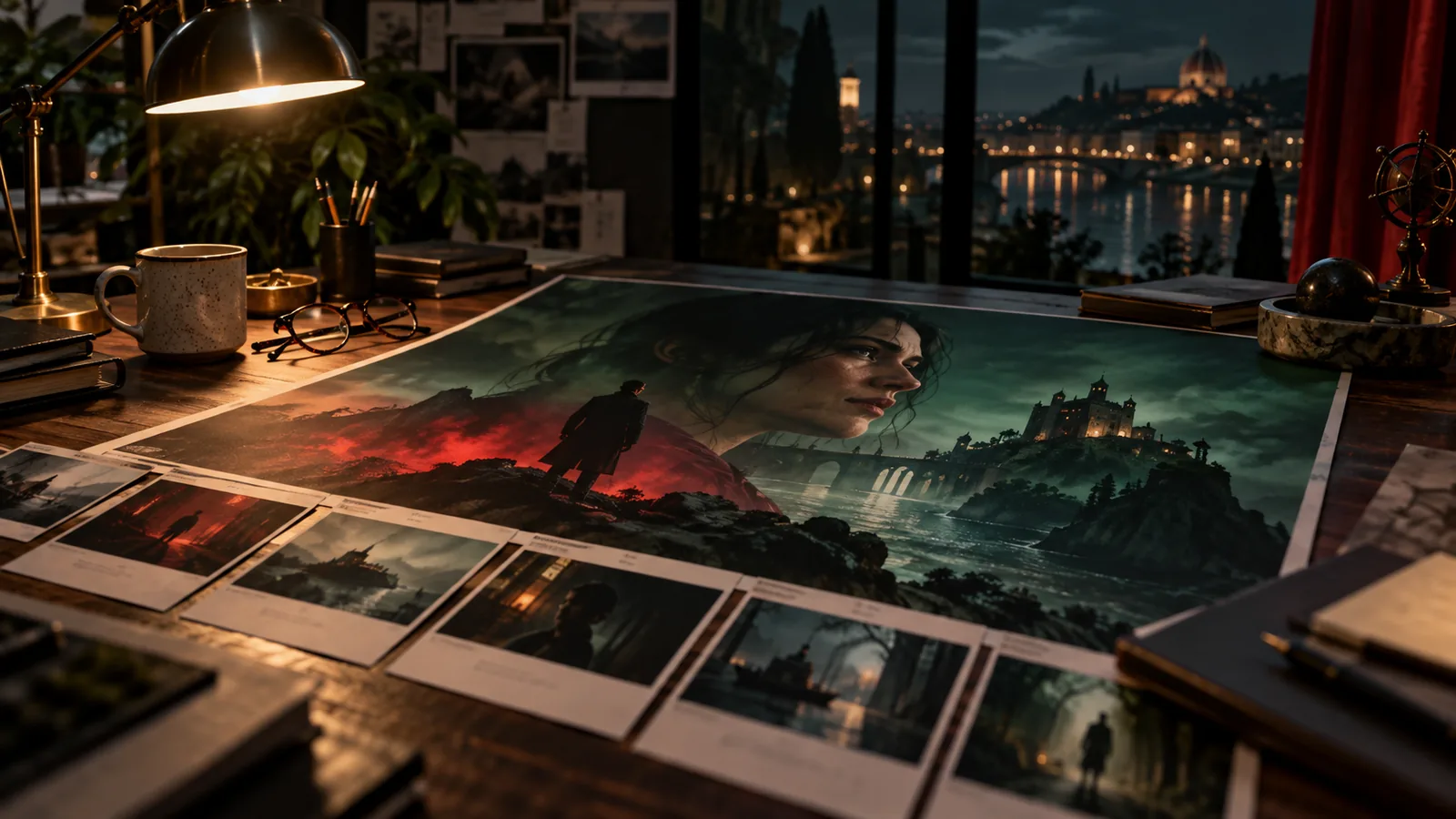
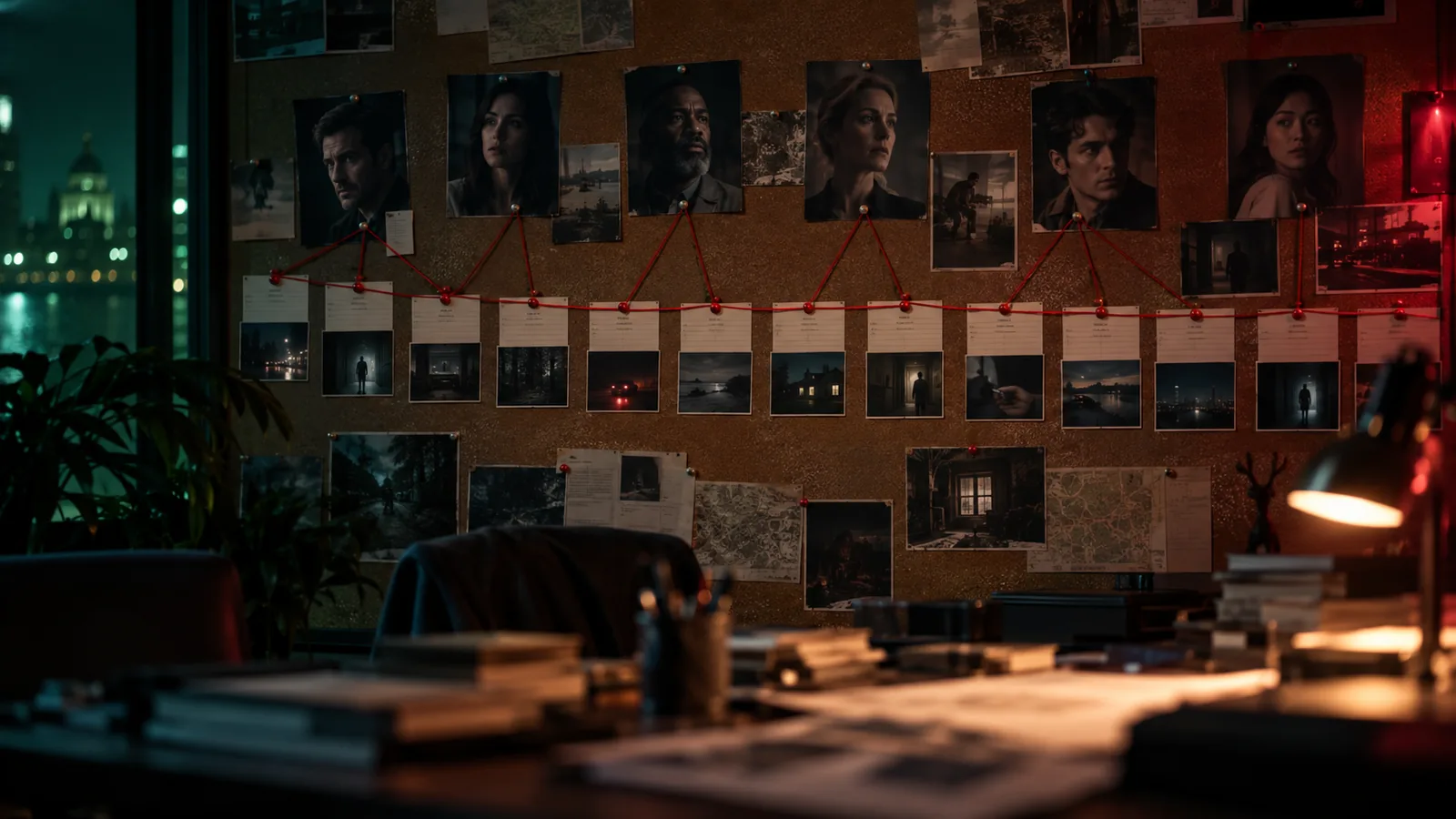
影视、视频或媒体制作的统一指挥中心——简报、故事大纲、剧本、场景、镜头、演员、外景等尽在一处。

Creator Studio on screen

Shot Editor

Video from your cast and references

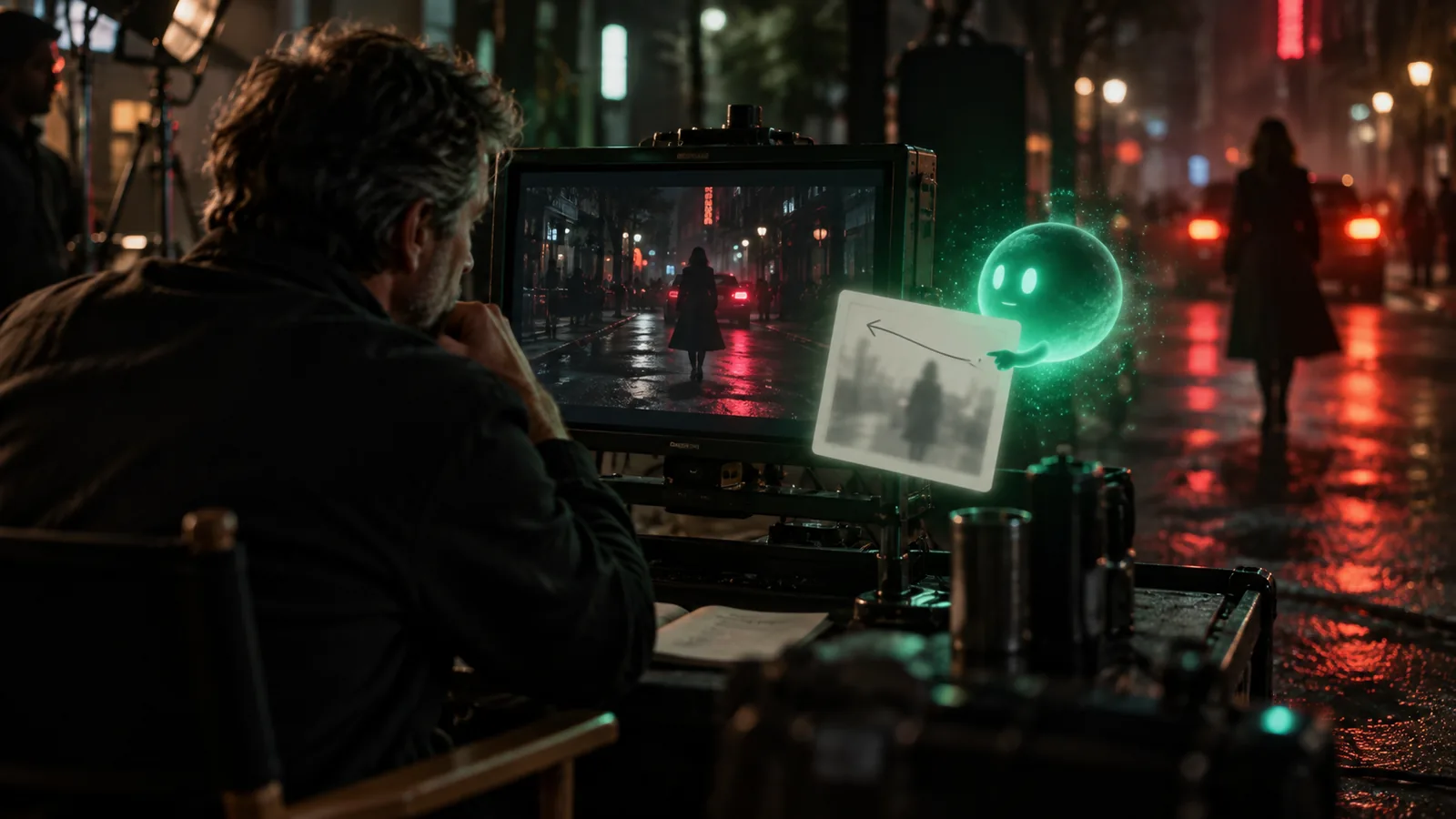
Render a shot as video with the characters, locations and props you mention, each carried in by its approved reference images. Most clips in Creator Studio are made this way.

Video from your cast and references

Creative

Shot Editor

See the price before you render

See the price before you render

The Shot Editor quotes the exact credit cost of an image or video from the chosen model, resolution and duration before you press Generate.

Fix one detail with a masked edit

Fix one detail with a masked edit

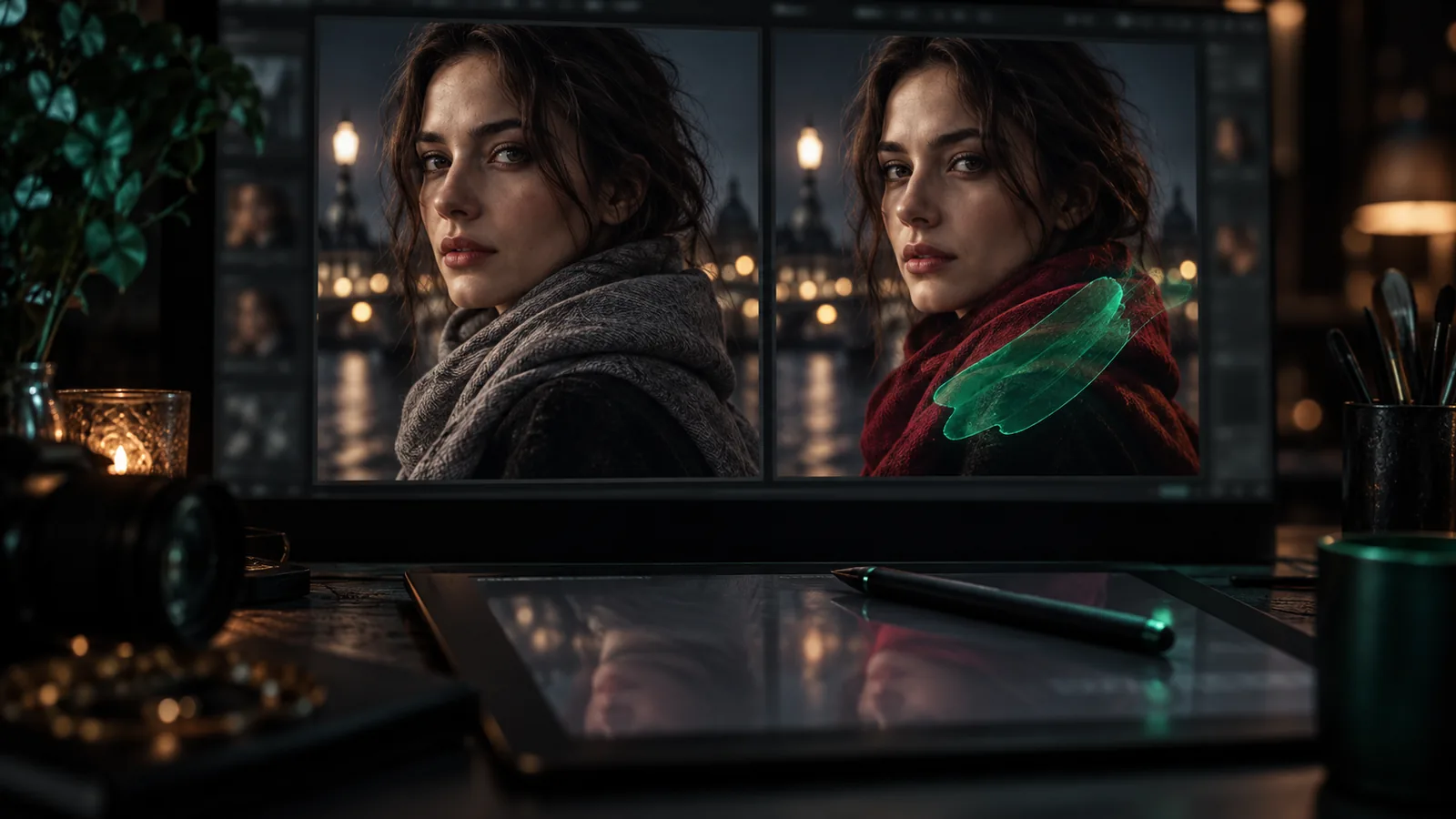
Brush over the part of a frame you want changed and describe the change; GPT Image 2.5 edits only that region and composites it back, so the rest of the frame stays.

Camera moves with preview clips

Camera moves with preview clips

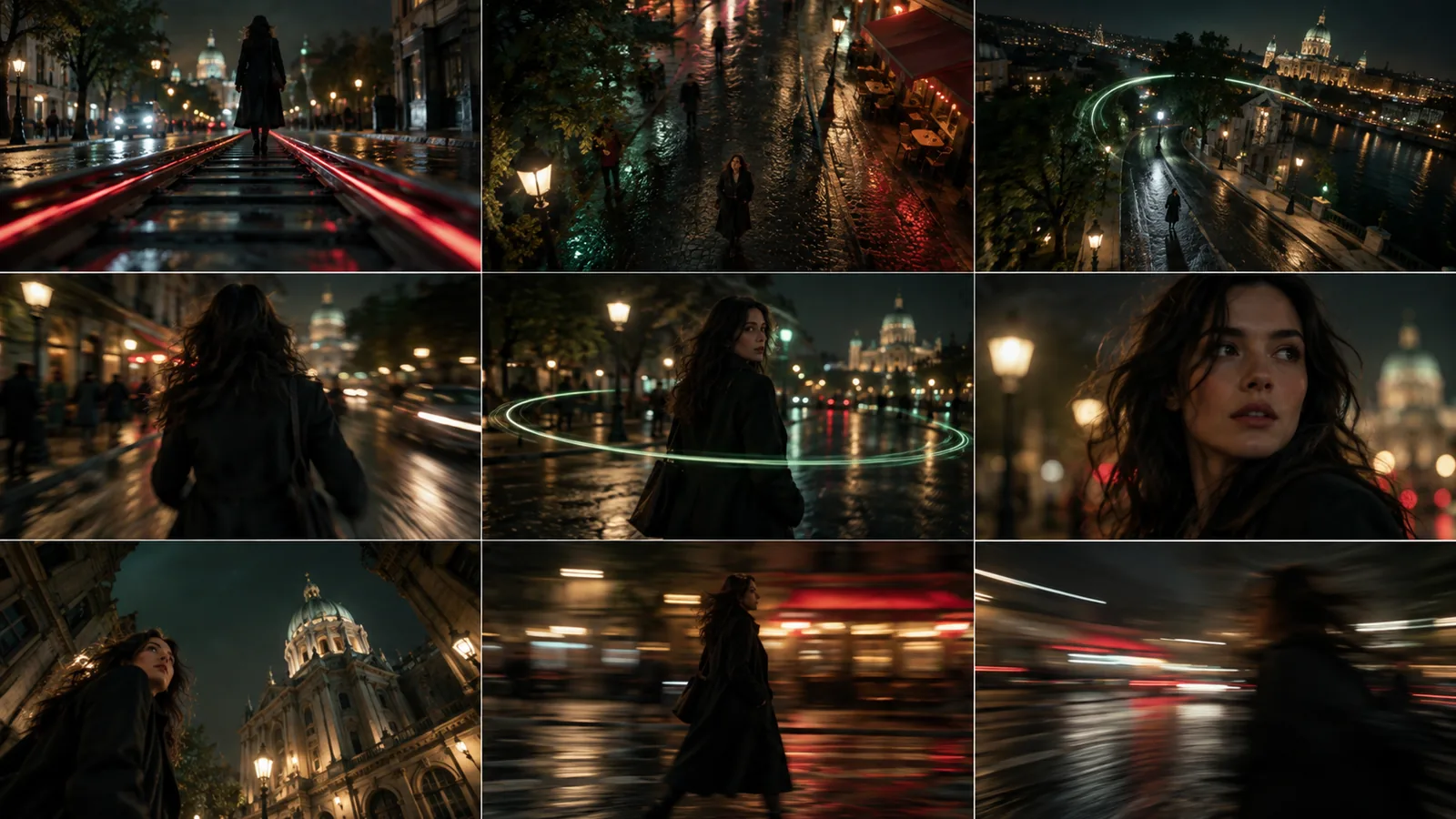
Pick from 49 camera moves (dolly, orbit, drone, FPV, speed ramps), each shown as a short preview clip, and the move is written into the video prompt.

Edit, extend and upscale a clip

Edit, extend and upscale a clip

Change an existing clip with a prompt (video-to-video), continue it with new seconds that join seamlessly, or upscale it, without starting over.

Bring your own footage into a shot

Bring your own footage into a shot

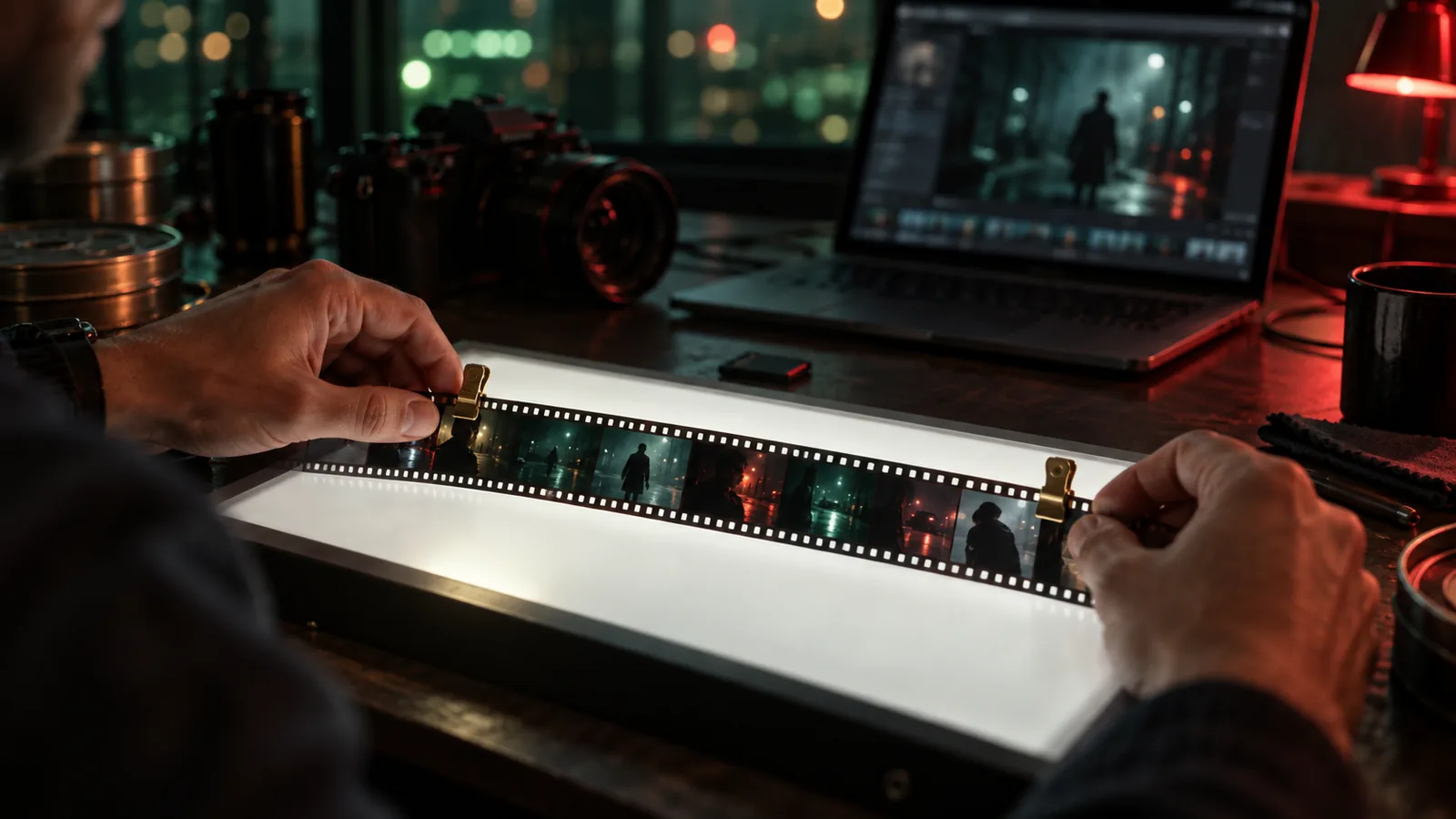
Import a clip, pick the exact frame range on a filmstrip, and use it as the shot's source for edits and continuations.

AI Fill for the shot

AI Fill for the shot

Fill the shot's prompt, breakdown and context from the scene and script with the model you choose, in your own language, then edit it.

Assets

A cast that looks the same in every shot

Build each character, location, costume and prop once, with reference sheets, turnarounds and viewpoints, and every frame and clip you render draws on the same approved look.

Characters
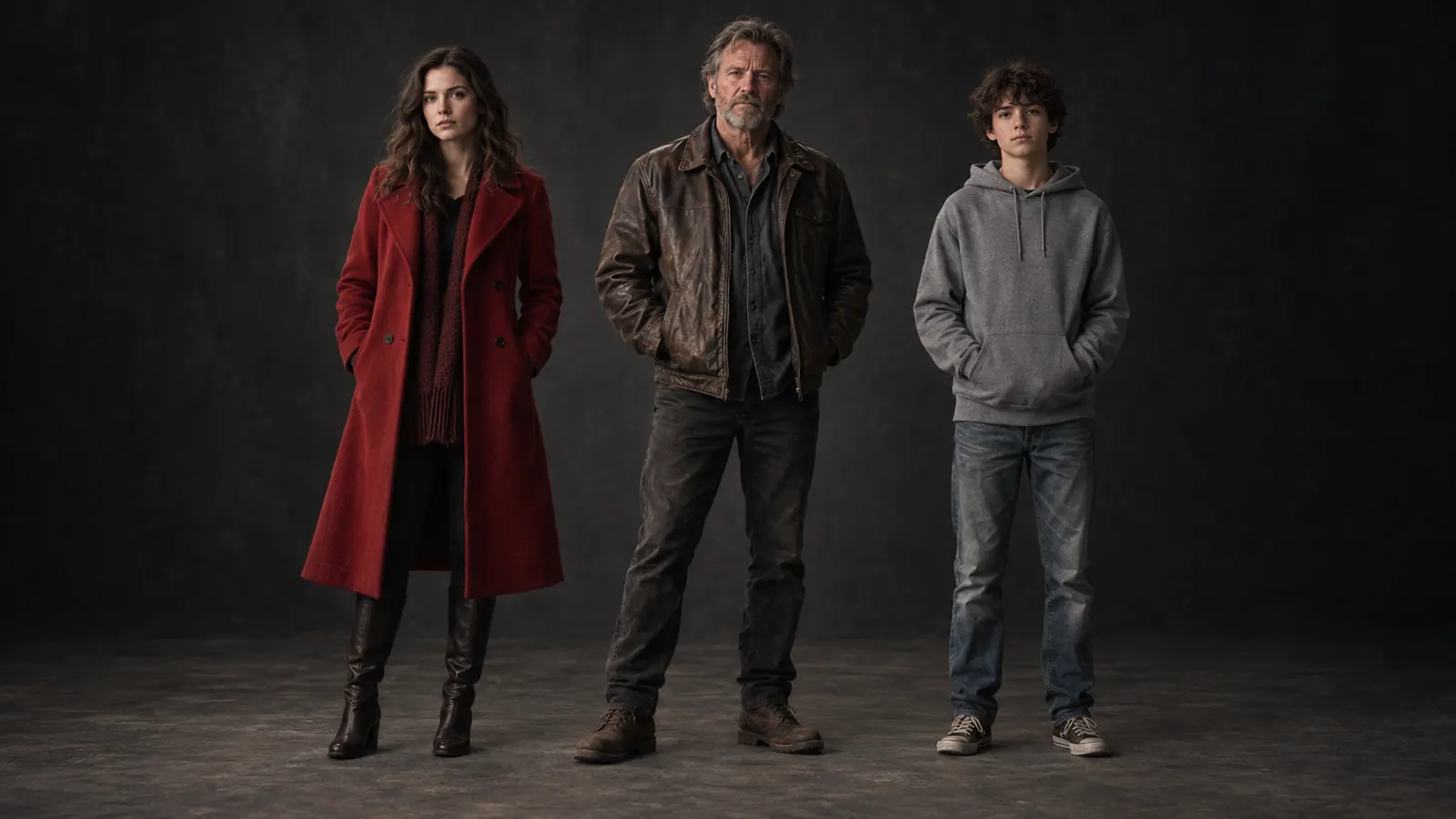
Characters. Faces, builds and costumes that stay the same from the first shot to the last.
Turnarounds
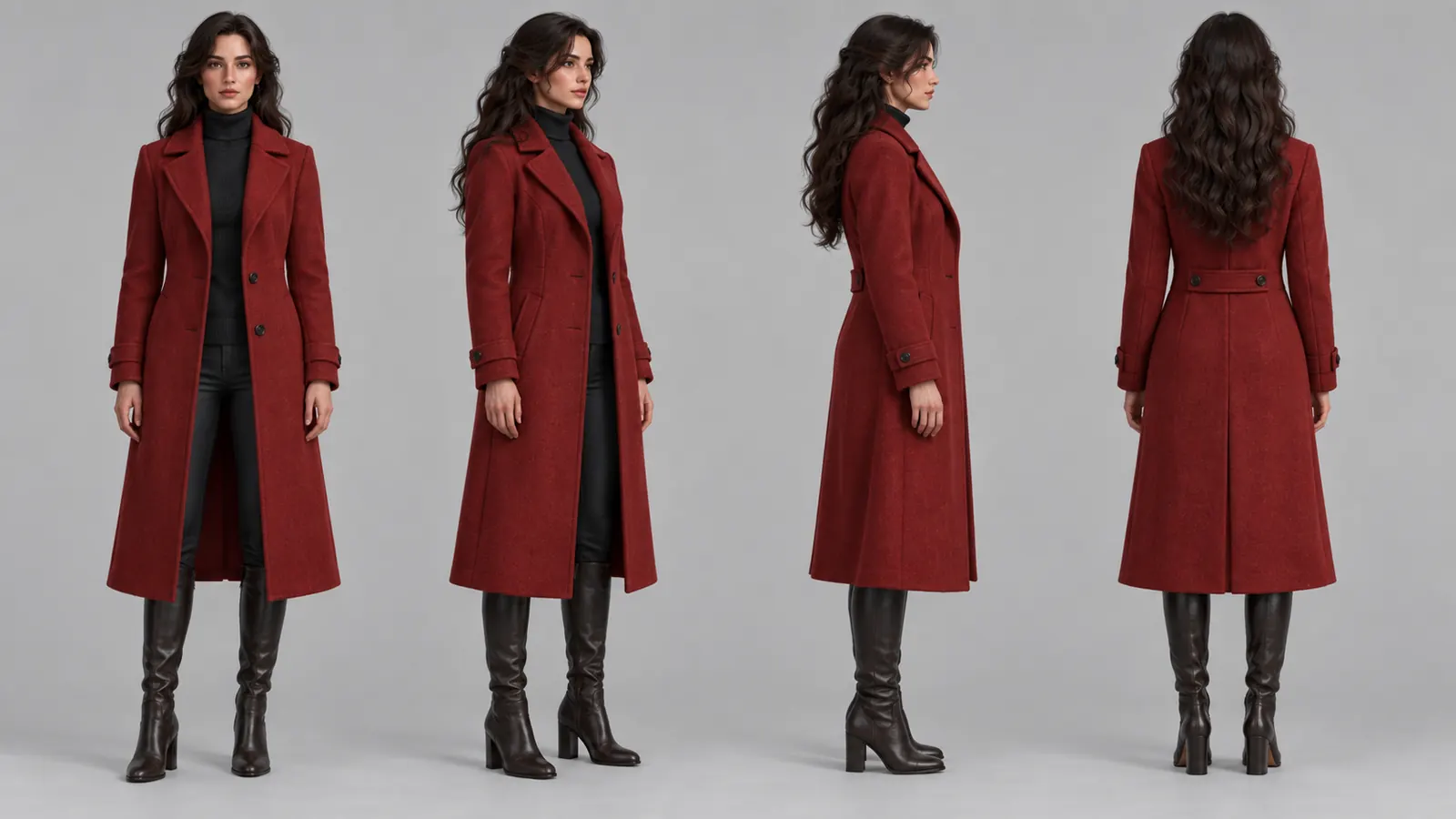
Turnarounds. Front, three-quarter, profile and back, approved before the first render.
Locations with viewpoints
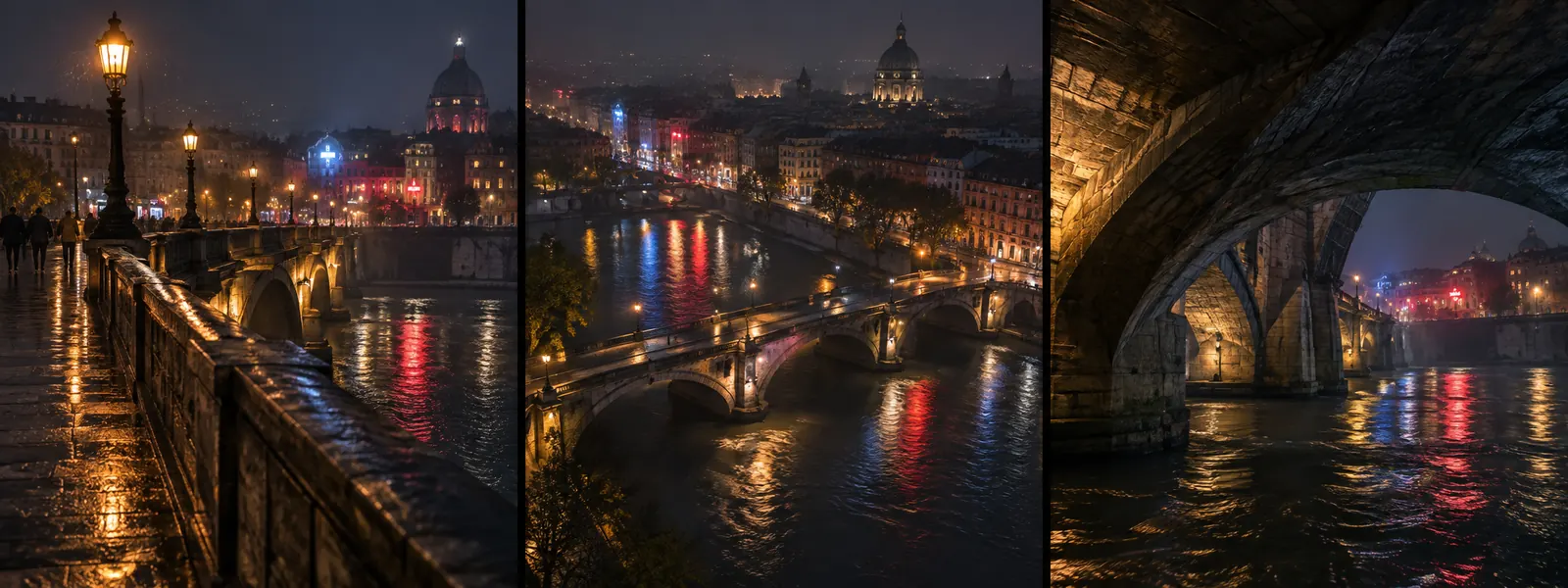
Locations with viewpoints. One place, saved from every angle you will shoot it.
Wardrobe states
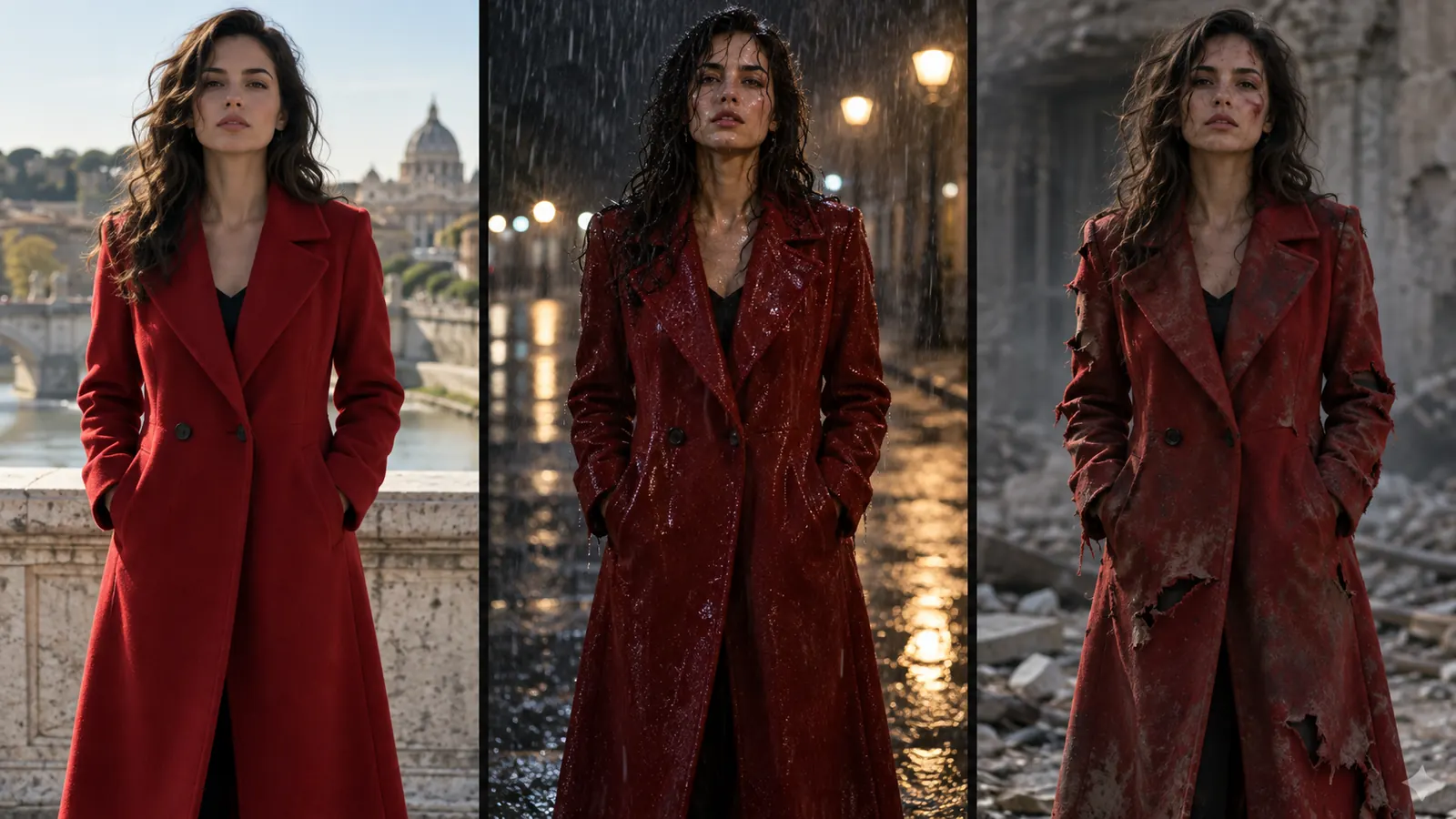
Wardrobe states. The same coat dry, soaked or torn, scene by scene.

Script

Write it, and the breakdown follows

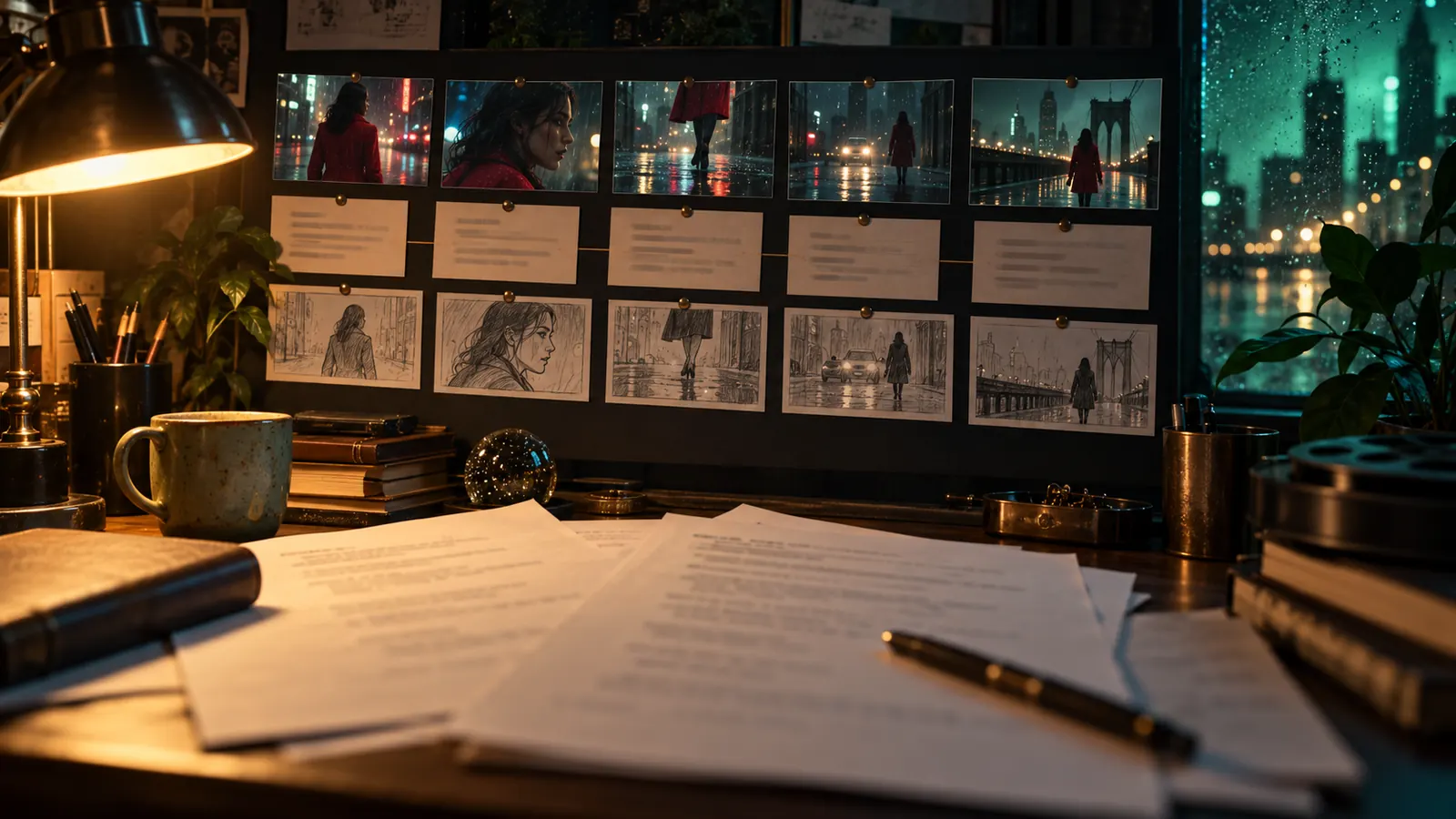
Write in a screenplay editor with an AI co-writer, or import a structure. Creator Studio breaks the script into scenes and shots and lists the cast, locations and props they need.
Write it, and the breakdown follows

Creative

Visual Modes

AI scene direction

Let the AI propose the coverage for a scene (the shots, angles and moves) from the script and your direction dials.

Scene Editor

Open a scene to set its script, cast, location, looks, props and styles in one place, and switch between versions of the scene.

Cut versions

Keep several versions of the cut, compare them and set the active one.

Watch agents work live

Shots and renders an AI agent or a teammate creates appear on your timeline and in the open shot as they happen, without a reload.

Scene Map Editor

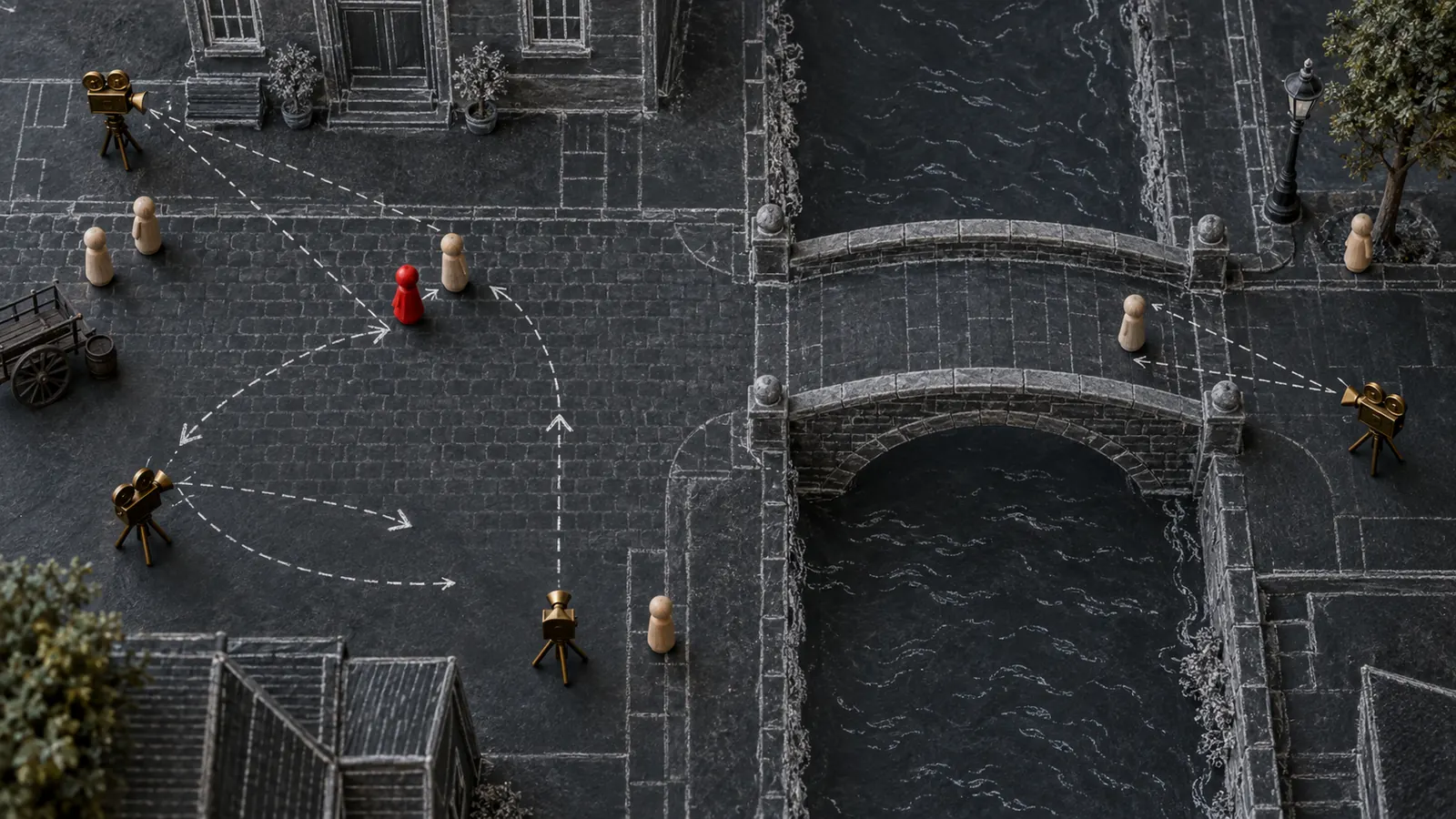
Block the scene from above by placing actors, props and cameras, and the positions feed straight into the shot prompts.

Timeline audio and mixer

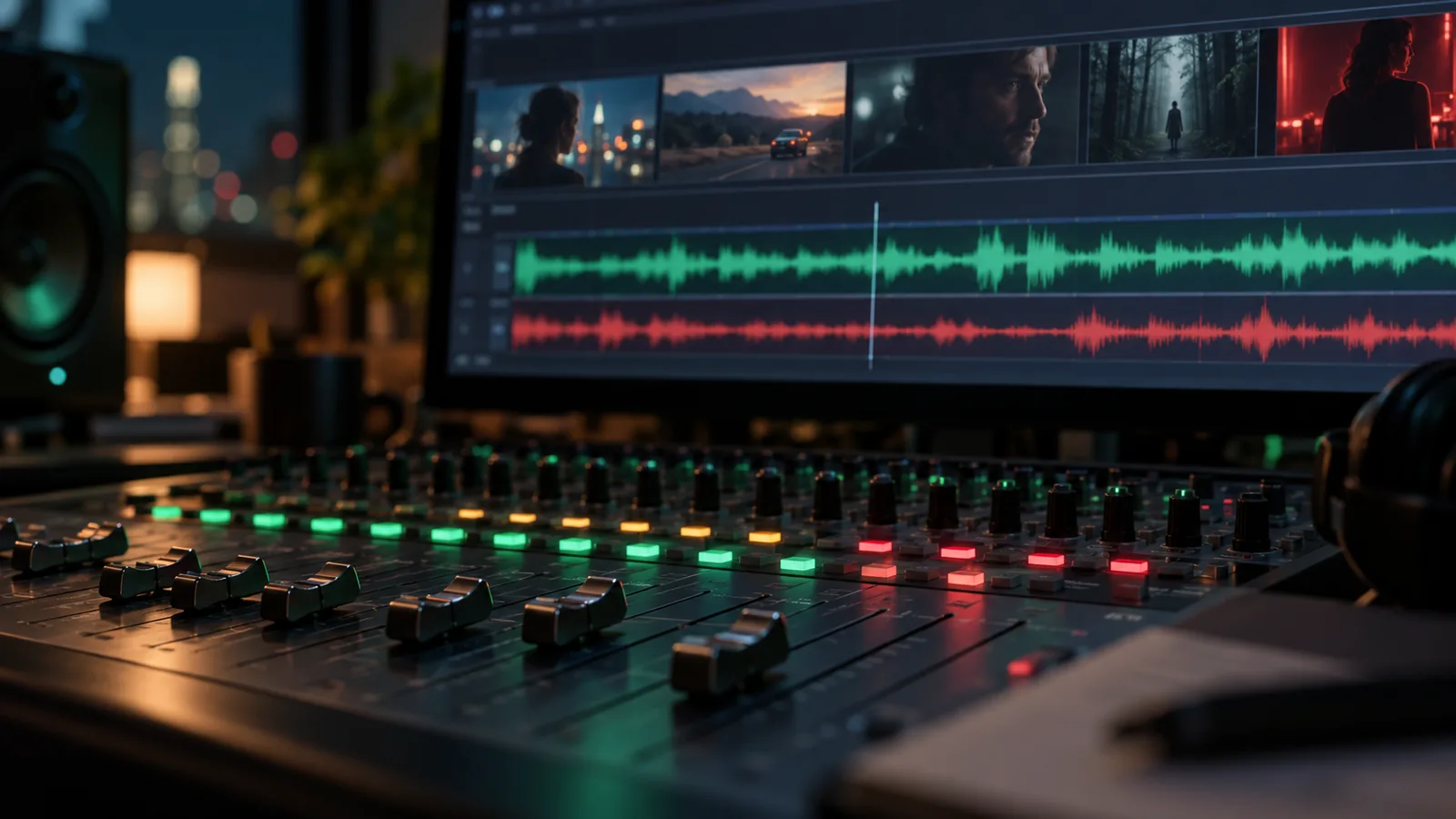
Lay music, dialogue and effects on audio tracks under the picture and balance them in a mixer.

Project Administration

Hand off to the edit

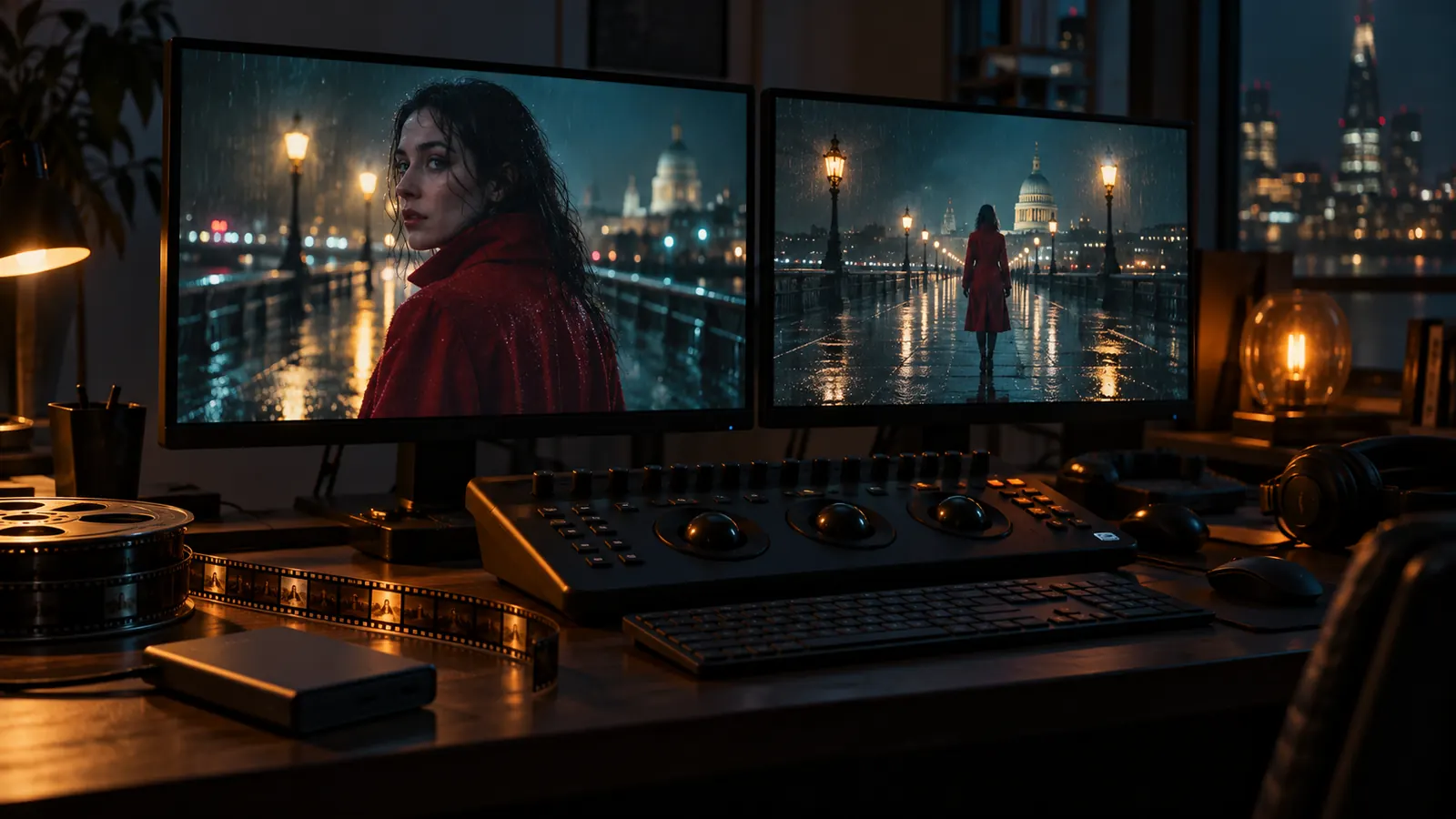
Export the cut as FCPXML for Final Cut Pro, or render it straight to a video file with scenes, shots and audio in order.
Hand off to the edit

Developer & API

An AI crew inside your project

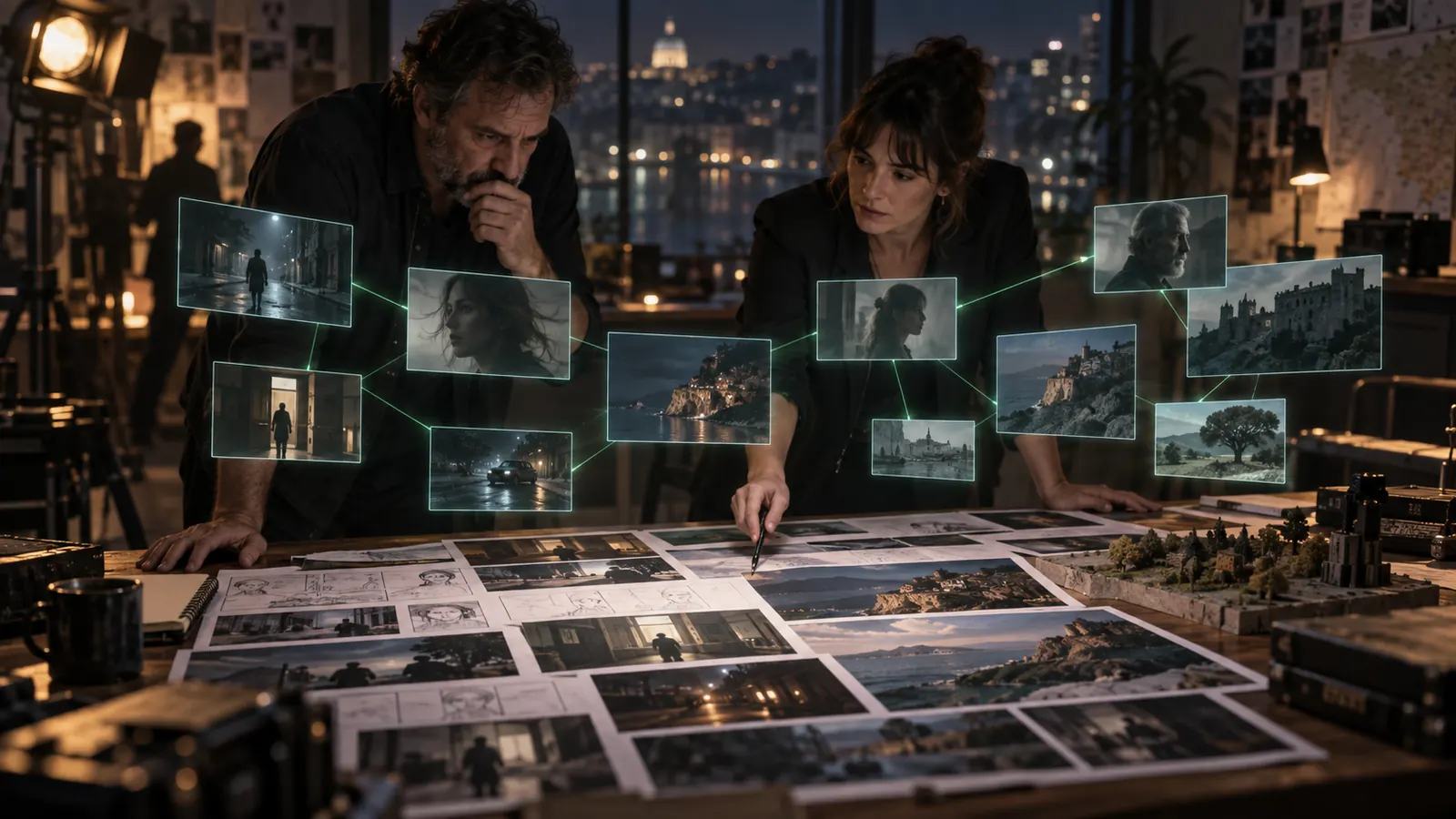
AI agents work in the same project you do. Through 262 Creator Studio tools they update shots, queue renders, manage assets and track tasks, and every change shows up in the project.
An AI crew inside your project

All features

63 more features

Shot Editor

Shot Editor

Direct each shot with a real camera body, lens, film stock and camera move (80 cameras, 74 lenses, 49 moves), and mention your cast with @. The prompt is written for you.

Shot Editor

Multi-Shot Composition

Explore a shot's coverage in one pass: 2×2 to 4×4 grids of camera angles, then keep the angle that works and upscale it.

Shot Editor

AI Image Generation

Generate storyboard frames from the shot, the cast and the project's look, with the image model you choose for each shot.

Shot Editor

Every take, one click back

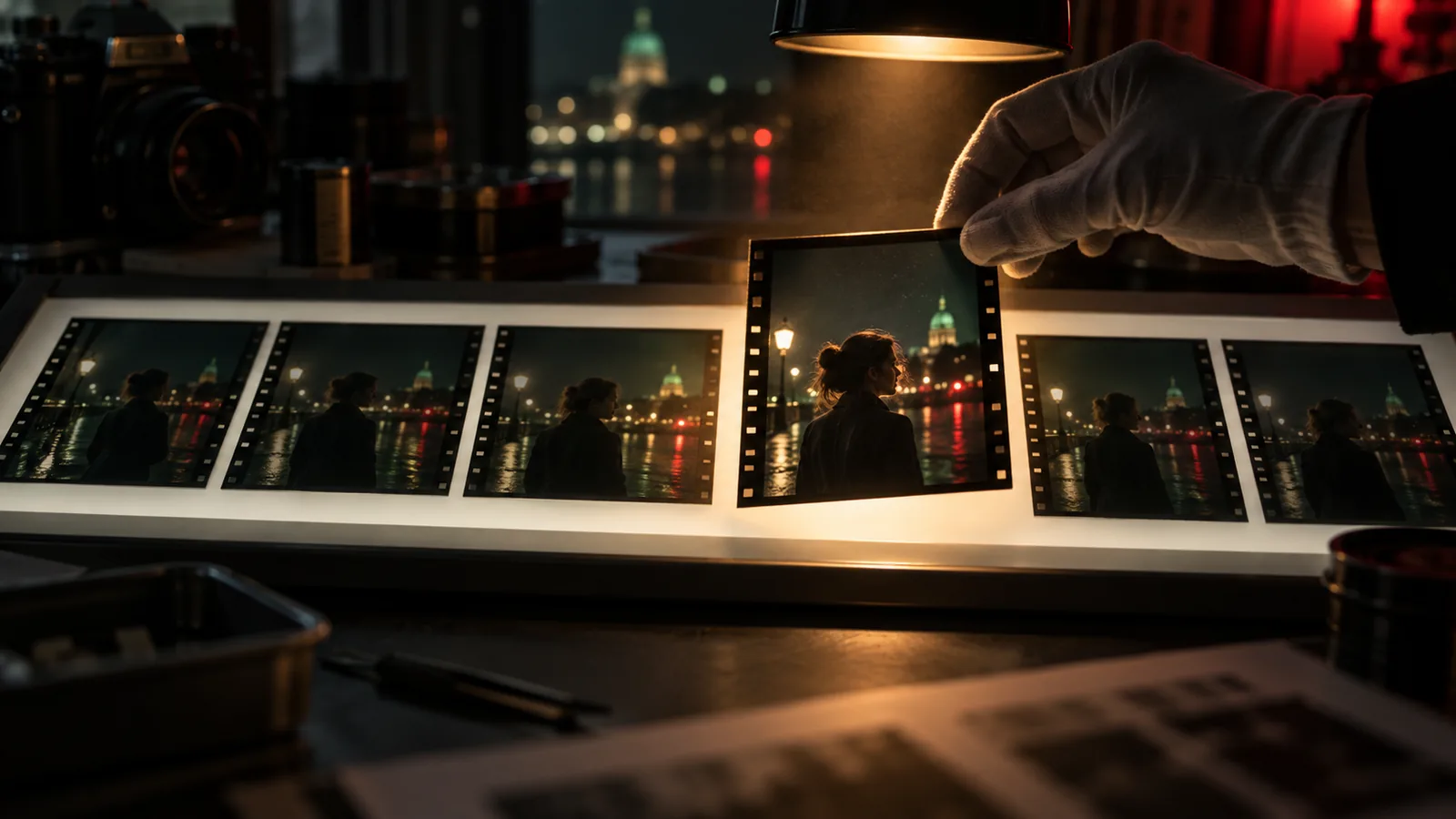
Each shot keeps all its takes and versions on a version timeline, so you can compare them and restore any earlier one.

Shot Editor

REF SHOT: keep the storyboard frame

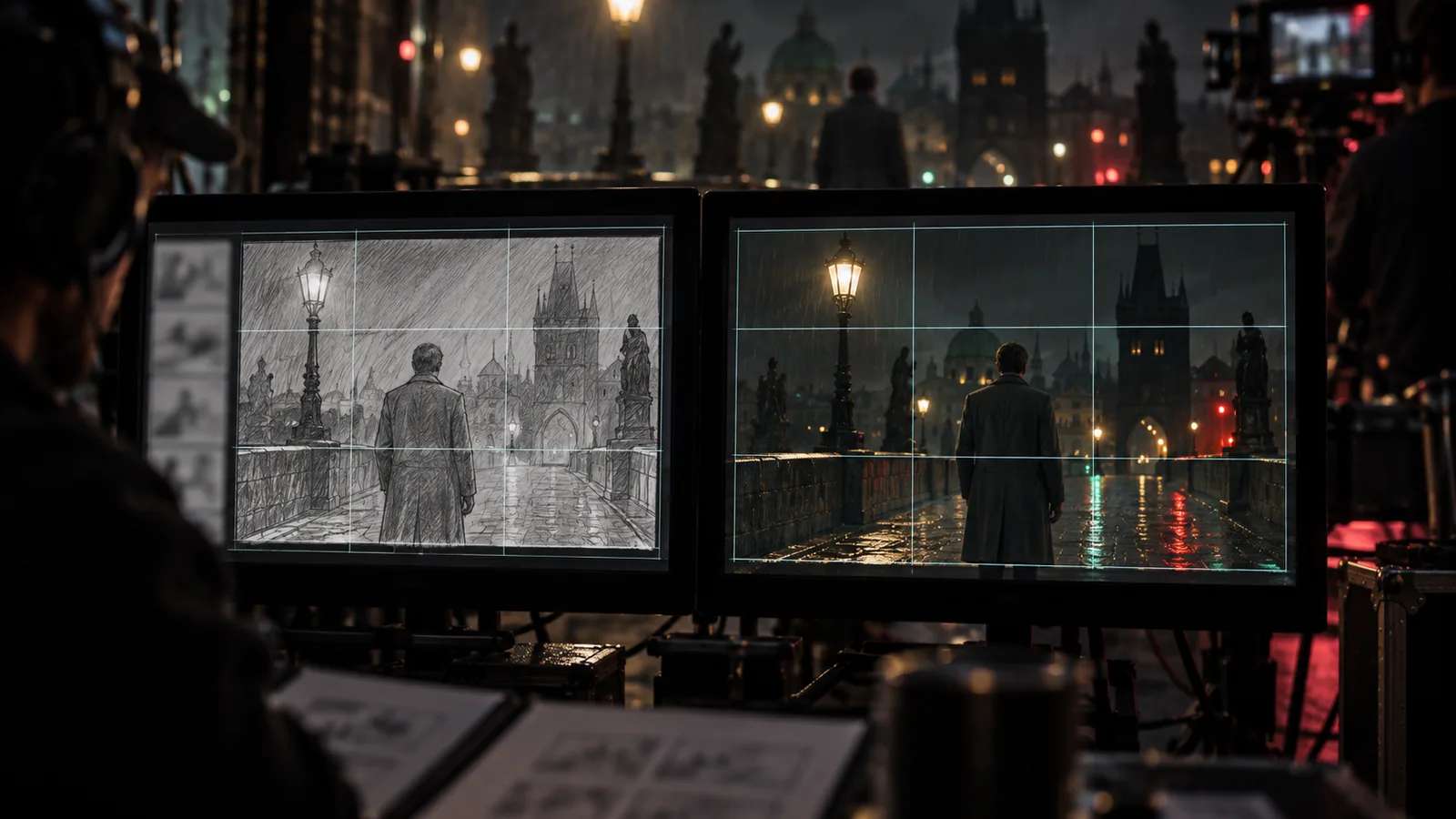
Pin the shot's storyboard frame as the composition template, so the clip keeps its camera, angle and layout while your cast plays the scene. Use +STORYBOARD to follow a whole storyboard sheet instead.

Shot Editor

Draft at 480p, finish in 1080p

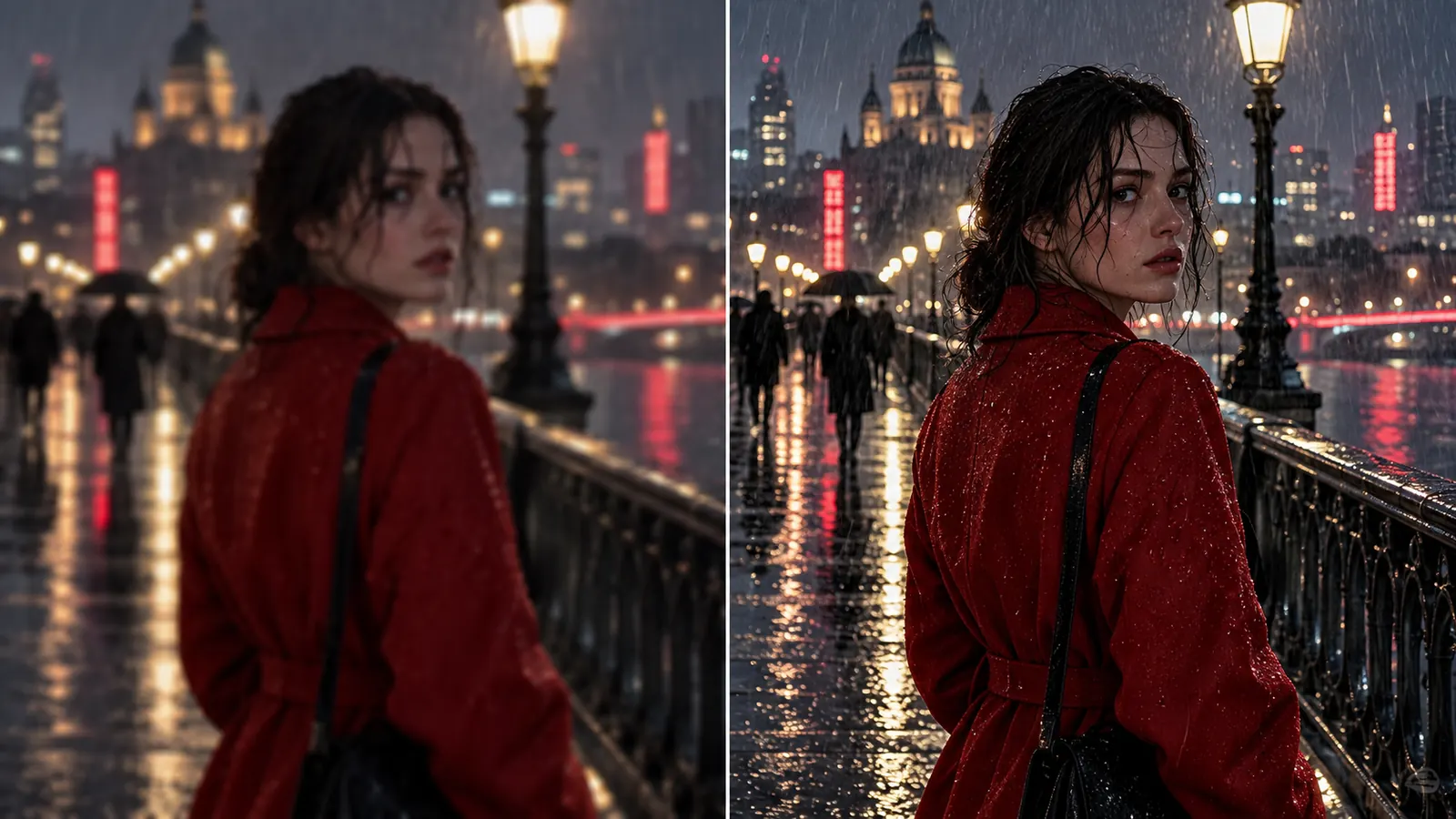
Render a quick 480p Seedance 2.5 draft to judge the motion, then turn the take you like into a 1080p final of the same picture, without re-prompting or rolling a new take.

Shot Editor

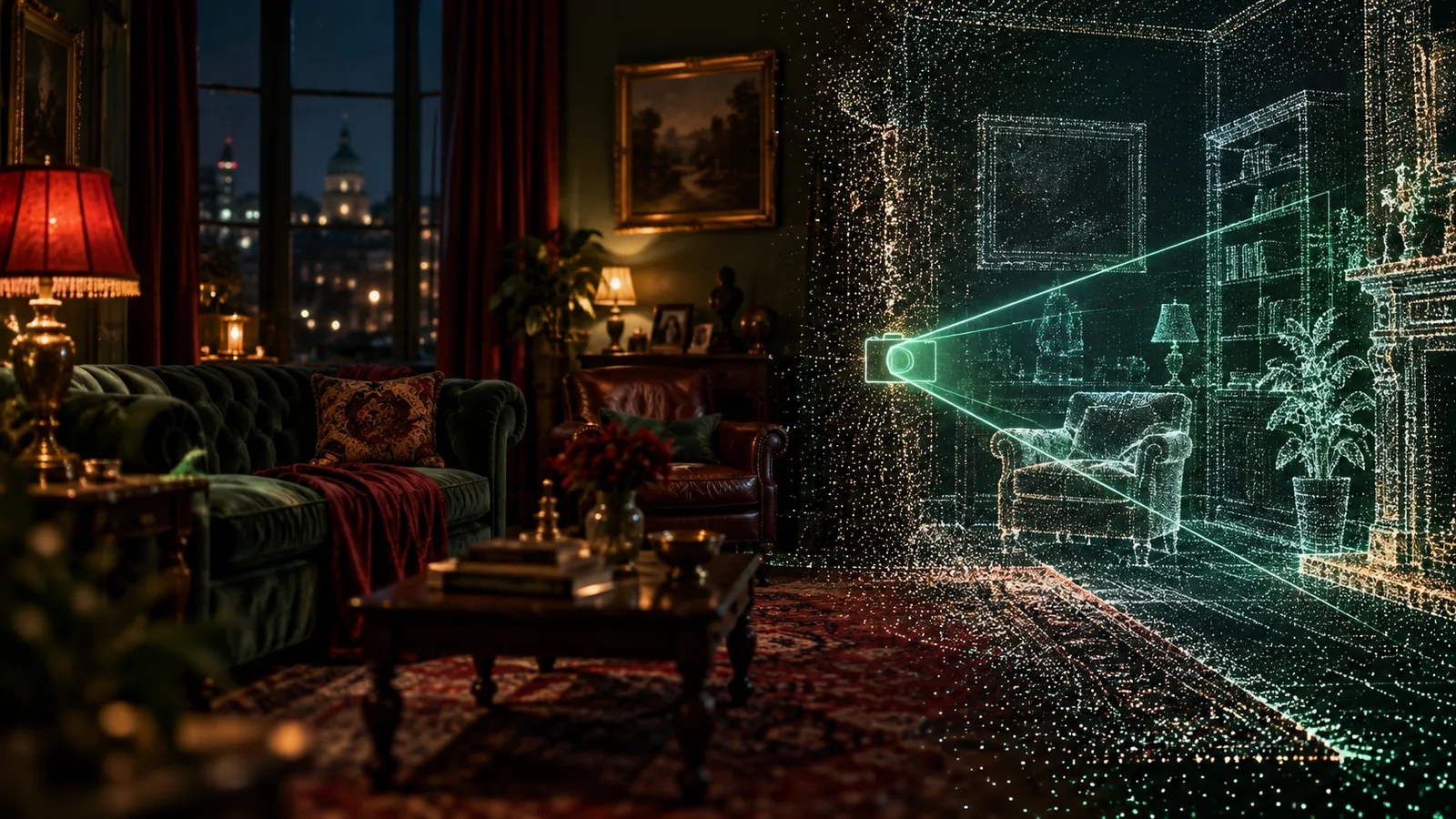
3D world from a shot

Generate an explorable 3D world from a shot's frame to find new angles in the same space.

Shot Editor

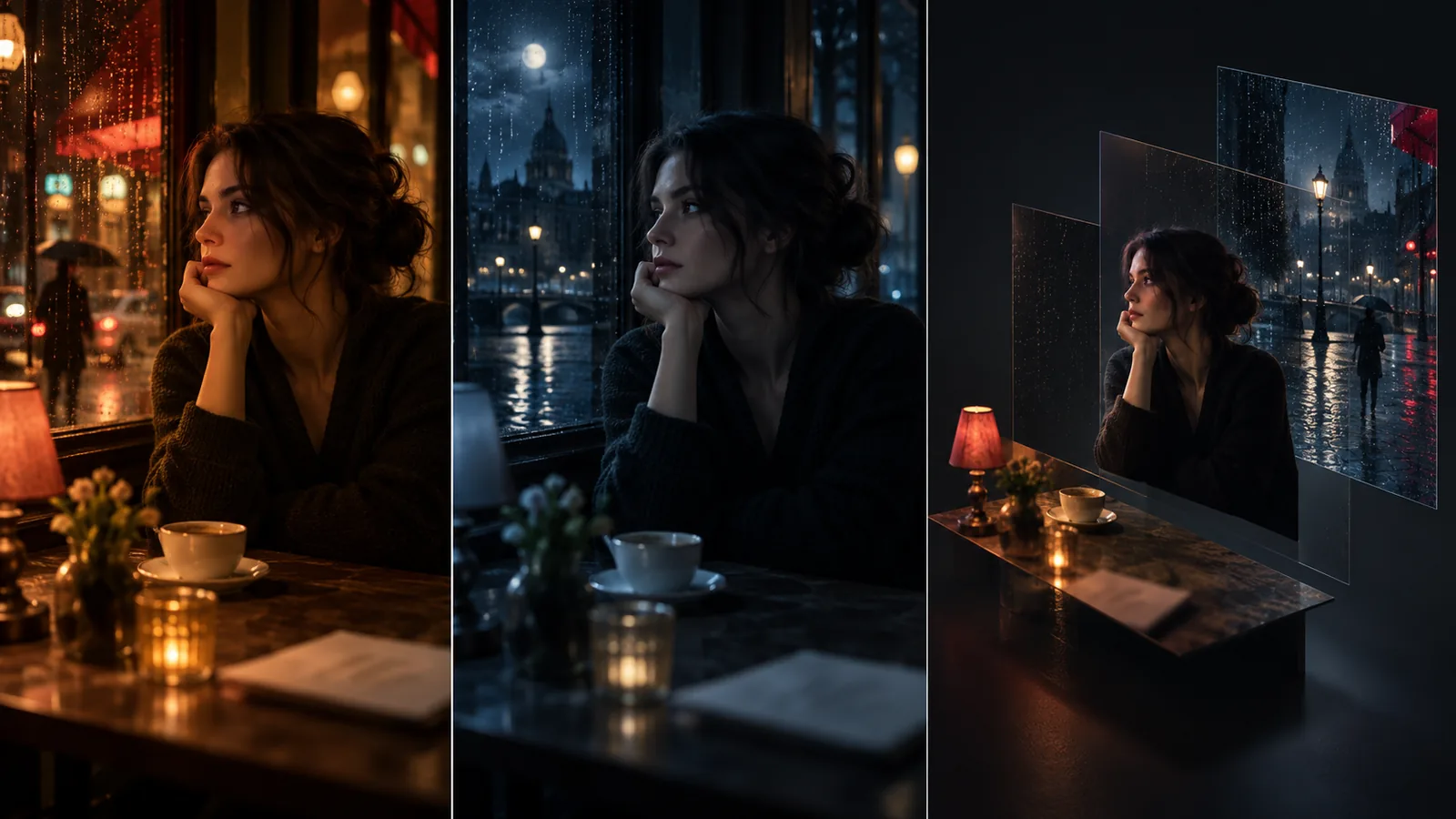
Relight, re-angle and split a frame

Relight a finished frame, move the camera angle, or decompose it into layers, without regenerating the shot from scratch.

Shot Editor

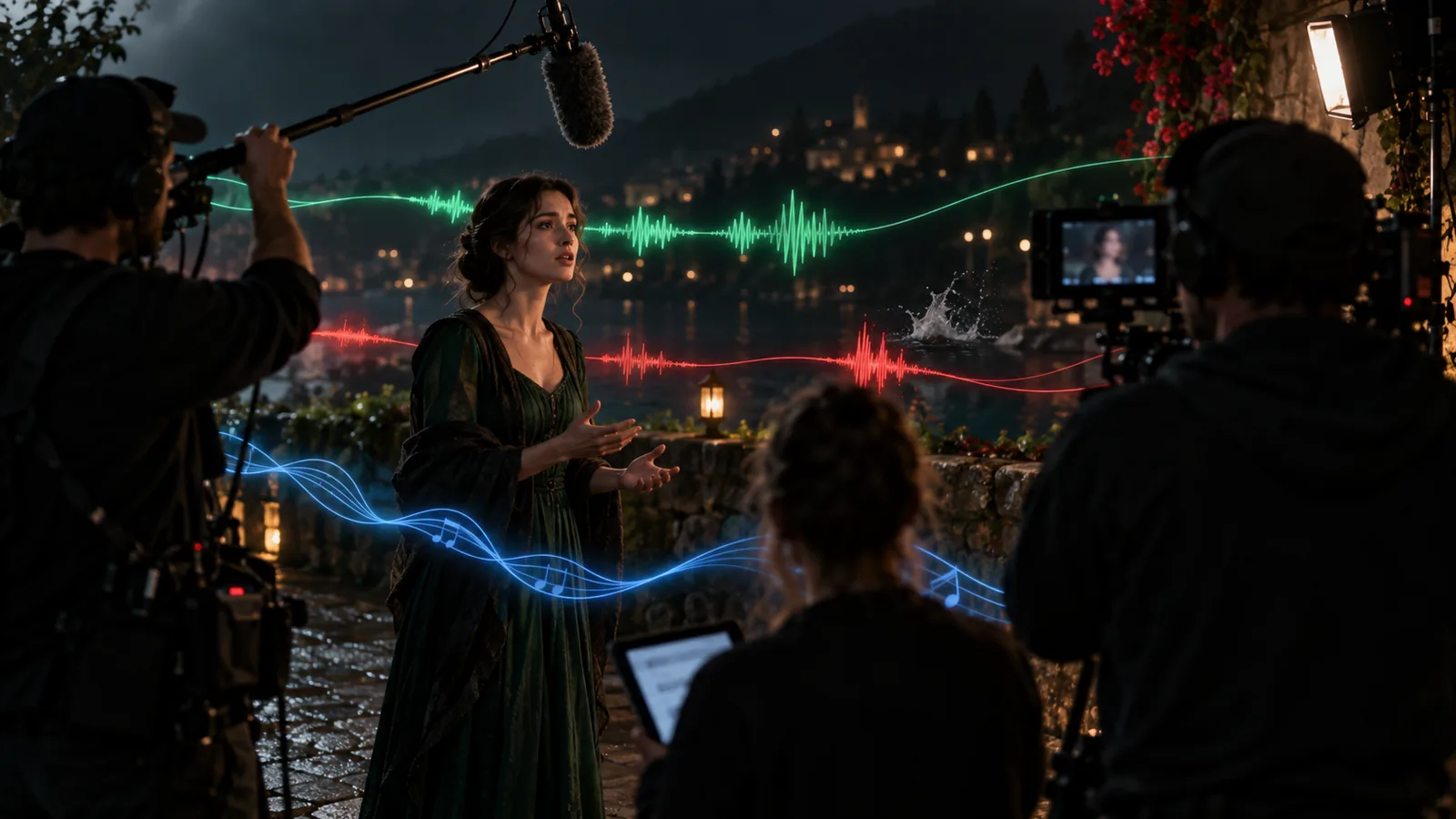
Dialogue, voices and sound per shot

Add dialogue, sound effects and music rows to each shot, give characters a voice, and lip-sync the line to the clip.

Shot Editor

Ask the AI inside the shot

Talk to an AI assistant from inside the Shot Editor; it reads the shot, the scene and the cast and changes them for you.

Assets

Real actors, verified faces

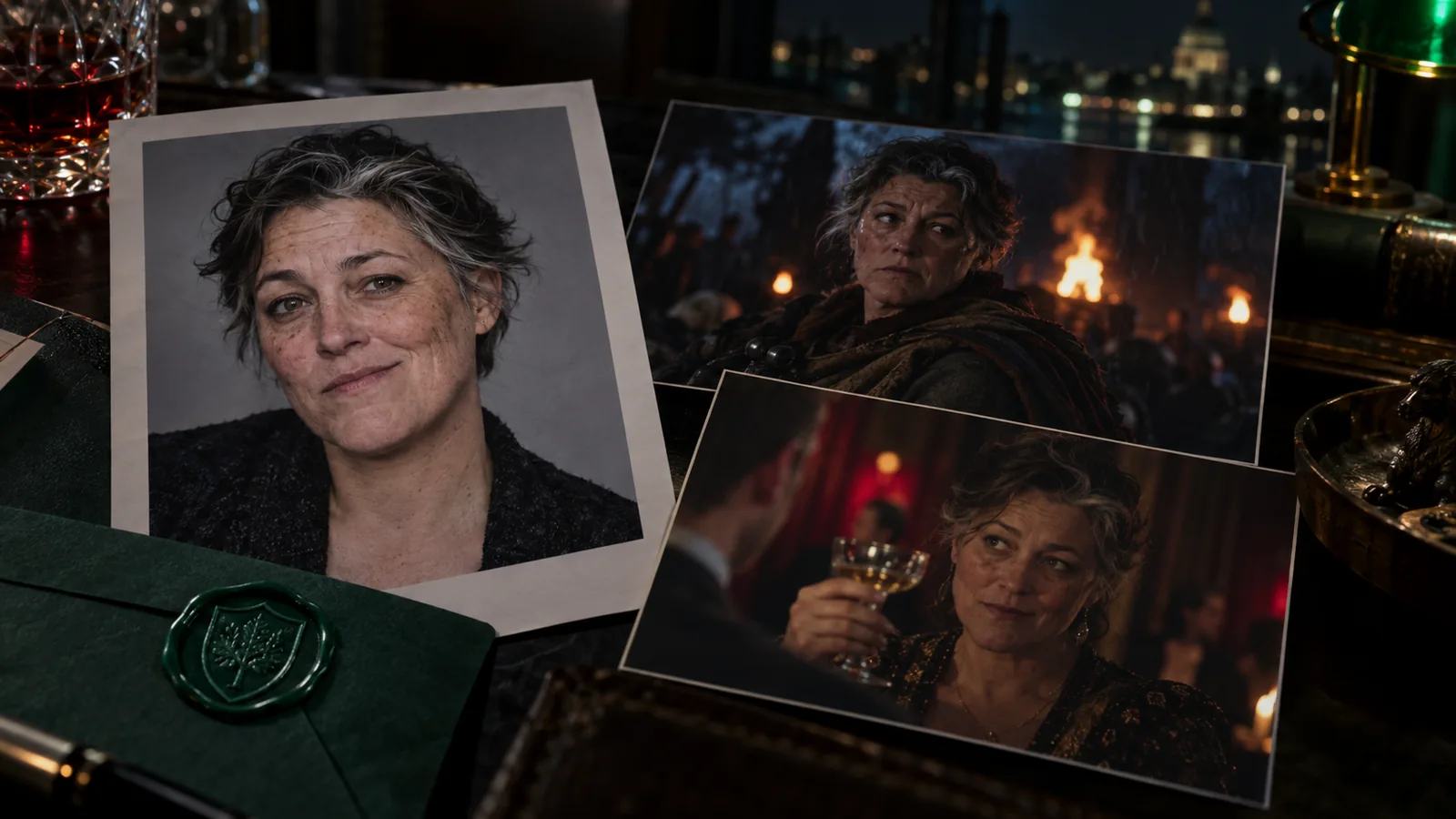
Cast a real person: after consent (KYC) their face is registered as a verified identity, so the video model accepts it and keeps it consistent across shots.

Assets

Locations

Scout with map search, then save the viewpoints you will shoot from. Every scene set there reuses the same place and angles.

Assets

Wardrobe

Dress each character scene by scene, including states like wet, torn or evening wear, and source real items; the renders follow the costume you set.

Assets

Asset Concept Sheets

Compare several takes on a character, location or prop side by side, refine one area with the mask brush, and approve one before it goes into shots.

Assets

Unified Asset Library

Every generated and uploaded image, clip and track in one library, with draft and final status and a picker that works anywhere in the project.

Assets

Project Style References

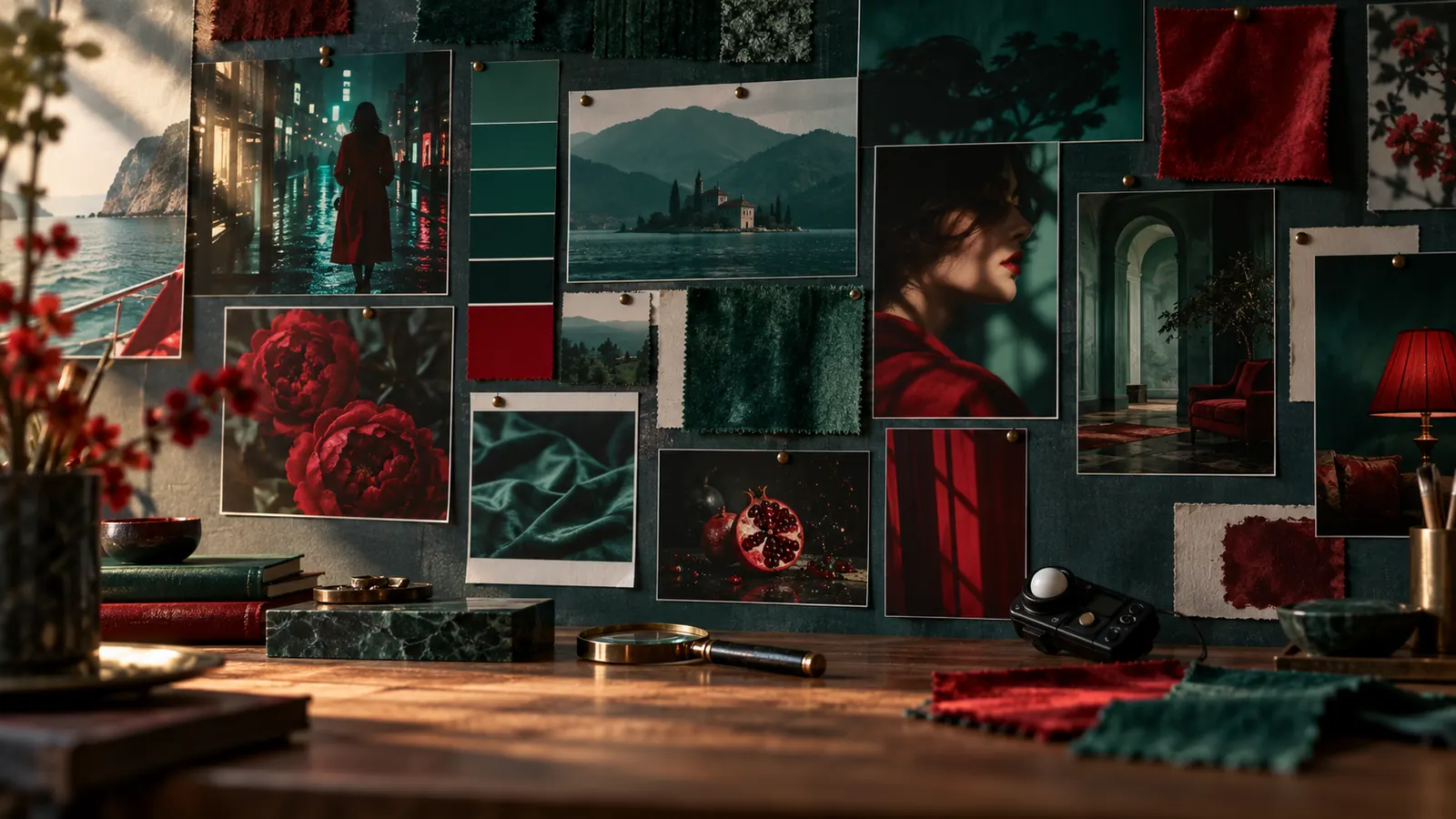
Set the project's look once with reference images, a palette and a short description, and it steers every generated frame and clip.

Assets

Props

Keep every prop with its references and generated variations, ready to mention in any shot.

Assets

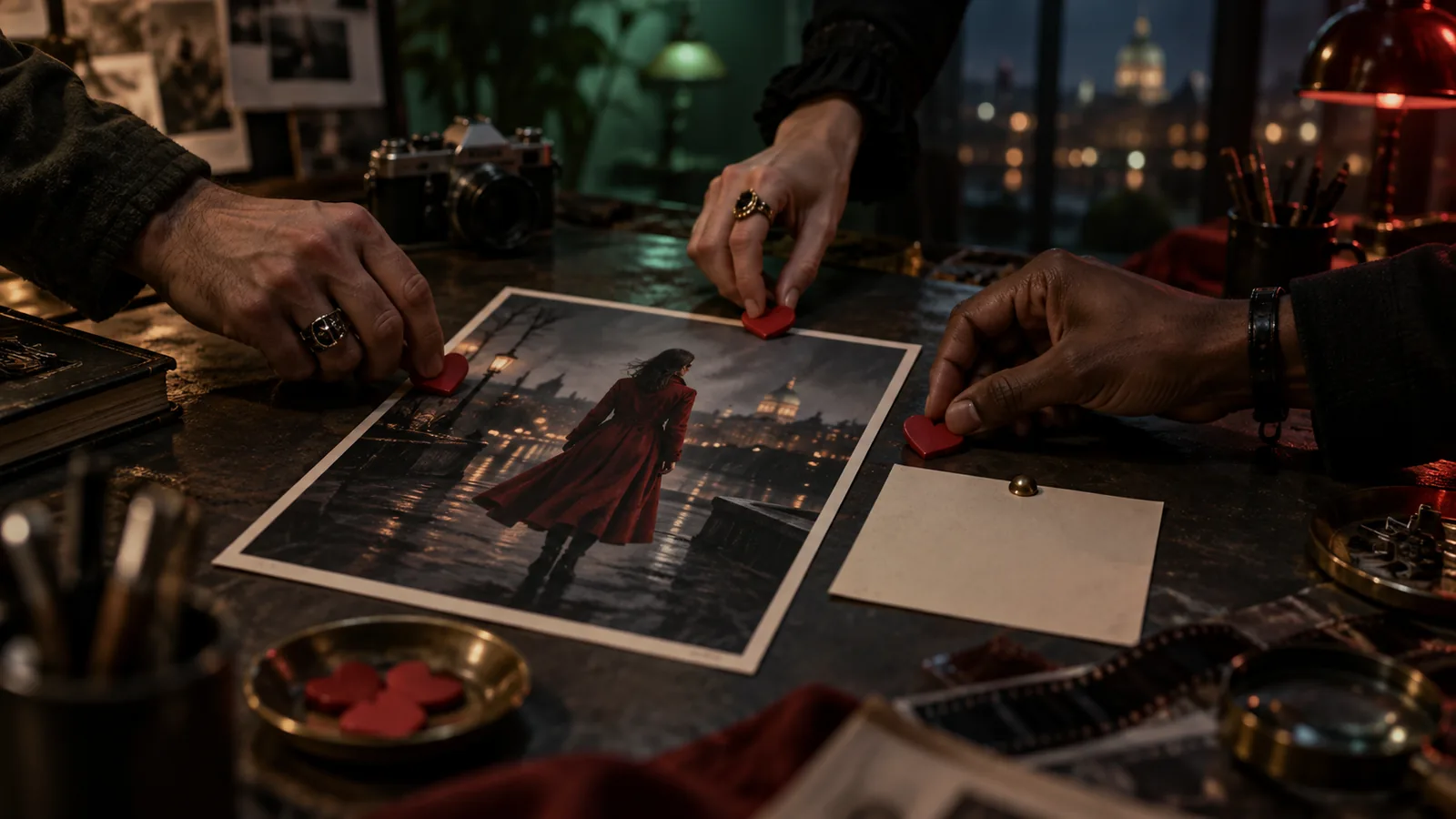
Team likes and comments on assets

Like the takes you want, filter the library by who liked what, and leave comments on any asset.

Assets

Documentation sheets with real dimensions

Generate clean reference sheets for props and sets with their real-world measurements, so scale holds between shots.

Assets

Work from a local folder

Bind a folder on your disk and Creator Studio reads project media from it, with dots showing what is already cached on this device.

Assets

Character voices

Assign each character a voice, preview it, or clone one, and the same voice speaks every line.

Assets

LookBook

Curate reference collections that pin down each character's style, and share them with a public link.

Assets

Asset collections

Group assets into collections, share a collection by link, or promote it to the organisation library.

Assets

Audio library

Keep the project's dialogue phrases, music and sound effects in one shelf, trim them and drop them onto shots or the timeline.

Script

Script breakdown into scenes, shots and cast

Creator Studio reads the script and lists the scenes, shots, characters, locations and props it needs, ready to build.

Script

Treatment

Shape the story as a treatment with tone, beats, a bible and a poster, keep versions, and share it on a public page.

Script

AI Script Generator

Draft a full screenplay or a single scene from your brief, then get a critique of structure and pacing before you rewrite.

Script

Script History & Snapshots

Snapshot the script at any point and go back to an earlier draft.

Script

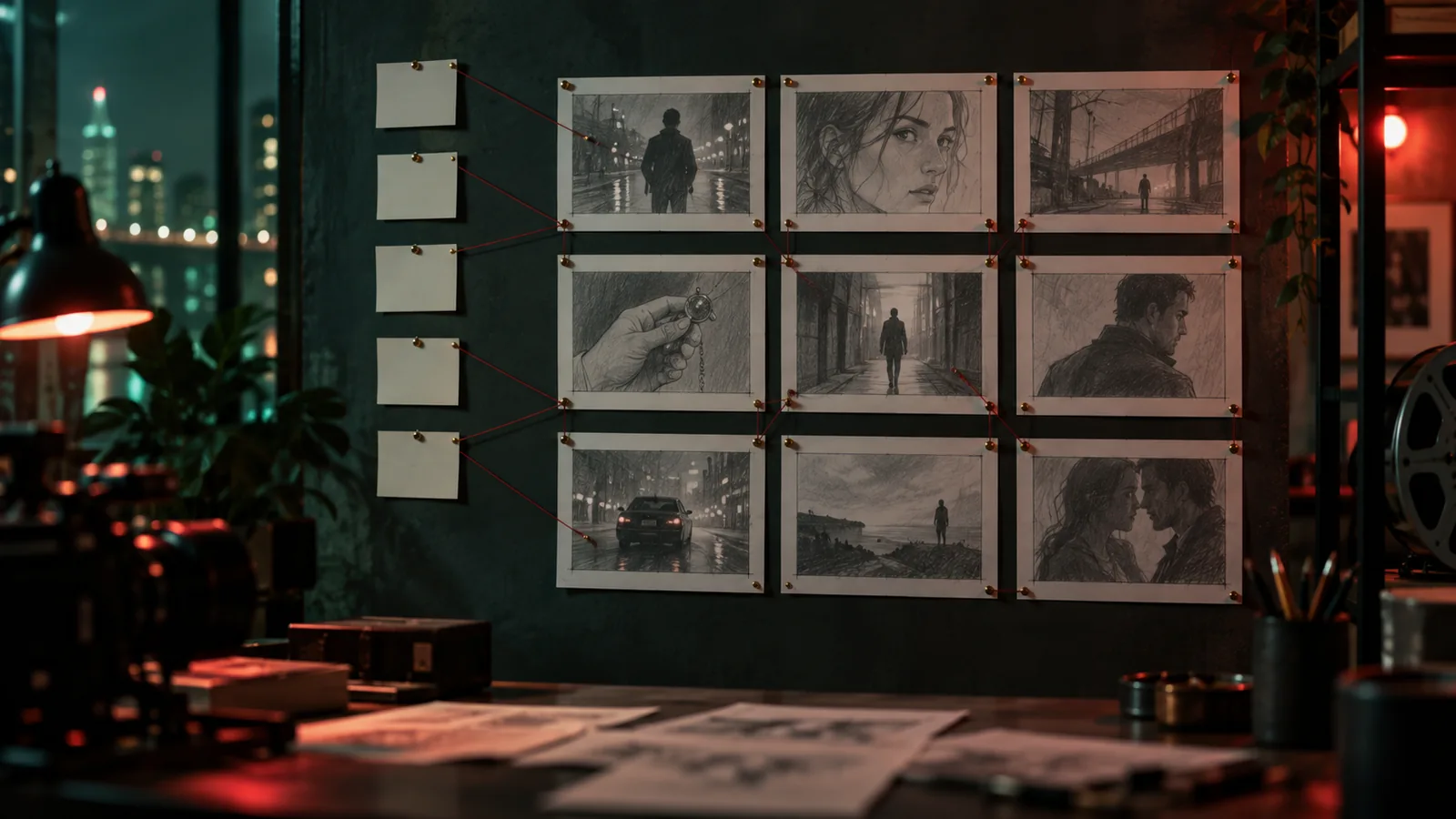
Storyboard the treatment

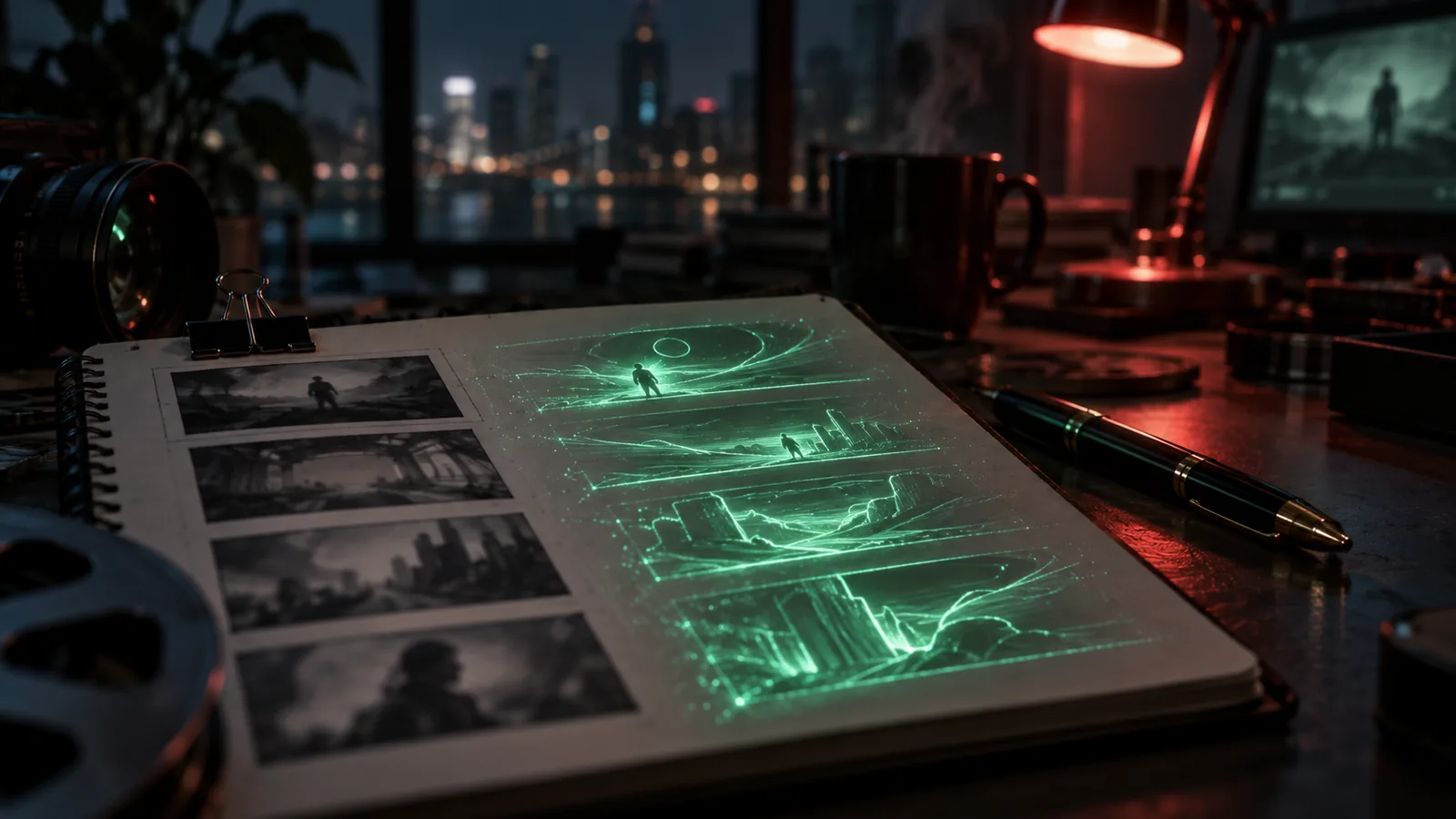
Turn treatment beats into storyboard grids before a single shot exists.

Script

Series canon, season outline and episode bible

For a series, generate the canon, a season outline and an episode bible that every script follows.

Visual Modes

Scene Timeline

See the whole film as scenes and shots on one timeline, with every take and version of a shot a click away.

Visual Modes

Scenes view

A compact scene grid for building out shots quickly and moving scenes between episodes.

Visual Modes

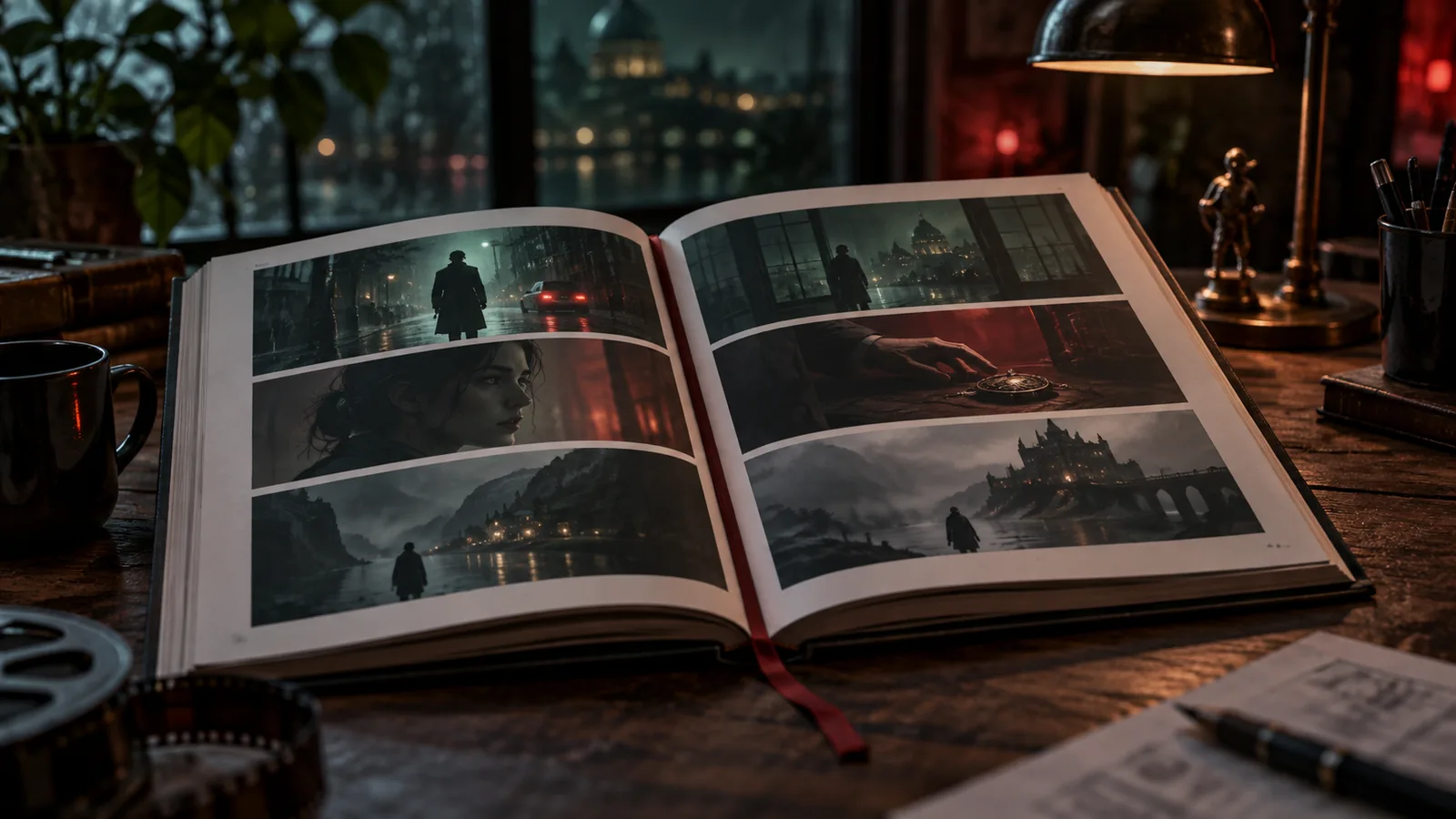
Storyboard book with a public link

Page through an episode as a storyboard book and share it with anyone by link.

Visual Modes

Clapperboard View

Shot cards laid out like production slates, for a quick read of the coverage.

Brief

AI Project Brief

Answer a guided brief covering story, characters, brand, product, look and sound, and every later step starts from it.

Brief

Reference boards

Collect references on boards, import them from a URL or the Research Magazine, and send a selection to the client.

Brief

Find related works

Get films, series and ads comparable to your brief or treatment, as references for tone and pitch.

Brief

Brief moodboard and music references

Collect visual and music references in the brief and let the AI analyse the mood before anything is generated.

Brain

Brain Graph Workspace

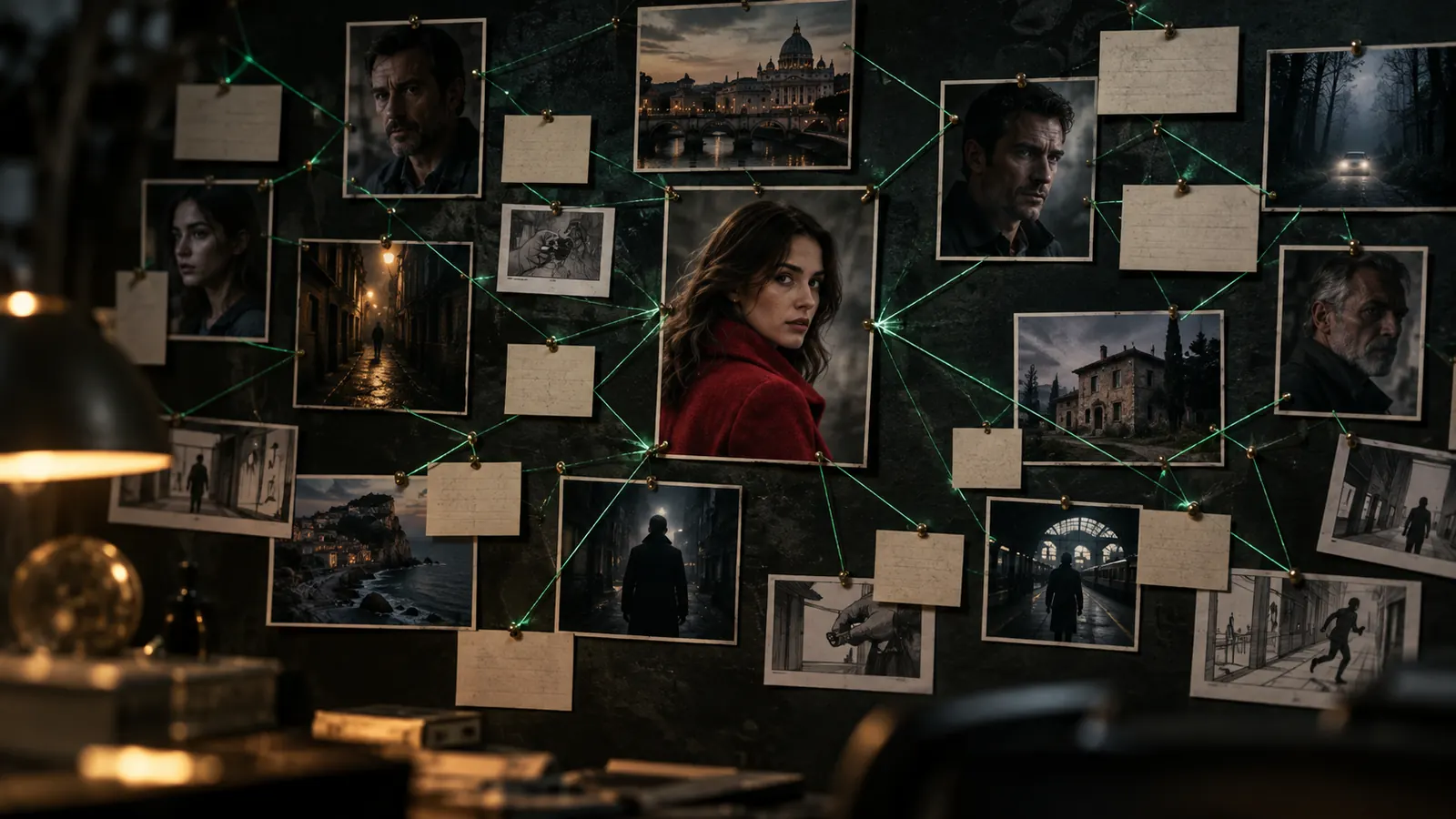
See the production as one connected map of characters, scenes, locations, documents and budget, and ask the AI co-author to make changes across it.

Brain

Project memory for your AI crew

Everything in the project (script, brief, documents, decisions) is indexed, so agents answer and act with the full project context.

Music

Music for the project

Analyse reference tracks, then generate a score or a song with lyrics for the project.

Batch Operations

Batch Asset Generation

Generate reference images for many characters, costumes, props and locations in one pass.

Batch Operations

Batch Image Generation

Queue frames for a whole scene or the entire script at once and watch them arrive shot by shot.

API access

API access and MCP tokens — Доступ к API и токены MCP

Where to create an API key for MCP clients, and the OAuth alternative.

Overview

From script to final cut, in one project

Write the script, cast your characters, direct every shot and render the film in one workspace, with every frame linked to its scene, its cast and its cost.

Overview

Project Details

Start a project in a minute (title, synopsis, format, budget, poster) and pick it up from the projects dashboard whenever you come back.

Overview

Episodes and series

Split a series into episodes, each with its own scenes, direction settings and film-stock look.

Overview

Status & Lifecycle

Move a project from Development through Pre-production, Production and Post to Completed, so everyone knows where it stands.

Overview

AI project setup

When you create a project, the AI proposes the processes, roles, team size and first tasks, and applies them in one click.

Overview

Production Hub

Link the project to its client, brand, production house and city, so briefs and deliverables carry the right business context.

Overview

Project media and wiki

Keep the project's covers for every aspect ratio, a backstage gallery and a wiki page with facts, press and awards.

Overview

Subprojects

Run a series or a campaign as one production: episodes and spots nest under a parent project, each with its own timeline and assets.

Management

Call Sheets

Turn the shooting schedule into call sheets with crew, locations and times, then print them or save a PDF.

Management

Task Board

Plan the production on a Kanban board, a calendar or a Gantt chart.

Management

Team & Staffing

Build the cast and crew list with a role picker and track candidates for every position.

Management

Casting calls

Publish a casting for a role, collect applications and move candidates through review.

Management

Finance

Set the budget by category and log expenses against it as the production runs.

Management

Equipment

List the gear each project needs, so nothing is missing on the day.

Project Administration

Share with your team

Invite teammates as viewers or editors with granular access.

Project Administration

Project Settings

Set aspect ratio, branding, integrations and production defaults once per project.

Project Administration

A live project page for your client

Share a no-login page with the latest frames, clips, music and treatment; signed-in visitors can like and comment, and you revoke the link any time.

Project Administration

Version Control

Save project-wide snapshots at milestones and deliveries.

Developer & API

Producer notes to agents

Leave notes on a shot or bind a Telegram chat to the project; agents log them as comments and revisions and act on them.

In Numbers

Creator Studio in numbers

Counted from the product and its production database on 24 September 2026.

262

Agent tools

MCP tools an AI crew can call

80 · 74

Cameras · lenses

real bodies and glass, per shot

49

Camera moves

each with a preview clip

3,387

Clips rendered

video renders completed since March 2026

关于 Creator Studio

Creator Studio 简介

Creator Studio 是一个全面的制作工作区,旨在管理独立媒体项目、剧集和商业宣传活动,涵盖五个主要制作阶段:开发、前期制作、制作、后期制作 和 完成。

本应用将您的制作资产——包括剧本、剧本梗概、视觉风格规则、角色参考表、场景调度图、虚拟摄像机设置、音轨和预算——直接连接到AI图像和视频生成管线。


入门指南

  1. 打开应用程序: 从您的主平台仪表板中选择 Creator Studio。
  2. 创建或打开项目: 点击项目创建按钮,输入项目详细信息(标题、概要、制作格式、目标宽高比、总预算和海报艺术作品),或从仪表板中选择一个现有项目。
  3. 运行AI项目设置: 对于新制作,选择 AI 项目设置 以分析您的提案。系统会自动推荐制作流程、人员角色、团队结构和初始任务板,您可一键应用。
  4. 设置系列或子项目: 如果您正在管理剧集内容或商业宣传活动,请在父项目下创建子项目或剧集。子项目会自动继承主品牌指南和资产库,同时保留本地化的场景列表、时间线和视觉风格。
  5. 配置项目默认值: 打开 项目设置 以建立默认宽高比、视觉品牌规则、集成和制作设置。
  6. 了解积分报价与预览: AI生成会根据您选择的模型、渲染分辨率和片段时长消耗项目积分。
    • 预先报价: 镜头编辑器会在您点击 生成 之前显示确切的积分成本。
    • 干运行预览: 在开始渲染之前,使用“干运行预览”功能估算跨多镜头序列的积分消耗。

主要功能

1. 视频生成、导演与虚拟摄像机控制

  • 资产驱动的视频渲染: 角色、地点、服装和道具参考图像会自动输入渲染引擎,以保持生成的视频片段视觉细节的一致性。
  • 镜头编辑器与摄像机控制: 使用80种虚拟摄像机机身、74款镜头、胶片参数和49种预设摄像机运动(如推拉、环绕、无人机、第一人称视角和速度坡度)来导演单个镜头,并附带短预览片段。在提示字段中输入“@”可将演员直接标记到镜头中。
  • 双层渲染(480p草稿到1080p最终版): 使用 Seedance 2.5 渲染快速的480p草稿片段以审查运动和时间安排,然后将已批准的片段直接升级到1080p最终渲染,无需重新提示或从头开始。
  • 画面修复与蒙版编辑: 使用蒙版画笔高亮显示特定帧区域并描述您的修改。GPT Image 2.5 只修改选定区域,同时保持帧的其余部分完好无损。
  • 片段操作(编辑、延长、放大): 使用视频到视频提示修改现有视频片段,通过无缝连接的额外秒数延长片段时长,或直接放大片段分辨率。
  • 导入外部素材: 将您自己的视频素材上传到镜头中,并使用交互式胶片条控制选择精确的帧范围作为编辑或延续的源材料。
  • 多镜头构图网格: 一次性生成2x2、3x3或4x4摄像机角度网格,预览镜头覆盖范围,然后选择并放大您偏好的构图。
  • AI图像生成与AI填充: 根据项目视觉规则指导,生成分镜图帧并选择您偏好的图像模型。使用AI填充,自动用您的语言填充脚本中的镜头提示、分解和上下文。
  • 构图锁定(REF SHOT 与 +STORYBOARD): 使用 REF SHOT 将分镜图帧锁定为固定构图模板,从而使生成的视频片段在演员移动时仍保持精确的摄像机角度和布局。使用 +STORYBOARD 在整个分镜图表中强制执行构图规则。
  • 3D世界生成: 从单帧图像合成一个可探索的3D环境,以便在同一空间内探索新的摄像机角度。
  • 重新打光、调整角度与图层分离: 重新打光完成的帧,改变摄像机角度,或将帧分解为独立的前景和背景图层,无需从头开始重新渲染。
  • 镜头内AI助手: 在镜头编辑器内与嵌入式助手互动,它会读取镜头、场景和演员上下文,为您调整镜头参数。
  • 拍摄历史与一键版本控制: 按镜头在版本时间线上访问每次拍摄,以比较选项、切换当前剪辑或一键恢复早期拍摄。
  • 批量图像与资产生成: 一次性为整个场景或剧本排队生成帧,或一次性批量生成角色、服装、道具和地点的参考图像。
  • 实时代理与队友更新: 在您的时间线上实时查看队友或自动化代理创建的镜头和渲染,无需刷新浏览器。
  • 主视频导出与编辑交接: 将最终剪辑导出为适用于 Final Cut Pro 的 FCPXML 文件,或直接渲染为包含对齐场景、镜头和多轨音频的完整主视频文件。

2. 角色连贯性、视觉资产与音频

  • 一致的资产参考表: 使用参考表、旋转角度和视角构建角色、地点、服装和道具,确保每个帧都保持模型一致。
  • 验证演员身份: 通过完成面部同意验证(KYC)来选角真实个体,注册验证过的身份资料,以使视频模型在不同镜头中保持一致的面部。
  • 服装、化妆与发型追踪: 逐场景为角色着装(包括湿润、破损或晚礼服等状态),并通过专用界面模态框追踪详细的化妆和发型笔记。
  • 场地勘察: 搜索地图以勘察地点并保存摄像机视角。在该地点设置的每个场景都会重用已保存的地点和角度。
  • 资产概念表: 并排比较角色、地点或道具的多个拍摄片段,使用蒙版画笔细化特定区域,并在将其用于镜头前批准选定的拍摄片段。
  • 统一资产库与收藏夹: 将所有生成和上传的图像、视频片段和音轨存储在一个集中式库中,并带有草稿和最终状态指示器。将资产分组到收藏夹,通过链接共享,或将其提升到您的组织库。
  • 项目风格参考与作品集: 使用参考图像、调色板和描述定义视觉身份。将参考收藏整理成作品集,并通过公共链接共享。
  • 道具目录与真实世界尺寸: 维护带有参考图像和生成变体的道具记录,并生成带有真实世界测量值的文档表,以在不同镜头中保持准确的比例。
  • 本地文件夹同步: 将存储设备上的本地文件夹绑定以直接读取项目媒体,并带有视觉指示器显示哪些资产已本地缓存。
  • 团队点赞与评论: 点赞偏好的资产拍摄片段,按团队成员的点赞筛选库,并对资产发表评论。
  • 音频库、语音合成与口型同步: 为镜头添加对话、音效和音乐行。分配角色声音,预览或克隆声音,将音频与视频片段口型同步,使用混音器平衡时间线轨道上的音频,或分析参考音轨以生成带有歌词的自定义配乐或歌曲。

3. 剧本创作、前期制作与场景调度

  • 剧本编辑器与自动化剧本分解: 直接在带有AI共同创作工具的编辑器中写作,或导入现有剧本。系统会自动将剧本分解为场景、镜头、演员、地点和道具。
  • AI剧本生成与评论: 从提案中起草完整剧本或单个场景,然后请求AI结构和节奏评论,再进行重写。
  • 剧本历史与快照: 在关键里程碑捕获剧本快照,并在需要时恢复早期草稿。
  • 分镜图与可打印画板: 构建可打印的场景画板、剧集画板或带有结构化面板的编辑杂志布局。将它们导出为PDF或PNG格式,在设计模式中打开它们进行图层调整,或通过公共链接和数字分镜图册共享它们。
  • 剧本梗概与推介文档: 起草带有故事情节、基调设置、推介圣经、海报、剧本梗概分镜图网格和可共享公共页面的剧本梗概。
  • 系列设定与圣经: 为多集内容生成系列设定、季大纲和剧集圣经。
  • 场景编辑器、时间线与视图: 使用场景编辑器、紧凑场景视图网格、场景时间线和场记板视图管理场景详细信息、演员分配、地点、外观和版本。
  • 场景地图编辑器与AI导演: 从俯视角度通过放置演员、道具和摄像机来调度场景——将位置直接输入到镜头提示中。使用AI场景导演,根据您的导演设置自动生成镜头覆盖提案。
  • AI项目提案与相关作品: 完成涵盖故事、角色、品牌、外观和声音的引导式提案。收集情绪板视觉效果和音乐参考进行AI分析,并发现可比较的电影、剧集或广告作为推介参考。
  • 脑图工作区与项目记忆: 将您的制作视为角色、场景、地点、文档和预算的连接图。所有项目元素都已索引到项目记忆中,以便AI辅助始终基于您的制作上下文。

4. 制作管理与协作

  • 制作中心与媒体维基: 将项目链接到客户、品牌、制作公司和城市。维护宽高比封面、幕后照片画廊以及用于新闻和事实的项目维基页面。
  • 生命周期状态: 将项目移至开发、前期制作、制作、后期制作 和 完成 阶段。
  • 任务板与通告单: 使用看板、日历或甘特图组织工作。将拍摄日程转换为可打印或可下载的PDF通告单,其中包含剧组、地点和时间详情。
  • 团队人员、角色与选角通知: 使用角色选择器管理演员和剧组名单,追踪候选人,并发布公开选角通知以收集和审查申请。
  • 财务与设备追踪: 定义预算类别,在制作期间记录支出,并维护拍摄设备清单。
  • AI代理与制片人笔记: 与更新镜头、排队渲染和管理任务的AI代理协同工作。在镜头上留下笔记或连接 Telegram 聊天,将制片人指示直接发送到项目中。
  • 客户共享与实时项目页面: 共享一个无需登录的公共页面,显示最新的帧、片段、音乐和剧本梗概。登录的审阅者可以留下点赞和评论,并且访问权限可以随时撤销。
  • 版本控制与快照: 在关键里程碑保存项目范围的快照,并随着时间追踪更改。
  • API访问与MCP令牌: 生成API密钥或配置OAuth凭据,以集成外部工具和服务。

如何使用

工作流程 1:剧本创作与自动化分解

  1. 打开您的项目并选择剧本编辑器。
  2. 输入您的剧本或导入现有文件。使用AI共同创作工具细化场景或生成缺失的对话。
  3. 审查自动生成的分解,以验证提取的场景、镜头、角色、地点和道具。
  4. 保存剧本快照以保留您的里程碑草稿。

工作流程 2:建立视觉角色与风格连贯性

  1. 打开资产管理部分,为您主要的角色、道具和地点创建记录。
  2. 上传视觉参考图像,设置调色板,并定义项目风格参考。
  3. 为真实演员执行同意验证(KYC),以注册验证过的身份资料。
  4. 设置逐场景的服装状态(例如:湿润、晚礼服),并为自动化语音和口型同步分配角色语音资料。
  5. 生成资产概念表,并排比较拍摄片段,使用蒙版画笔细化细节,并批准最终参考外观。

工作流程 3:导演与渲染镜头

  1. 打开场景编辑器或镜头编辑器。
  2. 使用“@”标签将演员标记到提示中。
  3. 通过选择摄像机机身、镜头、胶片和摄像机运动预设来配置虚拟摄像机设置。
  4. 审查镜头编辑器中显示的积分成本报价,或对多个镜头运行干运行预览。
  5. 使用 Seedance 2.5 渲染480p草稿片段,以验证摄像机运动和时间安排。
  6. 如果需要更改细节,使用蒙版画笔与 GPT Image 2.5 执行画面修复编辑。
  7. 对拍摄满意后,一键直接升级到1080p最终渲染。

工作流程 4:审阅、分镜与导出

  1. 在场景时间线上查看您的完整序列,或翻阅您的分镜图册。
  2. 创建可打印的场景画板或编辑画板,自定义纸张布局,并导出为PDF/PNG格式,或在设计模式中编辑图层。
  3. 使用时间线音频混音器平衡对话、语音合成、音效和配乐轨道。
  4. 与外部客户或利益相关者共享实时项目页面链接以收集反馈。
  5. 将您的最终剪辑导出为适用于 Final Cut Pro 的 FCPXML 文件,或直接渲染为完整的总视频文件。

提示与注意事项

  • GPU内存保留: 如果“加载到内存”控制显示为禁用,请检查控制本身上的消息。它表示您的本地 PMF Link 运行时软件所需的版本更新。
  • 积分成本透明度: 在开始渲染之前,请务必在镜头编辑器中检查预先积分报价。对多镜头序列使用干运行预览,提前评估总积分使用情况。
  • 选择性画面修复: 使用蒙版编辑时,只在需要更改的确切区域上进行涂抹。GPT Image 2.5 会将修改合成到高亮显示的空间中,同时保持原始帧的其余部分未受影响。
  • 画板导出: 将可打印的分镜图(场景画板或编辑布局)导出为PDF或PNG时,导出会自动使用浅色纸张主题以进行清晰打印,而您当前活跃的屏幕编辑器则保留其深色工作区主题。

新功能

4K 最终输出、增强的资产管理和提示词编辑器改进

11/19/2026 · v1.160
新增您现在可以在 Shot Editor 中将 480p 草稿渲染为 4K 分辨率的最终视频剪辑,1080p 和 4K 选项的价格均清晰显示。
改进在批量选择资产时,您现在可以一次性将所有选定的项目添加到合集中。按住 Shift 点击还可以进行范围选择,并且在批量操作期间会跳过待上传项。
改进在展开的提示词编辑器中,@-提及菜单现在会直接在光标行打开,提高了在撰写提示词时的可见性和易用性。

免费

无需订阅

免费开始使用
开发者ProMediaFlow
版本1.160
分类核心

包含 Creator Studio 的套餐

所有套餐都使用 AI 积分;套餐决定你的每月积分、存储空间和席位数。

Free

免费

  • 1,000 AI credits/month
  • 1 GB storage
  • Watermark on exports
  • Basic AI Chat (10 msg/day)
  • News Feed (5 articles/day)
选择 Free

Starter

$9.99/月

或 $95.90/年

  • 10,000 AI credits/month
  • 10 GB storage
  • HD AI Generation
  • Brand Catalog
  • CrewChat (DM only)
选择 Starter

Creator

$29.99/月

或 $287.90/年

  • 30,000 AI credits/month
  • 50 GB storage
  • 2K AI Image Generation
  • Creator Studio (1 project)
  • Brand Catalog
选择 Creator
热门

Pro

$49.99/月

或 $479.90/年

  • 50,000 AI credits/month
  • 100 GB storage
  • Creator Studio (3 projects)
  • Artwork Researcher
  • Full CrewChat access
选择 Pro

常见问题

Which AI models does Creator Studio use?

You choose the image or video model per shot, including Seedance 2.5 for video and GPT Image 2.5 for images, and the shot editor shows the price before you render.

How are renders billed?

Every render spends AI credits from your plan. The price is quoted before you start. A Seedance draft plus its 1080p final costs more than rendering 1080p directly, so drafts pay off when you would otherwise try several 1080p takes.

Can I use my own photos and footage?

Yes. Upload images, clips and audio to the project library and use them as references in any shot. Photos of real people are accepted once the person is verified with their consent; otherwise the video model's content checks can refuse them.

Can I finish the edit in Final Cut Pro?

Yes. Export the timeline as FCPXML, or render it straight to a video file.

Can AI agents work on my project?

Yes. Agents connected to your workspace use Creator Studio's MCP tools to read and update shots, assets and tasks, and their changes appear in the project like anyone else's.

What subscription plans are available?

ProMediaFlow offers flexible subscription tiers based on your team size and feature requirements. Contact us for detailed pricing.
准备好用Creator Studio创作了吗?

创建免费账户,探索 ProMediaFlow 及其应用。

创建免费账户