コア無料v1.160

Creator Studio

映画・映像・メディア制作のための一元的な司令塔 — ブリーフ、トリートメント、脚本、シーン、ショット、キャスト、ロケ地などをひとつの場所で。

無料で始める
Creator Studio on screen

Shot Editor

Video from your cast and references

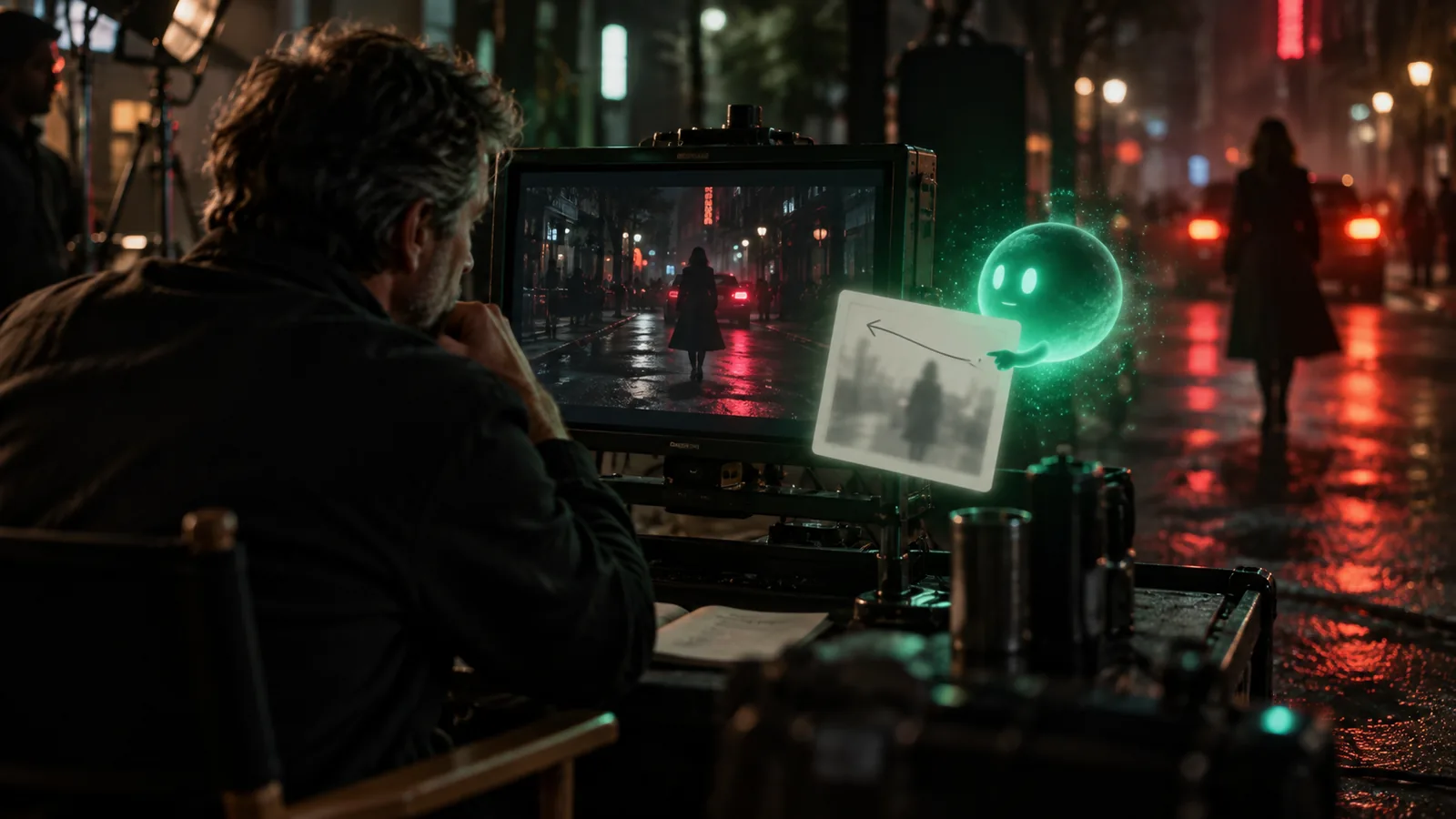
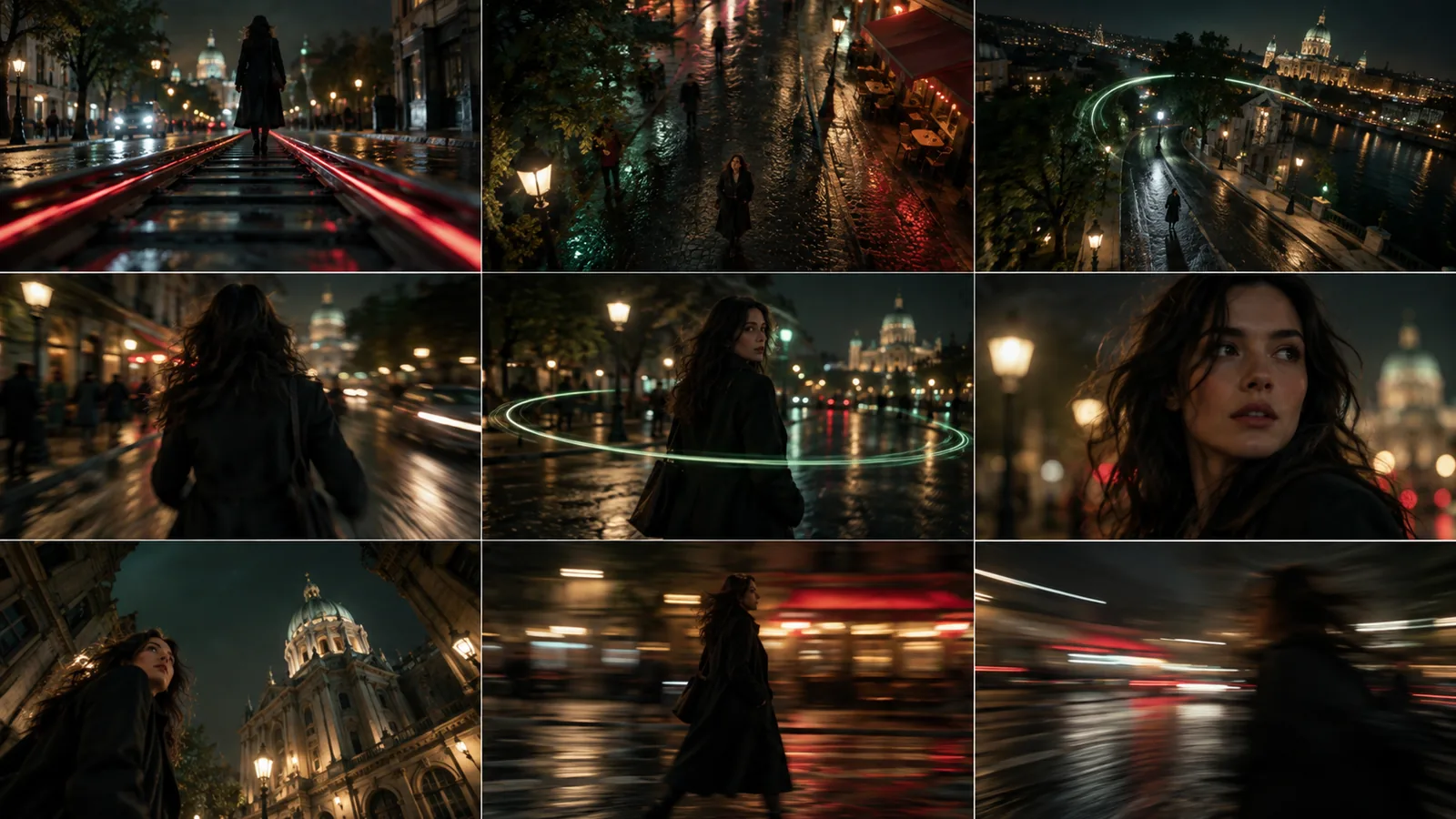
Render a shot as video with the characters, locations and props you mention, each carried in by its approved reference images. Most clips in Creator Studio are made this way.

Video from your cast and references

Creative

Shot Editor

See the price before you render

See the price before you render

The Shot Editor quotes the exact credit cost of an image or video from the chosen model, resolution and duration before you press Generate.

Fix one detail with a masked edit

Fix one detail with a masked edit

Brush over the part of a frame you want changed and describe the change; GPT Image 2.5 edits only that region and composites it back, so the rest of the frame stays.

Camera moves with preview clips

Camera moves with preview clips

Pick from 49 camera moves (dolly, orbit, drone, FPV, speed ramps), each shown as a short preview clip, and the move is written into the video prompt.

Edit, extend and upscale a clip

Edit, extend and upscale a clip

Change an existing clip with a prompt (video-to-video), continue it with new seconds that join seamlessly, or upscale it, without starting over.

Bring your own footage into a shot

Bring your own footage into a shot

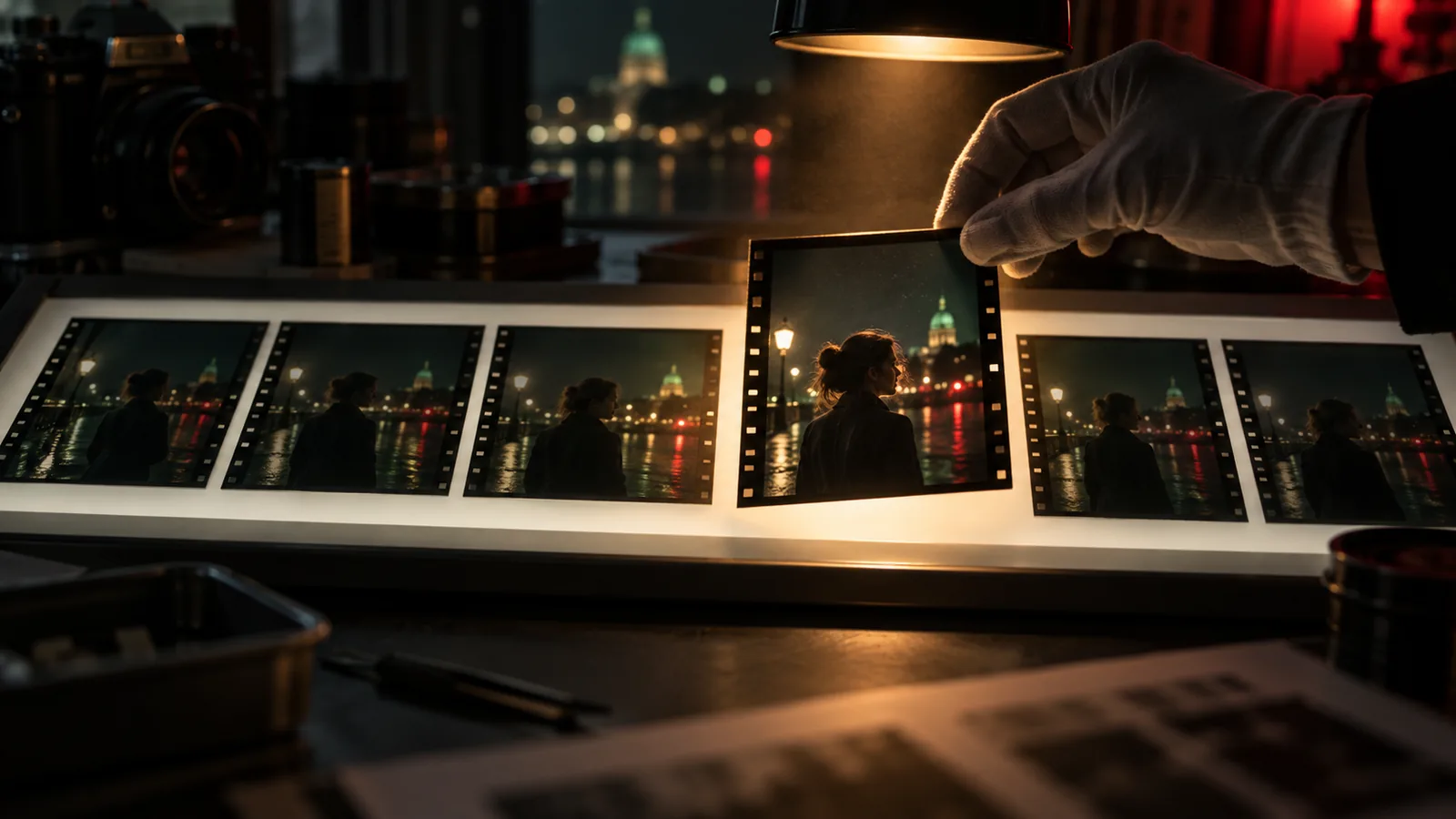
Import a clip, pick the exact frame range on a filmstrip, and use it as the shot's source for edits and continuations.

AI Fill for the shot

AI Fill for the shot

Fill the shot's prompt, breakdown and context from the scene and script with the model you choose, in your own language, then edit it.

Assets

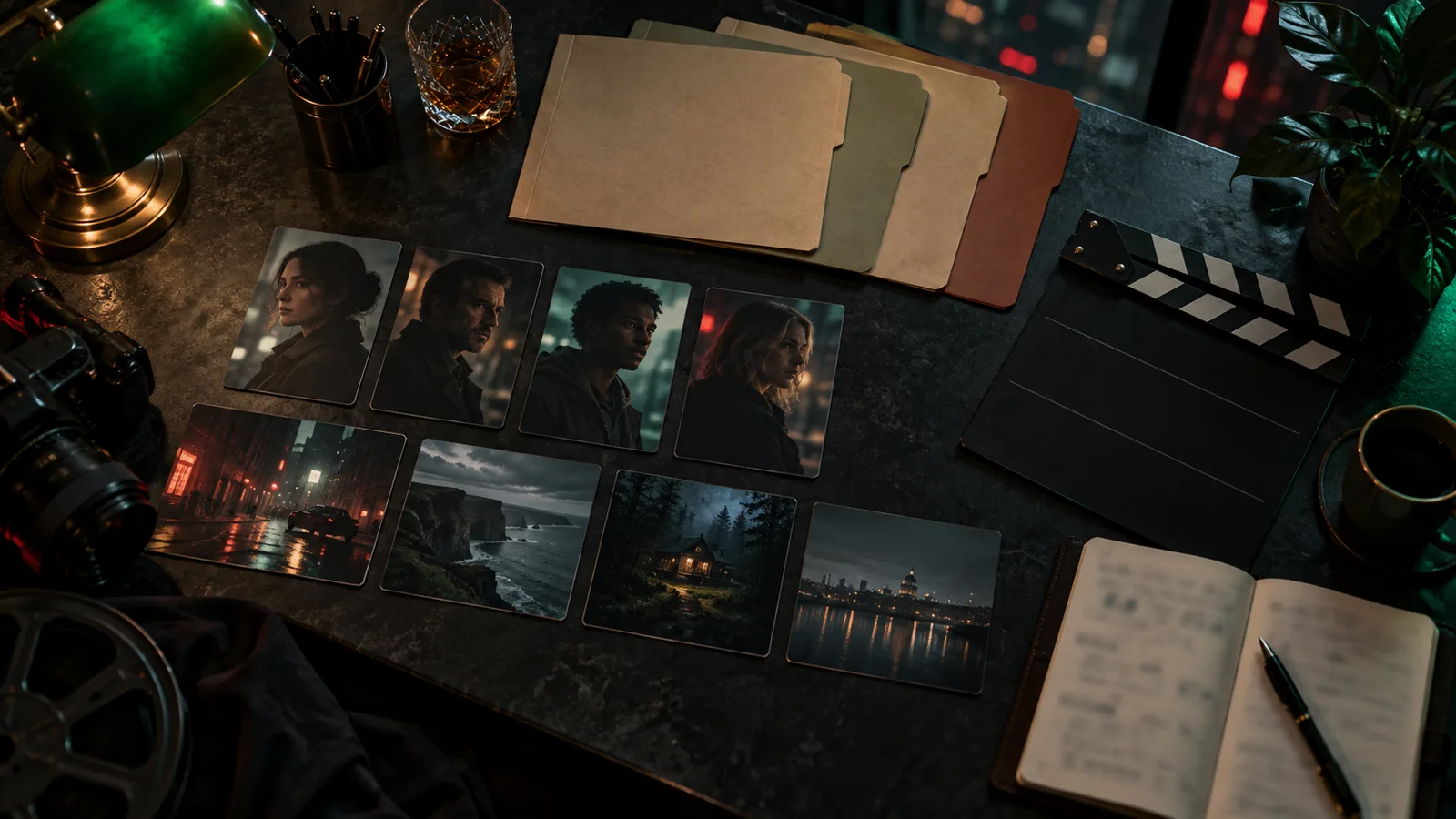
A cast that looks the same in every shot

Build each character, location, costume and prop once, with reference sheets, turnarounds and viewpoints, and every frame and clip you render draws on the same approved look.

Characters
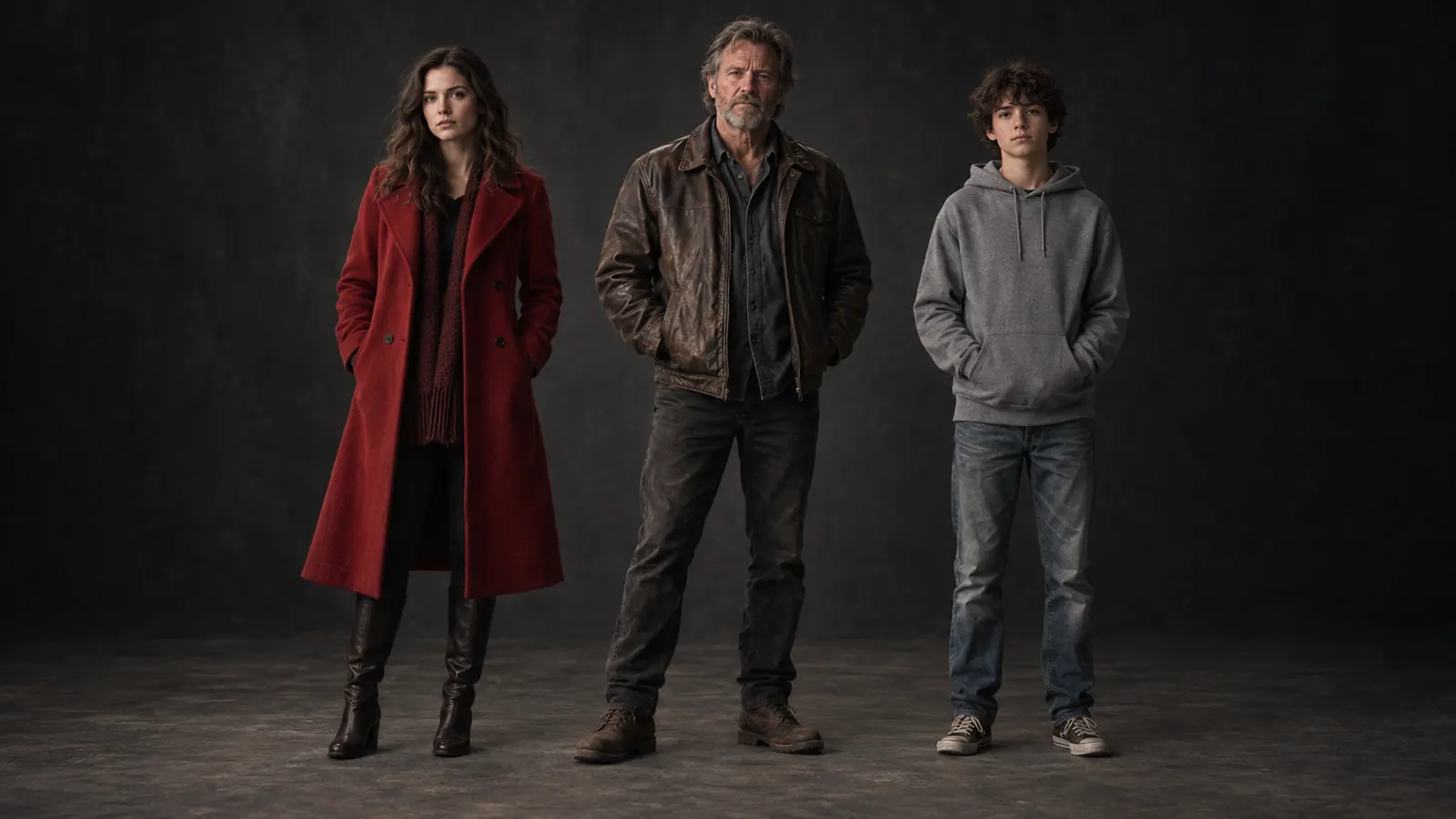
Characters. Faces, builds and costumes that stay the same from the first shot to the last.
Turnarounds
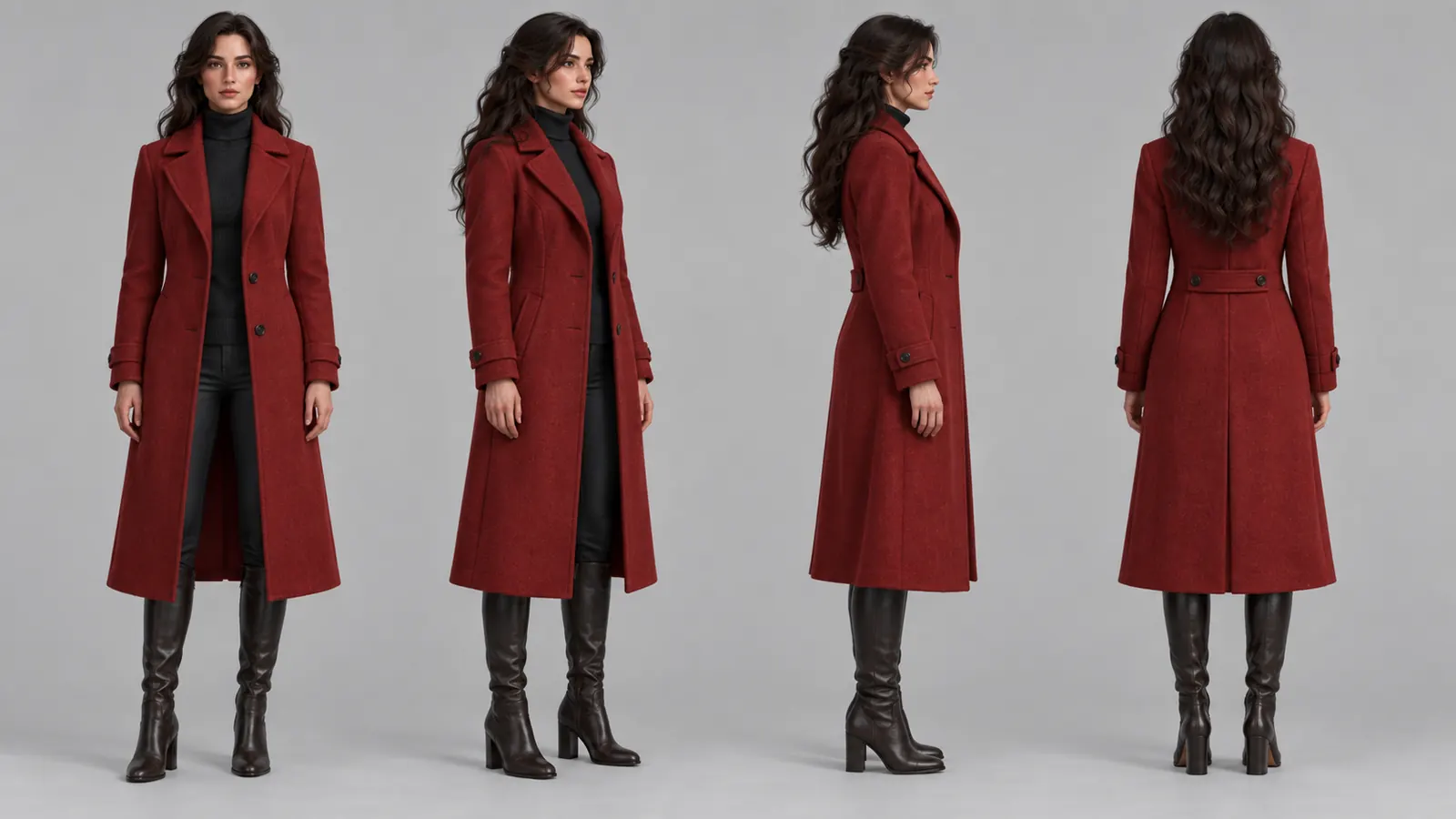
Turnarounds. Front, three-quarter, profile and back, approved before the first render.
Locations with viewpoints
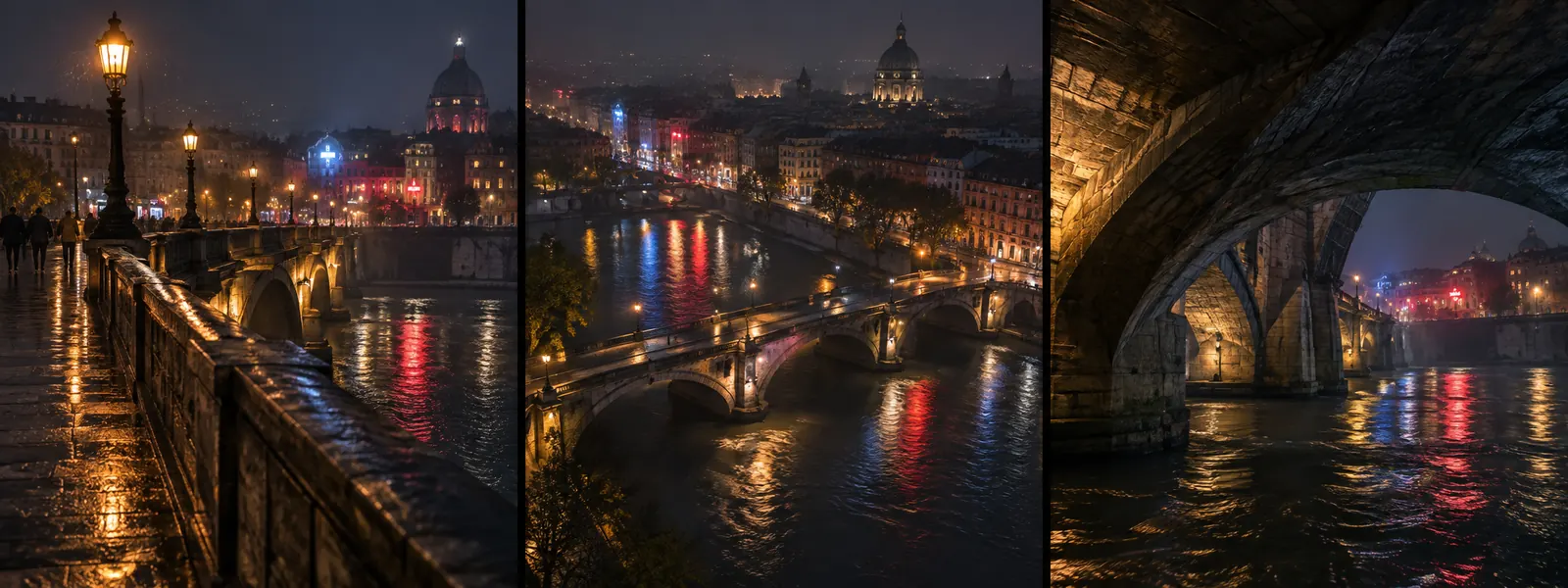
Locations with viewpoints. One place, saved from every angle you will shoot it.
Wardrobe states
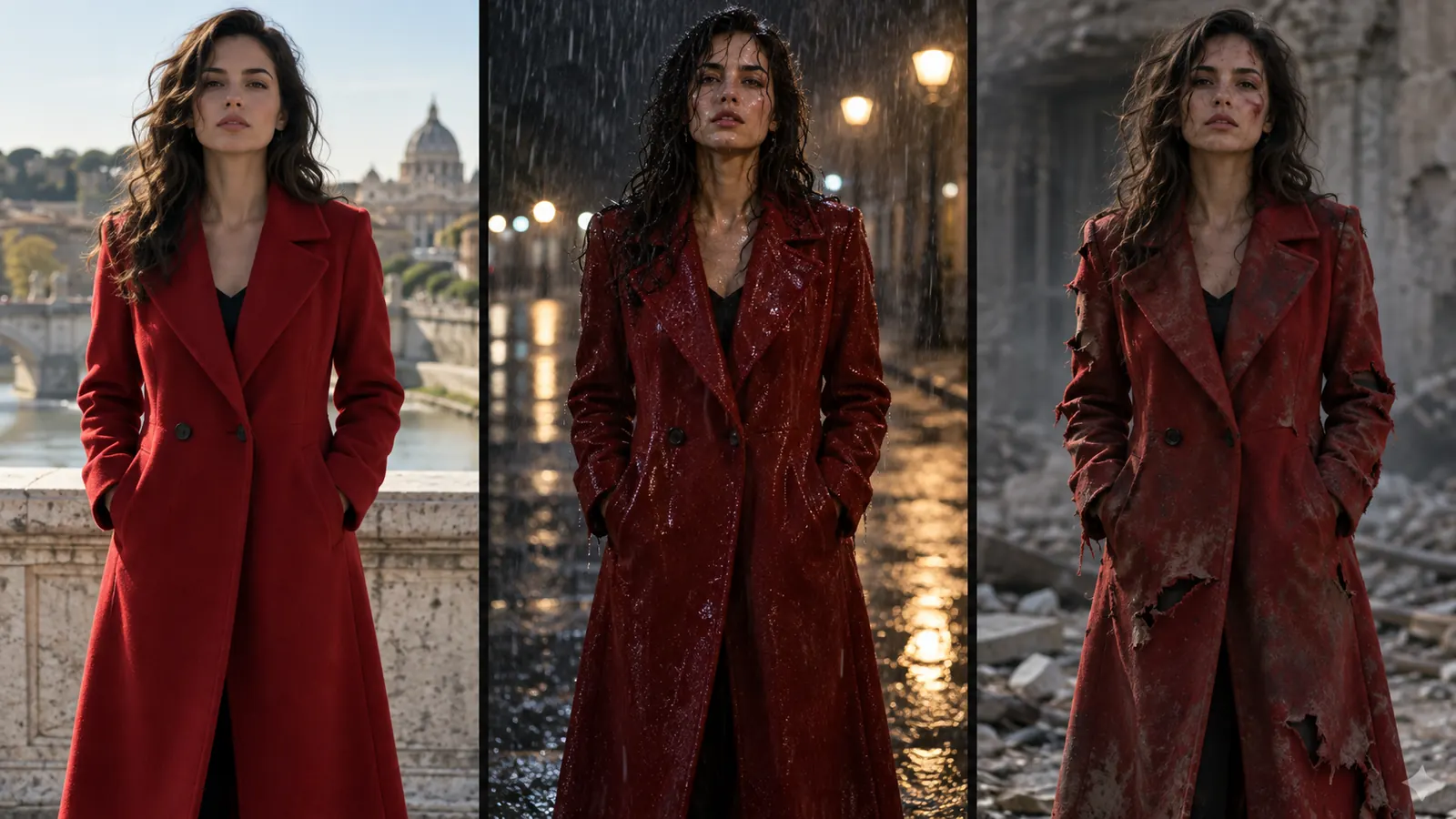
Wardrobe states. The same coat dry, soaked or torn, scene by scene.

Script

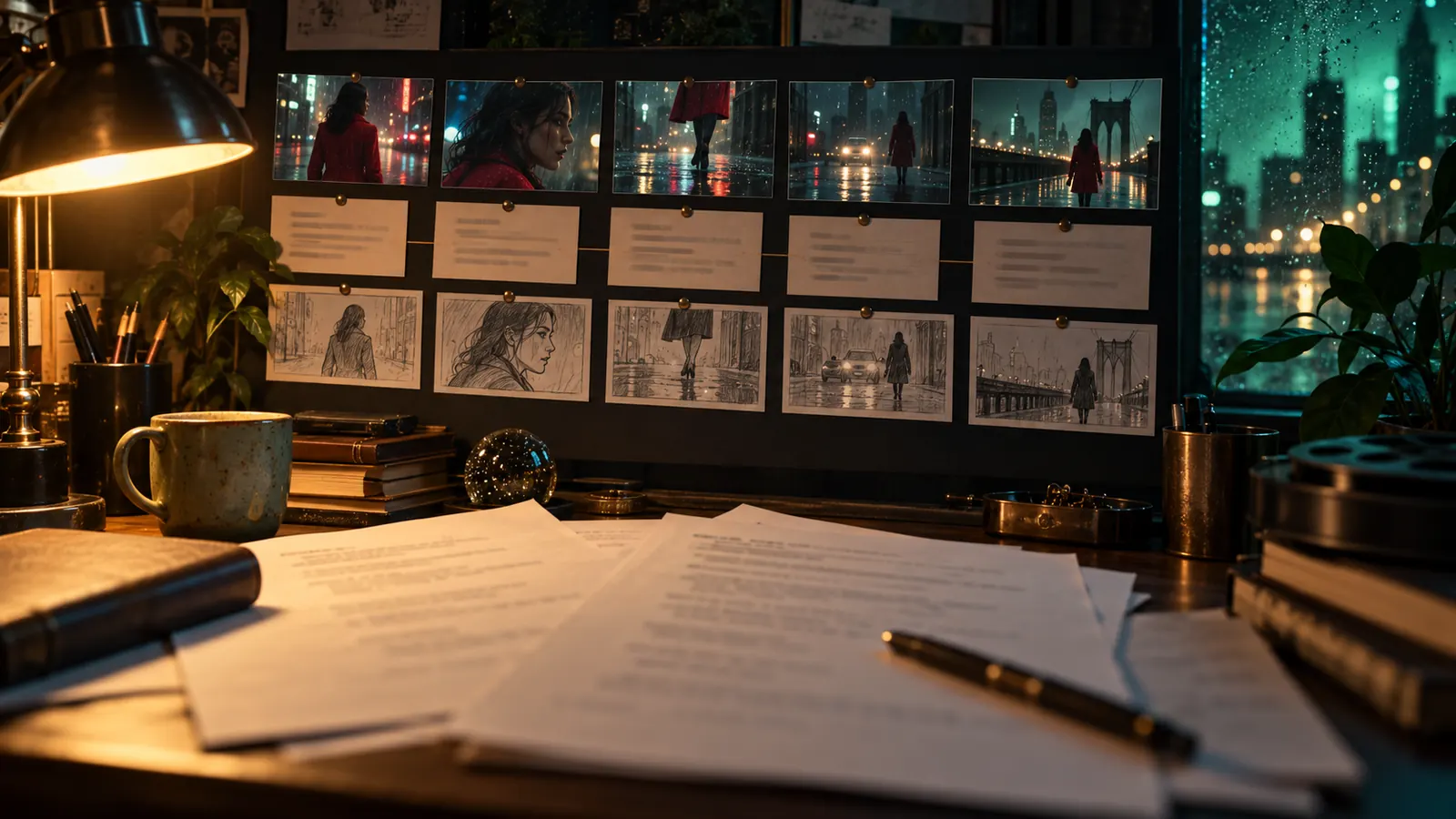
Write it, and the breakdown follows

Write in a screenplay editor with an AI co-writer, or import a structure. Creator Studio breaks the script into scenes and shots and lists the cast, locations and props they need.
Write it, and the breakdown follows

Creative

Visual Modes

AI scene direction

Let the AI propose the coverage for a scene (the shots, angles and moves) from the script and your direction dials.

Scene Editor

Open a scene to set its script, cast, location, looks, props and styles in one place, and switch between versions of the scene.

Cut versions

Keep several versions of the cut, compare them and set the active one.

Watch agents work live

Shots and renders an AI agent or a teammate creates appear on your timeline and in the open shot as they happen, without a reload.

Scene Map Editor

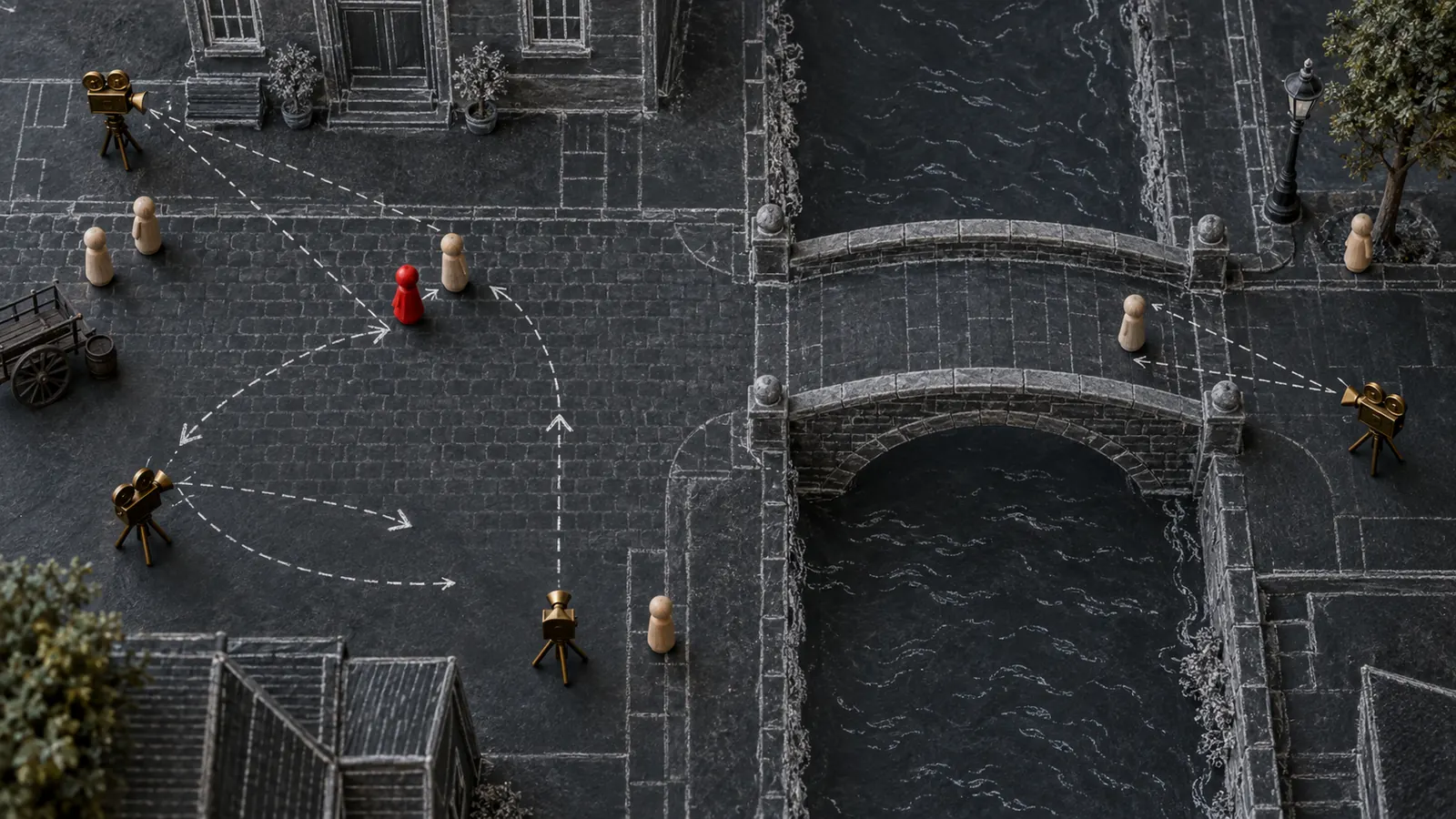
Block the scene from above by placing actors, props and cameras, and the positions feed straight into the shot prompts.

Timeline audio and mixer

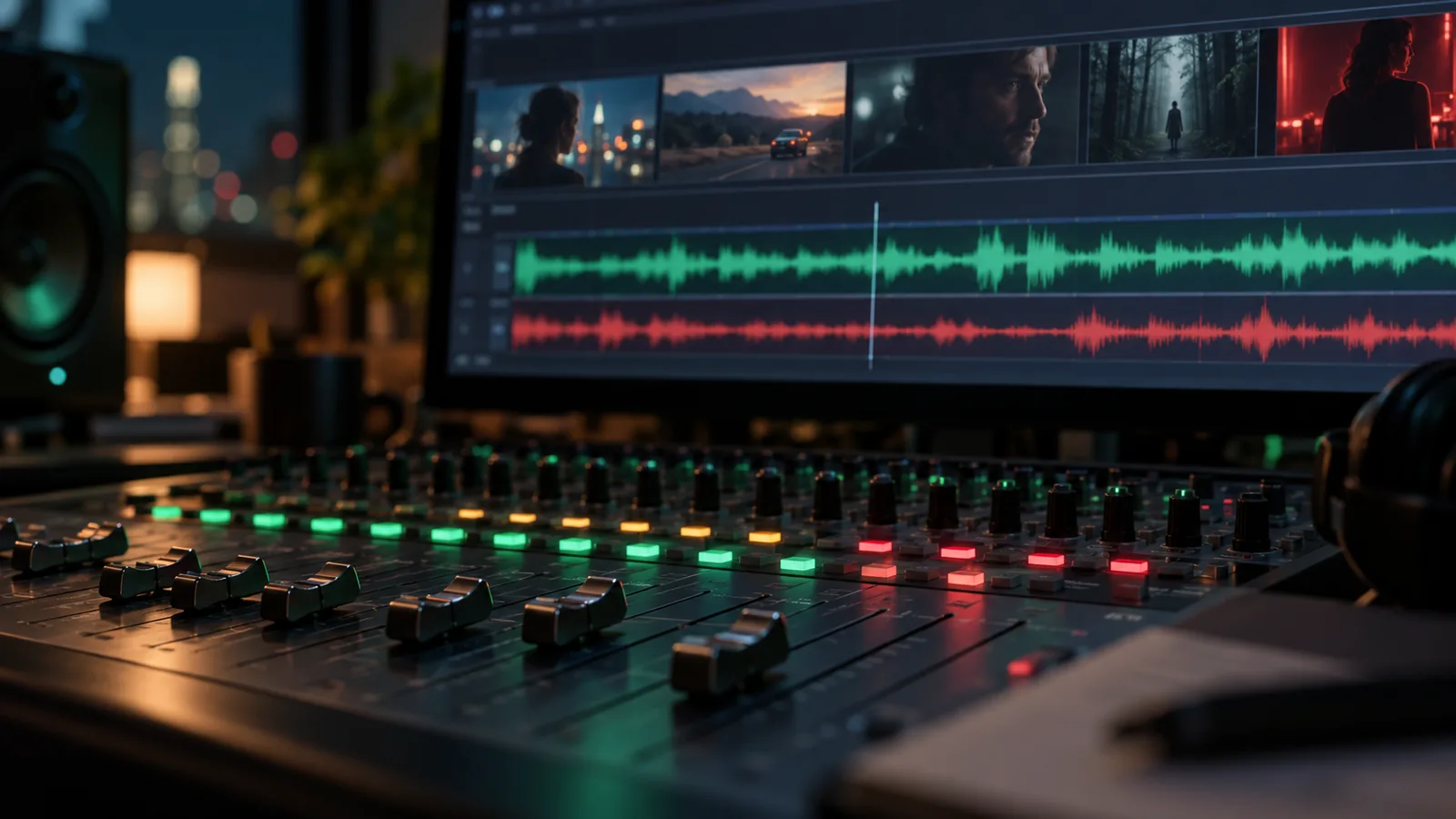
Lay music, dialogue and effects on audio tracks under the picture and balance them in a mixer.

Project Administration

Hand off to the edit

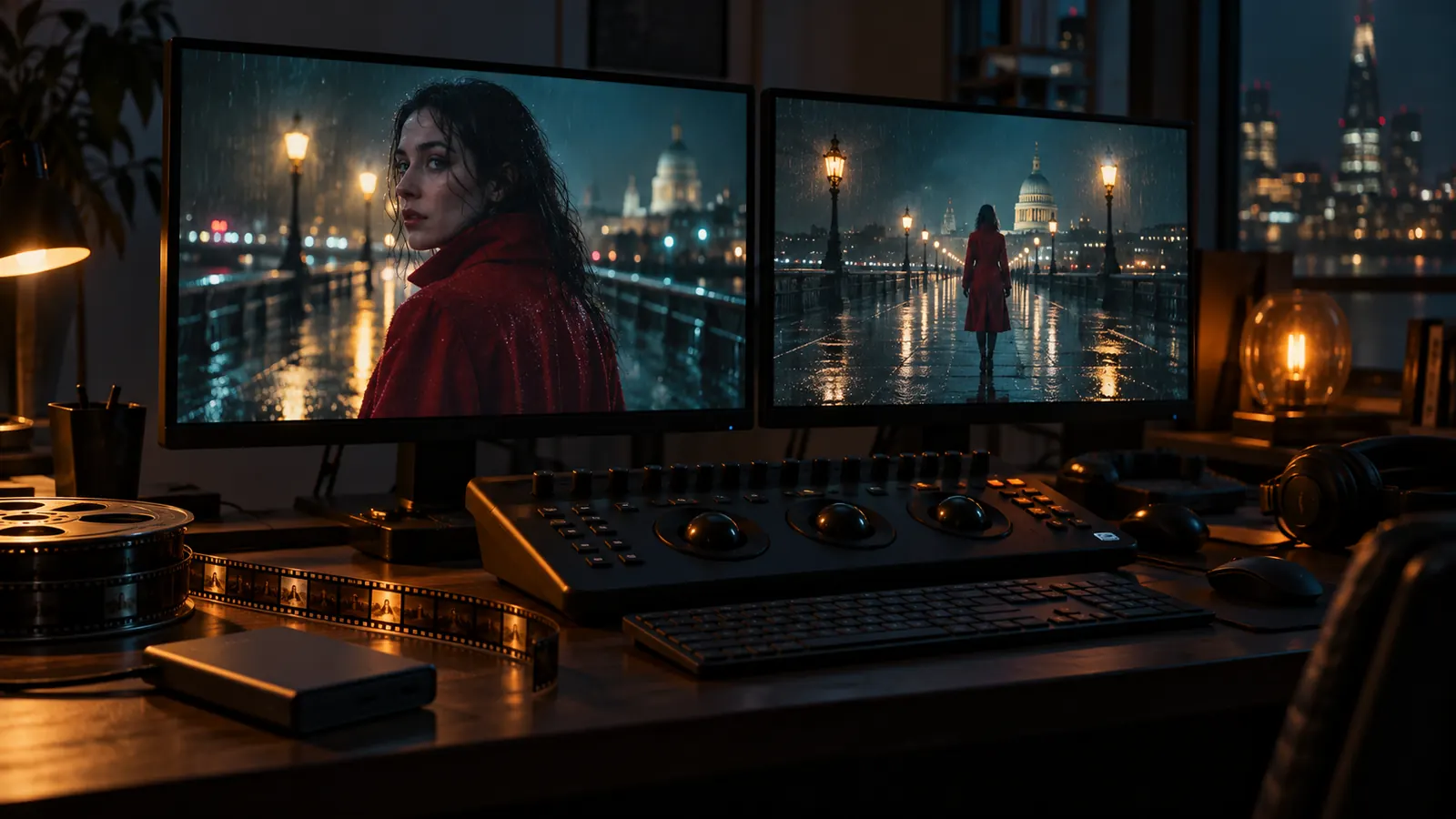
Export the cut as FCPXML for Final Cut Pro, or render it straight to a video file with scenes, shots and audio in order.
Hand off to the edit

Developer & API

An AI crew inside your project

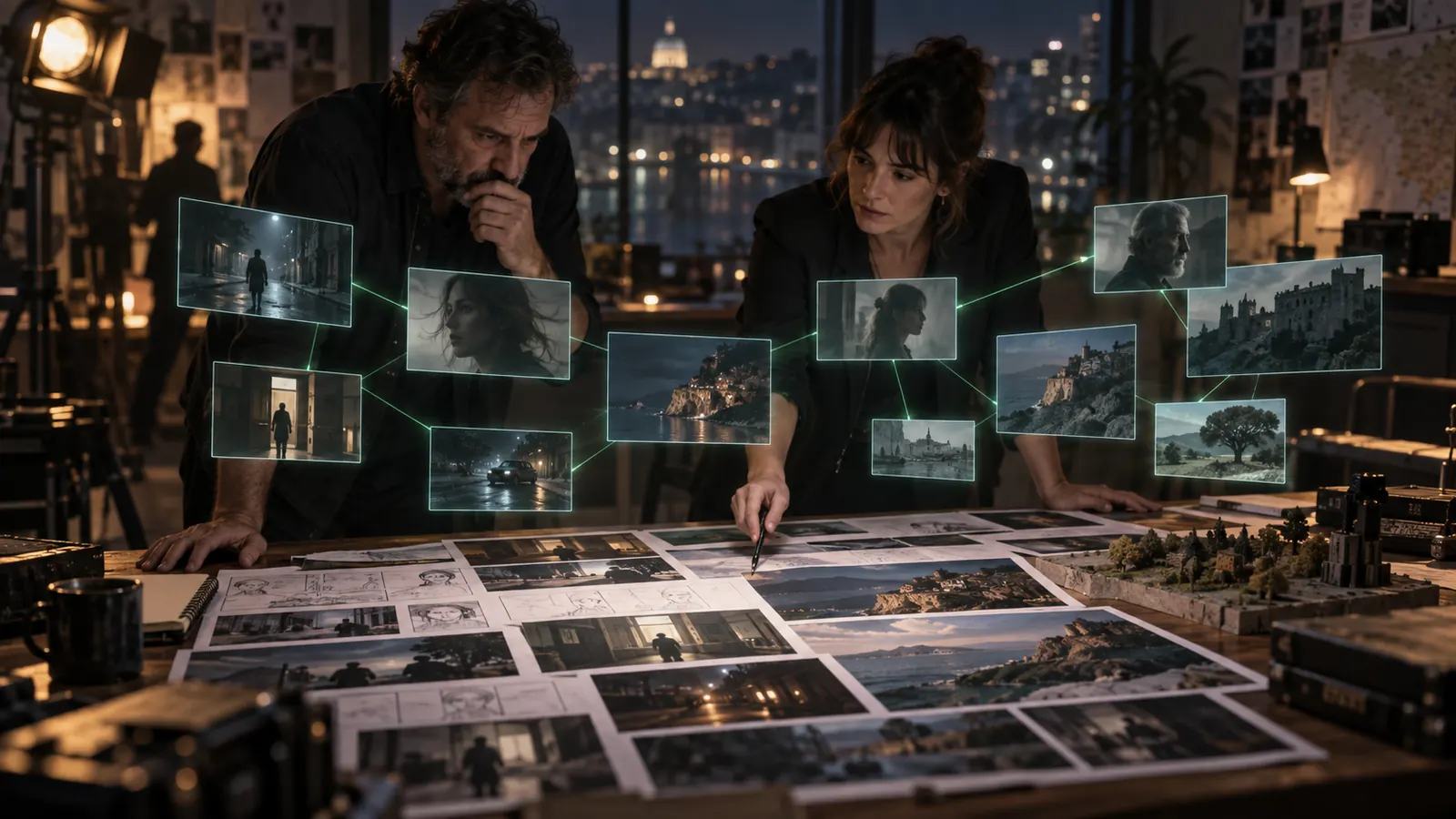
AI agents work in the same project you do. Through 262 Creator Studio tools they update shots, queue renders, manage assets and track tasks, and every change shows up in the project.
An AI crew inside your project

All features

63 more features

Shot Editor

Shot Editor

Direct each shot with a real camera body, lens, film stock and camera move (80 cameras, 74 lenses, 49 moves), and mention your cast with @. The prompt is written for you.

Shot Editor

Multi-Shot Composition

Explore a shot's coverage in one pass: 2×2 to 4×4 grids of camera angles, then keep the angle that works and upscale it.

Shot Editor

AI Image Generation

Generate storyboard frames from the shot, the cast and the project's look, with the image model you choose for each shot.

Shot Editor

Every take, one click back

Each shot keeps all its takes and versions on a version timeline, so you can compare them and restore any earlier one.

Shot Editor

REF SHOT: keep the storyboard frame

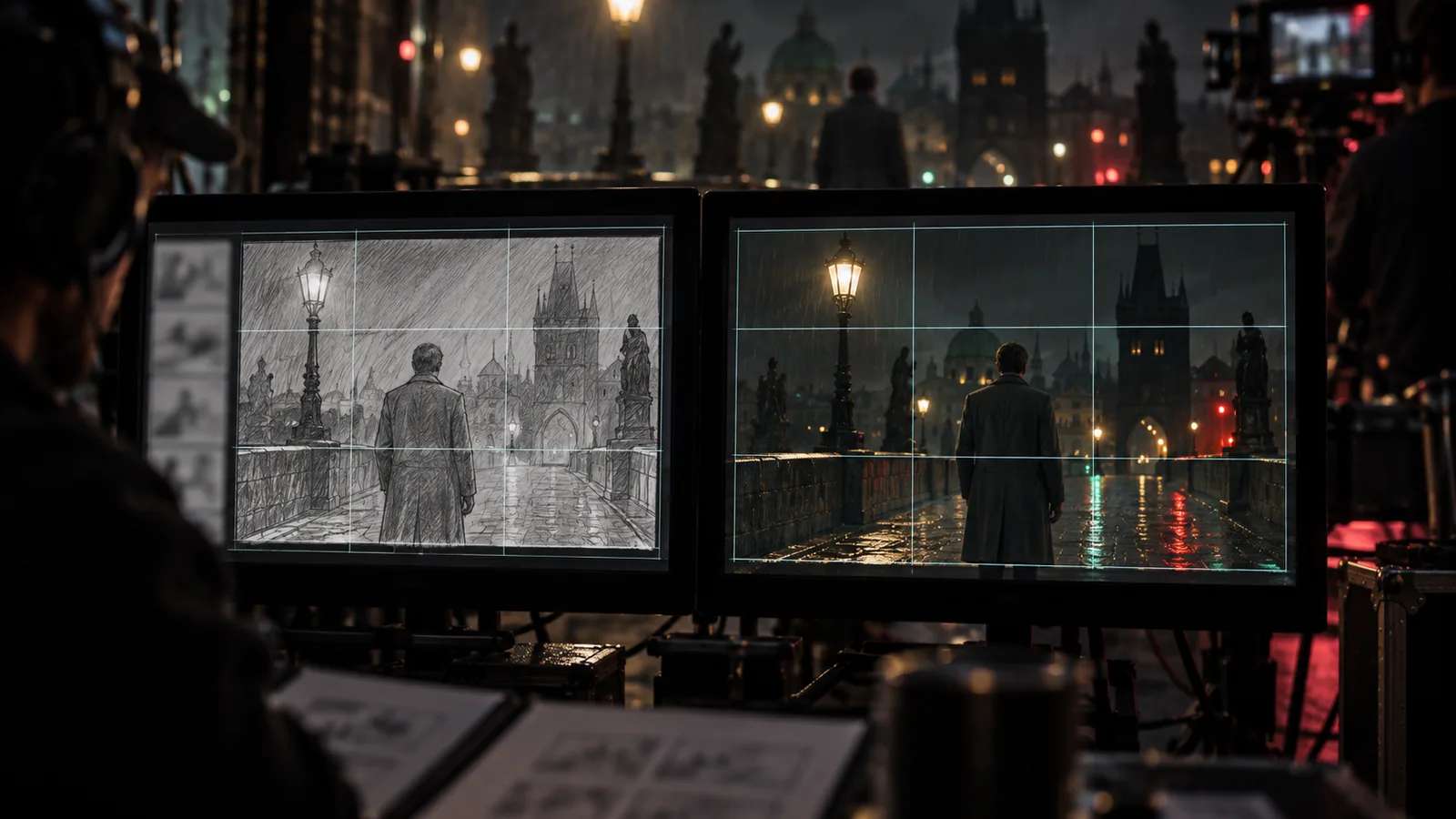
Pin the shot's storyboard frame as the composition template, so the clip keeps its camera, angle and layout while your cast plays the scene. Use +STORYBOARD to follow a whole storyboard sheet instead.

Shot Editor

Draft at 480p, finish in 1080p

Render a quick 480p Seedance 2.5 draft to judge the motion, then turn the take you like into a 1080p final of the same picture, without re-prompting or rolling a new take.

Shot Editor

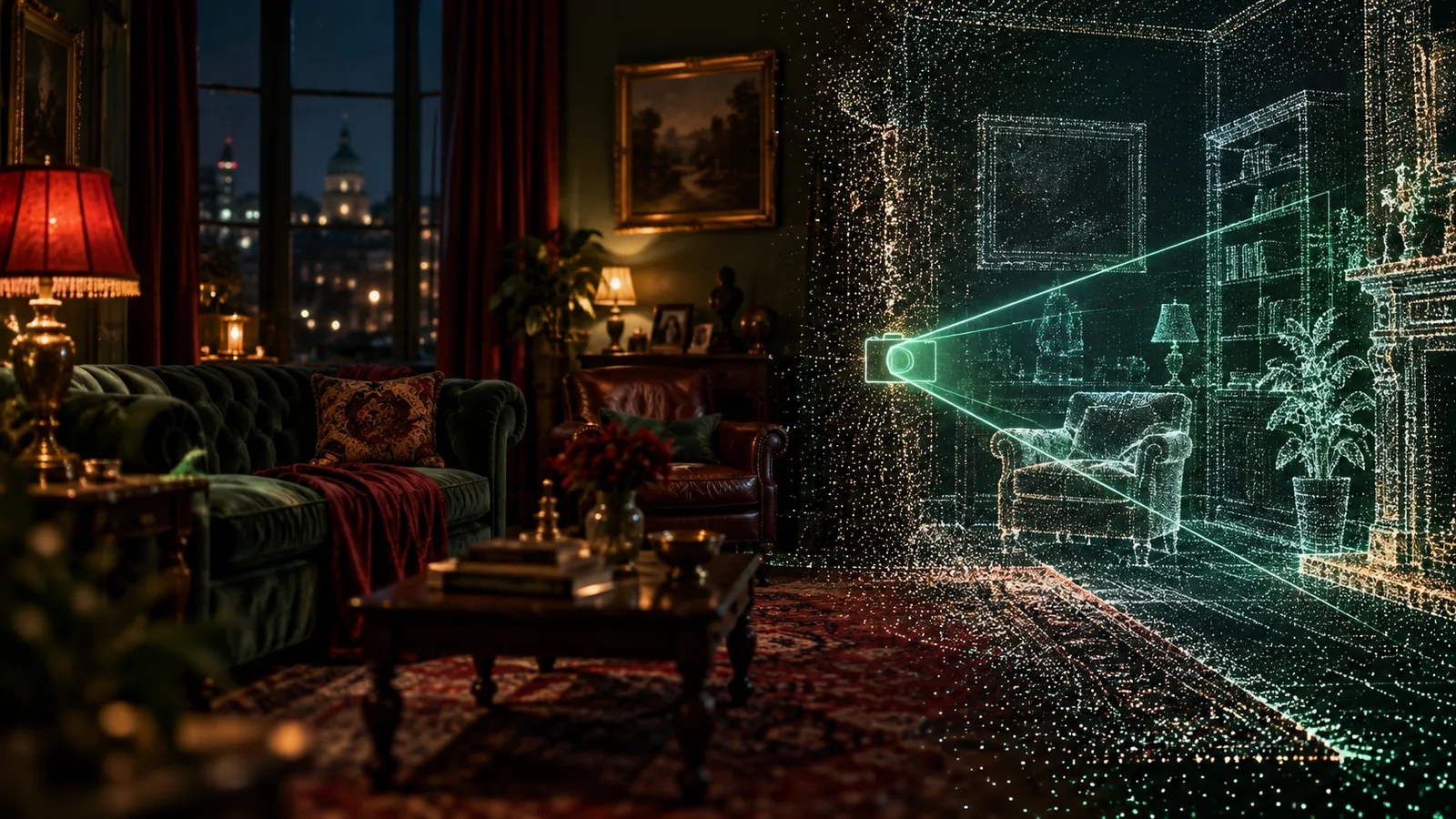
3D world from a shot

Generate an explorable 3D world from a shot's frame to find new angles in the same space.

Shot Editor

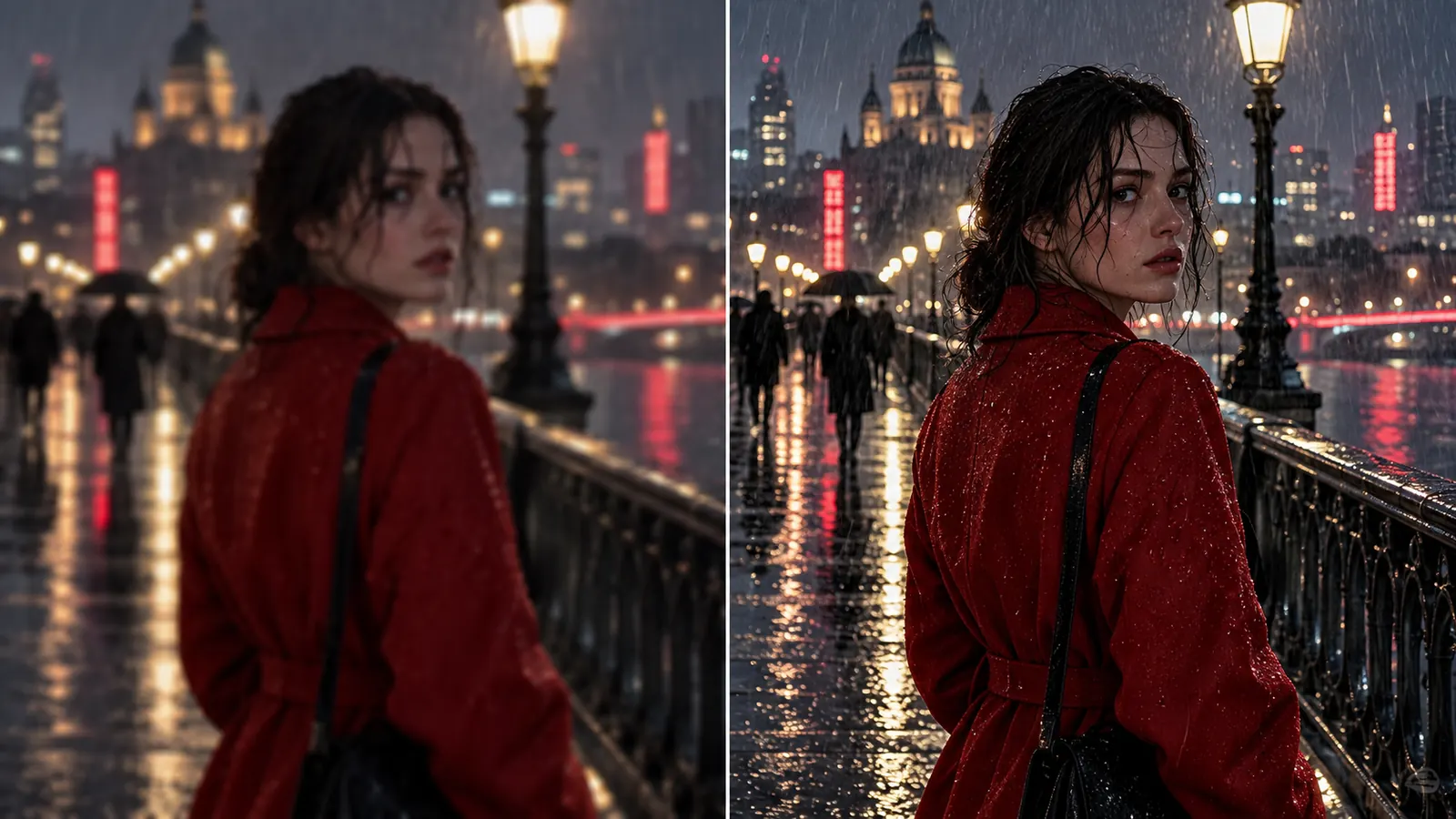
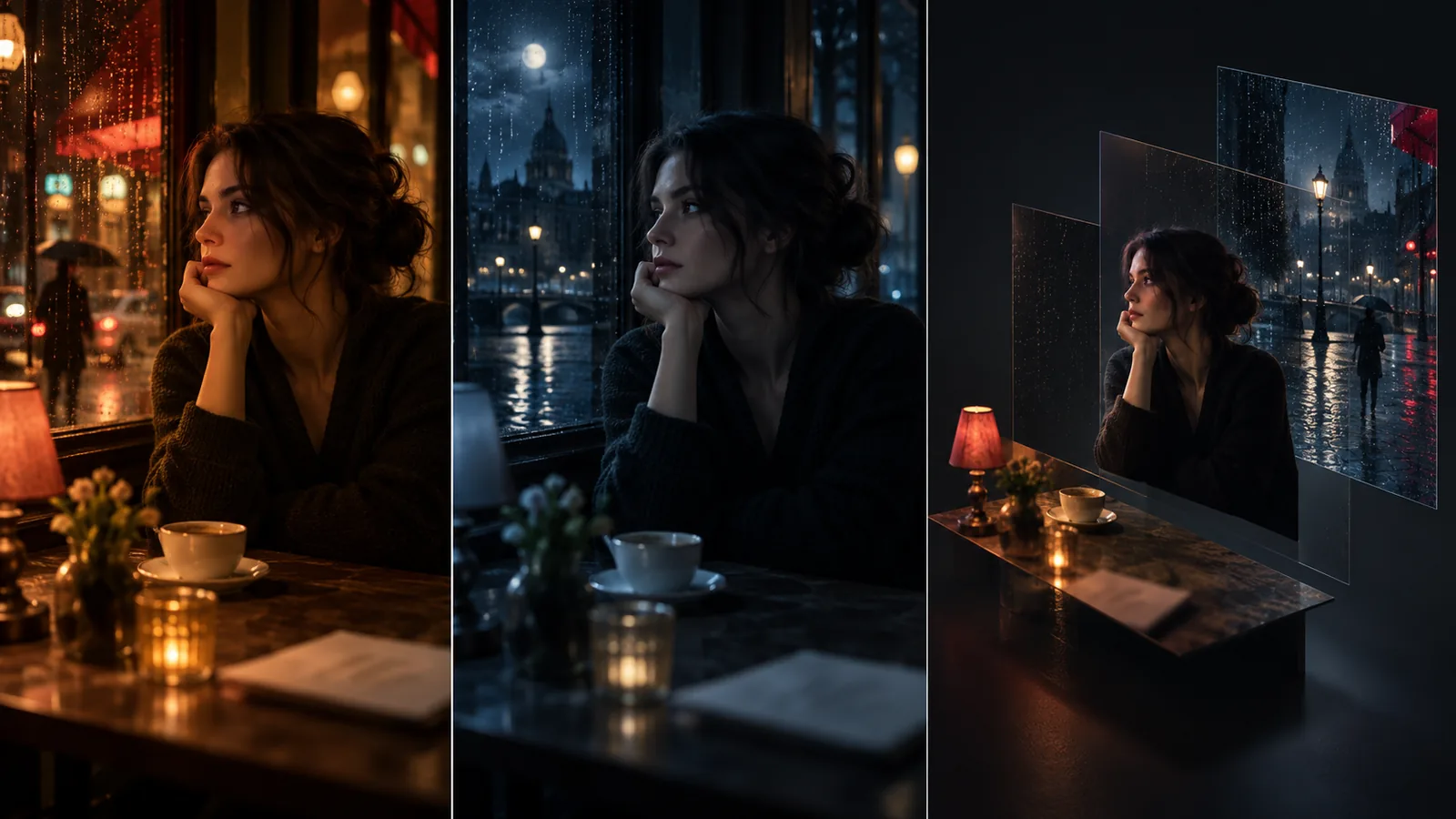
Relight, re-angle and split a frame

Relight a finished frame, move the camera angle, or decompose it into layers, without regenerating the shot from scratch.

Shot Editor

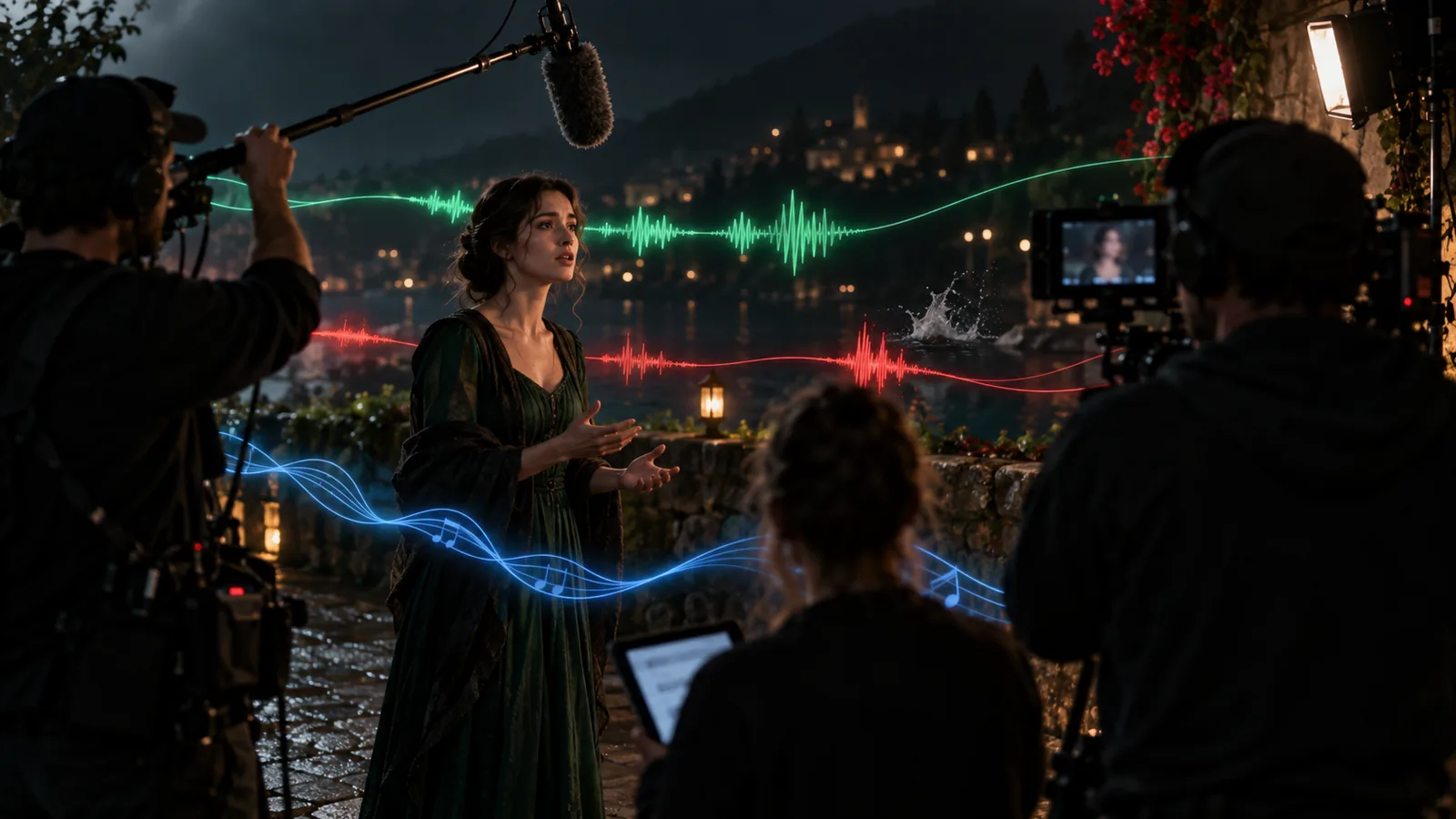
Dialogue, voices and sound per shot

Add dialogue, sound effects and music rows to each shot, give characters a voice, and lip-sync the line to the clip.

Shot Editor

Ask the AI inside the shot

Talk to an AI assistant from inside the Shot Editor; it reads the shot, the scene and the cast and changes them for you.

Assets

Real actors, verified faces

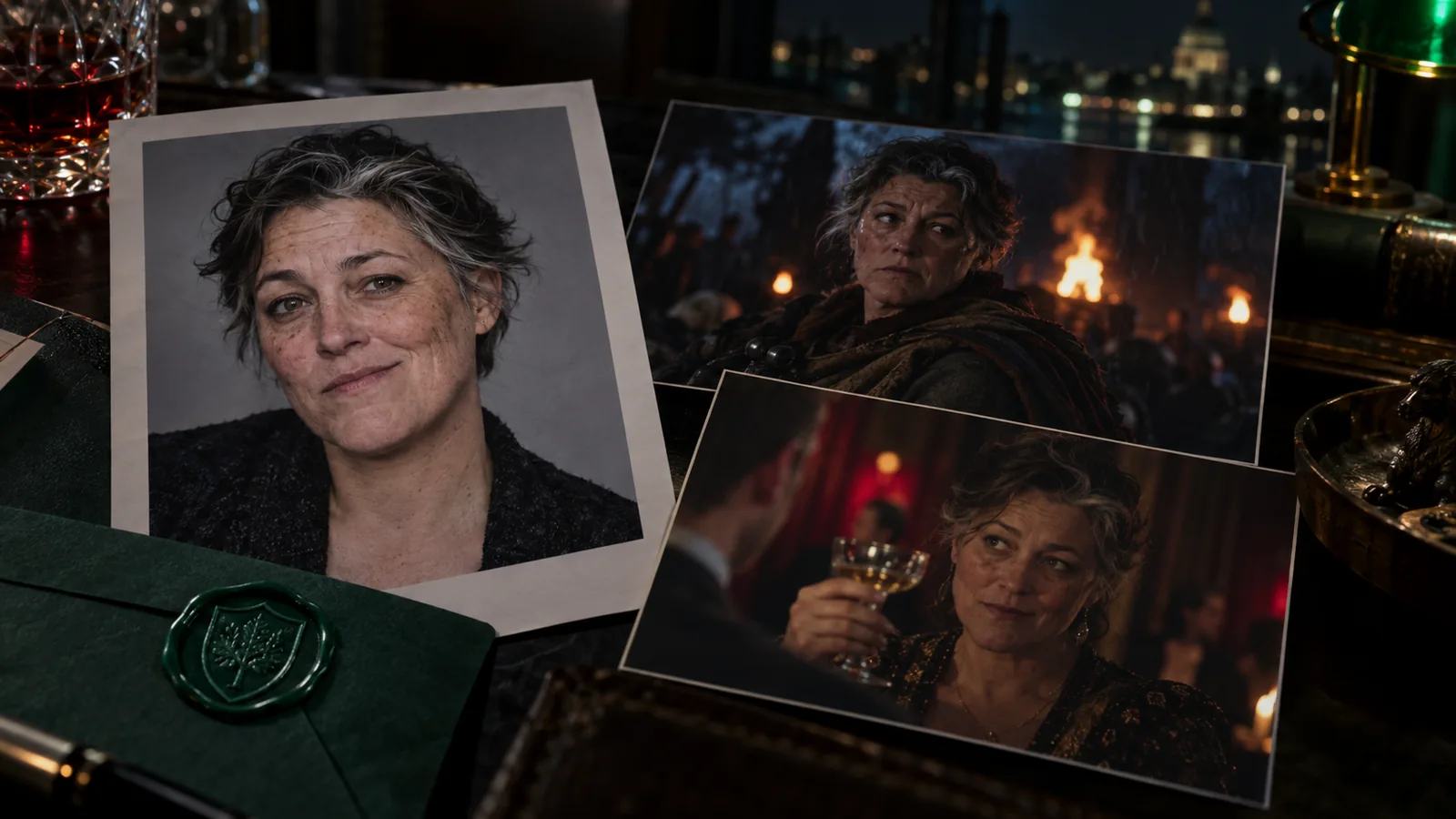
Cast a real person: after consent (KYC) their face is registered as a verified identity, so the video model accepts it and keeps it consistent across shots.

Assets

Locations

Scout with map search, then save the viewpoints you will shoot from. Every scene set there reuses the same place and angles.

Assets

Wardrobe

Dress each character scene by scene, including states like wet, torn or evening wear, and source real items; the renders follow the costume you set.

Assets

Asset Concept Sheets

Compare several takes on a character, location or prop side by side, refine one area with the mask brush, and approve one before it goes into shots.

Assets

Unified Asset Library

Every generated and uploaded image, clip and track in one library, with draft and final status and a picker that works anywhere in the project.

Assets

Project Style References

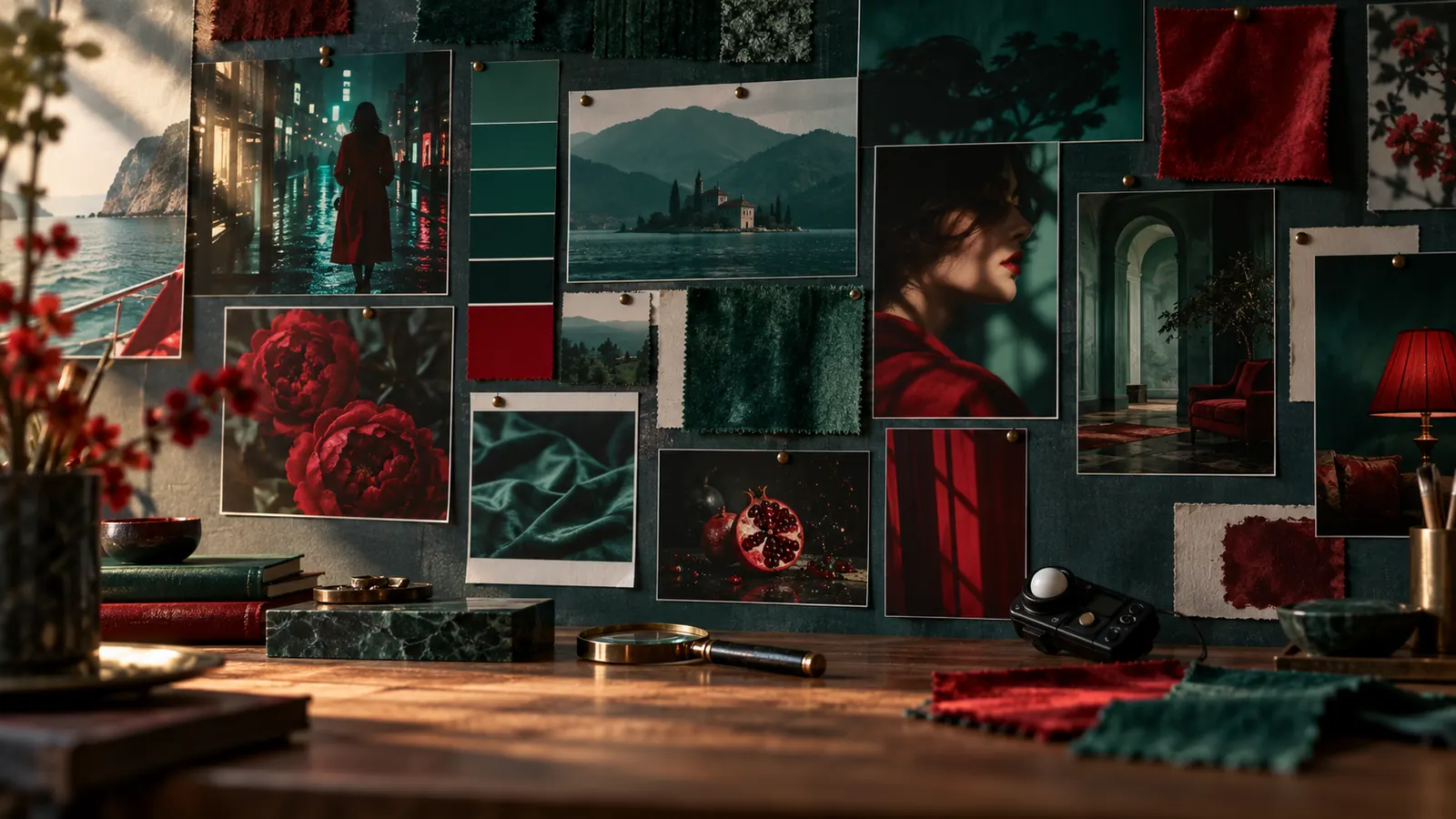
Set the project's look once with reference images, a palette and a short description, and it steers every generated frame and clip.

Assets

Props

Keep every prop with its references and generated variations, ready to mention in any shot.

Assets

Team likes and comments on assets

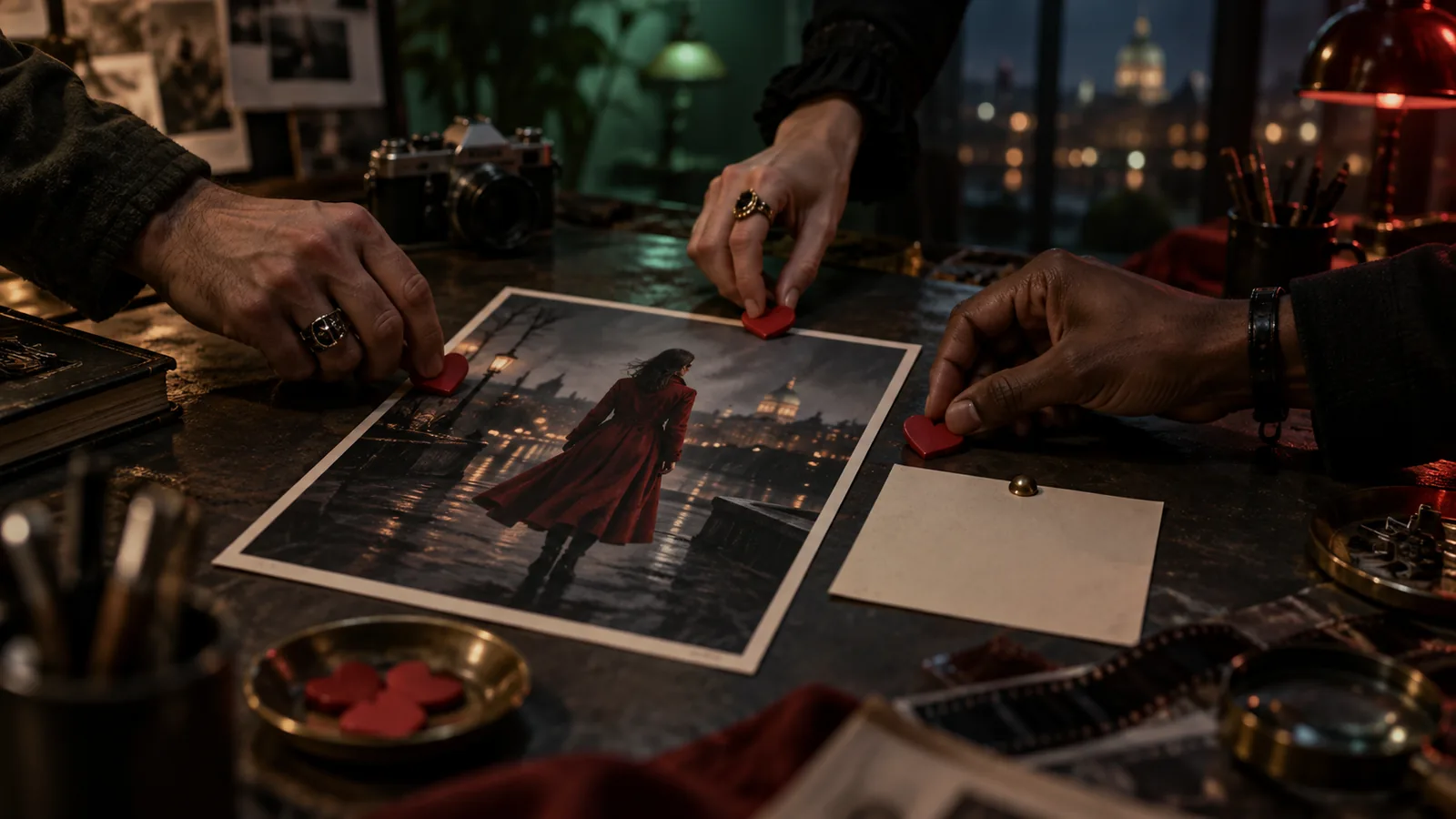
Like the takes you want, filter the library by who liked what, and leave comments on any asset.

Assets

Documentation sheets with real dimensions

Generate clean reference sheets for props and sets with their real-world measurements, so scale holds between shots.

Assets

Work from a local folder

Bind a folder on your disk and Creator Studio reads project media from it, with dots showing what is already cached on this device.

Assets

Character voices

Assign each character a voice, preview it, or clone one, and the same voice speaks every line.

Assets

LookBook

Curate reference collections that pin down each character's style, and share them with a public link.

Assets

Asset collections

Group assets into collections, share a collection by link, or promote it to the organisation library.

Assets

Audio library

Keep the project's dialogue phrases, music and sound effects in one shelf, trim them and drop them onto shots or the timeline.

Script

Script breakdown into scenes, shots and cast

Creator Studio reads the script and lists the scenes, shots, characters, locations and props it needs, ready to build.

Script

Treatment

Shape the story as a treatment with tone, beats, a bible and a poster, keep versions, and share it on a public page.

Script

AI Script Generator

Draft a full screenplay or a single scene from your brief, then get a critique of structure and pacing before you rewrite.

Script

Script History & Snapshots

Snapshot the script at any point and go back to an earlier draft.

Script

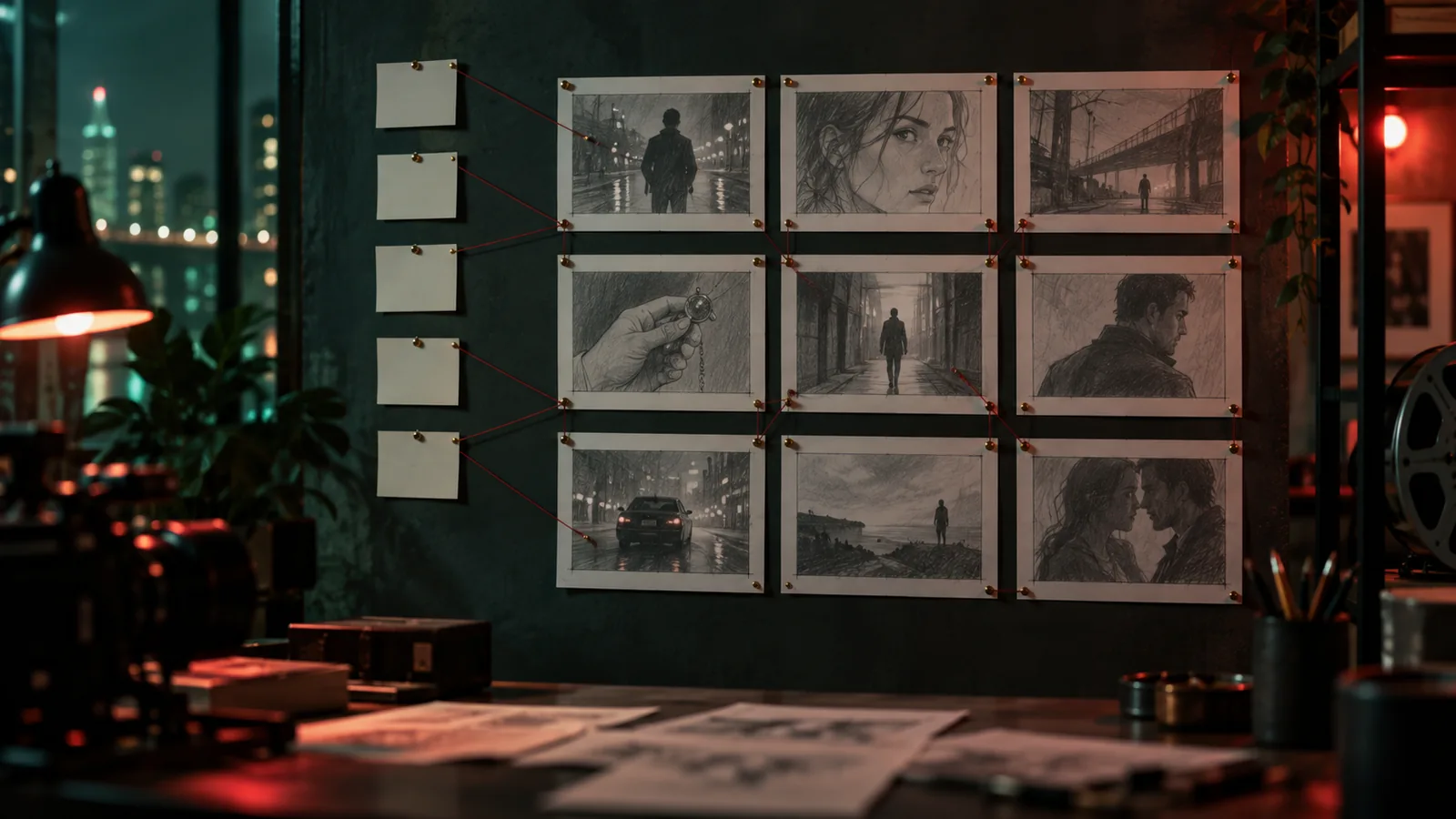
Storyboard the treatment

Turn treatment beats into storyboard grids before a single shot exists.

Script

Series canon, season outline and episode bible

For a series, generate the canon, a season outline and an episode bible that every script follows.

Visual Modes

Scene Timeline

See the whole film as scenes and shots on one timeline, with every take and version of a shot a click away.

Visual Modes

Scenes view

A compact scene grid for building out shots quickly and moving scenes between episodes.

Visual Modes

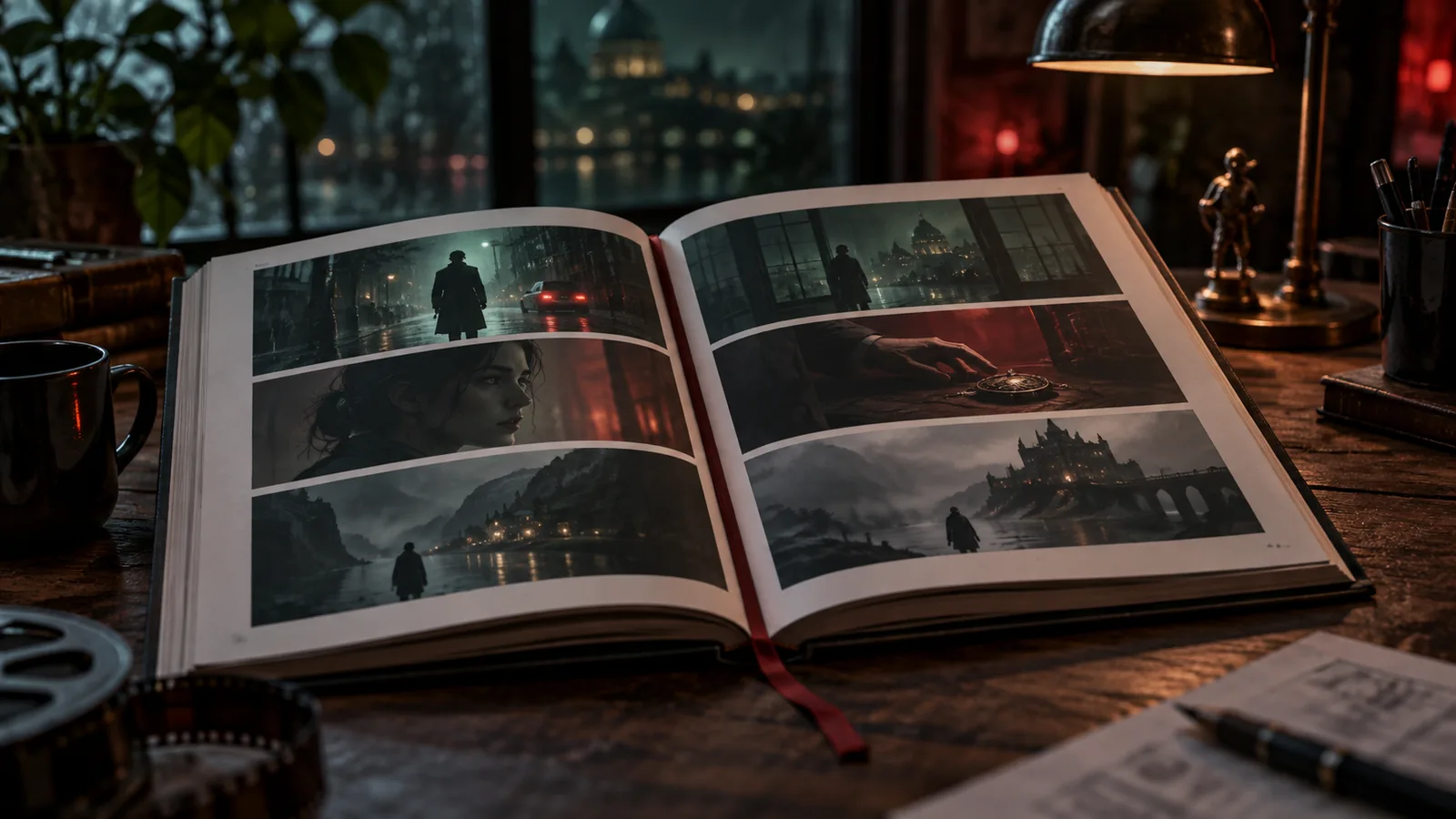
Storyboard book with a public link

Page through an episode as a storyboard book and share it with anyone by link.

Visual Modes

Clapperboard View

Shot cards laid out like production slates, for a quick read of the coverage.

Brief

AI Project Brief

Answer a guided brief covering story, characters, brand, product, look and sound, and every later step starts from it.

Brief

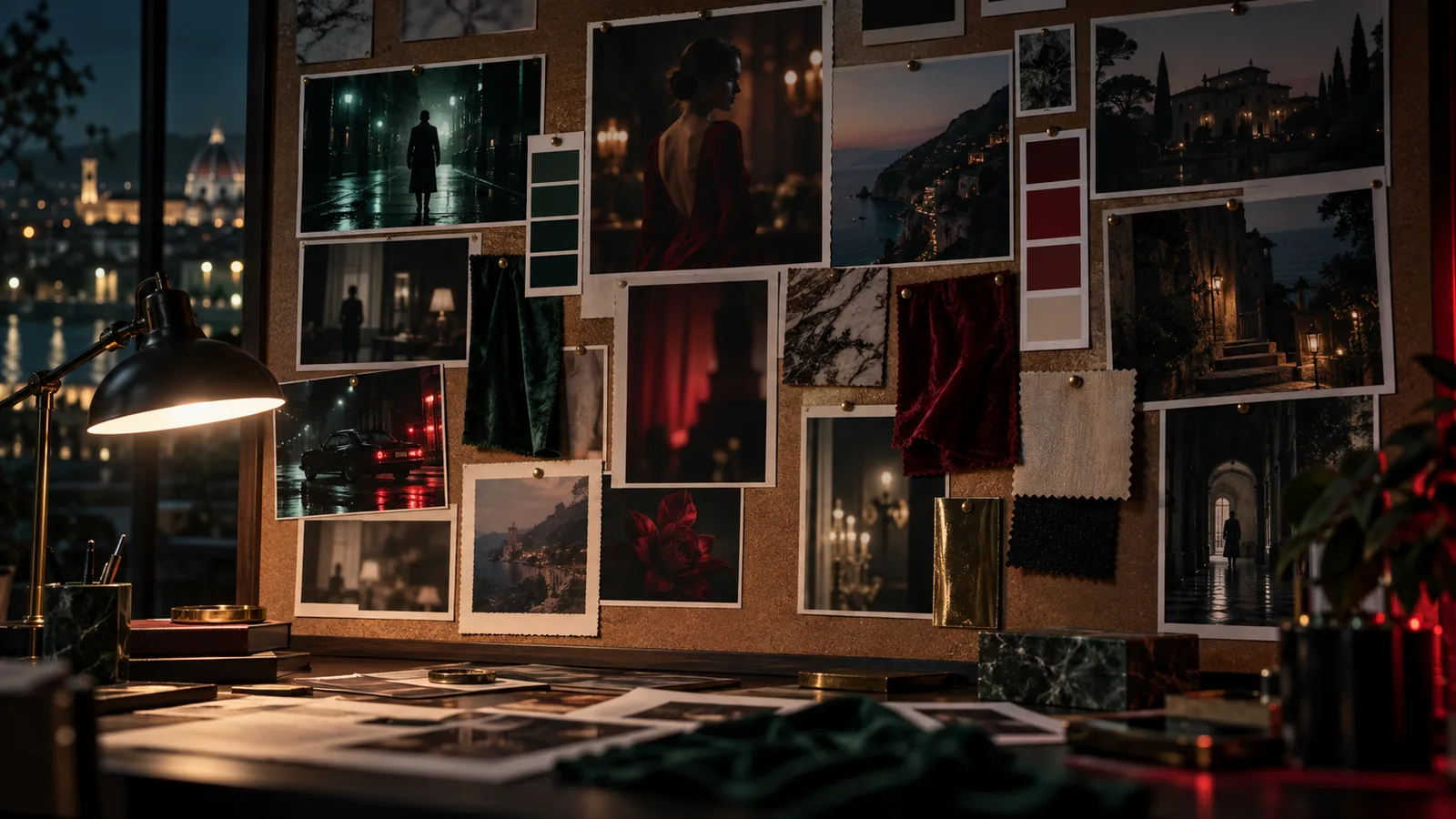
Reference boards

Collect references on boards, import them from a URL or the Research Magazine, and send a selection to the client.

Brief

Find related works

Get films, series and ads comparable to your brief or treatment, as references for tone and pitch.

Brief

Brief moodboard and music references

Collect visual and music references in the brief and let the AI analyse the mood before anything is generated.

Brain

Brain Graph Workspace

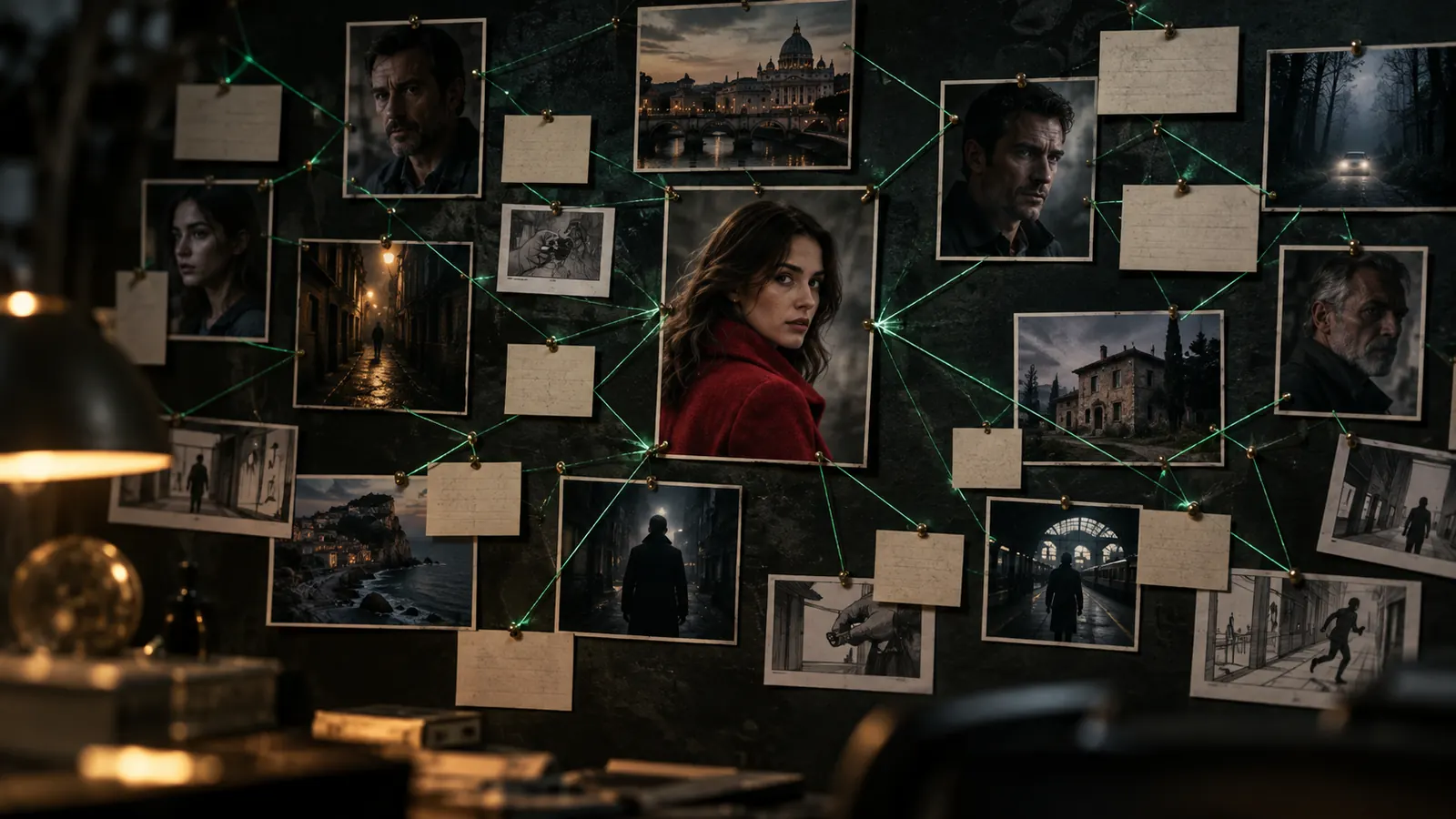
See the production as one connected map of characters, scenes, locations, documents and budget, and ask the AI co-author to make changes across it.

Brain

Project memory for your AI crew

Everything in the project (script, brief, documents, decisions) is indexed, so agents answer and act with the full project context.

Music

Music for the project

Analyse reference tracks, then generate a score or a song with lyrics for the project.

Batch Operations

Batch Asset Generation

Generate reference images for many characters, costumes, props and locations in one pass.

Batch Operations

Batch Image Generation

Queue frames for a whole scene or the entire script at once and watch them arrive shot by shot.

API access

API access and MCP tokens — Доступ к API и токены MCP

Where to create an API key for MCP clients, and the OAuth alternative.

Overview

From script to final cut, in one project

Write the script, cast your characters, direct every shot and render the film in one workspace, with every frame linked to its scene, its cast and its cost.

Overview

Project Details

Start a project in a minute (title, synopsis, format, budget, poster) and pick it up from the projects dashboard whenever you come back.

Overview

Episodes and series

Split a series into episodes, each with its own scenes, direction settings and film-stock look.

Overview

Status & Lifecycle

Move a project from Development through Pre-production, Production and Post to Completed, so everyone knows where it stands.

Overview

AI project setup

When you create a project, the AI proposes the processes, roles, team size and first tasks, and applies them in one click.

Overview

Production Hub

Link the project to its client, brand, production house and city, so briefs and deliverables carry the right business context.

Overview

Project media and wiki

Keep the project's covers for every aspect ratio, a backstage gallery and a wiki page with facts, press and awards.

Overview

Subprojects

Run a series or a campaign as one production: episodes and spots nest under a parent project, each with its own timeline and assets.

Management

Call Sheets

Turn the shooting schedule into call sheets with crew, locations and times, then print them or save a PDF.

Management

Task Board

Plan the production on a Kanban board, a calendar or a Gantt chart.

Management

Team & Staffing

Build the cast and crew list with a role picker and track candidates for every position.

Management

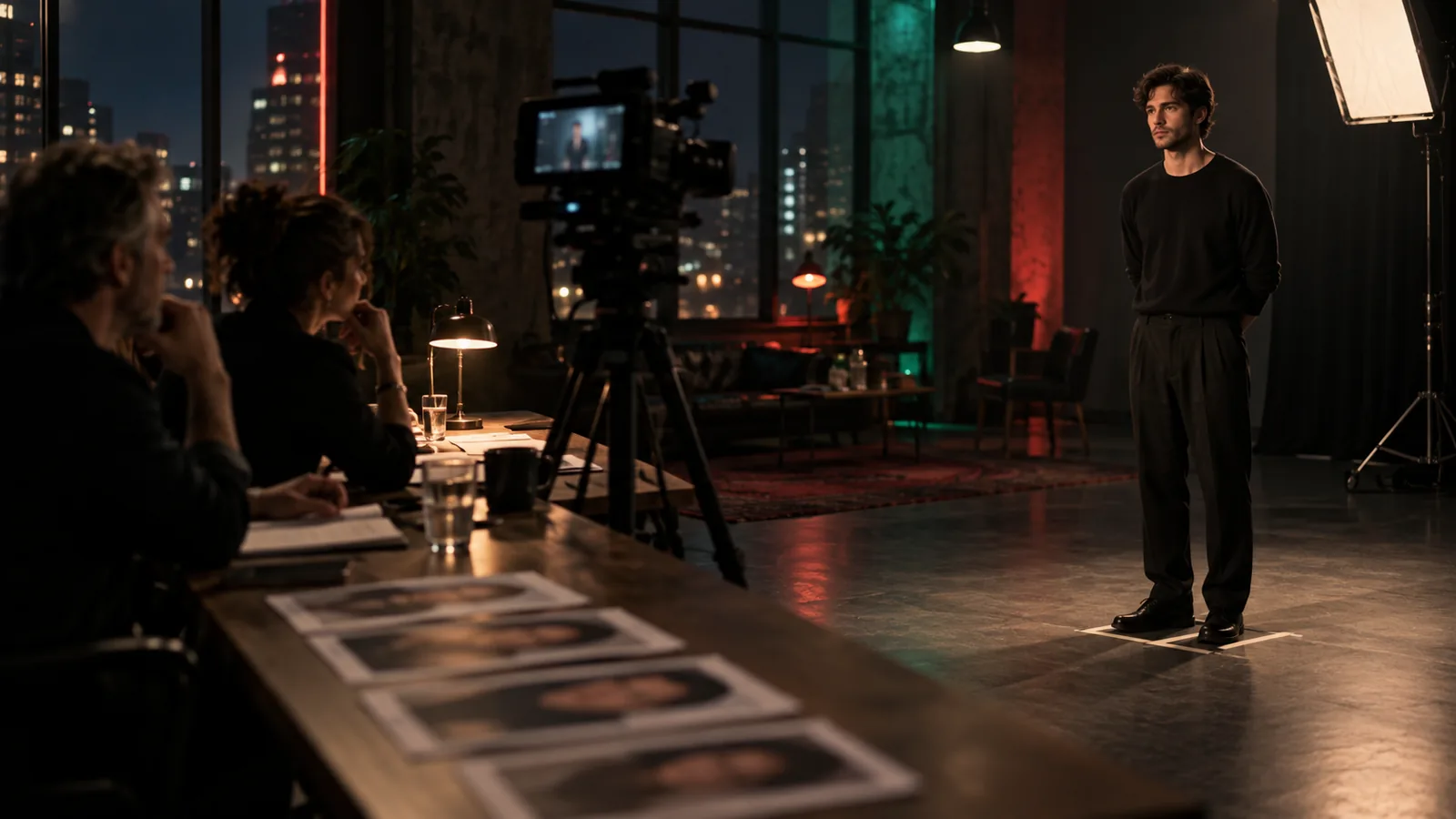
Casting calls

Publish a casting for a role, collect applications and move candidates through review.

Management

Finance

Set the budget by category and log expenses against it as the production runs.

Management

Equipment

List the gear each project needs, so nothing is missing on the day.

Project Administration

Share with your team

Invite teammates as viewers or editors with granular access.

Project Administration

Project Settings

Set aspect ratio, branding, integrations and production defaults once per project.

Project Administration

A live project page for your client

Share a no-login page with the latest frames, clips, music and treatment; signed-in visitors can like and comment, and you revoke the link any time.

Project Administration

Version Control

Save project-wide snapshots at milestones and deliveries.

Developer & API

Producer notes to agents

Leave notes on a shot or bind a Telegram chat to the project; agents log them as comments and revisions and act on them.

In Numbers

Creator Studio in numbers

Counted from the product and its production database on 24 September 2026.

262

Agent tools

MCP tools an AI crew can call

80 · 74

Cameras · lenses

real bodies and glass, per shot

49

Camera moves

each with a preview clip

3,387

Clips rendered

video renders completed since March 2026

Creator Studio について

Creator Studioとは

Creator Studioは、単独のメディアプロジェクト、エピソードシリーズ、コマーシャルキャンペーンを管理するために設計された包括的な制作ワークスペースです。企画開発、プリプロダクション、プロダクション、ポストプロダクション、完成という5つの主要な制作フェーズ全体をカバーします。

このアプリケーションは、脚本、トリートメント、ビジュアルスタイルルール、キャラクターリファレンスシート、シーンブロッキングマップ、バーチャルカメラ設定、オーディオトラック、予算などの制作アセットを、AI画像およびビデオ生成パイプラインに直接接続します。


はじめに

  1. アプリケーションを開く: メインプラットフォームのダッシュボードから、Creator Studioを選択します。
  2. プロジェクトの作成または開く: プロジェクト作成ボタンをクリックして、プロジェクトの詳細(タイトル、あらすじ、制作形式、目標アスペクト比、総予算、ポスターアートワーク)を入力するか、ダッシュボードから既存のプロジェクトを選択します。
  3. AIプロジェクトセットアップの実行: 新規制作の場合は、AIプロジェクトセットアップを選択して企画書を分析します。システムは制作ワークフロー、人員配置、チーム構成、初期タスクボードを自動的に推奨し、ワンクリックで適用できます。
  4. シリーズまたはサブプロジェクトの設定: エピソードコンテンツやコマーシャルキャンペーンを管理している場合は、親プロジェクトの下にサブプロジェクトまたはエピソードを作成します。サブプロジェクトはマスターブランドガイドラインとアセットライブラリを自動的に継承しつつ、ローカライズされたシーンリスト、タイムライン、ビジュアルスタイルを保持します。
  5. プロジェクトのデフォルト設定: プロジェクト設定を開き、デフォルトのアスペクト比、ビジュアルブランディングルール、連携、制作設定を確立します。
  6. クレジット見積もりとプレビューの理解: AI生成は、選択したモデル、レンダリング解像度、クリップの長さに基づいてプロジェクトクレジットを消費します。
    • 事前見積もり: ショットエディターは、生成をクリックする前に正確なクレジットコストを表示します。
    • ドライランプレビュー: ドライランプレビュー機能を使用して、複数のショットシーケンスにおけるクレジット消費量をレンダリングを開始する前に見積もることができます。

主な機能

1. ビデオ生成、ディレクティング、バーチャルカメラ制御

  • アセット駆動型ビデオレンダリング: キャラクター、ロケーション、衣装、小道具のリファレンス画像がレンダリングエンジンに自動的に供給され、生成されたビデオクリップ全体で視覚的な詳細の一貫性を保ちます。
  • ショットエディターとカメラ制御: 80種類のバーチャルカメラボディ、74種類のレンズ、フィルムストックパラメーター、49種類のプリセットカメラムーブ(ドリー、オービット、ドローン、FPV、スピードランプなど)を使用して、短いプレビュークリップ付きで個々のショットをディレクションします。プロンプトフィールドに「@」を入力すると、キャストメンバーをショットに直接タグ付けできます。
  • デュアルティアレンダリング(480pドラフトから1080p最終版へ): Seedance 2.5を使用して480pのドラフトクリップを迅速にレンダリングし、動きとタイミングを確認した後、再プロンプト入力ややり直しなしで承認されたテイクを1080pの最終レンダリングにアップグレードします。
  • インペインティングとマスク編集: マスクブラシで特定のフレーム領域をハイライトし、修正内容を記述します。GPT Image 2.5は、選択された領域のみを変更し、フレームの残りの部分はそのまま保持します。
  • クリップ操作(編集、拡張、アップスケール): ビデオツービデオプロンプトを使用して既存のビデオクリップを変更したり、シームレスに結合された追加の秒数でクリップの長さを延長したり、クリップの解像度を直接アップスケールしたりできます。
  • 外部フッテージのインポート: 独自のビデオフッテージをショットにアップロードし、インタラクティブなフィルムストリップコントロールを使用して、編集または継続のソース素材として正確なフレーム範囲を選択します。
  • マルチショットコンポジショングリッド: 2x2、3x3、または4x4のカメラアングルグリッドを一度に生成してショットのカバー範囲をプレビューし、好みのフレーミングを選択してアップスケールします。
  • AI画像生成とAIフィル: プロジェクトのビジュアルルールに従って、好みの画像モデルを選択して絵コンテフレームを生成します。AIフィルを使用して、ショットプロンプト、ブレイクダウン、およびスクリプトからのコンテキストをあなたの言語で自動入力します。
  • コンポジション固定(REF SHOT & +STORYBOARD): REF SHOTを使用して絵コンテフレームを固定された構図テンプレートとしてロックすると、生成されたビデオクリップは俳優が動いても正確なカメラアングルとレイアウトを維持します。+STORYBOARDを使用して、絵コンテシート全体に構図ルールを適用します。
  • 3Dワールド生成: 単一のフレーム画像から探索可能な3D環境を合成し、同じ空間内で新しいカメラアングルを探します。
  • 再ライティング、再アングル調整、レイヤースプリット: 完成したフレームを再ライティングしたり、カメラアングルを変更したり、フレームを前景と背景の独立したレイヤーに分解したりできます。これらは最初から再レンダリングすることなく行えます。
  • インショットAIアシスタント: ショットエディター内に埋め込まれたアシスタントと対話し、ショット、シーン、キャストのコンテキストを読み取ってショットパラメーターを調整させます。
  • テイク履歴とワンクリックバージョン管理: ショットごとのバージョンタイムラインですべてのテイクにアクセスし、オプションを比較したり、アクティブなカットを切り替えたり、以前のテイクをワンクリックで復元したりできます。
  • 一括画像およびアセット生成: シーン全体やスクリプト全体のフレーム生成を一度にキューに入れたり、キャラクター、衣装、小道具、ロケーションのリファレンス画像を一度に一括生成したりできます。
  • ライブエージェントとチームメイトの更新: ブラウザを更新することなく、チームメイトや自動エージェントによって作成されたショットやレンダリングをタイムラインでライブで確認できます。
  • マスタービデオエクスポートと編集引き渡し: 最終カットをFinal Cut Pro用のFCPXMLファイルとしてエクスポートしたり、整列されたシーン、ショット、マルチトラックオーディオを含む完成したマスタービデオファイルに直接レンダリングしたりできます。

2. キャラクターの継続性、ビジュアルアセット、オーディオ

  • 一貫したアセットリファレンスシート: キャラクター、ロケーション、衣装、小道具をリファレンスシート、ターンアラウンドアングル、視点を用いて構築し、すべてのフレームがモデルに忠実であることを保ちます。
  • 本人確認済み俳優の登録: 顔認証による本人確認(KYC)を完了し、認証済みIDプロファイルを登録することで、ビデオモデルがショット全体で一貫した顔を維持するように、実在の人物をキャスティングします。
  • 衣装、メイクアップ、ヘアトラッキング: シーンごとにキャラクターの服装(濡れている、破れている、イブニングウェアなどの状態を含む)を設定し、専用のインターフェースモーダルを通じて詳細なメイクアップとヘアスタイリングのメモを追跡します。
  • ロケーションスカウト: マップを検索してロケーションをスカウトし、カメラの視点を保存します。そのロケーションで設定されたすべてのシーンは、保存された場所とアングルを再利用します。
  • アセットコンセプトシート: キャラクター、ロケーション、または小道具の複数のテイクを並べて比較し、マスクブラシで特定の領域を修正し、ショットで使用する前に選択したテイクを承認します。
  • 統合アセットライブラリとコレクション: 生成およびアップロードされたすべての画像、ビデオクリップ、オーディオトラックを、ドラフトと最終ステータスインジケーター付きで一元的なライブラリに保存します。アセットをコレクションにグループ化し、リンク経由で共有したり、組織ライブラリに昇格させたりできます。
  • プロジェクトスタイルリファレンスとルックブック: リファレンス画像、カラーパレット、説明を使用してビジュアルアイデンティティを定義します。リファレンスコレクションをルックブックにまとめ、公開リンク経由で共有します。
  • 小道具カタログと実世界寸法: リファレンス画像と生成されたバリエーションで小道具の記録を維持し、実世界での測定値を含むドキュメントシートを生成して、ショット全体で正確なスケールを維持します。
  • ローカルフォルダ同期: ストレージデバイス上のローカルフォルダをバインドしてプロジェクトメディアを直接読み込み、どの資産がローカルにキャッシュされているかを示す視覚的なインジケーターを表示します。
  • チームの「いいね」とコメント: 好みの資産テイクに「いいね」を付けたり、チームメンバーの「いいね」でライブラリをフィルタリングしたり、資産にコメントを残したりできます。
  • オーディオライブラリ、音声合成、リップシンク: 対話、効果音、音楽の行をショットに追加します。キャラクターの声を割り当てたり、声をプレビューまたはクローンしたり、ビデオクリップに音声をリップシンクしたり、ミキサーでタイムライントラックのオーディオバランスを調整したり、リファレンストラックを分析して歌詞付きのカスタムスコアや楽曲を生成したりできます。

3. 脚本執筆、プリプロダクション、シーンブロッキング

  • 脚本エディターと自動スクリプトブレイクダウン: AI共同執筆ツールを備えたエディターで直接執筆するか、既存のスクリプトをインポートします。システムはスクリプトをシーン、ショット、キャストメンバー、ロケーション、小道具に自動的にブレイクダウンします。
  • AIスクリプトジェネレーターと批評: 企画書から完全な脚本や個々のシーンをドラフトし、書き直す前にAIに構造とペースの批評を要求します。
  • スクリプト履歴とスナップショット: 主要なマイルストーンでスクリプトのスナップショットをキャプチャし、必要に応じて以前のドラフトを復元します。
  • 絵コンテと印刷可能ボード: 構造化されたパネルを備えた印刷可能なシーンボード、エピソードボード、または編集用雑誌レイアウトを作成します。これらをPDFまたはPNG形式でエクスポートしたり、デザインモードで開いてレイヤー調整を行ったり、公開リンクやデジタル絵コンテブックを通じて共有したりできます。
  • トリートメントとピッチドキュメント: ストーリーの要点、トーン設定、ピッチバイブル、ポスター、トリートメント絵コンテグリッド、共有可能な公開ページを含むトリートメントをドラフトします。
  • シリーズの規範とバイブル: 複数のエピソードコンテンツ向けに、シリーズの規範、シーズン概要、エピソードバイブルを生成します。
  • シーンエディター、タイムライン、ビュー: シーンエディター、コンパクトなシーンビューグリッド、シーンタイムライン、カチンコビューを使用して、シーンの詳細、キャストの割り当て、ロケーション、ルック、およびバージョンを管理します。
  • シーンマップエディターとAIディレクション: 俳優、小道具、カメラを配置してトップダウンビューからシーンをブロッキングし、その位置をショットプロンプトに直接供給します。AIシーンディレクションを使用して、ディレクション設定に基づいてショットカバー範囲の提案を自動的に生成します。
  • AIプロジェクト企画書と関連作品: 物語、キャラクター、ブランディング、ルック、サウンドをカバーするガイド付き企画書を完成させます。AI分析のためにムードボードのビジュアルと音楽リファレンスを収集し、ピッチのリファレンスとなる比較可能な映画、シリーズ、または広告を発見します。
  • ブレインググラフワークスペースとプロジェクトメモリ: 制作を、キャラクター、シーン、ロケーション、ドキュメント、予算が接続されたマップとして表示します。すべてのプロジェクト要素はプロジェクトメモリにインデックス付けされ、AIアシスタンスが制作コンテキストに基づいたものとなるようにします。

4. 制作管理とコラボレーション

  • 制作ハブとメディアWiki: プロジェクトをクライアント、ブランド、制作会社、都市にリンクさせます。アスペクト比カバー、舞台裏フォトギャラリー、プレスおよび事実情報用のプロジェクトWikiページを維持します。
  • ライフサイクルステータス: プロジェクトを企画開発、プリプロダクション、プロダクション、ポストプロダクション、完成の各段階で進行させます。
  • タスクボードとコールシート: カンバンボード、カレンダー、またはガントチャートを使用して作業を整理します。撮影スケジュールを、クルー、ロケーション、時間詳細を含む印刷可能またはダウンロード可能なPDFコールシートに変換します。
  • チーム人員配置、役割、キャスティングコール: 役割選択機能でキャストとクルーのリストを管理し、候補者を追跡し、公開キャスティングコールを公開して応募者を募り、審査します。
  • 財務と機材トラッキング: 予算カテゴリを定義し、制作中の費用を記録し、撮影用の機材リストを維持します。
  • AIエージェントとプロデューサーノート: ショットの更新、レンダリングのキューイング、タスクの管理を行うAIエージェントと連携します。ショットにメモを残したり、Telegramチャットを接続してプロデューサーの指示をプロジェクトに直接送信したりできます。
  • クライアント共有とライブプロジェクトページ: 最新のフレーム、クリップ、音楽、トリートメントを表示するログイン不要の公開ページを共有します。サインインしたレビュー担当者は「いいね」やコメントを残すことができ、アクセスはいつでも取り消すことができます。
  • バージョン管理とスナップショット: 主要なマイルストーンでプロジェクト全体のスナップショットを保存し、時間の経過とともに変更を追跡します。
  • APIアクセスとMCPトークン: 外部ツールやサービスを統合するためにAPIキーを生成したり、OAuth認証情報を構成したりできます。

使用方法

ワークフロー1: 脚本執筆と自動ブレイクダウン

  1. プロジェクトを開き、脚本エディターを選択します。
  2. スクリプトを入力するか、既存のファイルをインポートします。AI共同執筆ツールを使用して、シーンを洗練したり、不足しているセリフを生成したりします。
  3. 自動生成されたブレイクダウンを確認し、抽出されたシーン、ショット、キャラクター、ロケーション、小道具が正しいことを検証します。
  4. スクリプトスナップショットを保存して、マイルストーンドラフトを保持します。

ワークフロー2: ビジュアルキャラクターとスタイルの一貫性を確立する

  1. アセット管理セクションを開き、主要なキャラクター、小道具、ロケーションの記録を作成します。
  2. ビジュアルリファレンス画像をアップロードし、カラーパレットを設定し、プロジェクトのスタイルリファレンスを定義します。
  3. 実在の俳優に対して顔認証による本人確認(KYC)を実施し、認証済みIDプロファイルを登録します。
  4. シーンごとの衣装の状態(例:濡れている、イブニングウェア)を設定し、自動音声とリップシンクのためにキャラクターの音声プロファイルを割り当てます。
  5. アセットコンセプトシートを生成してテイクを並べて比較し、マスクブラシで詳細を修正し、最終的なリファレンスルックを承認します。

ワークフロー3: ショットのディレクションとレンダリング

  1. シーンエディターまたはショットエディターを開きます。
  2. 「@」タグを使用して、キャストメンバーをプロンプトにタグ付けします。
  3. カメラボディ、レンズ、フィルムストック、カメラムーブプリセットを選択して、バーチャルカメラ設定を構成します。
  4. ショットエディターに表示されるクレジットコスト見積もりを確認するか、複数のショットでドライランプレビューを実行します。
  5. Seedance 2.5を使用して480pのドラフトクリップをレンダリングし、カメラの動きとタイミングを確認します。
  6. 細部の変更が必要な場合は、マスクブラシを使用してGPT Image 2.5でインペインティング編集を実行します。
  7. テイクに満足したら、ワンクリックで直接1080pの最終レンダリングにアップグレードします。

ワークフロー4: レビュー、絵コンテ作成、エクスポート

  1. シーンタイムラインでシーケンス全体を表示するか、絵コンテブックをページ送りして確認します。
  2. 印刷可能なシーンボードまたは編集用ボードを作成し、用紙レイアウトをカスタマイズし、PDF/PNGにエクスポートするか、デザインモードでレイヤーを編集します。
  3. タイムラインオーディオミキサーを使用して、ダイアログ、音声合成、効果音、スコアトラックのバランスを調整します。
  4. 外部クライアントや関係者とライブプロジェクトページのリンクを共有し、フィードバックを収集します。
  5. 最終カットをFinal Cut Pro用のFCPXMLファイルとしてエクスポートするか、完成したマスタービデオファイルを直接レンダリングします。

ヒントと注意点

  • GPUメモリ保持: **「メモリにロード」**コントロールが無効になっている場合は、コントロール自体に表示されるメッセージを確認してください。これは、ローカルのPMF Linkランタイムソフトウェアに必要なバージョンアップデートを示します。
  • クレジットコストの透明性: レンダリングを開始する前に、ショットエディターで常に事前のクレジット見積もりを確認してください。マルチショットシーケンスでドライランプレビューを使用して、合計クレジット使用量を事前に評価します。
  • 選択的インペインティング: マスク編集を使用する際は、変更が必要な正確な領域のみをブラシでなぞってください。GPT Image 2.5は、変更を選択されたスペースに合成し、元のフレームの残りの部分はそのまま保持します。
  • ボードのエクスポート: 印刷可能な絵コンテ(シーンボードや編集レイアウト)をPDFまたはPNGにエクスポートする際、エクスポートはクリーンな印刷のために自動的にライトペーパーテーマを使用しますが、アクティブなスクリーンエディターはダークワークスペーステーマを保持します。

最新情報

4K最終出力、アセット管理の強化、プロンプトエディターの改善

11/19/2026 · v1.160
新機能Shot Editorで、480pのドラフトから4K解像度で最終的なビデオクリップをレンダリングできるようになりました。1080pと4Kの両方のオプションで、明確な料金が表示されます。
改善アセットの一括選択を行う際、選択したすべてのアイテムを一度にコレクションに追加できるようになりました。Shiftキーを押しながらクリックすると範囲選択も可能になり、一括操作中に保留中のアップロードはスキップされます。
改善拡張されたプロンプトエディターの@-メンションメニューが、カーソル行に直接開くようになり、プロンプト作成時の視認性と使いやすさが向上しました。

無料

サブスクリプション不要

無料で始める
開発元ProMediaFlow
バージョン1.160
カテゴリコア

Creator Studio を含むプラン

すべてのプランは AI クレジットで動作し、プランごとに月間クレジット、ストレージ、席数が決まります。

Free

無料

  • 1,000 AI credits/month
  • 1 GB storage
  • Watermark on exports
  • Basic AI Chat (10 msg/day)
  • News Feed (5 articles/day)
Free を選択

Starter

$9.99/月

または $95.90/年

  • 10,000 AI credits/month
  • 10 GB storage
  • HD AI Generation
  • Brand Catalog
  • CrewChat (DM only)
Starter を選択

Creator

$29.99/月

または $287.90/年

  • 30,000 AI credits/month
  • 50 GB storage
  • 2K AI Image Generation
  • Creator Studio (1 project)
  • Brand Catalog
Creator を選択
人気

Pro

$49.99/月

または $479.90/年

  • 50,000 AI credits/month
  • 100 GB storage
  • Creator Studio (3 projects)
  • Artwork Researcher
  • Full CrewChat access
Pro を選択

よくある質問

Which AI models does Creator Studio use?

You choose the image or video model per shot, including Seedance 2.5 for video and GPT Image 2.5 for images, and the shot editor shows the price before you render.

How are renders billed?

Every render spends AI credits from your plan. The price is quoted before you start. A Seedance draft plus its 1080p final costs more than rendering 1080p directly, so drafts pay off when you would otherwise try several 1080p takes.

Can I use my own photos and footage?

Yes. Upload images, clips and audio to the project library and use them as references in any shot. Photos of real people are accepted once the person is verified with their consent; otherwise the video model's content checks can refuse them.

Can I finish the edit in Final Cut Pro?

Yes. Export the timeline as FCPXML, or render it straight to a video file.

Can AI agents work on my project?

Yes. Agents connected to your workspace use Creator Studio's MCP tools to read and update shots, assets and tasks, and their changes appear in the project like anyone else's.

What subscription plans are available?

ProMediaFlow offers flexible subscription tiers based on your team size and feature requirements. Contact us for detailed pricing.
Creator Studioで何かを作ってみませんか?

無料アカウントを作成して、ProMediaFlowとそのアプリをお試しください。

無料アカウントを作成