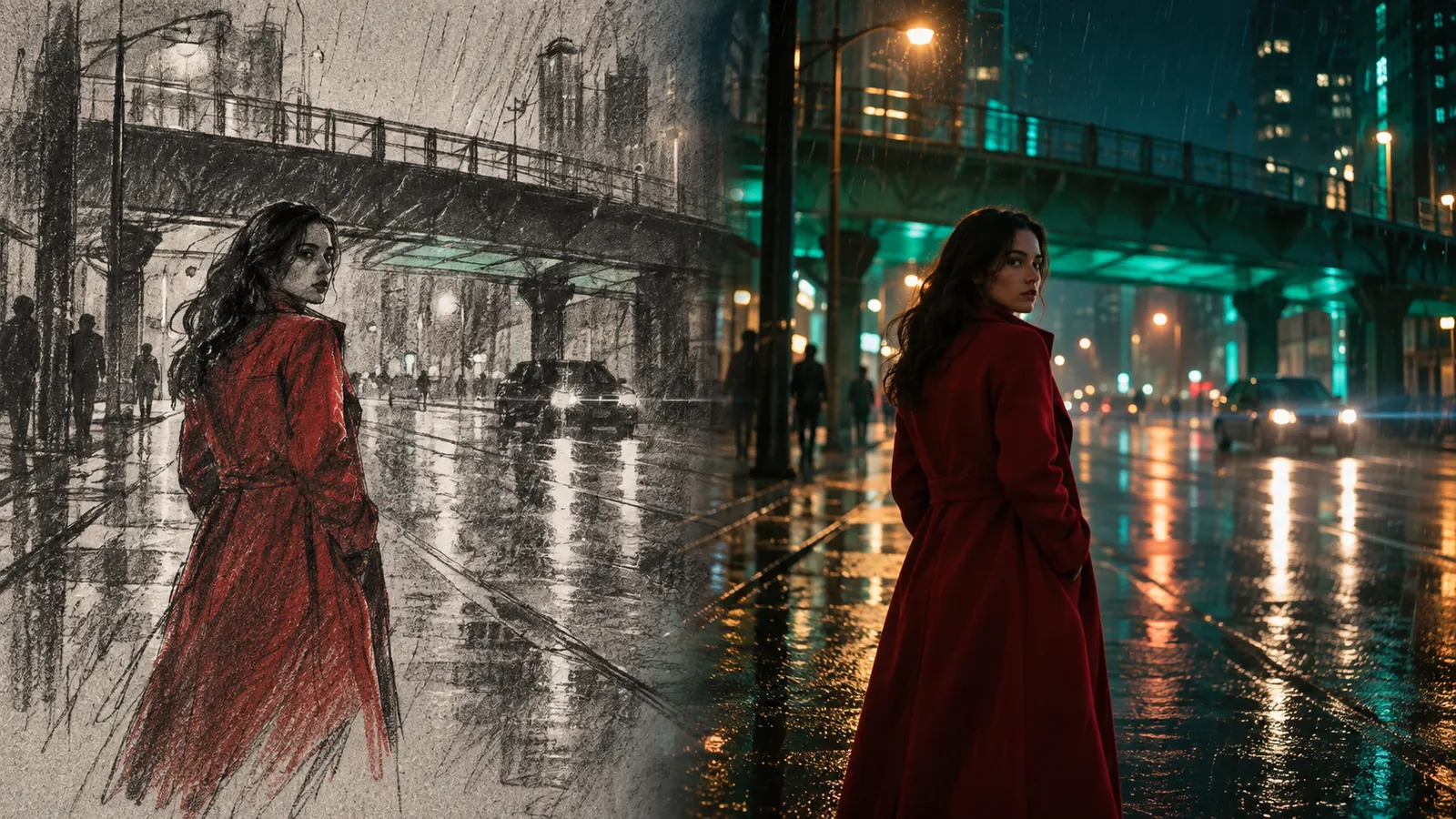
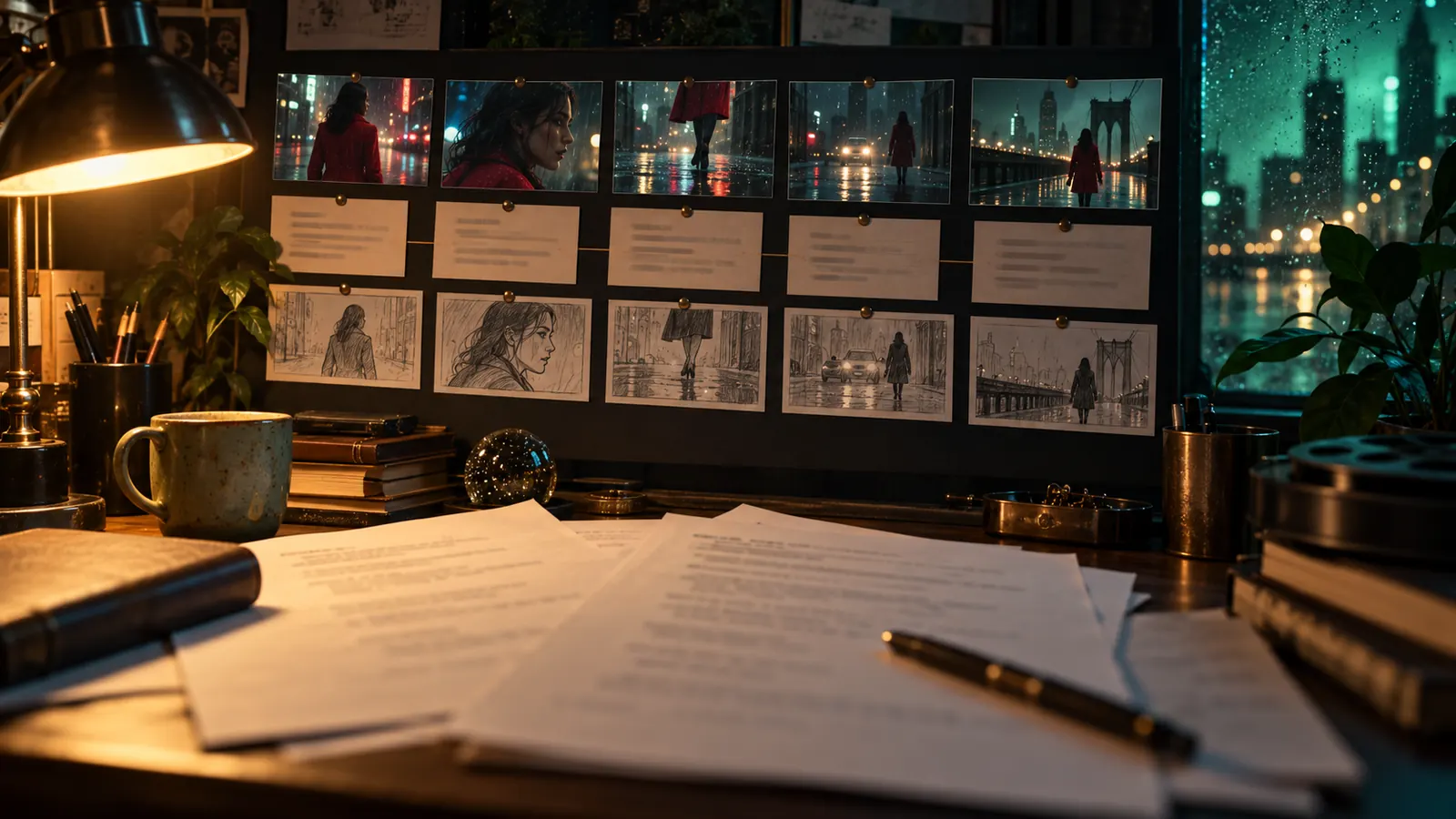
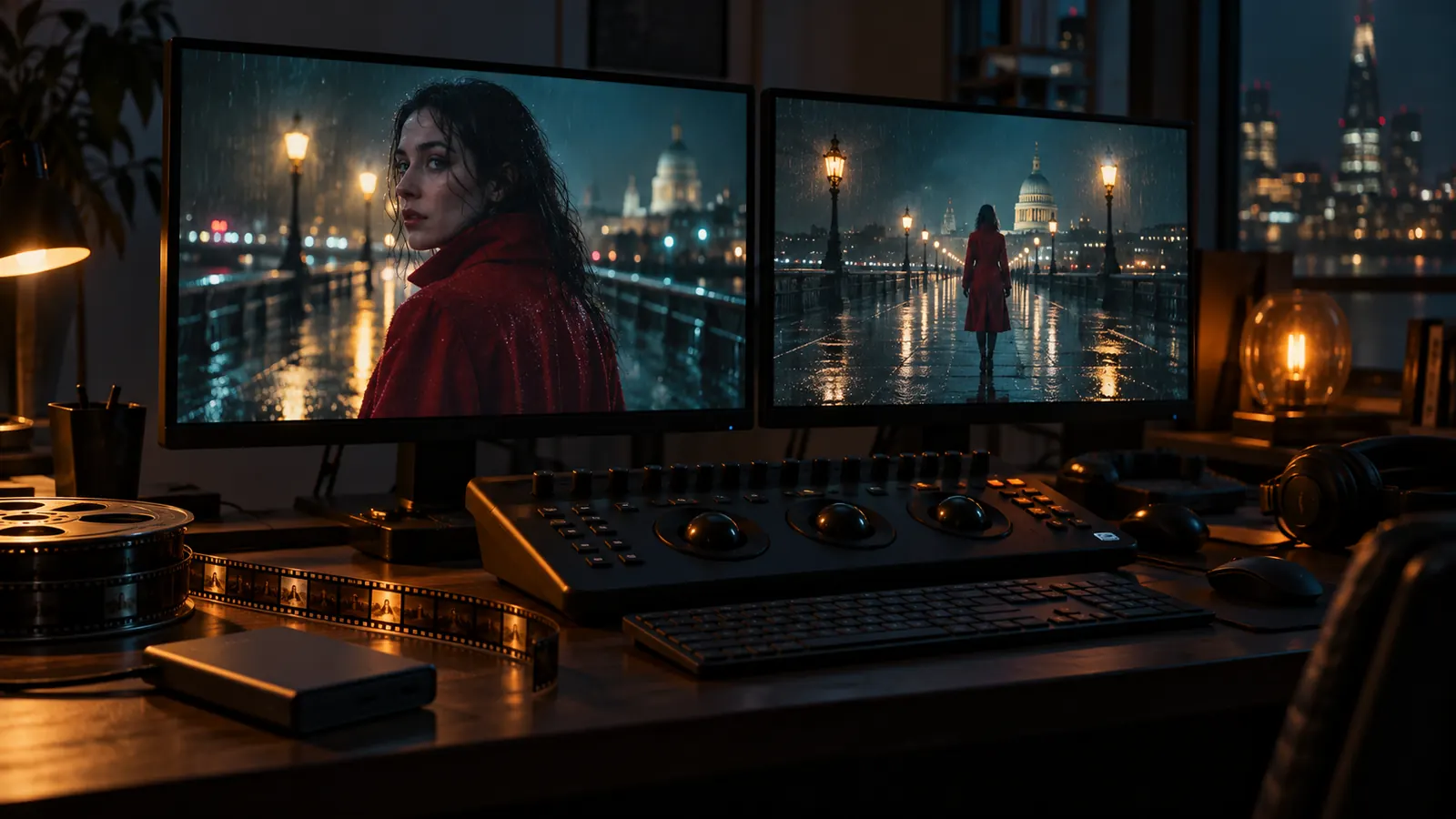
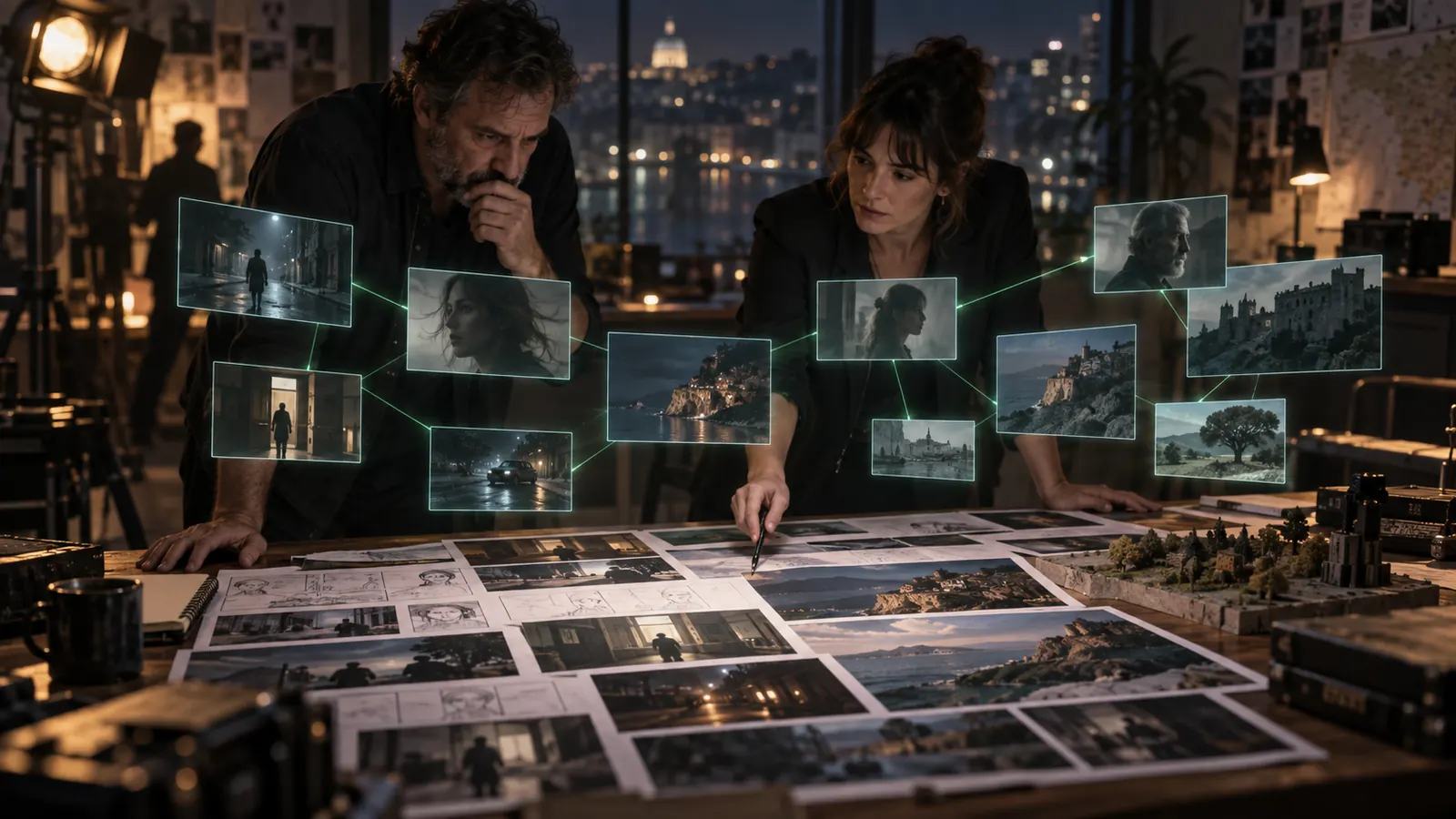
What is Creator Studio
Creator Studio serves as a complete command center for standalone media projects, episodic series, and commercial campaigns across five main production phases: Development, Pre-production, Production, Post-production, and Completed.
It unifies every step of media creation into a single workspace:
- Screenplay writing, AI script analysis, automatic scene breakdowns, and storyboarding.
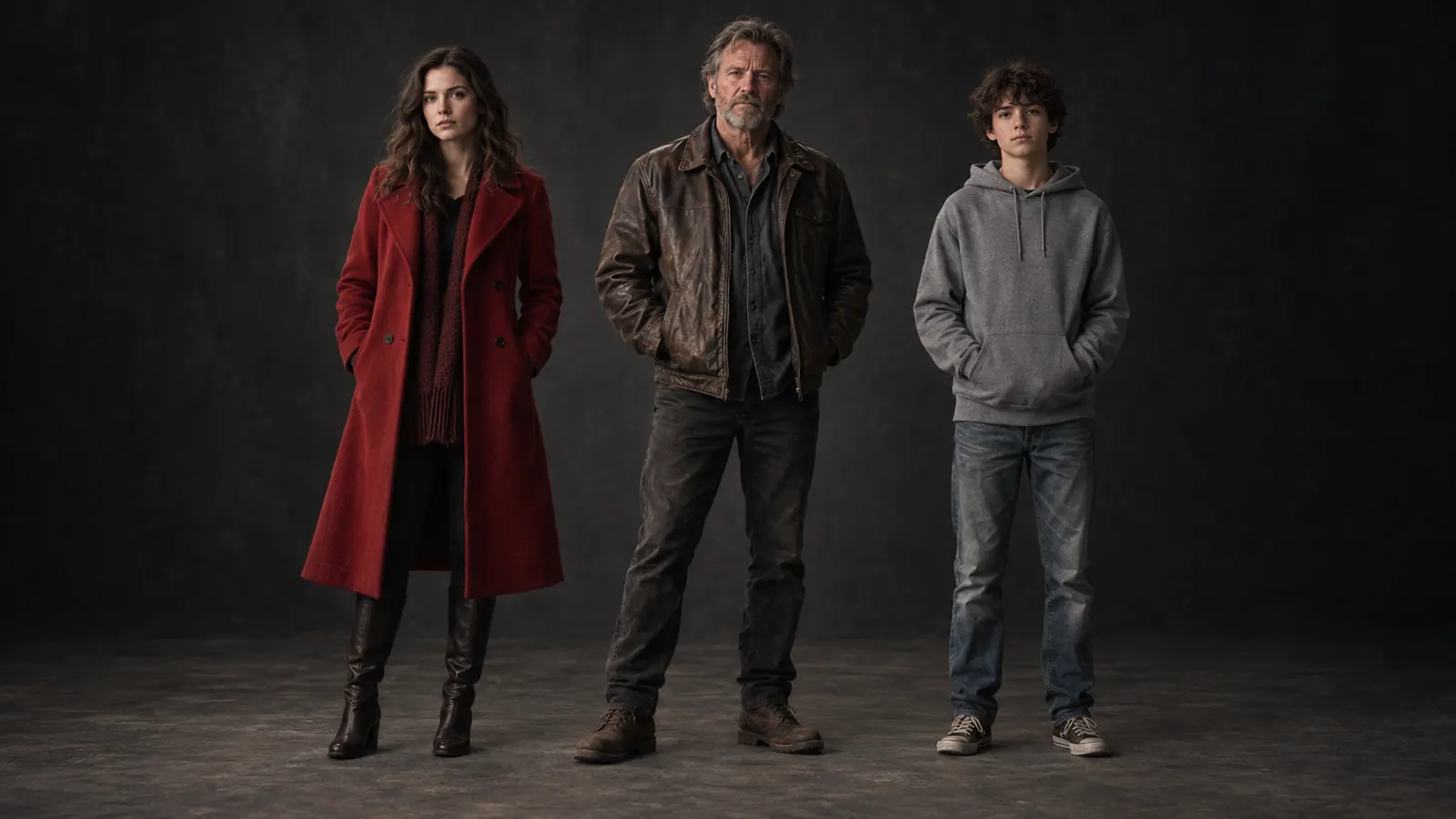
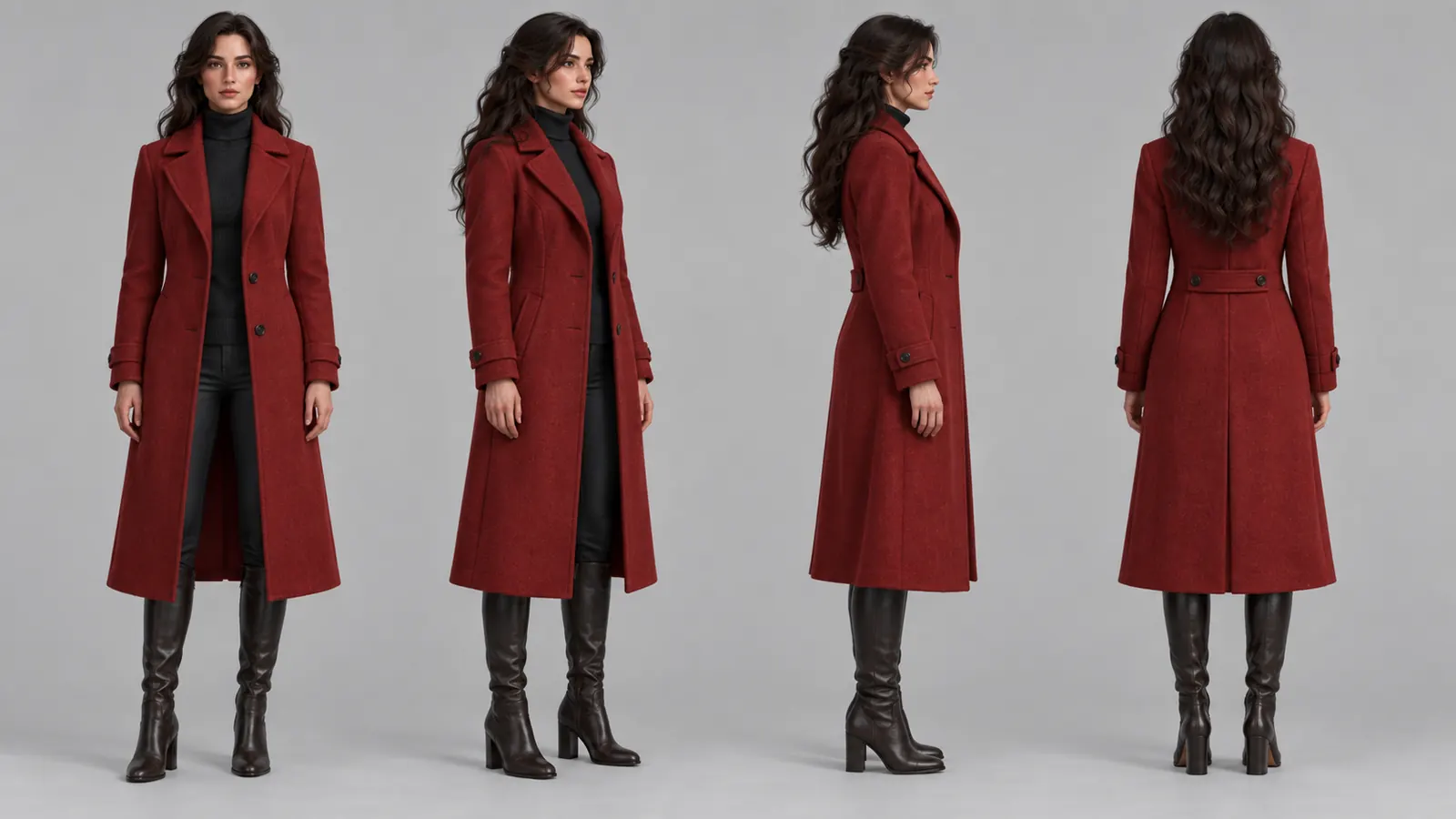
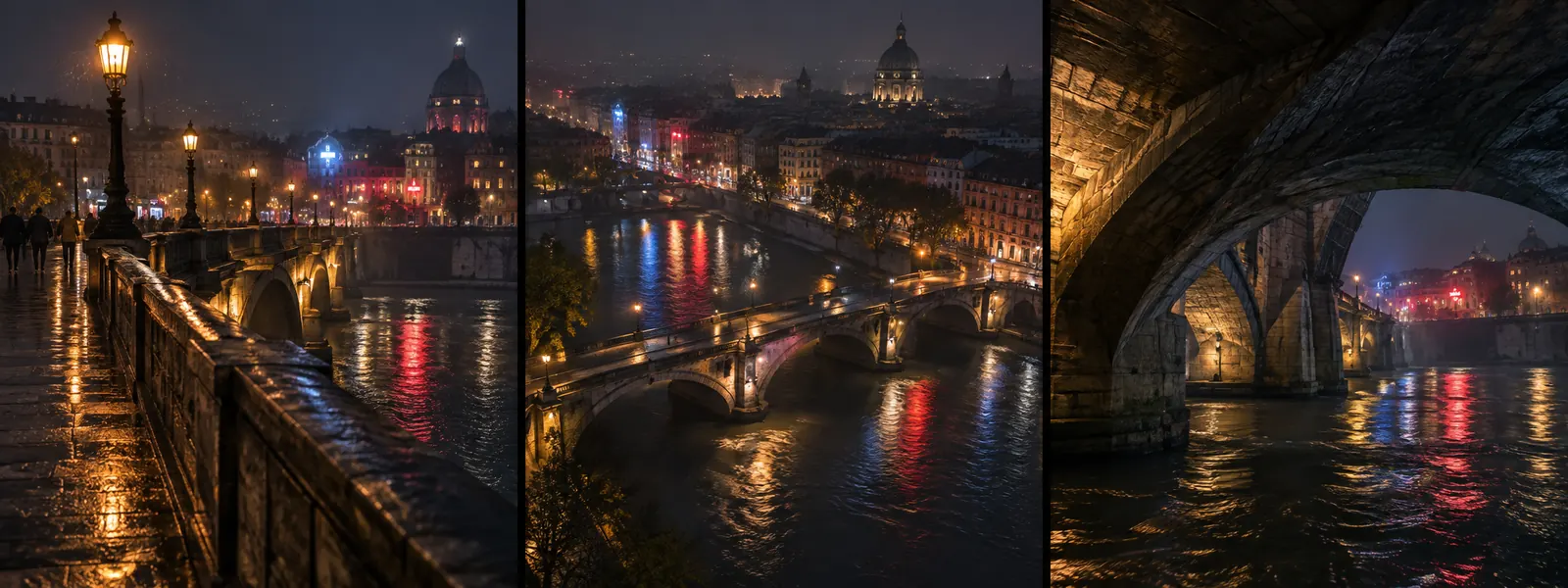
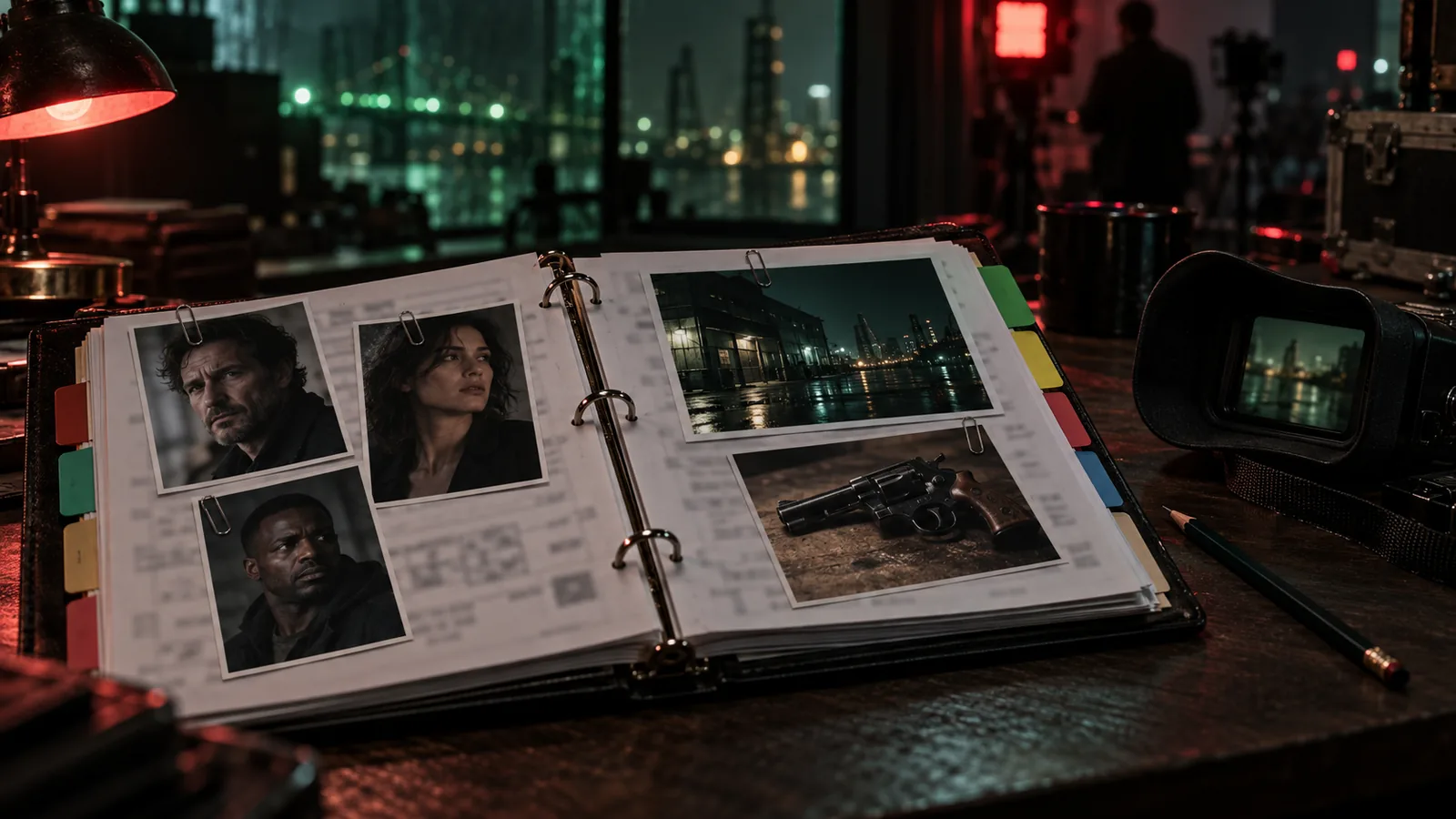
- Character, location, wardrobe, makeup, and prop tracking with visual reference sheets and verified actor identities.
- Virtual camera directing with lens, camera move, and film stock controls.
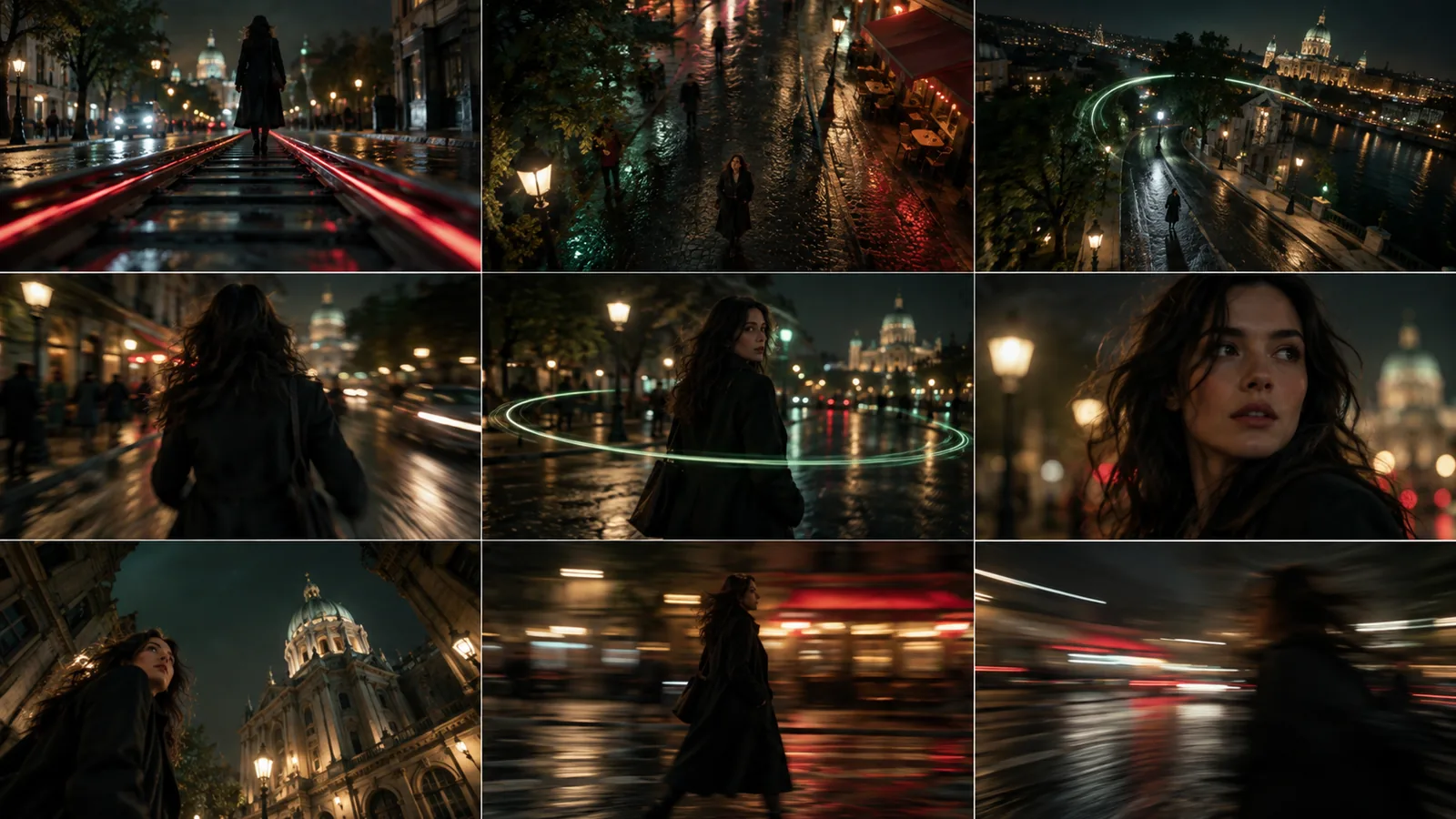
- AI image and video rendering, multi-shot angle grids, 480p draft to 1080p final rendering, frame relighting, masked edits, 3D world generation, and interactive game environments.
- Voice synthesis, voice cloning, speech-to-speech replacement, lip-syncing, multi-track audio mixing, and score generation.
- Live team and AI collaboration, call sheets, task planning, financial budgeting, and editing export.
Getting started
- Open Creator Studio: Select Creator Studio from your main platform dashboard.
- Create or Open a Project: Click the project creation button to enter details such as title, synopsis, production format, target aspect ratio, total budget, and poster artwork, or select an existing project from your dashboard.
- Run AI Project Setup: For new productions, select AI Project Setup to analyze your story brief. The application recommends production workflows, team roles, staff structures, and initial task boards, which you can apply with one click.
- Set Up Series or Subprojects: If producing episodic series or commercial campaigns, create subprojects or episodes under a parent project. Subprojects inherit master brand guidelines and shared asset libraries while maintaining localized scene lists, timelines, and visual styles.
- Configure Project Settings: Open Project Settings to establish project-wide aspect ratios, visual branding rules, integrations, and default production settings.
- Understand Credit Quoting & Previews: AI image and video generations consume project credits based on model selection, clip resolution, and duration:
- Upfront Quotes: The Shot Editor displays the exact credit cost before you click Generate.
- Dry-Run Preview: Use the Dry-Run Preview tool to calculate total credit consumption across multi-shot sequences before rendering.
Key capabilities
1. Video Generation, Directing & Virtual Camera Control
- Video Rendering from Cast & Asset References: Render video shots that automatically incorporate approved reference images for your characters, locations, wardrobe, and props to maintain visual consistency across all clips.
- Shot Editor & Virtual Camera Control: Direct shots using 80 virtual camera bodies, 74 lenses, film stock parameters, and 49 preset camera moves (such as dolly, orbit, drone, FPV, and speed ramps) complete with short video preview clips. Tag cast members directly into shot prompts using
@ handles to write prompts automatically.
- Upfront Credit Quoting: View the exact credit price calculated from your model selection, clip duration, and target resolution inside the Shot Editor before launching a generation.
- Dual-Tier Rendering (480p Draft to 1080p Finish): Generate fast 480p draft clips using Seedance 2.5 to review movement and pacing, then upgrade approved takes directly to 1080p final renders without re-prompting or starting over.
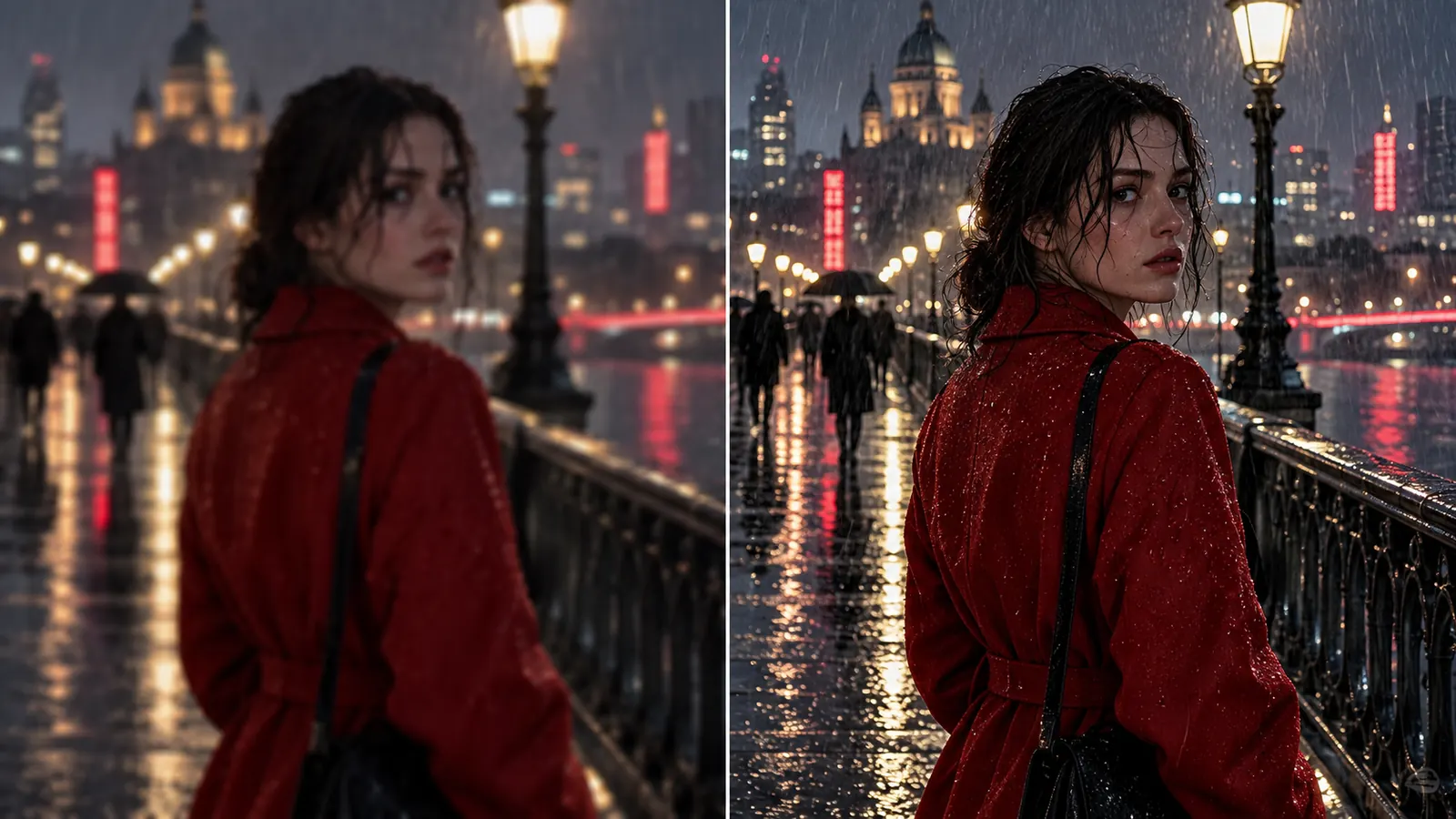
- Masked Edits & Inpainting: Fix specific frame details by brushing over an area with the mask tool and describing the change. GPT Image 2.5 edits only that region and composites it back into the frame.
- Clip Manipulations (Edit, Extend, Upscale): Modify existing clips using video-to-video prompts, extend clip durations with seamlessly connected extra seconds, or upscale clip resolutions directly.
- Import External Footage: Upload your own video clips into a shot and use an interactive filmstrip control to select exact frame ranges as source material for edits or extensions.
- Multi-Shot Composition Grids: Generate 2x2, 3x3, or 4x4 camera angle grids in a single pass to explore shot coverage, then select and upscale your preferred angle.
- AI Image Generation & AI Fill: Generate storyboard frames using your chosen image model guided by project look rules. Use AI Fill to automatically populate shot prompts, breakdowns, and context from your script in your language.
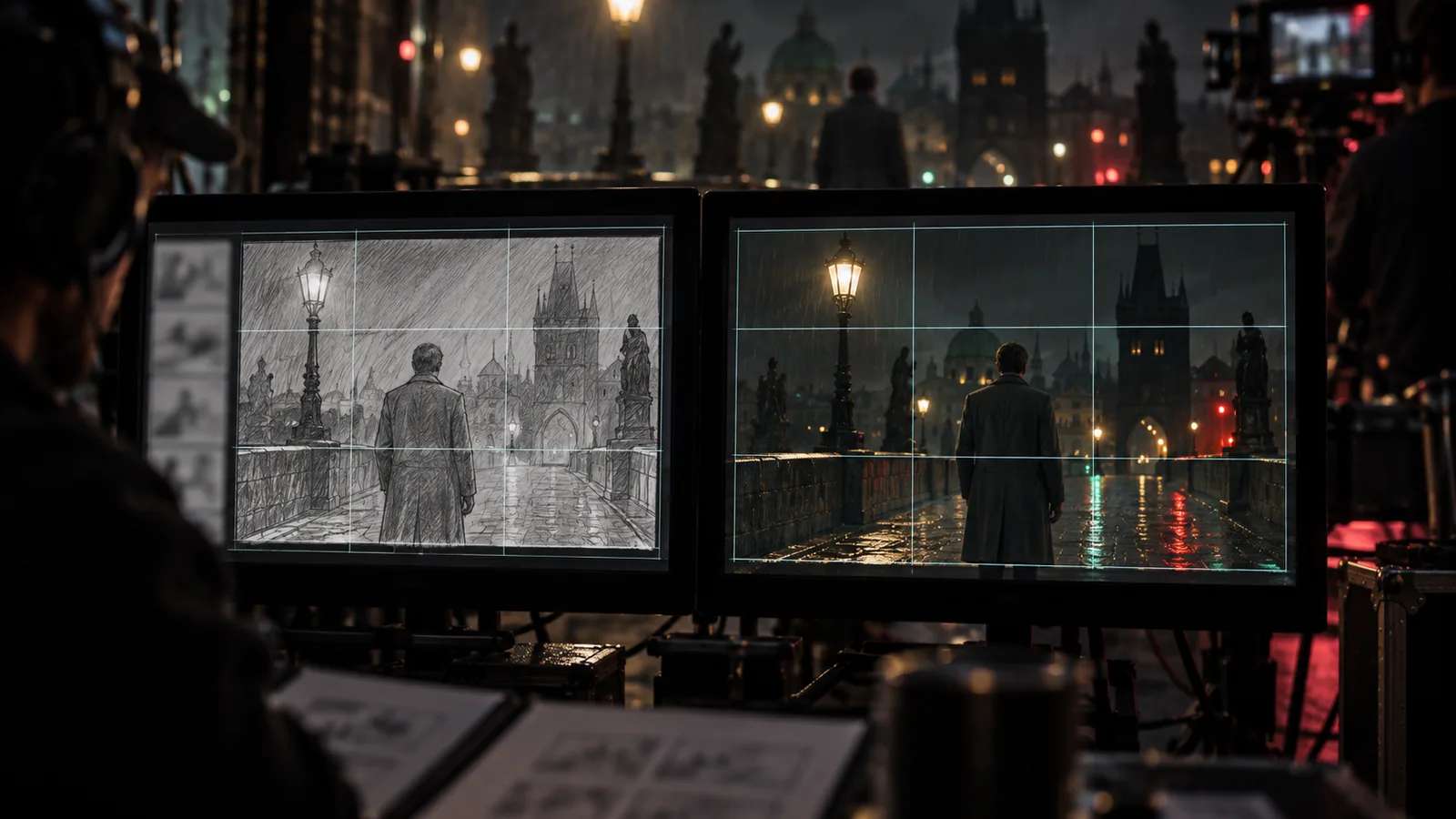
- Composition Pinning (REF SHOT & +STORYBOARD): Lock a storyboard frame as a fixed composition template using REF SHOT so generated video clips keep exact camera angles and layouts while actors perform. Use +STORYBOARD to enforce composition rules across an entire storyboard sheet.
- 3D World Generation: Synthesize an explorable 3D environment from a single frame image to scout new camera angles within the same space.
- Relighting, Re-Angling & Layer Splitting: Relight finished frames, alter camera angles, or split frames into separate foreground and background layers without re-rendering from scratch.
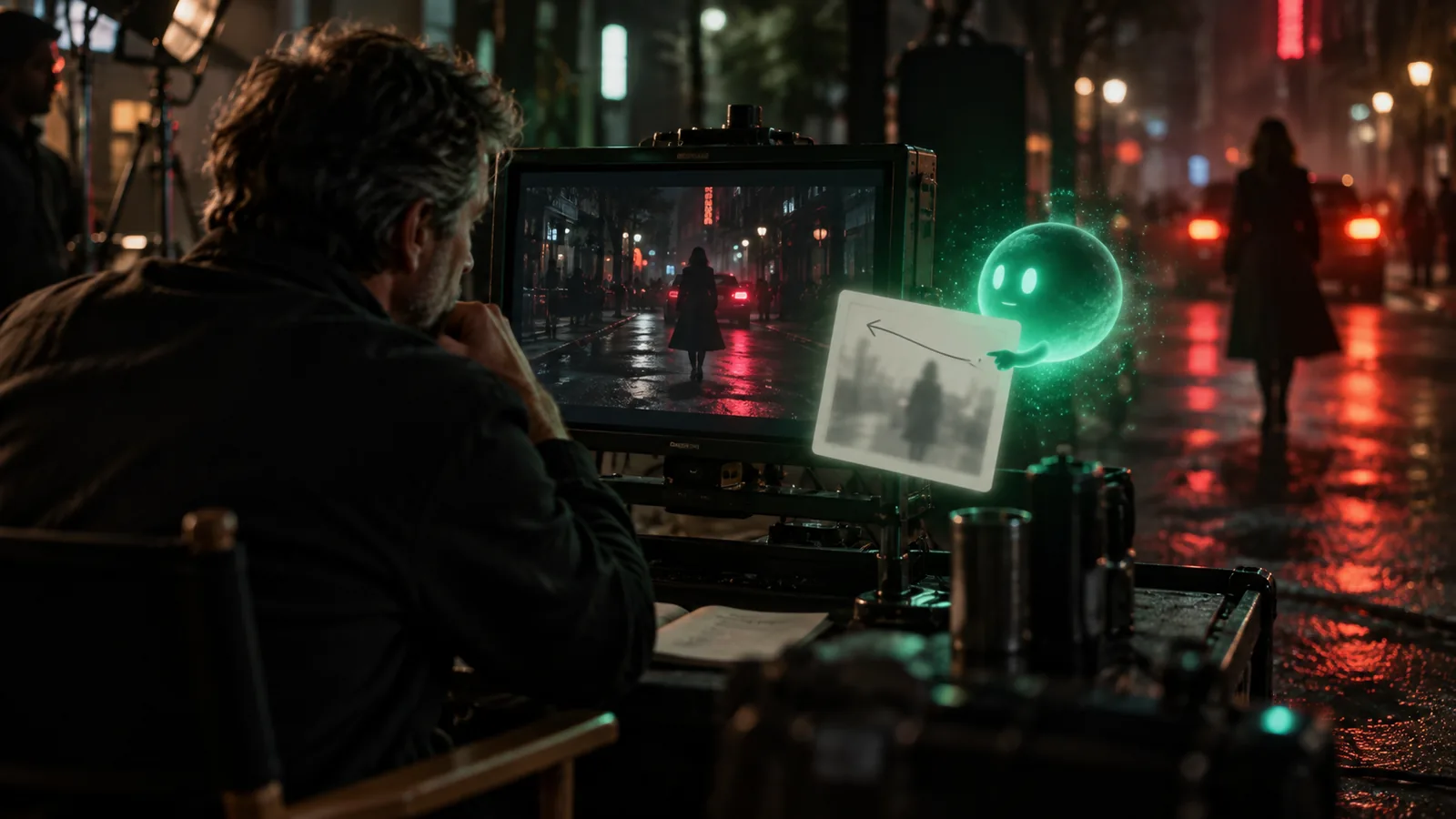
- In-Shot AI Assistant: Consult an embedded AI assistant inside the Shot Editor that reads shot, scene, and cast context to adjust parameters for you.
- Take History & One-Click Version Control: Keep every take on a version timeline per shot to compare options and restore any earlier take with a single click.
- Interactive Game Environment: Access an integrated interactive game workspace (
Edit > Game) powered by a 3D runtime using project assets, 3D scenes, models, rigged characters, and music.
2. Scriptwriting, Development & Storyboarding
- AI Project Brief: Complete a guided brief covering story, characters, brand, look, and sound to set up all subsequent production steps.
- Brief Moodboard & Music References: Collect visual and musical references in the brief and let the AI analyze the mood before generating assets.
- Reference Boards & Related Works: Collect references on boards, import them from URLs or the Research Magazine, send selections to clients, and search for comparable films, series, or ads to guide tone and pitches.
- Treatment & Storyboarding Treatment Beats: Shape your story into a treatment with tone, beats, a bible, and a poster, keep versions, share via public pages, and convert treatment beats into storyboard grids before shots exist.
- AI Script Generator & Critique: Draft a full screenplay or a single scene from your brief, then get AI critiques on story structure and pacing before rewriting.
- Screenplay Editor & Automatic Breakdown: Write in a screenplay editor with an AI co-writer or import an existing structure. Creator Studio breaks the script into scenes and shots and lists required cast, locations, and props.
- Script History & Snapshots: Take snapshots of the script at any point and restore earlier drafts.
- Series Canon, Season Outline & Episode Bible: For episodic series, generate canon, season outlines, and episode bibles that every script follows.
- Scene Boards & Print-Ready Storyboard Boards: Create structured, print-ready storyboard documents (Scene Board, Episode Board, or Editorial layout) generated directly from shot data. Export them to PDF or PNG, share via web links, or open pages in the Design editor.
- Storyboard Book with Public Link: Page through an episode as a digital storyboard book and share it with reviewers via a public link.
3. Scene Management, Blocking & Cut Control
- Scene Editor & Scenes View: Open scenes to set script text, cast, locations, looks, props, and styling in one place. Switch between scene versions and use a compact scene grid to build out shots quickly and move scenes between episodes.
- Scene Timeline & Cut Versions: View the whole project as scenes and shots on a timeline, maintain multiple cut versions, compare options, and set the active cut.
- AI Scene Direction: Let the AI propose coverage for a scene (shots, angles, and camera moves) based on script context and direction dials.
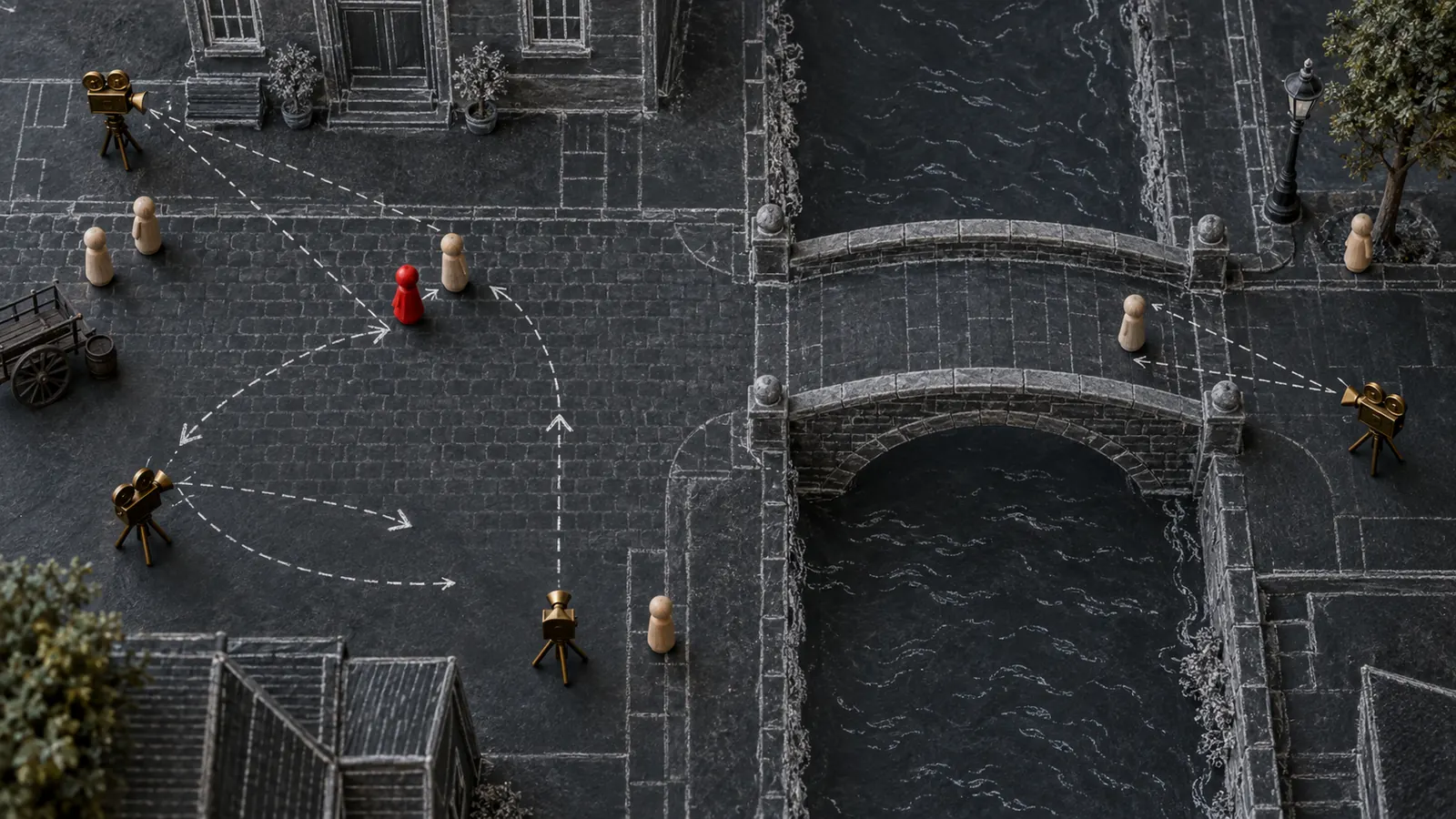
- Scene Map Editor: Block scenes top-down by placing actors, props, and cameras; positioning feeds directly into shot prompts.
- Clapperboard View: Display shot cards laid out like production slates for a quick overview of shot coverage.
4. Character Continuity, Visual Assets & Styling
- Consistent Character & Asset References: Build characters, locations, costumes, and props once with reference sheets, turnarounds, and viewpoints so every frame draws on the approved look.
- Verified Actor Identities (KYC): Cast real actors by completing facial consent verification (KYC), registering verified identity profiles so video models maintain consistent faces across shots.
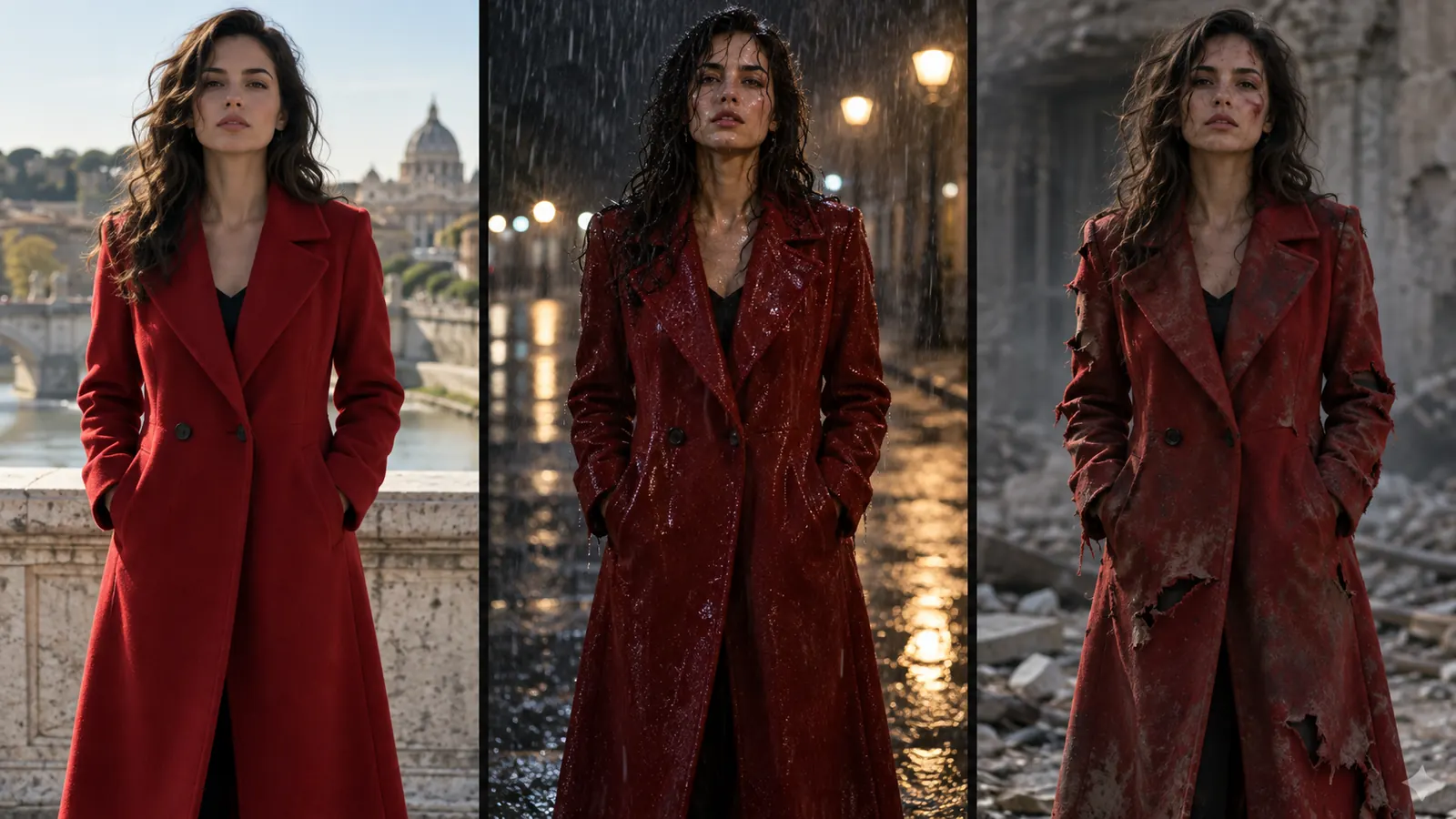
- Wardrobe, Makeup & Hair Tracking: Dress characters scene by scene (including states like wet, torn, or evening wear) and track detailed makeup and hairstyling notes through a dedicated modal interface with visual references.
- Location Scouting & Viewpoints: Search maps to scout locations and save camera viewpoints. Every scene set at that location reuses the saved place and angles.
- Props Catalog & Real Dimensions: Maintain prop records with reference images and variations, and generate documentation sheets with real-world physical measurements to hold consistent scale.
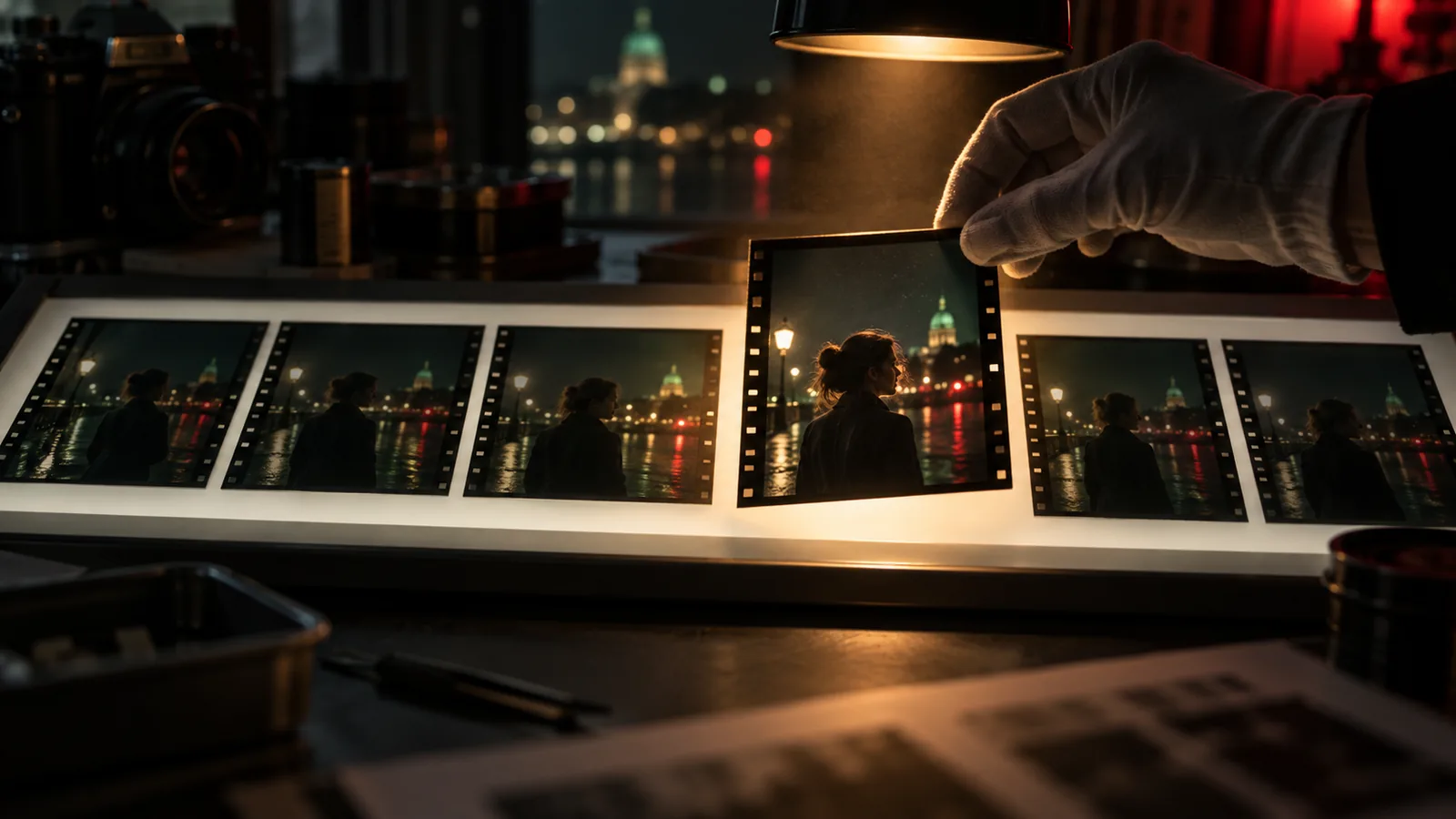
- Asset Concept Sheets: Compare several takes of a character, location, or prop side by side, refine specific areas with the mask brush, and approve selected takes before using them in shots.
- Unified Asset Library & Asset Collections: Store all generated and uploaded images, video clips, and audio tracks in one centralized library with draft and final status indicators. Group assets into collections, share them via links, or promote them to your organization library.
- Project Style References & LookBooks: Define visual identity using reference images, color palettes, and descriptions. Curate reference collections into LookBooks and share them via public links.
- Team Likes & Comments: Like preferred asset takes, filter the library by team member likes, and leave comments on any asset.
- Local Folder Synchronization: Bind a local folder on your disk to read project media directly, with visual status indicators showing cached files.
- Batch Asset & Image Generation: Queue frame generations for an entire scene or script at once, or batch-generate reference images for characters, costumes, props, and locations in one pass.
5. Audio, Voices & Custom Music
- Audio Library & Shot Audio: Store project dialogue phrases, sound effects, and music tracks on an audio shelf, trim clips, and drop them onto individual shots or timeline tracks.
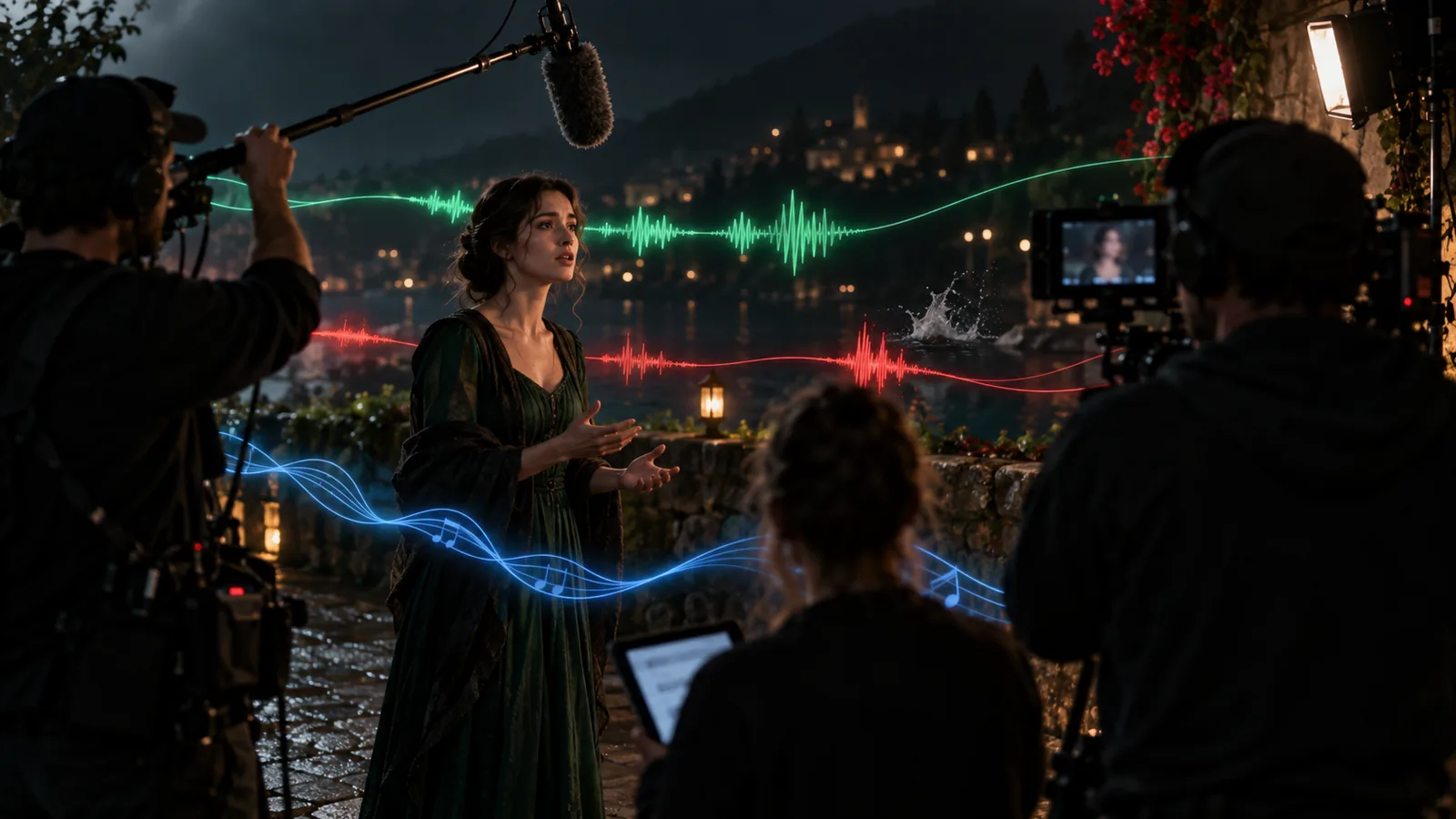
- Character Voice Synthesis, Cloning & Voice Replacement: Assign unique voices to characters, preview voice samples, clone custom voices, or perform speech-to-speech voice replacement.
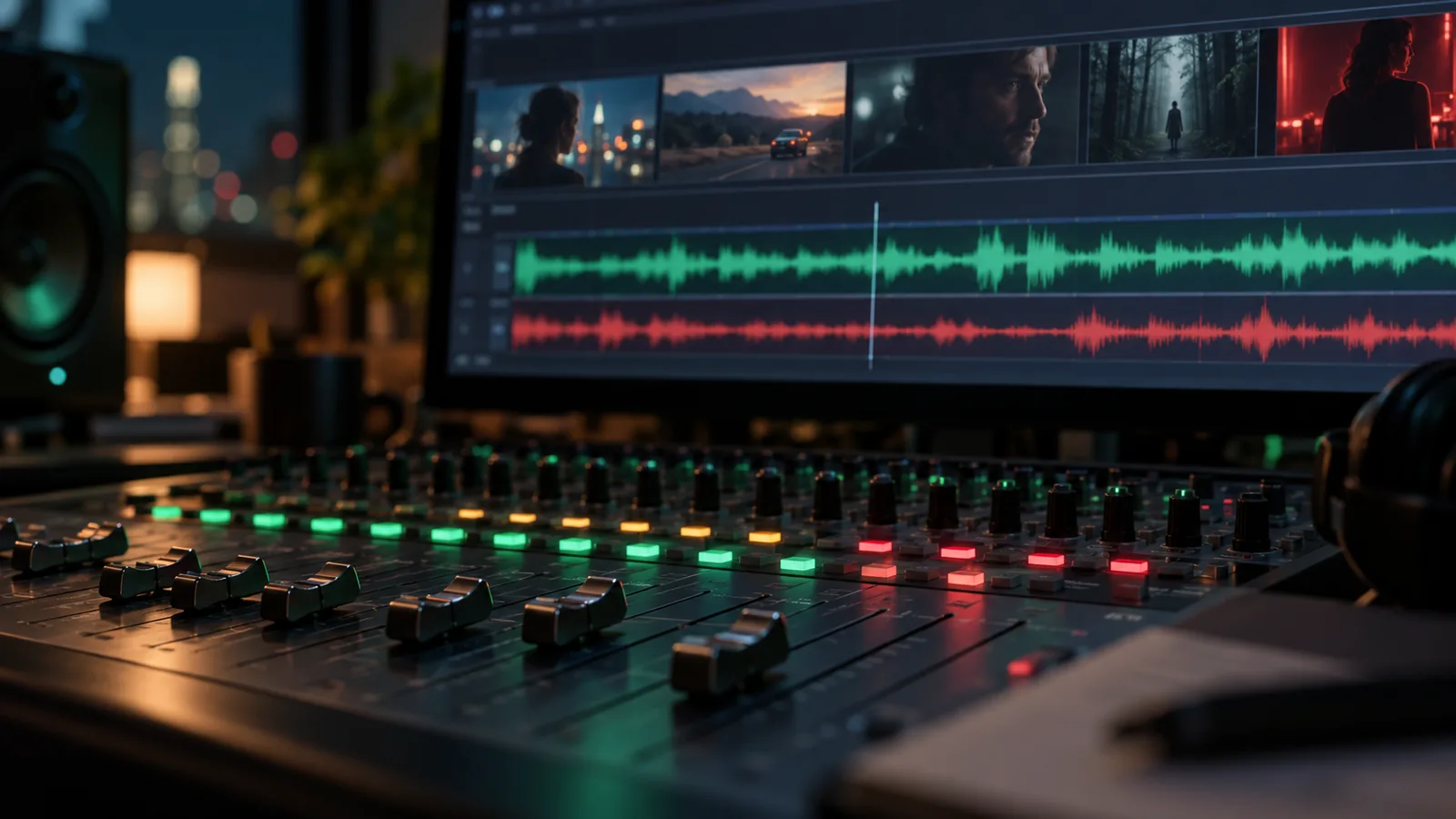
- Timeline Audio & Mixer: Lay music, dialogue, and effects across audio tracks under the picture and balance them in a multi-track mixer.
- Custom Project Score & Music Generation: Analyze reference tracks to generate custom instrumental scores or songs with lyrics.
- Lip-Syncing: Automatically lip-sync spoken dialogue lines to character video clips.
6. Production Operations, Collaboration & Administration
- Project Details & Status Lifecycle: Manage projects through Development, Pre-production, Production, Post-production, and Completed statuses.
- Episodes and Subprojects: Split series into episodes or organize commercial campaigns under a parent project, inheriting master brand rules while maintaining localized timelines and assets.
- Production Hub & Project Media/Wiki: Link projects to clients, brands, production houses, and cities. Maintain aspect-ratio cover images, a backstage photo gallery, and a wiki page for facts, press, and awards.
- Team, Staffing & Casting Calls: Build cast and crew lists with role pickers, track candidates, publish casting calls, collect applications, and manage review pipelines.
- Call Sheets & Equipment Management: Convert shooting schedules into crew call sheets (exportable to PDF or print) and maintain equipment lists for production shoots.
- Task Board: Plan production tasks on Kanban boards, calendars, or Gantt charts.
- Financial Budgeting: Set production budgets by category and log expenses against them as production runs.
- Real-Time Collaboration & AI Agents: Watch live as AI agents or teammates create shots, renders, and assets directly on your timeline without requiring page reloads.
- AI Crew, Brain Graph Workspace & Project Memory: Work alongside AI agents connected to a project Brain Graph that indexes scripts, briefs, and decisions to execute commands across shots, renders, and tasks.
- Producer Notes to Agents: Leave notes on shots or connect a Telegram chat to log comments and revision requests for AI agents to execute.
- Live Client Project Page: Share a no-login page displaying the latest frames, clips, music, and treatment; signed-in visitors can like and comment, and links can be revoked at any time.
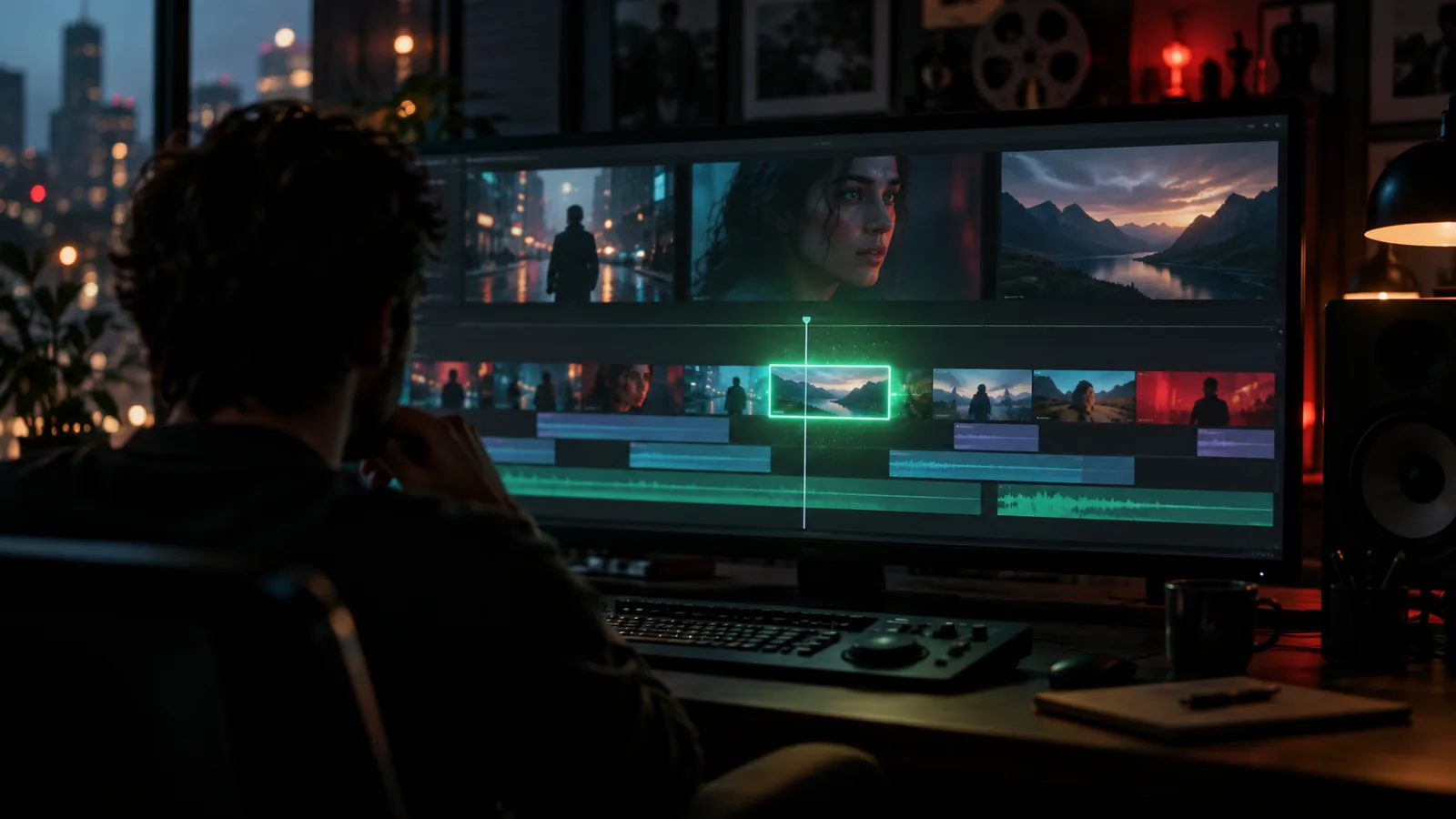
- Hand Off to Edit (Export): Export final cuts as FCPXML files for Final Cut Pro, or render directly to a complete video file with ordered scenes, shots, and audio.
- Project Settings & Access Tokens: Establish aspect ratios, visual rules, integrations, default settings, and access tokens for external integrations.
How to use it
Workflow 1: Story Setup and Script Breakdown
- Open Creator Studio and click to create a new project. Enter details including title, synopsis, aspect ratio, budget, and poster artwork.
- Complete the AI Project Brief and run AI Project Setup to auto-generate team structures, roles, and initial task boards.
- Open the script editor to write your screenplay or generate one with the AI Script Generator.
- Creator Studio automatically breaks down the script into scenes, shots, cast members, locations, and props.
Workflow 2: Asset Prep and Character Consistency
- Open the Asset Library or character setup modals.
- Build reference sheets for cast members, wardrobe, hair/makeup, locations, and props. Complete facial consent verification (KYC) for real actors to lock verified facial profiles.
- Set scene-by-scene wardrobe states (e.g., wet, evening wear) and save location viewpoints from map searches.
- Run Batch Asset Generation to render turnaround sheets for all characters, costumes, and props in one pass.
Workflow 3: Directing and Rendering Shots
- Open a scene in the Scene Editor or Scene Map Editor to block actor and camera positions.
- Select a shot in the Shot Editor. Choose virtual camera bodies, lenses, film stock parameters, and camera moves. Tag cast members using
@ handles.
- Use AI Fill to generate detailed prompts from the scene context, or pin a storyboard frame using REF SHOT to lock composition.
- Check the upfront credit quote in the Shot Editor.
- Click Generate to render a 480p draft clip using Seedance 2.5 to evaluate movement.
- Once satisfied with motion and pacing, click to upgrade the shot directly to a 1080p final render.
Workflow 4: Fine-Tuning and Inpainting
- Select a rendered frame that requires adjustment.
- Open the mask tool, brush over the region you want to alter, and type your requested change.
- Generate the edit; the system modifies only the masked region and composites it back into the frame.
- Use frame relighting, camera re-angling, or layer splitting if background/foreground adjustments are required without starting over.
Workflow 5: Audio, Editing, and Handoff
- Open the timeline audio engine to lay down dialogue, sound effects, and generated music tracks.
- Assign character voices, generate lip-synced audio for shots, and balance levels using the audio mixer.
- Review cut versions on the scene timeline.
- Export the finished cut as an FCPXML file for Final Cut Pro or render the complete video file directly.
Tips & notes
- Credit Usage & Previews: AI generations consume project credits depending on the model, resolution, and clip length. Always verify the upfront quote in the Shot Editor or run a Dry-Run Preview across multi-shot sequences before triggering large generation jobs.
- Draft-to-Final Upgrade Path: Save credits by rendering draft motion clips at 480p (Seedance 2.5) first. You can upgrade any approved take to 1080p without re-prompting or losing composition.
- Local Storage Integration: You can bind a local folder on your storage device to read media files directly. Visual indicators indicate which media assets are already cached locally.
- Hardware Link Requirement: Keeping AI models loaded directly in GPU memory for instant generation requires a compatible, updated version of the client desktop application. If your connected software version is outdated, the memory control pill displays a direct prompt specifying the required update version.
- 3D World Generation: Generating explorable 3D worlds from a single frame image requires a valid 3D World Key.
- Public Links & Client Sharing: Storyboard Books, LookBooks, and Client Project Pages can be shared via public links without requiring client logins. Access links can be revoked at any time in Project Settings.

 CoreFreev1.160