What is Creator Studio
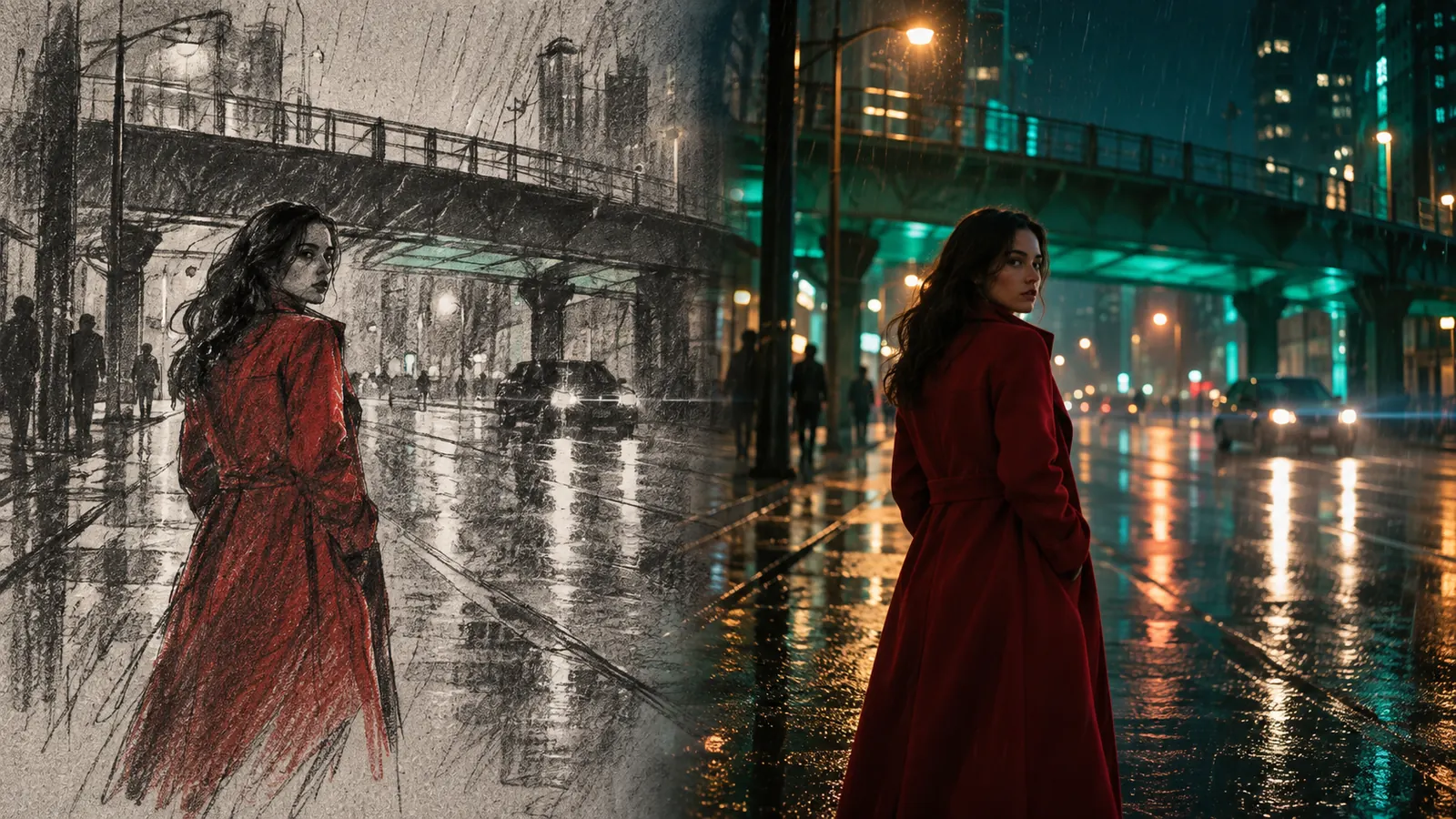
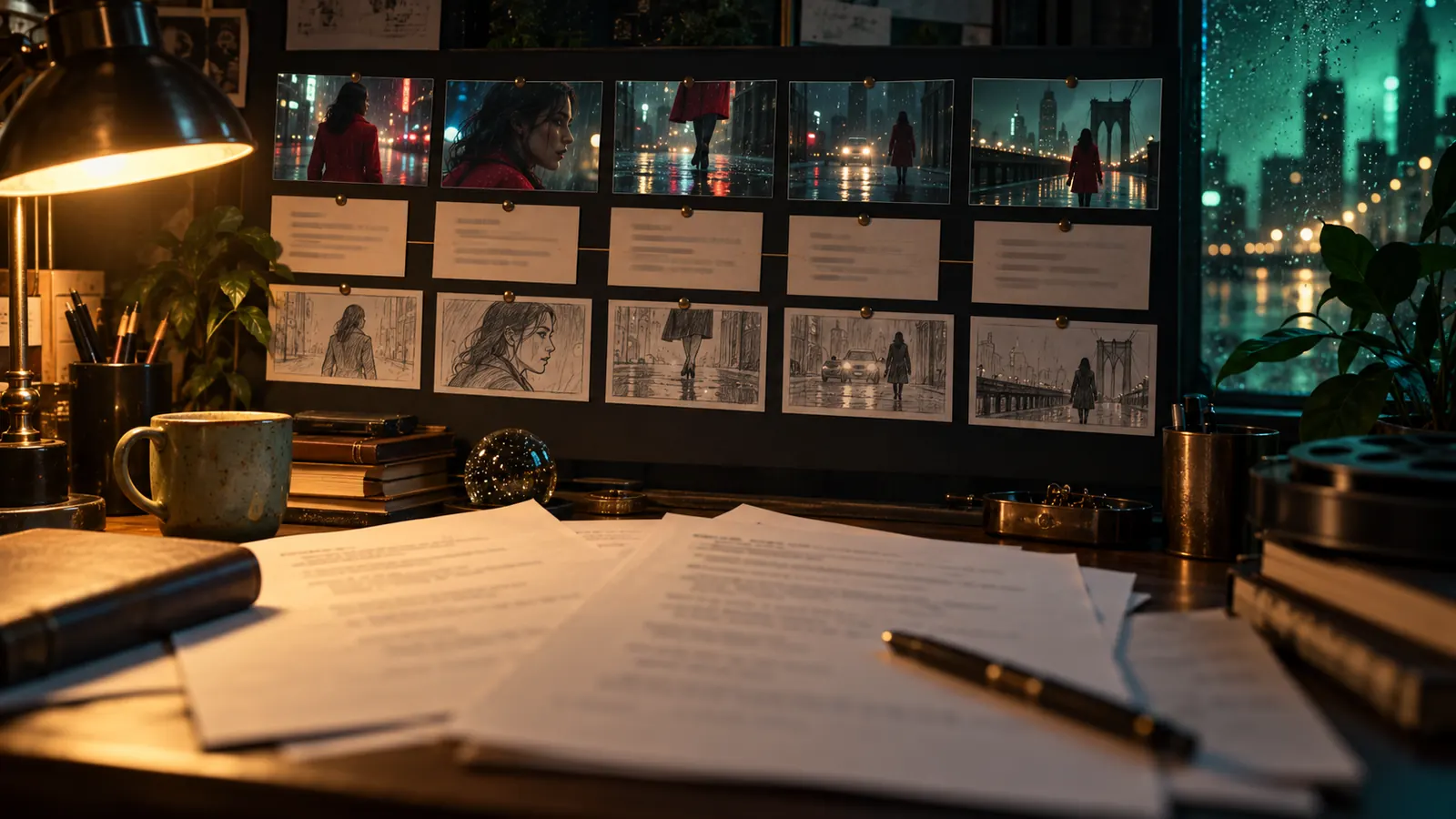
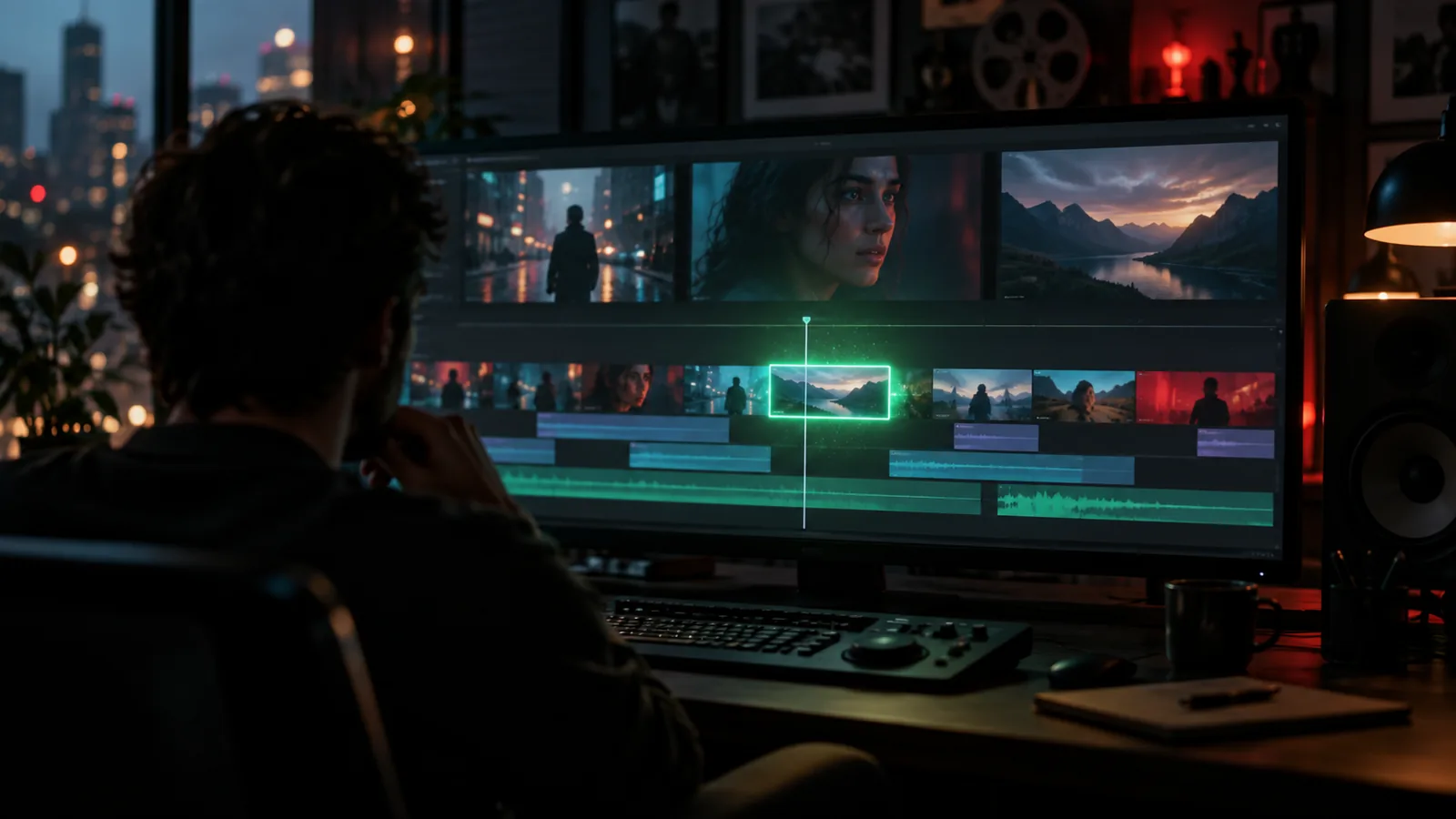
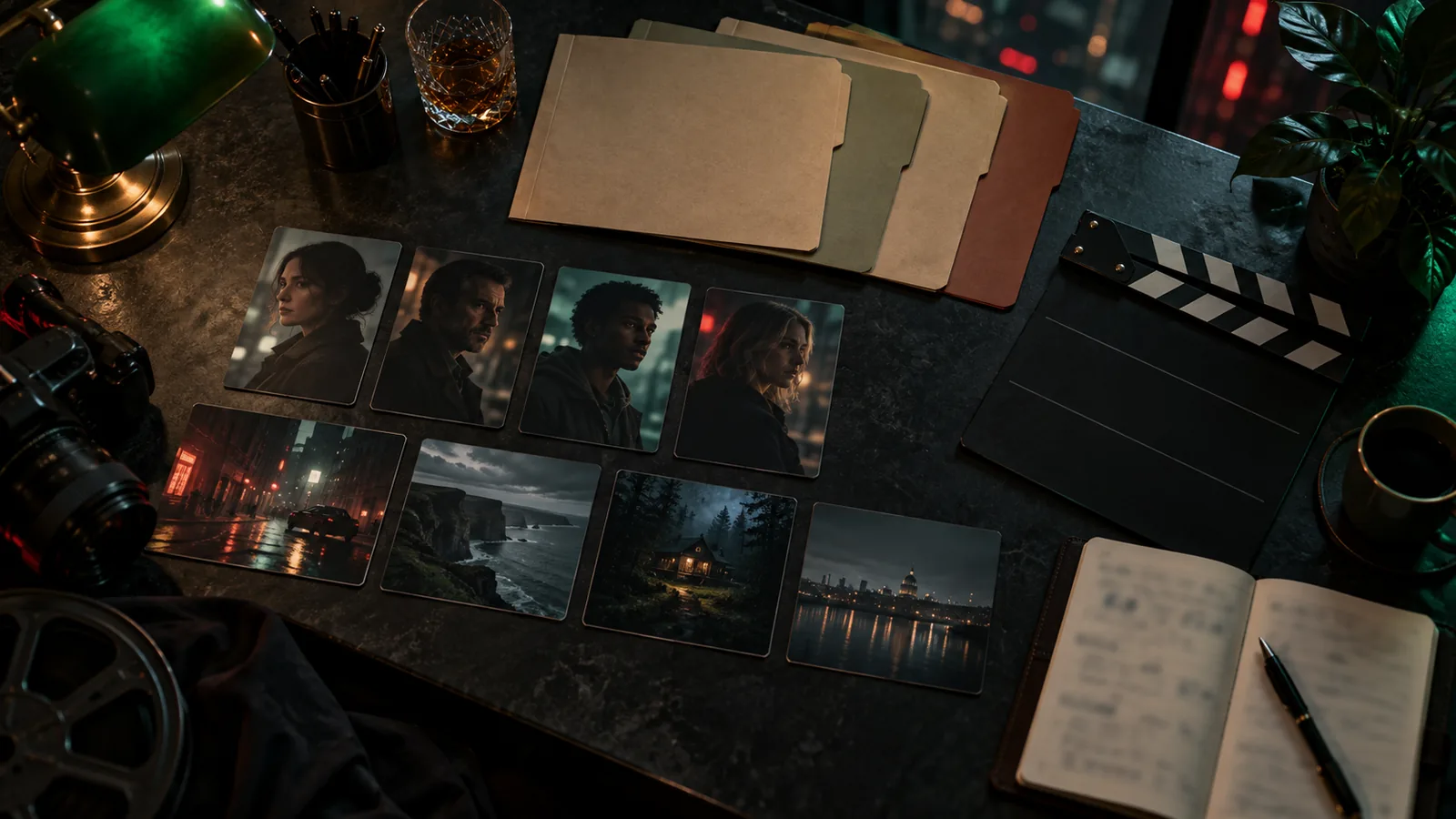
Creator Studio is a comprehensive digital workstation designed to streamline the creative development, asset generation, and logistical coordination of film, video, and media productions. The application integrates professional screenwriting tools, visual storyboarding, spatial scene mapping, and asset organization with practical production management tools like team staffing, budgeting, task tracking, and call sheets.
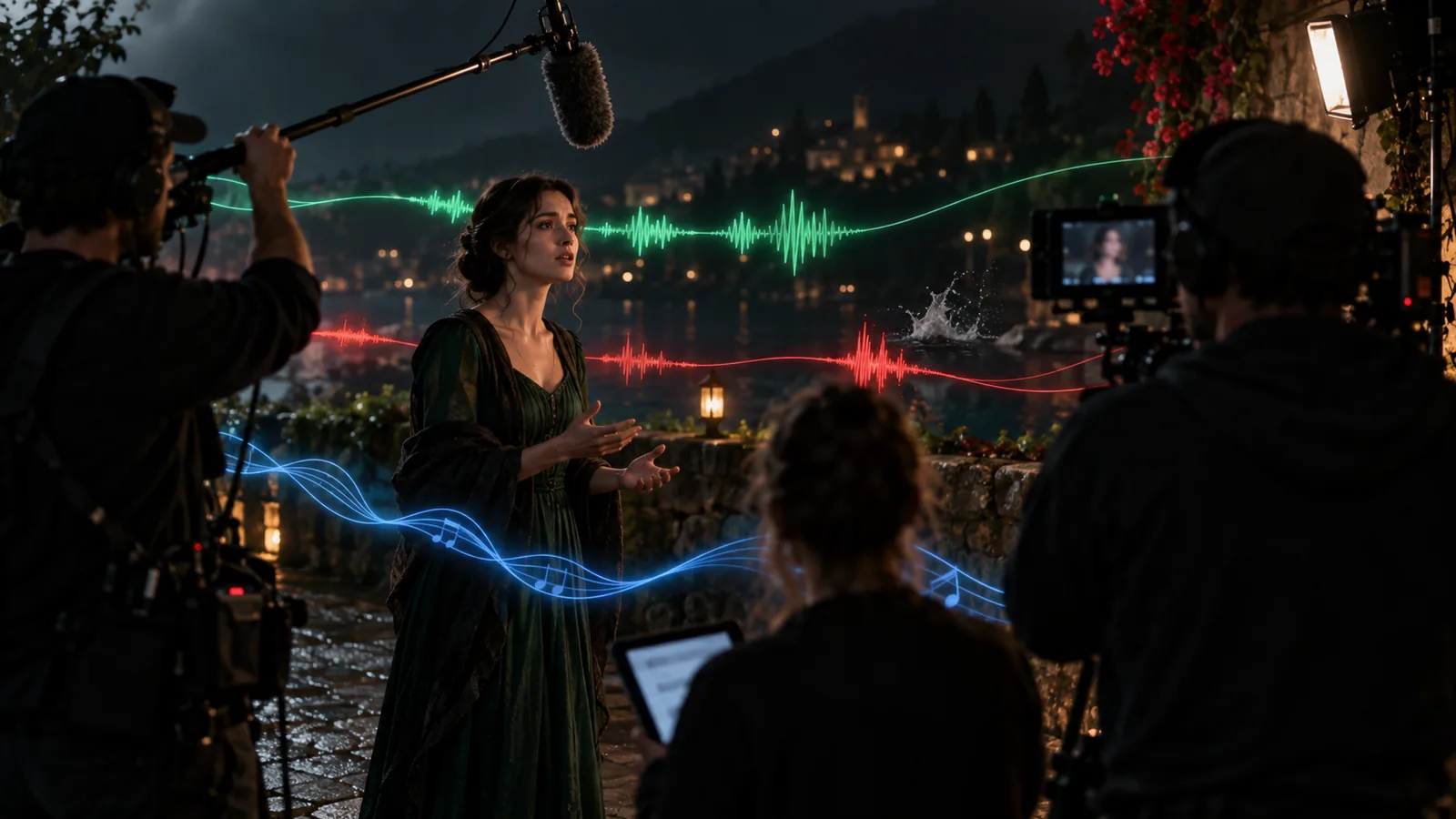
By incorporating specialized AI generators directly into your workspace, Creator Studio allows you to create images, video clips, and original soundtracks on demand, keeping all your planning materials, production data, and creative assets organized in one place.
Getting started
To begin setting up and managing your workspace in Creator Studio:
- Open the Application: Select the Creator Studio icon from your main platform dashboard to enter the workstation.
- Create or Open a Project: Click the project creation button to open the configuration window. Enter your project title, synopsis, and project-level budget, and upload a poster image. To resume an ongoing production, use the search bar on the active workspace dashboard to locate and open an existing project.
- Organize Large Productions: If you are managing episodic content or large-scale productions, you can nest related episodes or timelines as Subprojects under a single parent project to keep media assets separated while maintaining a clean, unified project hierarchy.
- Track Project Status: Monitor your production's lifecycle through its active phases—from Development through to Completion—using the status indicators on your screen.
- Estimate AI Generation Costs: Generating creative media assets consumes platform credits depending on your selected quality tier (Free, Pro, or Ultra). To see exactly what a generation will cost before committing your balance, select the Dry-Run Preview option in any generation panel to view an estimated credit cost.
Key capabilities
Video Generation, Rendering, and Final Output
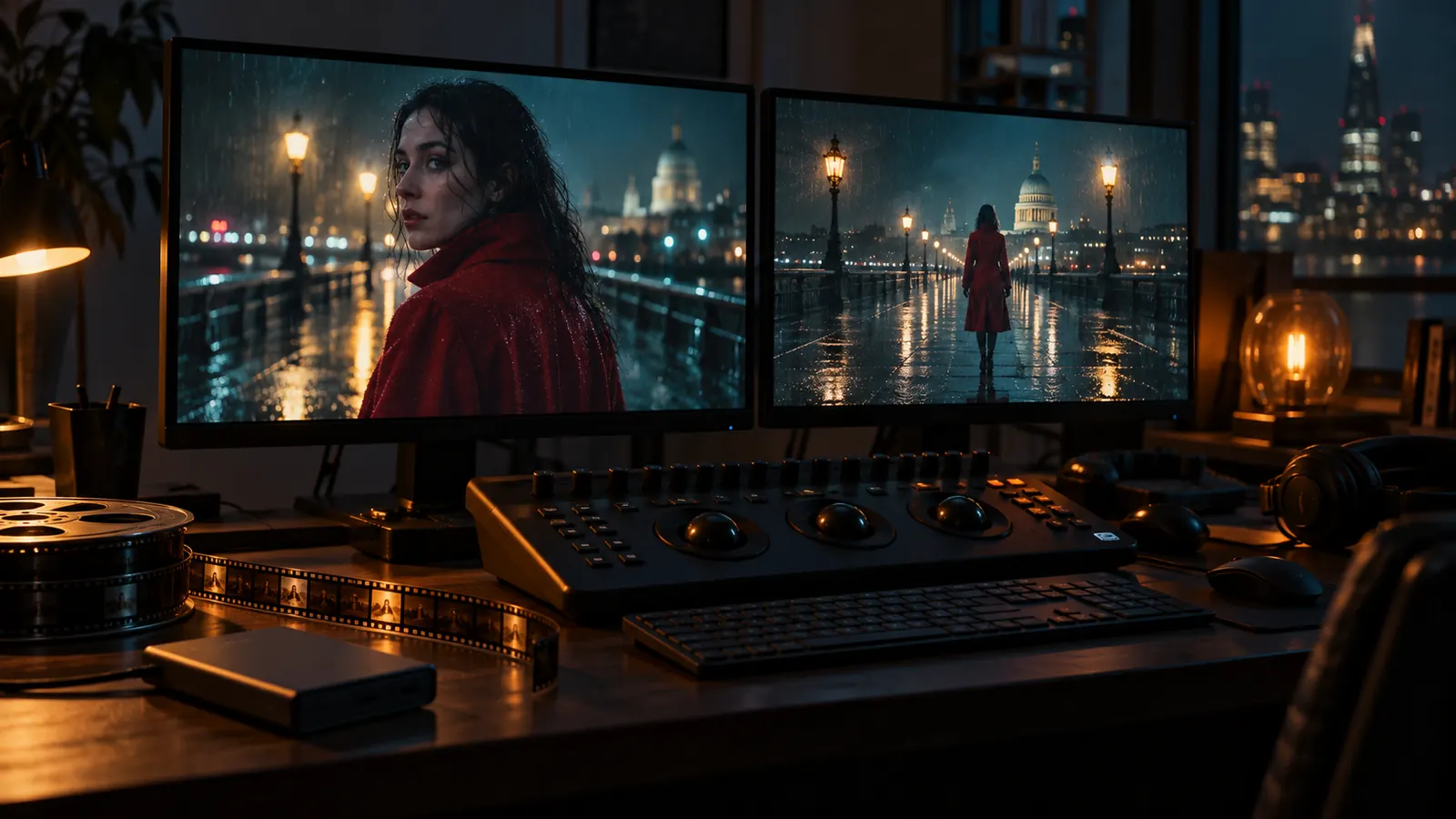
- Direct Video Rendering: Render your sequence directly into a video file using the built-in rendering engine, complete with custom format selectors and enhanced audio processing. Hand off your project to the edit by rendering a final file with scenes, shots, and audio in perfect order.
- Final Cut Pro Export (FCPXML): Export your complete timeline as a professional Final Cut Pro archive (FCPXML) to continue editing in external post-production software.
- Draft-to-Final Renders: Render a quick 480p Seedance 2.5 draft to judge the motion, then turn the take you like into a high-quality 1080p final of the exact same picture without re-prompting or rolling a new take.
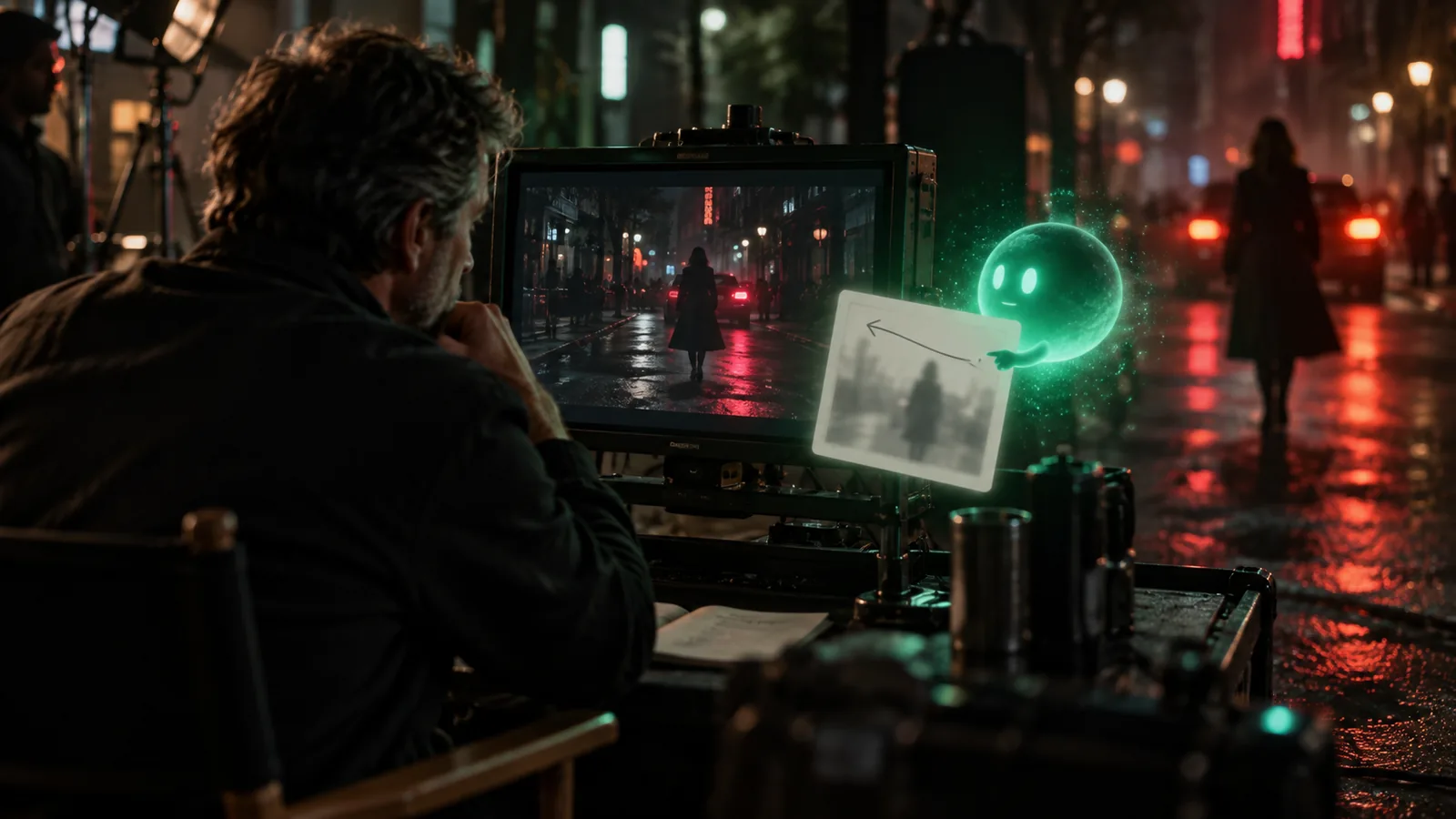
- Shot-Level Video Generation: Transform still storyboard images into motion video clips directly inside your workspace. Use the Video panel controls in the Shot Editor to set motion parameters.
- Video-from-Assets Rendering: Render a shot as a video using the characters, locations, and props mentioned in your prompt, automatically carrying in their approved reference images. Most clips in Creator Studio are generated using this workflow.
- Clip Editing & Extensions: Change an existing clip using a video-to-video prompt, continue it with new seamlessly joined seconds, or upscale it without starting over.
- Footage Import: Import external clips, select the exact frame range on a filmstrip, and use it as the source for shot edits and continuations.
AI Storyboarding & Image Generation
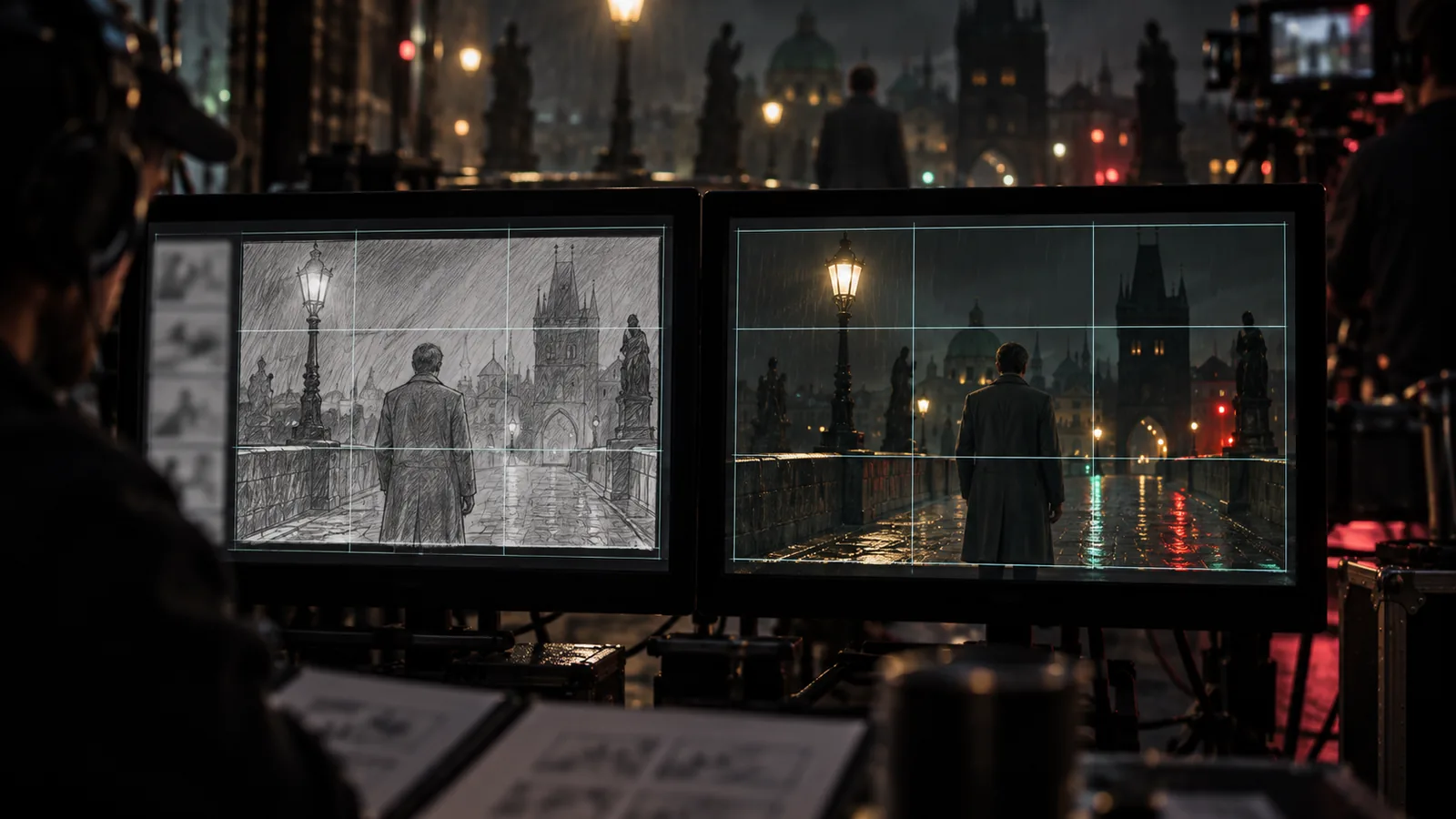
- AI Image Generation: Generate visual storyboard frames from the shot description, the cast, and the project’s look, selecting the exact image model you want to use for each shot.
- Batch Image Generation: Queue frames for a whole scene or the entire script at once and watch them arrive shot by shot.
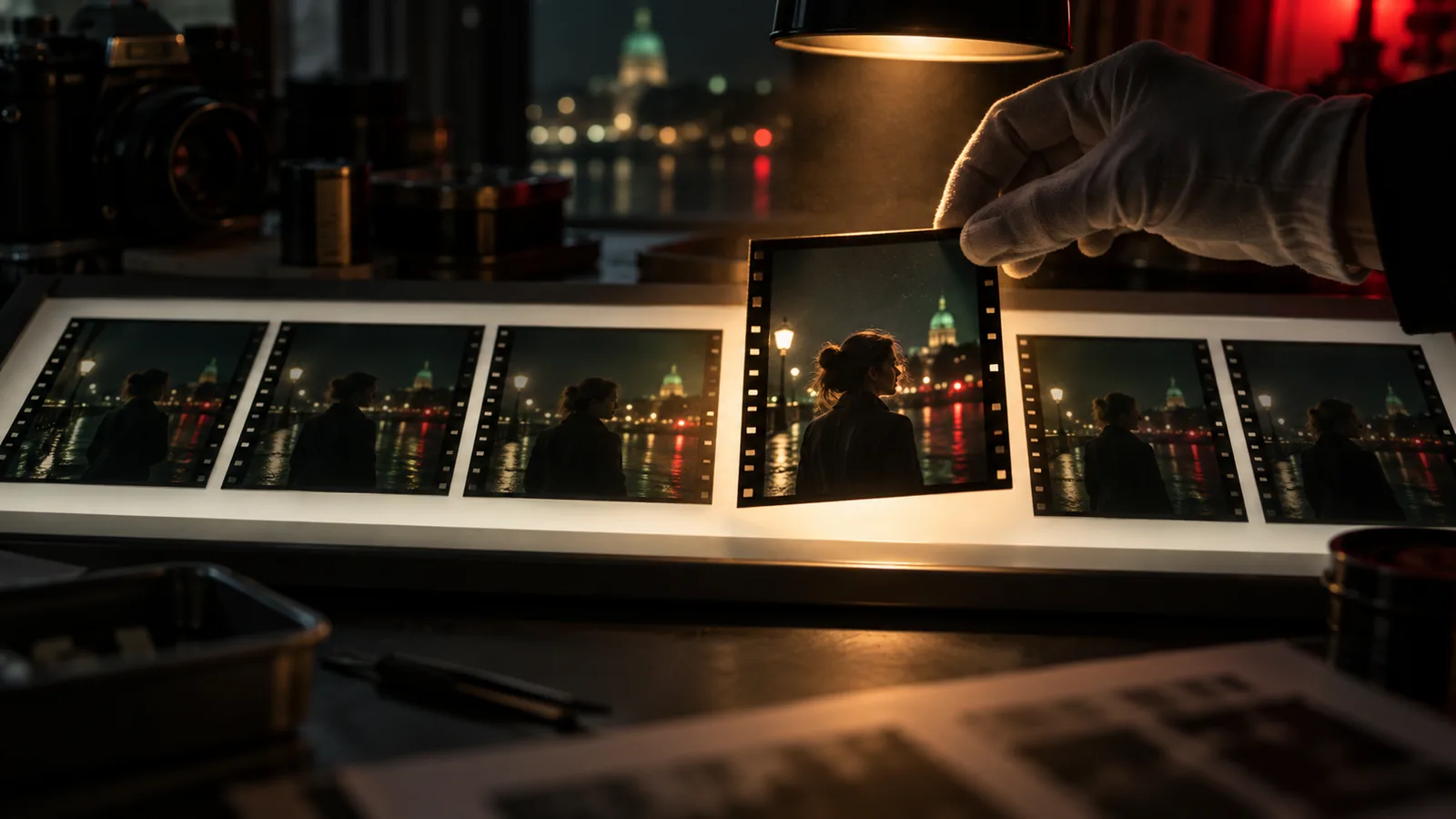
- Multi-Shot Composition: Explore a shot's coverage in one pass by generating a 2x2, 3x3, or 4x4 grid of camera angle variations. Keep the angle that works best and upscale it.
- Composition Pinning (REF SHOT): Pin a shot's storyboard frame as a composition template so the generated clip keeps its camera, angle, and layout while your cast plays the scene. Use the
+STORYBOARD command to follow an entire storyboard sheet instead.
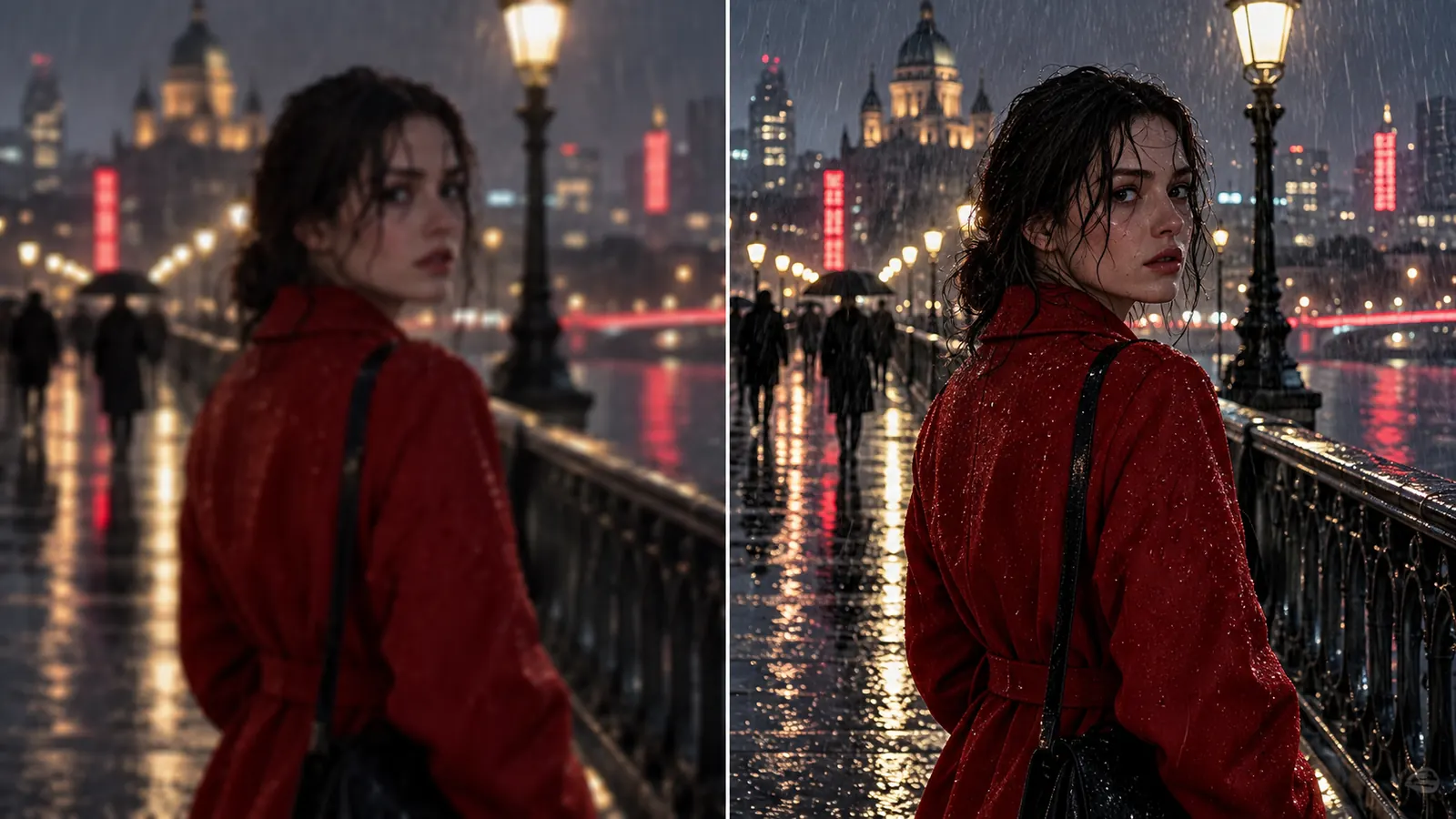
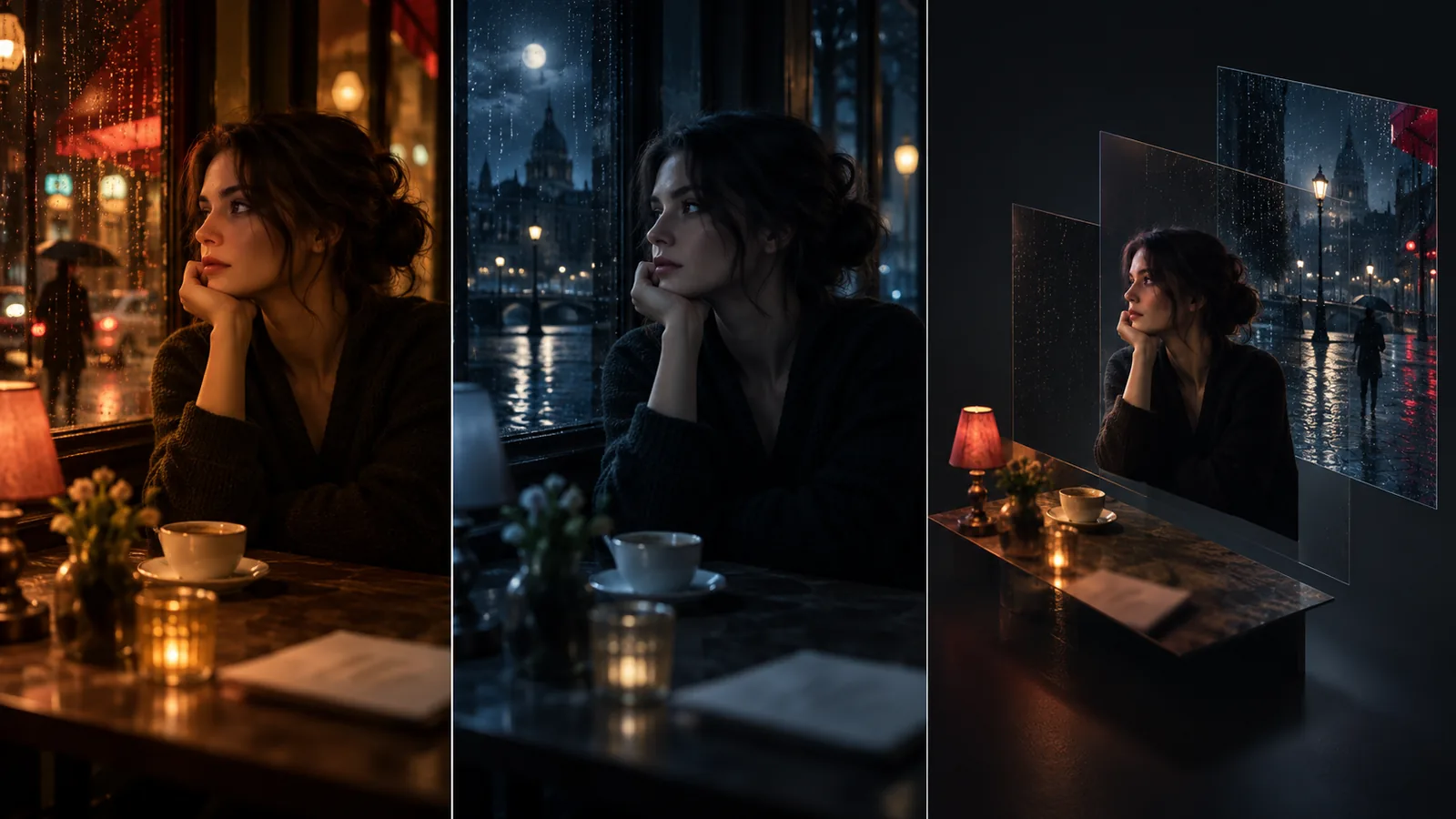
- Frame Relighting & Re-angling: Relight a finished frame, adjust the camera angle, or decompose a frame into layers without regenerating the shot from scratch.
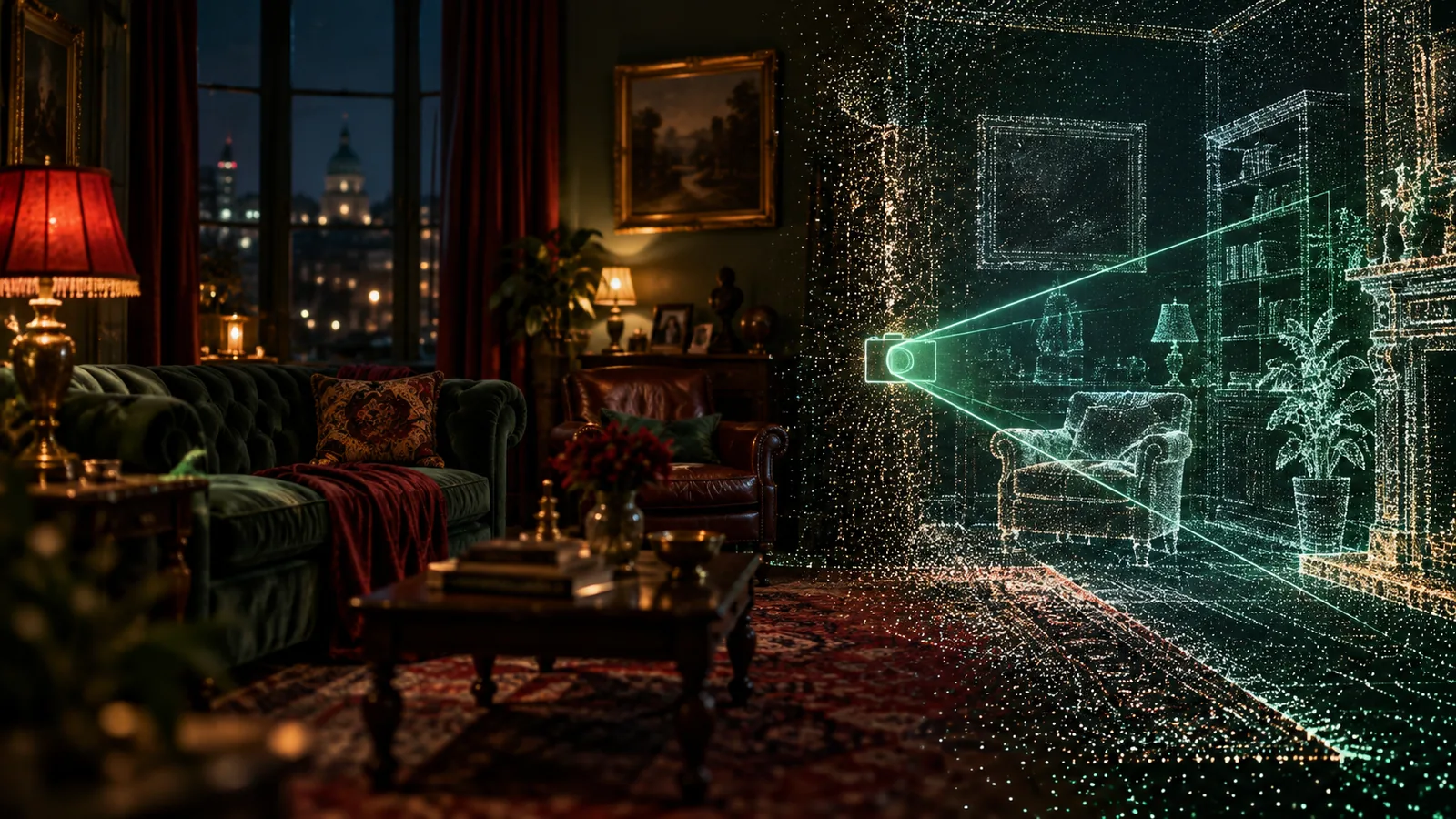
- 3D World Generation: Generate an explorable 3D world from a shot's frame to find new angles in the same spatial environment.
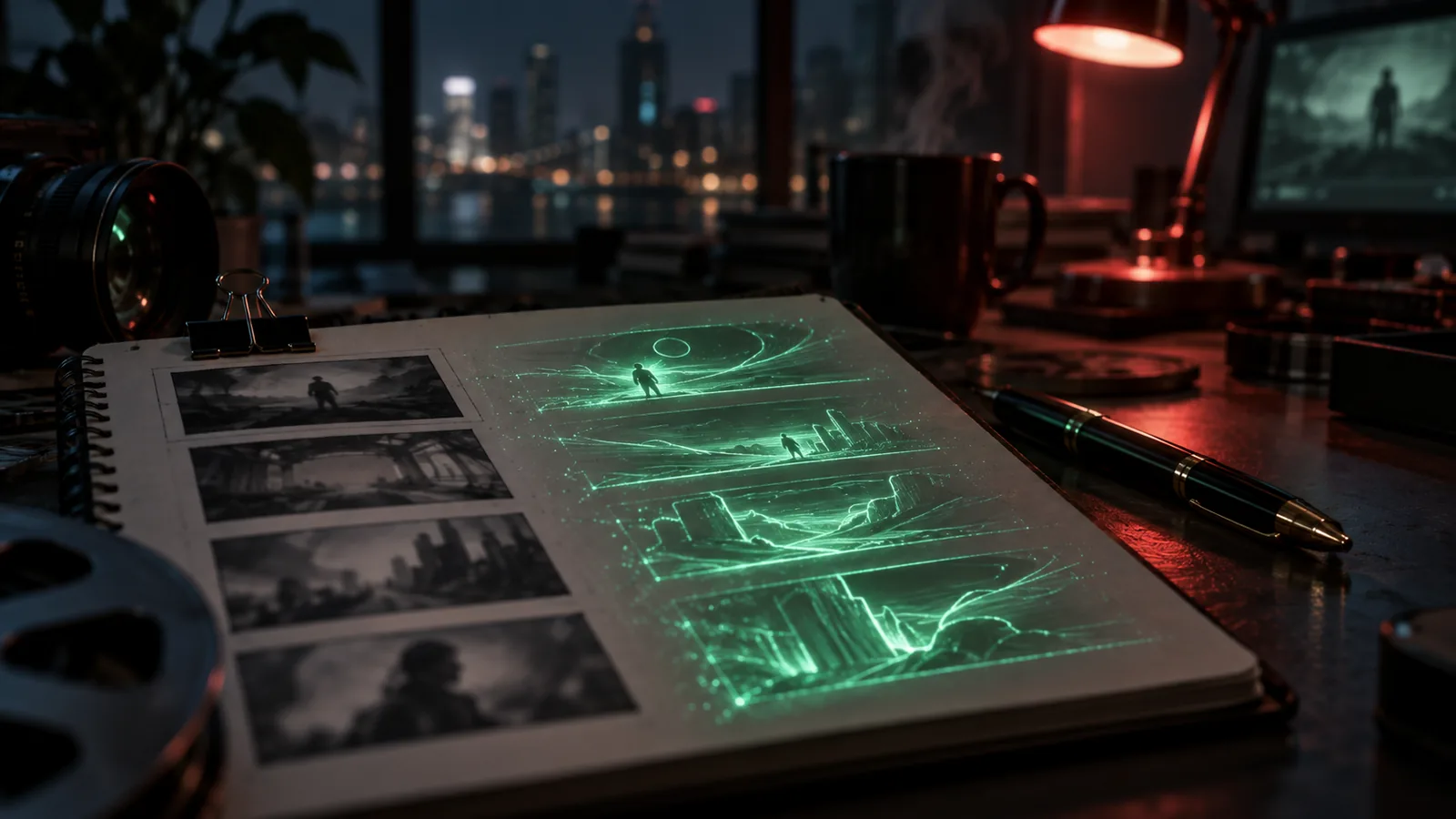
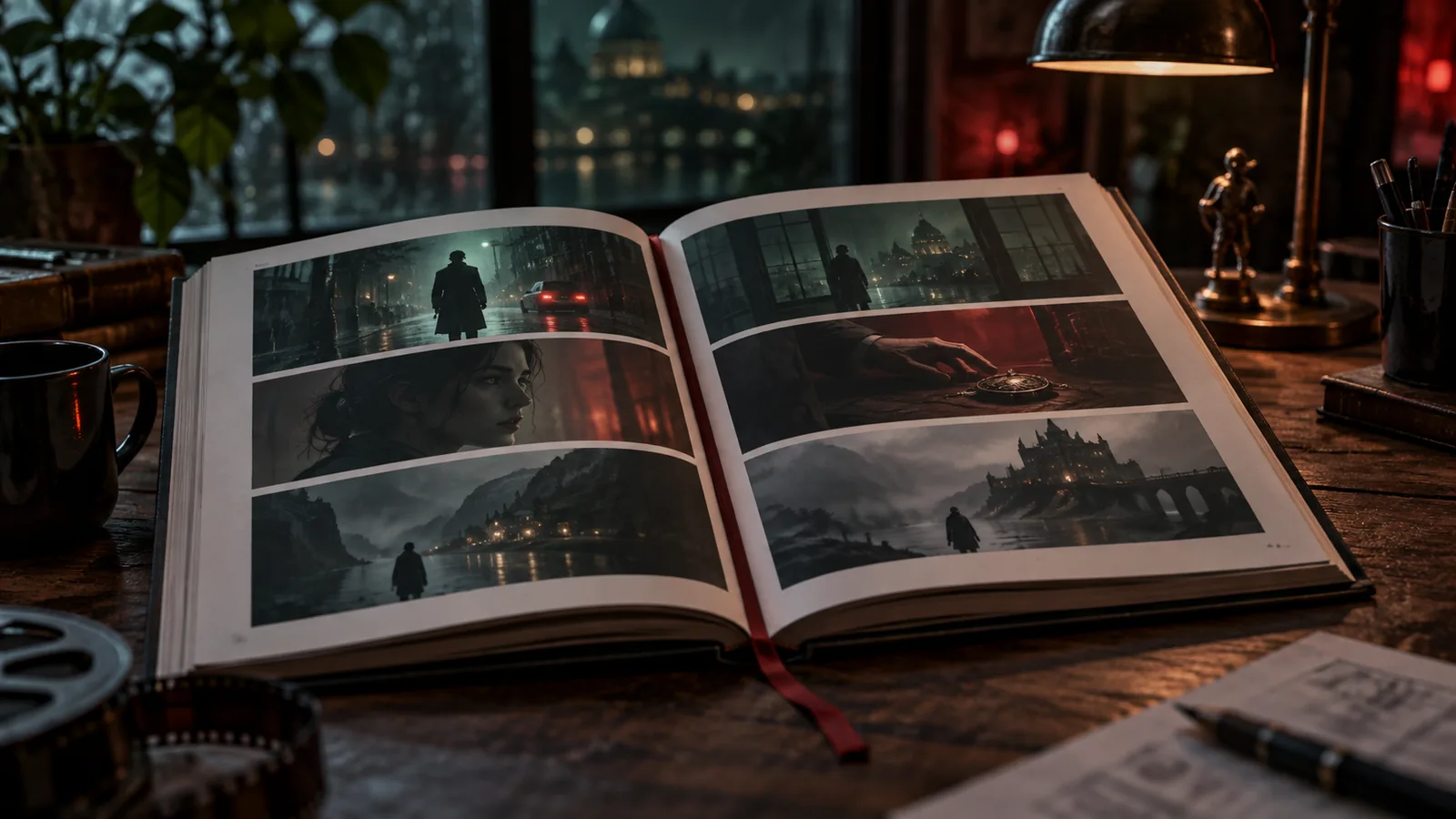
- Visual Storyboard Books: Page through an entire episode as a comprehensive visual storyboard book, and share it with anyone via a public link.
Screenwriting & Script Analysis
- Professional Screenplay Editor: Draft your screenplays in a professional workspace featuring an AI co-writer, a structure importer, and a refined editor interface.
- AI Script Generator: Draft a full screenplay or a single scene from your brief, then get a critique of structure and pacing before you rewrite.
- Automatic Script Breakdown: The system reads your script and automatically lists the scenes, shots, characters, locations, and props it needs, ready to build.
- Script History & Snapshots: Snapshot the script at any point and revert to an earlier draft whenever needed.
- Story Treatments: Shape your story as a treatment featuring tone, beats, a show bible, and a poster. Save versions and share the treatment on a public web page.
- Storyboard the Treatment: Turn treatment beats into storyboard grids before a single shot exists.
- Series Canon & Bible: Generate a series canon, season outline, and episode bible that every script follows.
Visual Assets & Character Consistency
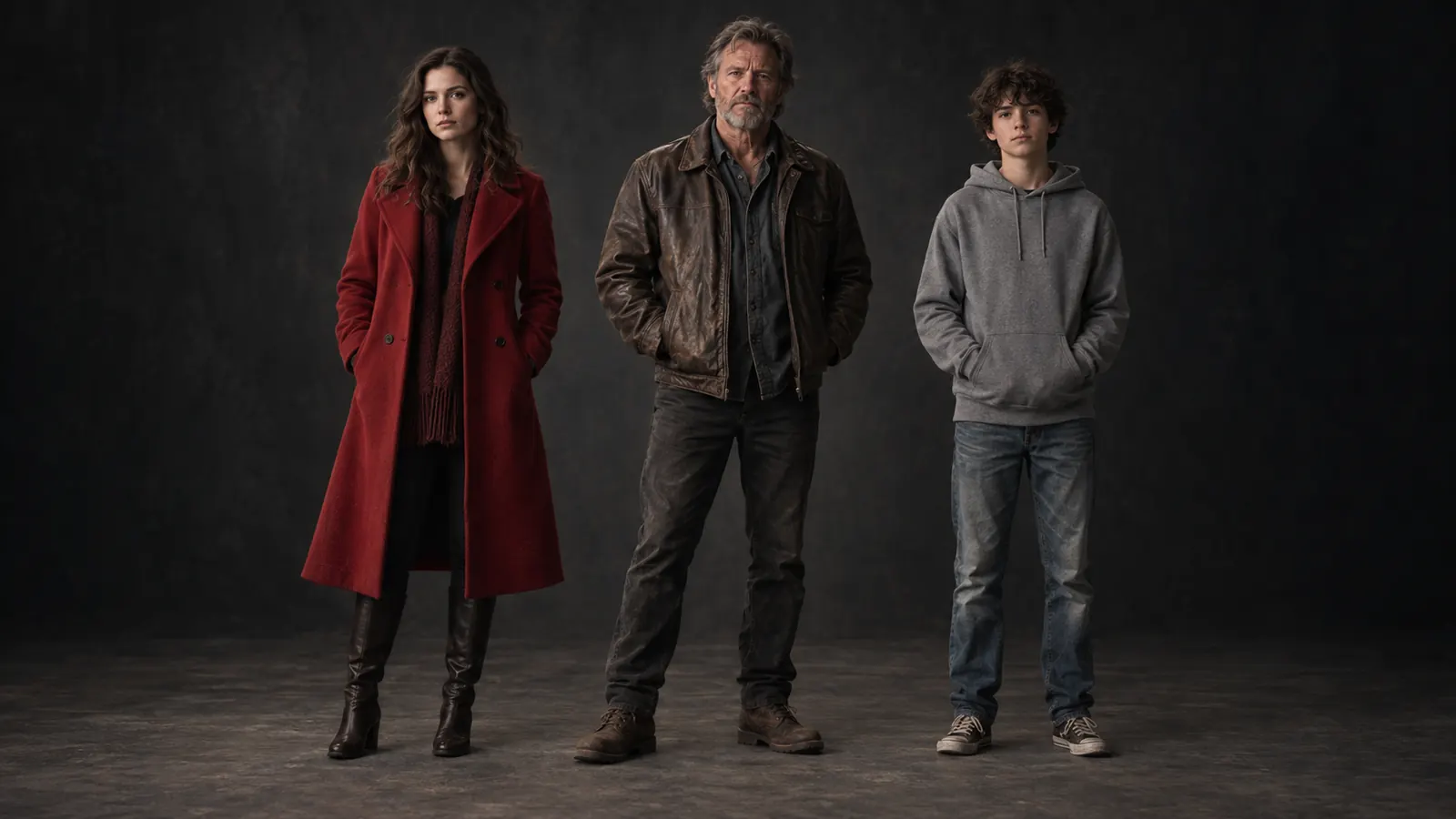
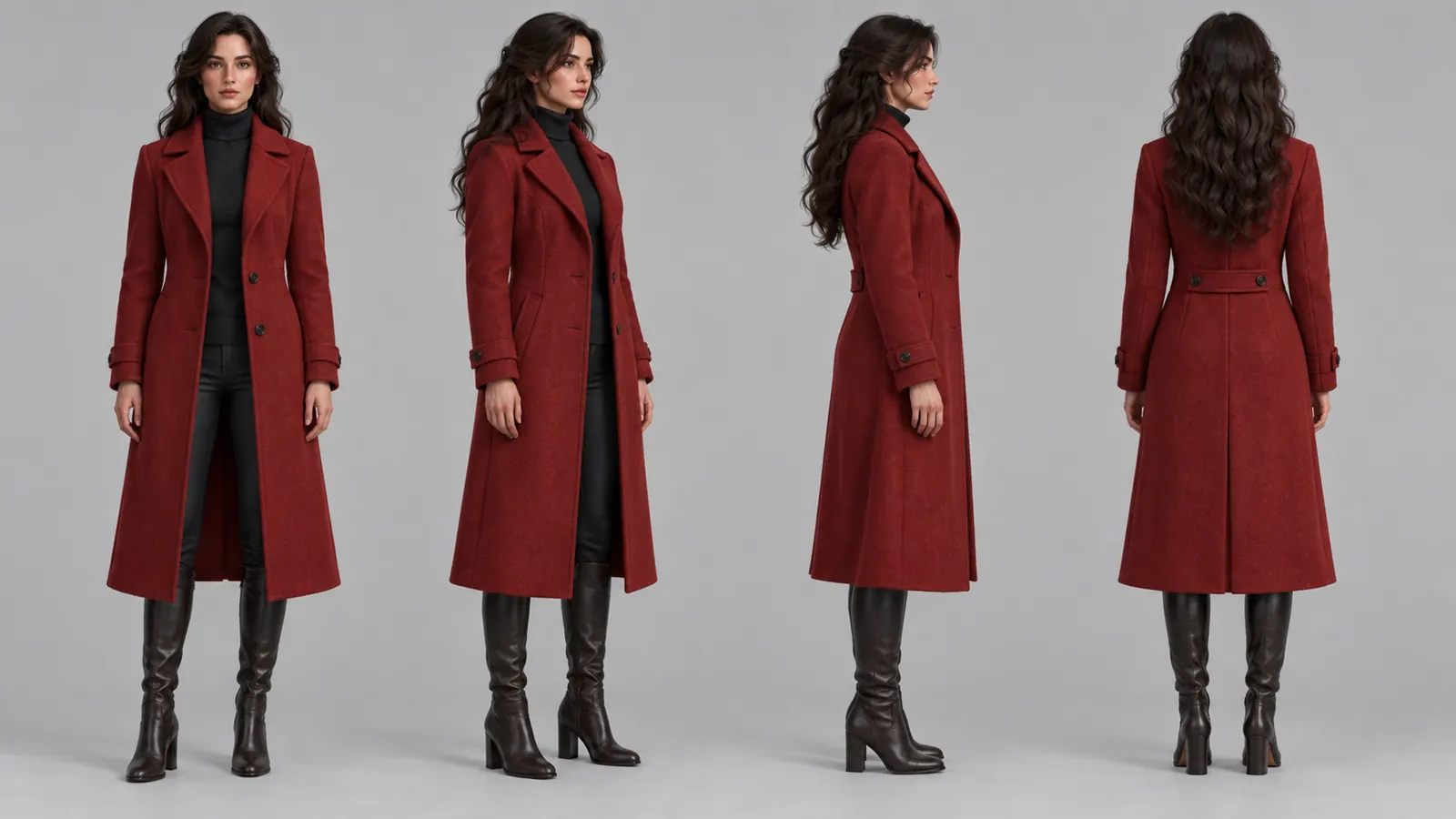
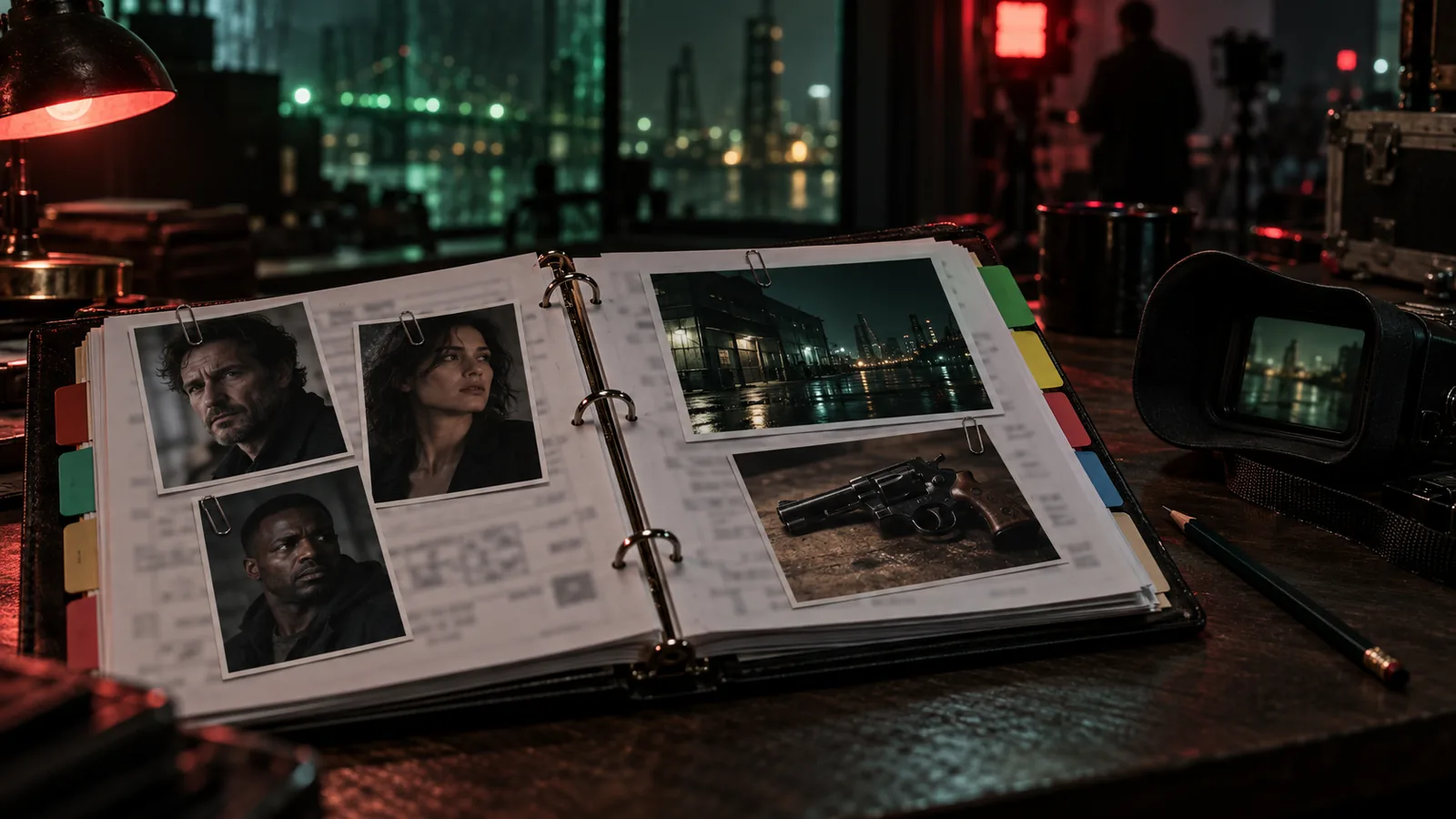
- Consistent Cast & Locations: Build each character, location, costume, and prop once with reference sheets, turnarounds, and viewpoints. Every frame and clip you render will draw on this same approved look.
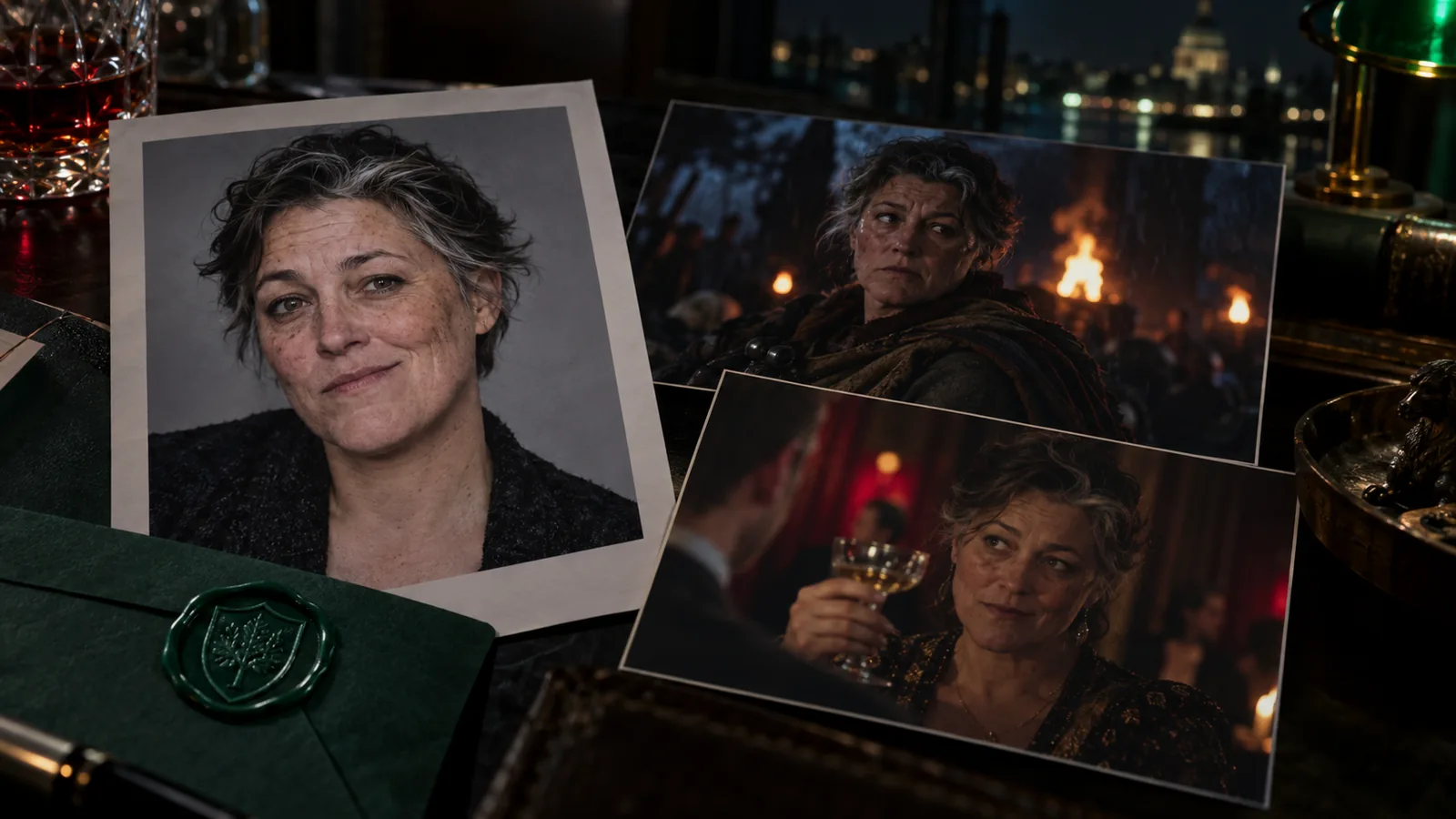
- Real Actors & Verified Faces: Cast a real person by completing a consent (KYC) flow. Their face is registered as a verified identity so the video model accepts and keeps it consistent across shots.
- Asset Concept Sheets: Compare several visual interpretations of a character, location, or prop side by side, refine specific areas with a mask brush, and approve one before it goes into shot generation.
- Batch Asset Generation: Queue reference images for many characters, costumes, props, and locations in one pass.
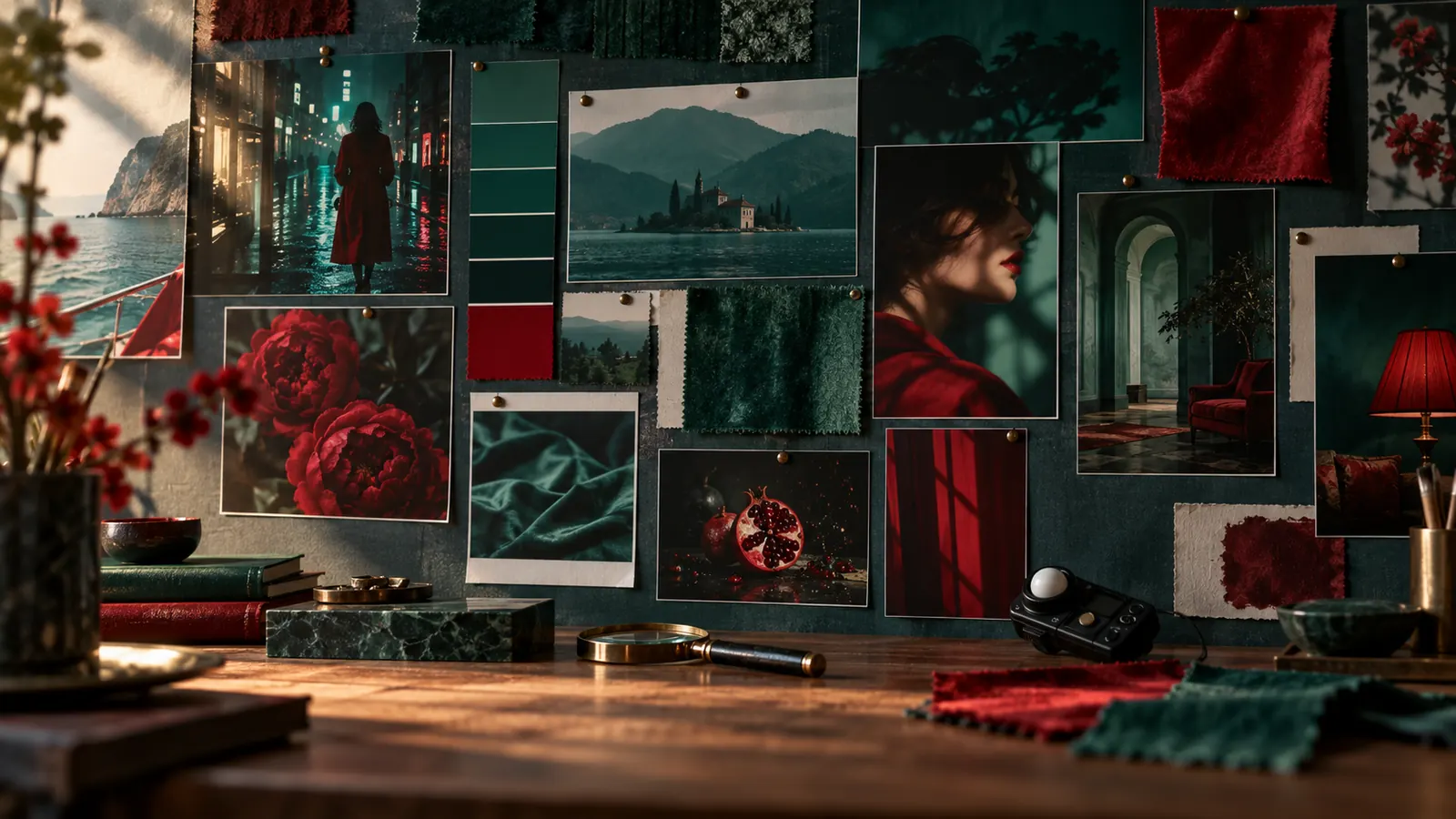
- LookBook Manager: Establish consistent visual styles for characters and main themes with curated reference collections, and share them via public links.
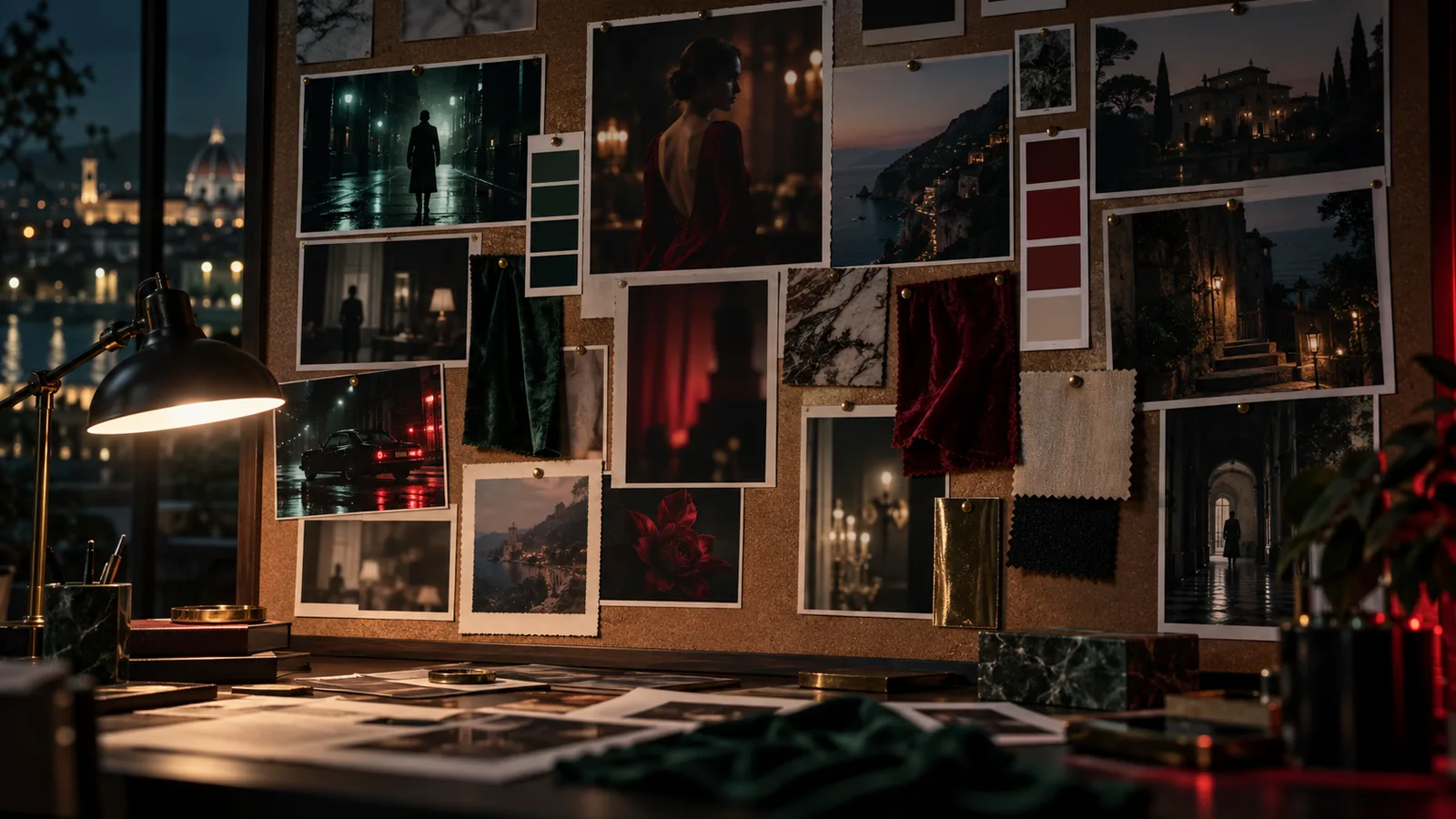
- Project Style References & Moodboards: Set the project's visual look once with reference images, a palette, and a short description to guide every generated frame and clip. Keep reference boards organized by importing them from a URL or the Research Magazine, and send selections to clients.
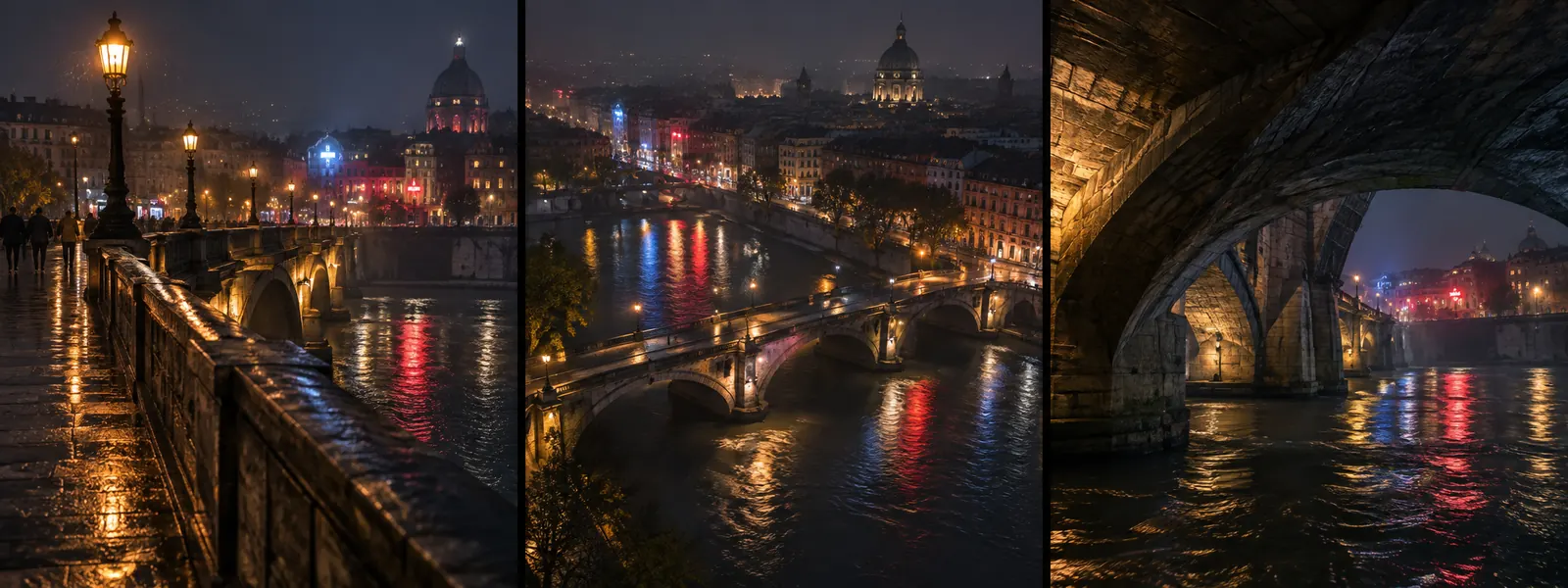
- Locations Scouting: Scout locations via map search and save the viewpoints you will shoot from. Every scene set there reuses the same place and angles.
- Makeup & Hair: Manage makeup and styling requirements with visual references, scene assignments, and detailed styling notes.
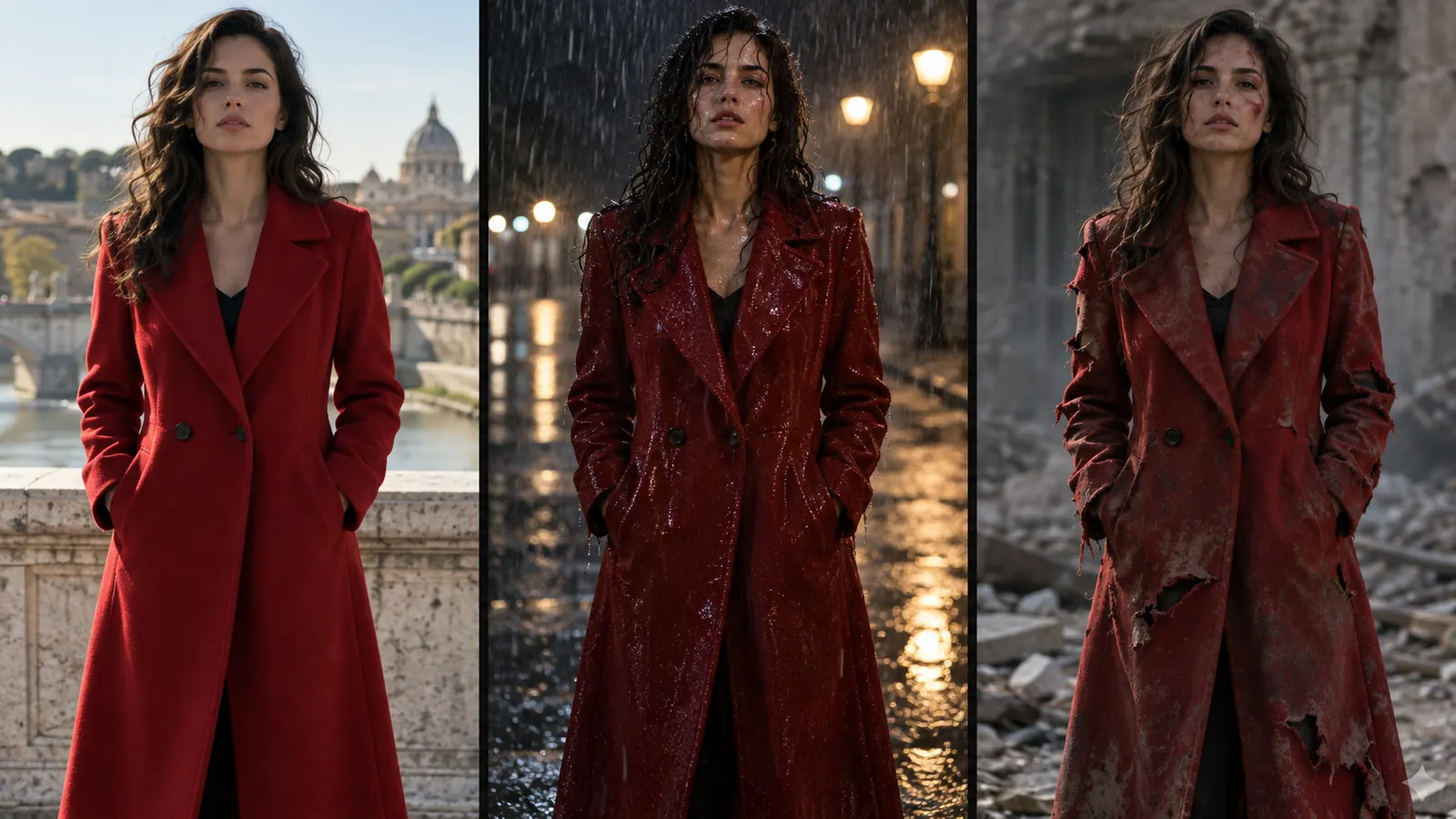
- Wardrobe Management: Dress each character scene by scene, including specific states (such as wet, torn, or evening wear) and source real items.
- Props Management: Keep every prop with its references and generated variations, ready to mention in any shot.
- Documentation Sheets: Generate clean reference sheets for props and sets with their real-world dimensions to maintain scale between shots.
Interactive Timeline & Audio Tools
- Scene Timeline: Manage your scenes and shots visually on an interactive horizontal timeline, complete with integrated version control, AI-assisted direction, and asset reconciliation.
- Alternative Scene Layouts:
- Builder View: A compact scene-by-scene workspace designed for rapid, inline shot management.
- Clapperboard View: A visual card-based layout where each shot is displayed as a physical production slate.
- AI Scene Direction: Let the AI propose coverage (shots, angles, and moves) for a scene based on the script and your direction dials.
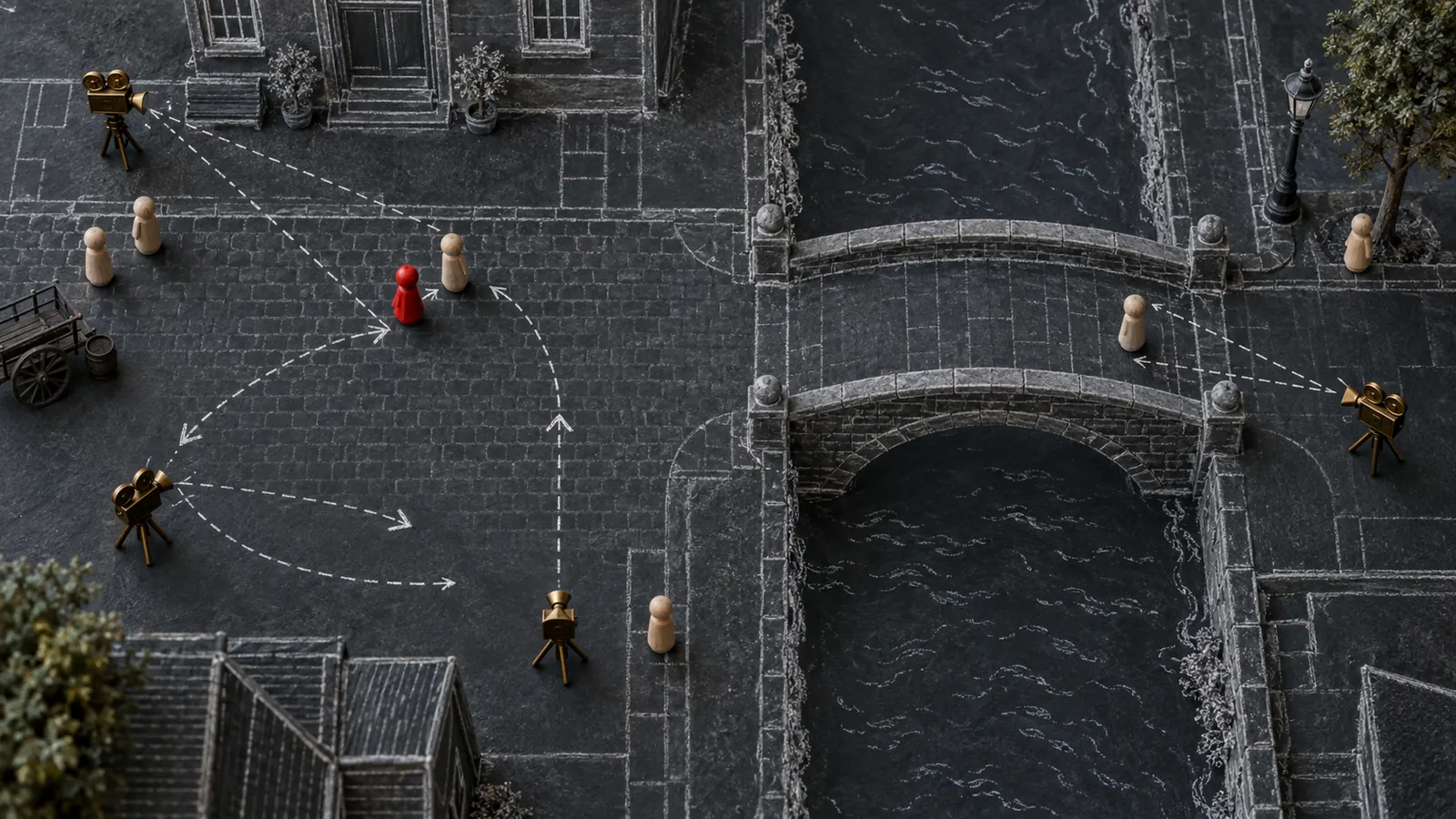
- Scene Map Editor: Block your scenes from above by placing actors, props, and cameras. These physical coordinate positions feed straight into the shot prompts.
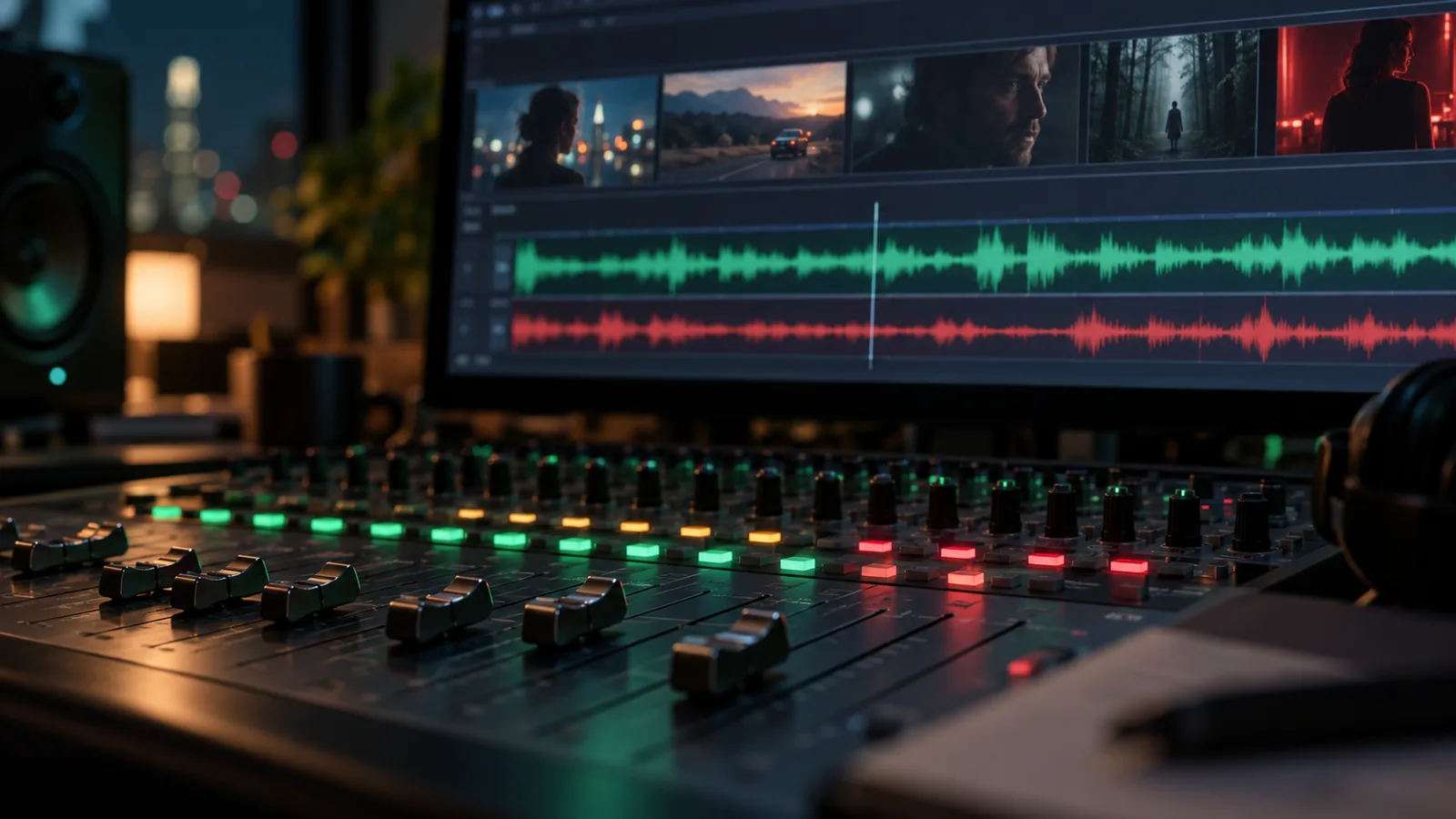
- Audio Library & Mixer: Keep dialogue phrases, music tracks, and sound effects in one shelf, trim them, and drop them onto the timeline. Balance your audio tracks using the Console Audio Mixer.
- Dialogue & Lip-Sync: Add dialogue, sound effects, and music rows to each shot, assign a character voice (or clone one), and lip-sync the spoken lines directly to the video clip.
- Music & Score Generation: Analyze reference tracks, then generate a custom score or a song with lyrics for the project.
Production Planning & Operations
- AI Project Setup: On project creation, the AI proposes processes, roles, team sizes, and first tasks, applying them in a single click.
- Call Sheets: Turn your shooting schedule into call sheets with crew assignments, locations, and times, then print them or save them as a PDF.
- Task Board: Plan your production using a Kanban board, calendar, or Gantt chart.
- Team & Staffing: Build cast and crew lists with a role picker and track candidates for every position.
- Casting Calls: Publish casting calls for roles, collect applications, and move candidates through a review pipeline.
- Finance: Set up budgets by category and log expenses as the production runs.
- Equipment List: Manage the gear each project needs so nothing is missing on shoot day.
- Production Hub: Link the project to its client, brand, production house, and city so briefs and deliverables carry the right business context.
- Project Media & Wiki: Keep aspect-ratio covers, a backstage gallery, and a wiki page with facts, press, and awards.
Collaboration & Knowledge Management
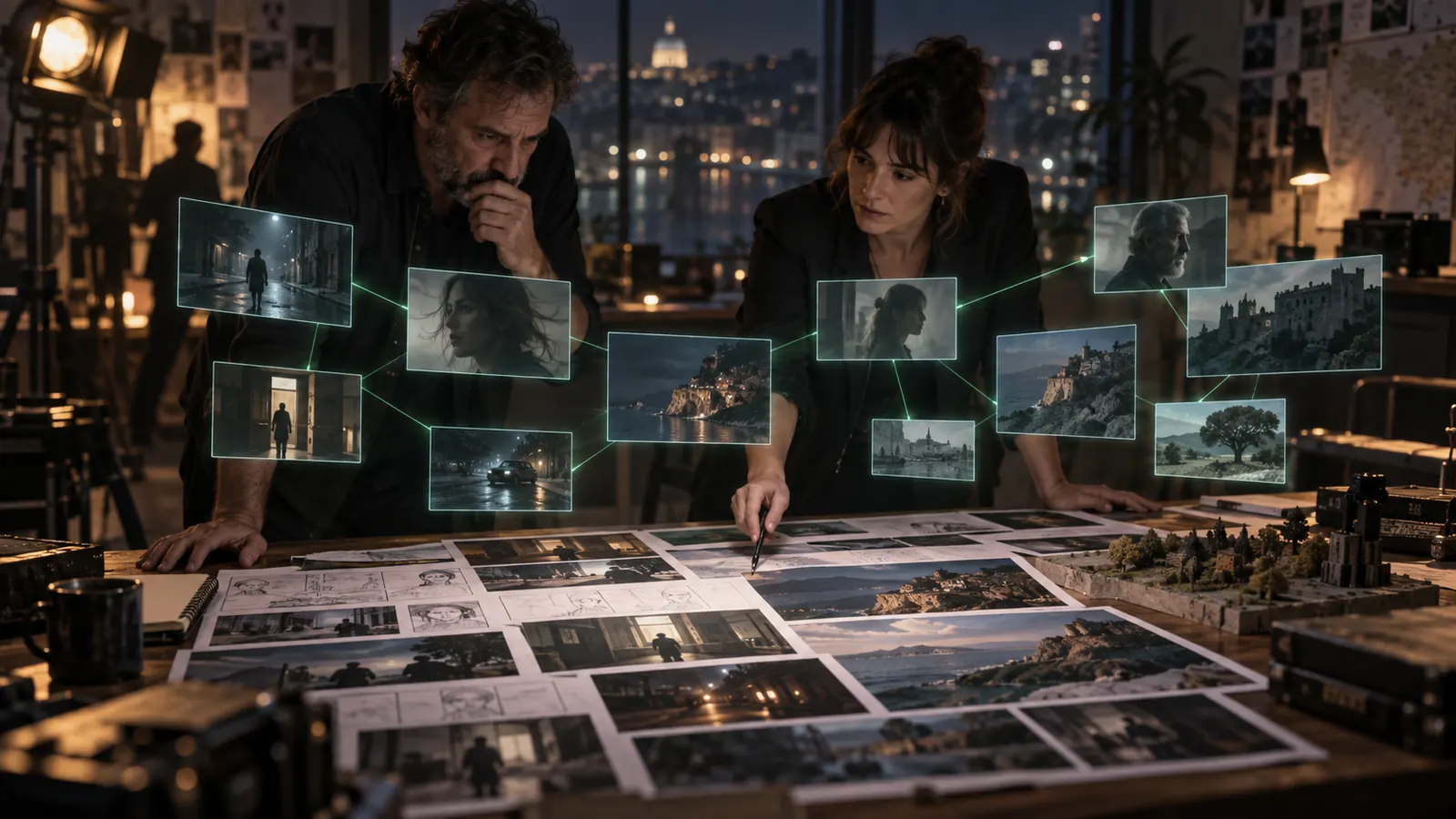
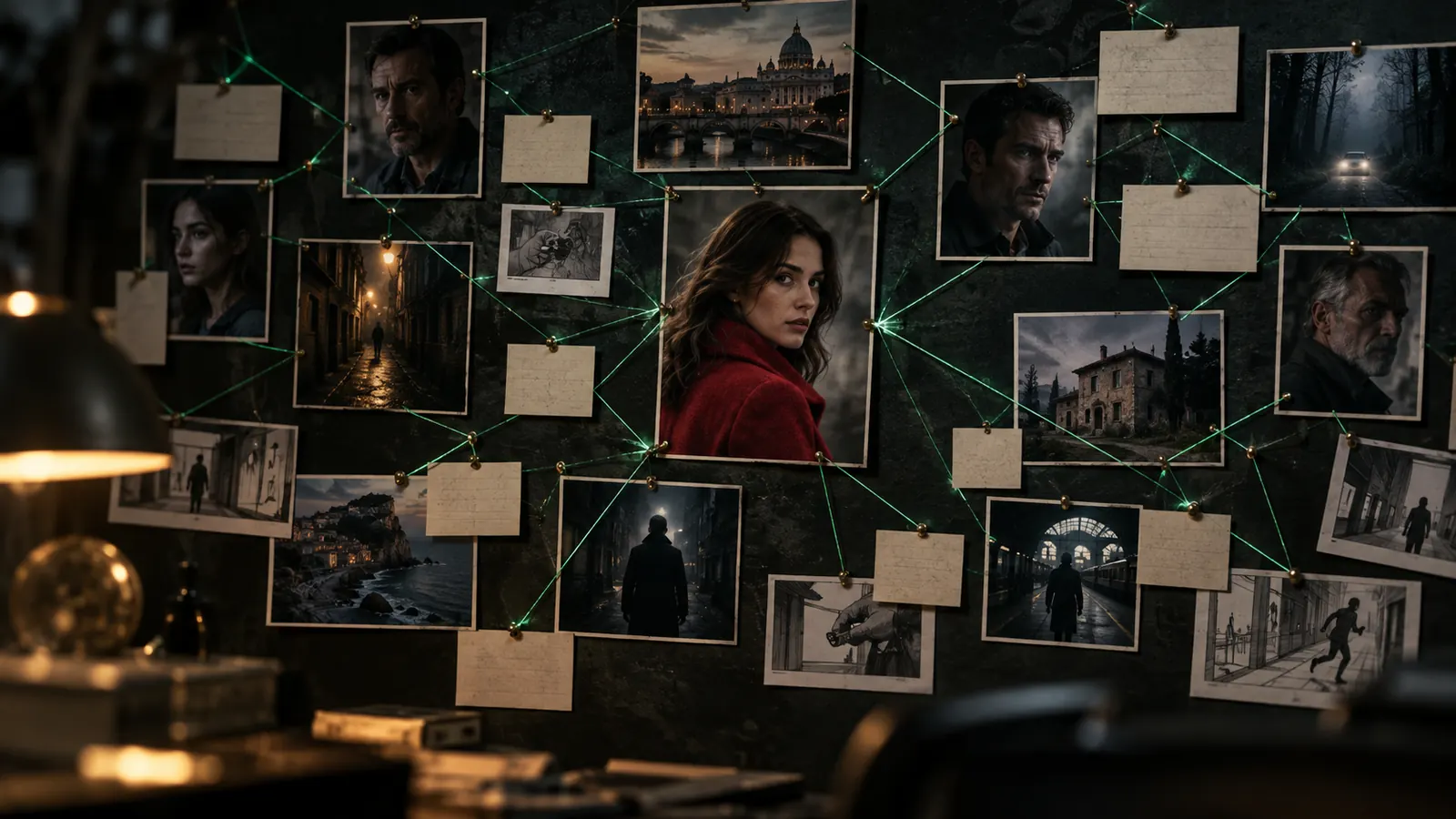
- Brain Graph Workspace: Access a comprehensive project knowledge graph that visualizes the connections between characters, plot points, locations, and production data. It features interactive 2D and 3D force-directed views and a node inspector for direct metadata editing.
- Project Memory for AI Crew: Everything in your project (script, brief, documents, and decisions) is indexed so AI agents act with full project context.
- Live AI Agent Collaboration: Watch AI agents or teammates work live on your timeline and in the open Shot Editor without needing to reload.
- Producer Notes to Agents: Leave notes on a shot or bind a Telegram chat to the project; AI agents log them as comments and revisions and act on them.
- Team Sharing & Access: Invite teammates as viewers or editors with granular access. Share a live, no-login project page showing the latest frames, clips, music, and treatments where clients can leave likes and comments.
- Unified Asset Library: Consolidate all generated and uploaded images, clips, and tracks in one place. Includes team likes and comment filtering.
- Local Folder Binding: Bind a folder on your computer's local disk; Creator Studio will read project media from it, showing visual dots to indicate which assets are cached on your device.
How to use it
Directing a Shot in the Shot Editor
The Shot Editor is a comprehensive 6-column workstation where you can direct every aspect of a scene.
- Configure Camera and Movement: Select from 80 real camera bodies, 74 lenses, and 49 camera moves (including dolly, orbit, drone, FPV, or speed ramps). Camera moves feature a short preview clip to help you visualize the final motion before selection.
- Assign Cast: Type
@ inside the prompt field to tag and mention cast members. The Shot Editor automatically incorporates their approved reference images and writes the prompt for you.
- Add Dialogue and Sound: Add dedicated rows for dialogue, sound effects, or music. Select a character voice, preview or clone it, and lip-sync the voice track directly to the video clip.
- Draft and Upscale: Select your desired generation model. Render a quick 480p Seedance 2.5 draft first, and once you are satisfied with the motion, click to render the final clip in 1080p.
Performing a Masked Edit on a Frame
If you need to fix a single detail on a generated frame without recreating the entire shot:
- Open the frame in the editor and select the Mask Brush tool.
- Brush over the specific part of the frame you want to change.
- Describe the change in the text box (for example, changing a costume color or swap out a prop).
- Generate the edit. The image model will change only the masked region and composite it back, leaving the rest of the frame untouched.
Blocking a Scene Over-Head
Use the Scene Map Editor to establish spatial layouts for your shot prompts:
- Open the Scene Map Editor to display a 2D overhead canvas.
- Open the Scene Resources Panel and use the Scene Map Pickers to select characters, props, or cameras.
- Position actors and cameras at exact coordinates on the canvas.
- The coordinates and spatial blocking data automatically feed into the shot prompts, guiding the AI on character placement.
Tips & notes
- Estimating Generation Costs: The Shot Editor quotes the exact credit cost of an image or video before you press Generate. Cost is calculated based on the selected AI model, resolution, and video duration.
- Text-only Models and Vision Swapping: Text-only models do not accept image inputs. When you are inside an image-dependent module, Creator Studio checks the model's capabilities. If a text-only model is selected, the application will automatically swap to a vision-capable model (like gpt-5.4) or degrade to a text-only input and notify you.
- Printing and Exporting PDFs: To prevent unfinished elements or loading spinners from appearing on printed pages, printing and PDF exports (such as Call Sheets) will wait for all images to decode fully before opening the system print dialog.
- Offline Media Cache: When working with local folder binding, colored dots indicate which files are cached on your current device. Persistent storage tiers (local browser storage and IndexedDB) are automatically cleared when you sign out to protect account privacy.
- Recent Features:
- Audio Mixer: Adjust and balance dialogue, music, and sound effects rows with the new timeline mixer controls.
- Keyframes & Transitions: Adjust timing and transition parameters directly on the timeline.
- NLE Edit Mode: Access a full-screen editing mode with layout refinements.
- Asset Trash: Easily discard and manage deleted assets via the Asset Trash bin.
 CoreFreev1.112